Resolve Website Misconfiguration Error in Customer Portal
A "misconfiguration" error message in the Website Overview tab of your Customer Portal means the connection between your website's files and database is broken. This can prevent the site from loading and lead to errors like "WordPress site not loading" or "database connection issues." If your site wasn't intentionally deleted, follow this step-by-step guide to resolve a website misconfiguration error message and get your site back online.
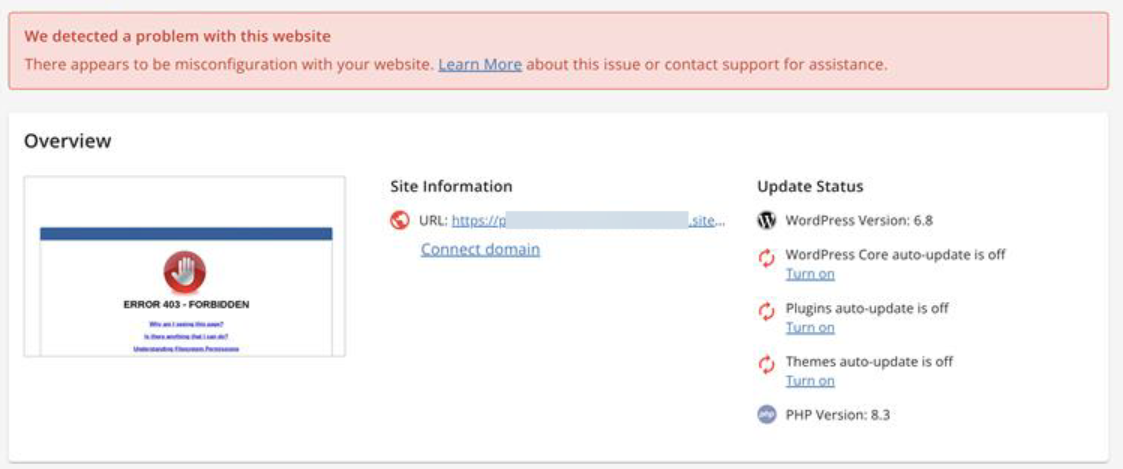
Some websites might display a "misconfiguration" error message in the Customer Portal. Other websites may not appear but can still be checked using the support team's internal tools.
Be assured that any site not visible in the Customer Portal does not count toward your site's limit.
Common Causes of Misconfiguration Error Message
Here are common reasons why your Customer Portal's Website Overview tab will show a "misconfiguration" error message:
- Malware or suspicious files
- Corrupted or missing WordPress core files
- Recent changes to plugins, themes, or file permissions
- Accidental deletion of essential files
- Database connection issues
How to Repair a Misconfiguration Error Message
- Scan Your WordPress Site for Malware ⤵
- Restore from a Recent Backup ⤵
- Check WordPress Core Files ⤵
- Review Recent Changes ⤵
- Contact HostGator Support ⤵
Scan Your WordPress Site for Malware
Malware can disrupt your site's file structure and cause loading errors.
- Use a malware scanner like SiteLock.
- Look for unknown or recently modified files.
- If malware is detected, remove the infected files or contact HostGator support for help.
Restore from a Recent Backup
Restoring your website to a stable version is often the fastest fix.
- Check your hosting dashboard or backup plugin for available backups.
- Jetpack Backup: You can restore or download a backup from a specific date.
- CodeGuard Restore: If subscribed, roll back to a working version.
- Manual Restore: Use a ZIP file containing your WordPress backup and import it to recover content.
- HostGator Paid Restore Service: Let HostGator experts handle your recovery process.
Check WordPress Core Files
Missing or corrupted WordPress core files can prevent your site from loading.
Check that your root directory contains:
wp-config.phpindex.php.htaccess
If any are missing:
- Download the latest WordPress package from wordpress.org.
- Upload the core files, excluding
wp-content—to your server. - Keep your original
wp-config.phpto preserve settings.
Review Recent Changes
Revisit anything you recently changed:
- Plugin or theme installations
- File permission updates
- Manual edits or deletions
If you suspect a recent change caused the issue:
- Undo the changes
- Reinstall or re-upload any missing/deleted files
Contact HostGator Support
If you're unsure where to start or can't identify the issue, our support team is here to help. We can guide you through restoring backups, recovering missing files, or resolving database and configuration errors.