How CodeGuard Backups Work
When purchasing CodeGuard Backups, the service immediately begins processing your initial website backup. After generating this first backup, CodeGuard will send you an email notification confirming that the process is complete.
CodeGuard can generate backups under three circumstances:
Initial Backup
CodeGuard will run an initial full backup on your website as soon as you activate the service. During this process, a complete data retrieval of all website files accessible to CodeGuard will be compiled and stored securely.
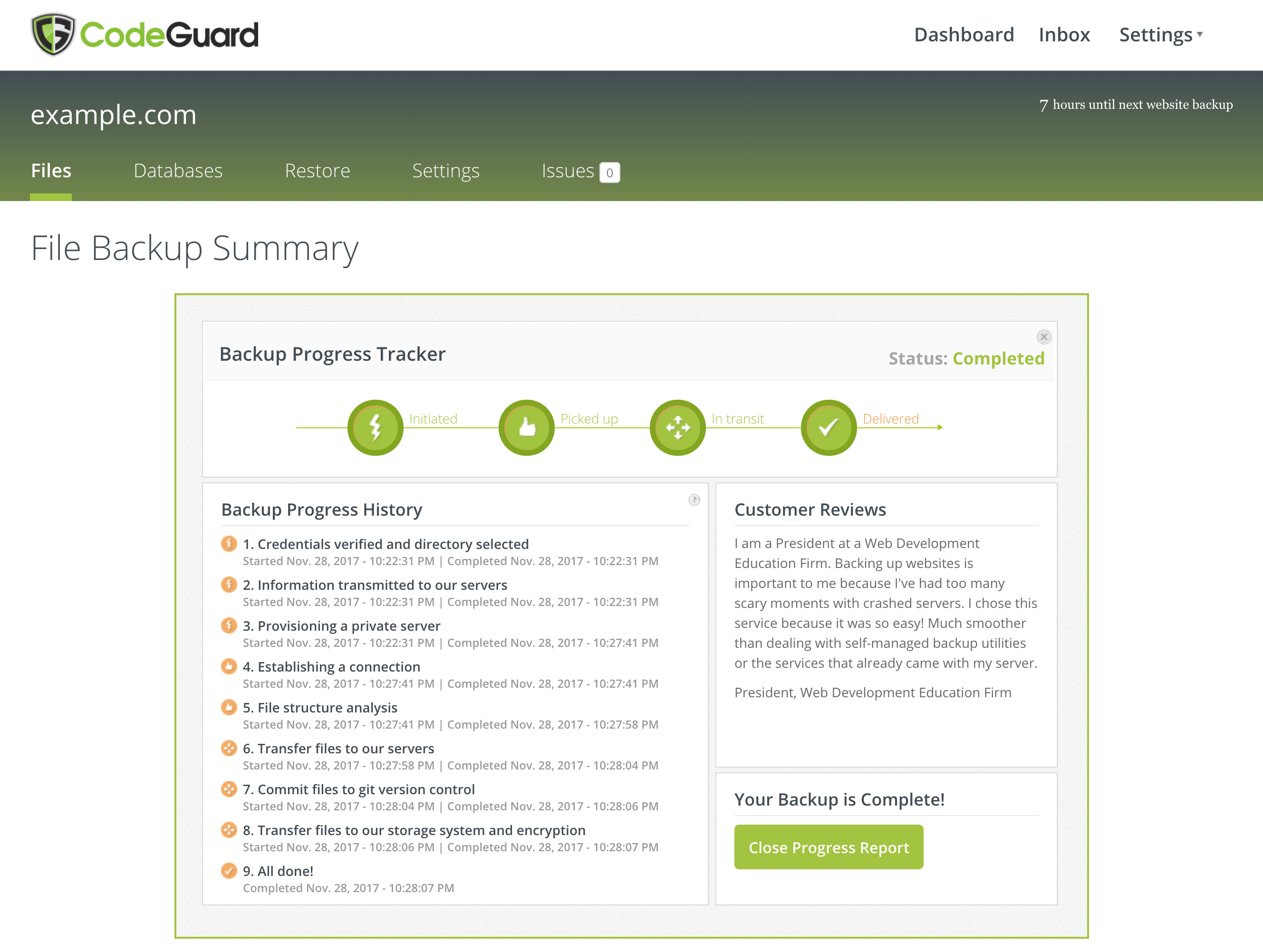
There are four main steps within the CodeGuard initial backup process:
- Process Initiation - CodeGuard verifies the credentials provided.
- File Pickup - The website's file structure is analyzed before Codeguard creates a git repository on a cloud server.
- File Transit - The file pickup process is finalized by confirming the list of files that will be copied to the git repository created for the site. Once confirmed, the files are transferred to the git repository on the cloud server.
- Final Delivery - Files are moved from the git repository onto the cloud server and encrypted as they are moved to a digital storage facility. Once moved and encrypted, the files are removed from the cloud server.
After the initial backup, future backups are differential, both in the files that are transferred and the files that are stored on your behalf. It is during this process that you will also be able to view real-time updates on the backup process.
Continuous Backups
After the initial backup, CodeGuard continuously monitors your website for changes. Whenever CodeGuard detects modifications to your site’s source code, the backup process described above will repeat — but only for the files that changed.
CodeGuard monitors your site daily and sends an email notification whenever changes are detected.
On-Demand Backups
On‑demand backups allow you to create a backup manually at any time, in addition to daily automated backups. This feature is available in the CodeGuard Professional, Premium, and Enterprise plans.
To start an on-demand backup:
- Log in to your CodeGuard account.
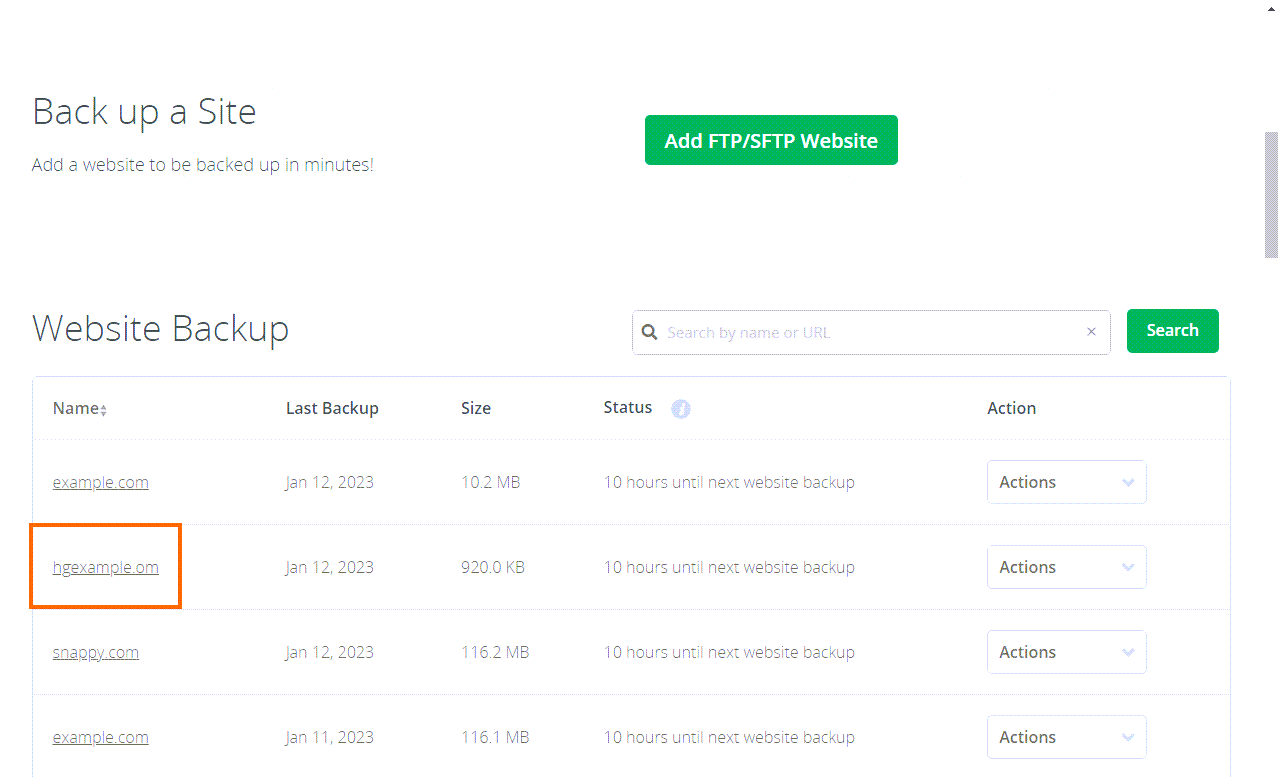
- Under the Website Backup section, select the site for which you wish to run a backup.
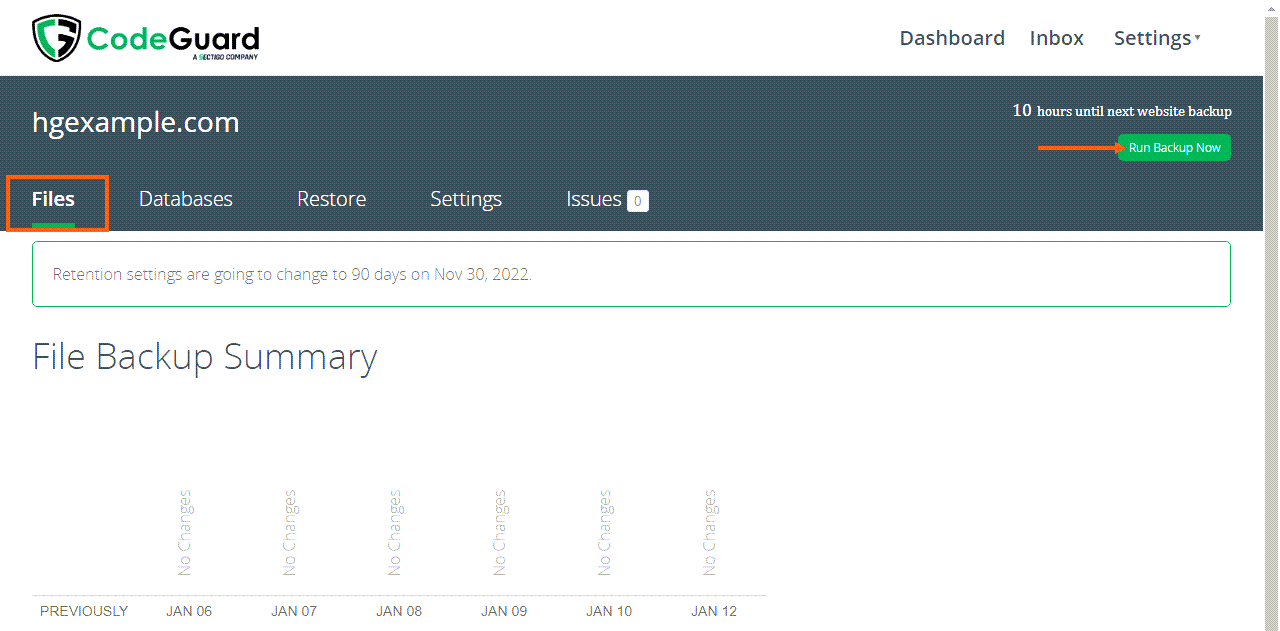
- In the Files tab, locate the backup counter at the top right.
- Click Run Backup Now.
Your backup will be queued to begin shortly.
Checking the Progress of a Backup
After clicking Run Backup Now, the button changes to Backup was requested with a checkmark.
In addition to this, you can check to make sure your backup was completed by doing the following:
- Go to the Restore tab.
- Under the Latest Backups section, click View All Backups.
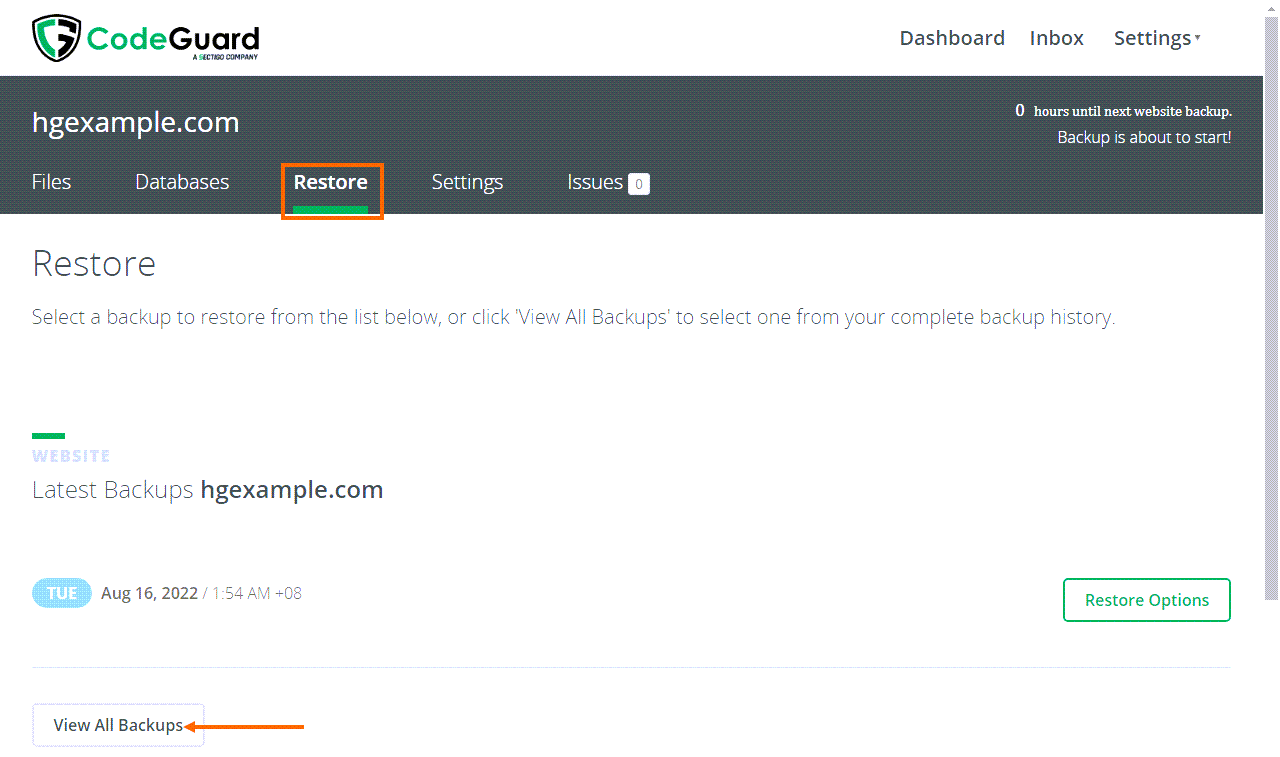
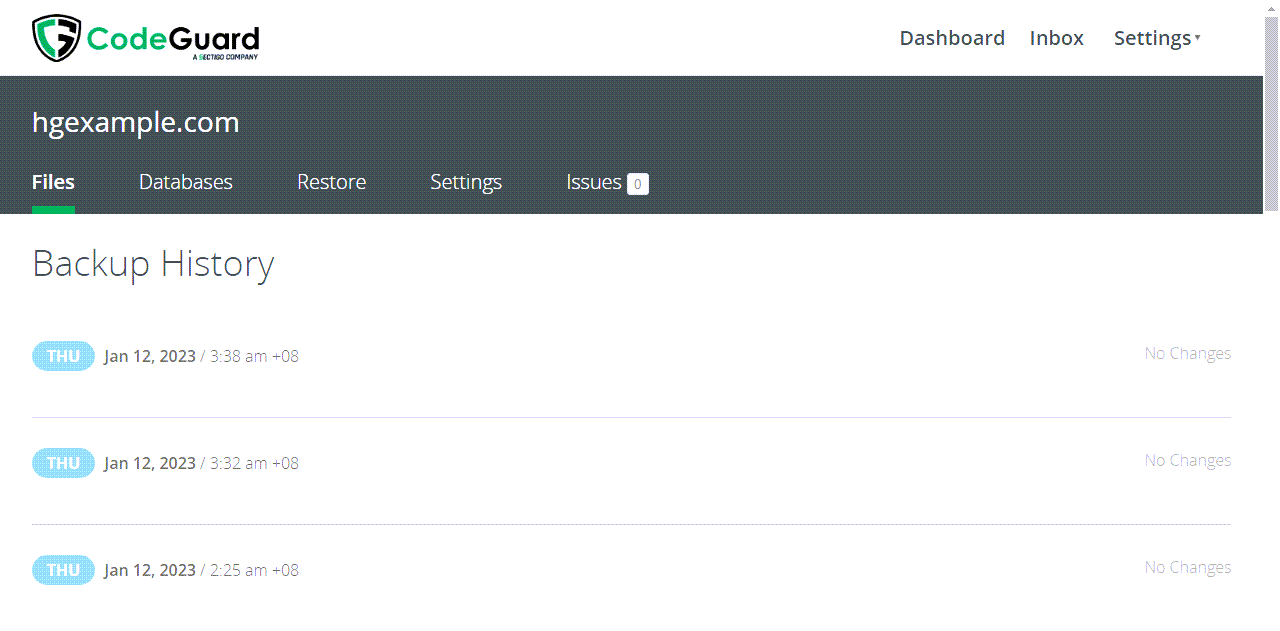
If the backup were completed, it would be listed in the Backup History with the date, time, and details showing what was changed.