Changing DNS Zones (MX, CNAME, and A Records) in cPanel
With cPanel, users are granted access to make some DNS changes from within the control panel. Please note that this will only work if HostGator's name servers or private name servers registered with HostGator IPs are being used.
This article discusses the following topics:
- How to Edit or Remove DNS Records ⤵
- How to Add DNS Records ⤵
- More About DNS Zone Functions ⤵
- Related Articles ⤵
You can manage many of your DNS records and website settings from your Customer Portal.
If you registered your domain with us, you can manage its name servers and DNS records within the Domains section of your Customer Portal. For instructions, please visit the following article.
If your domain is not registered with us, but you want to connect it to your HostGator servers, you need to add it to your control panel as an "addon domain" and then to the Customer Portal as an "external domain." For instructions on how to do so, please visit the article below.
How to Edit or Remove DNS Records
- Log in to cPanel.
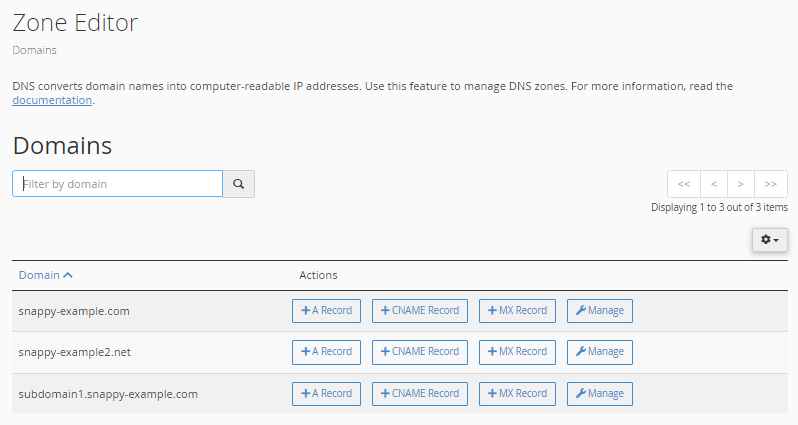
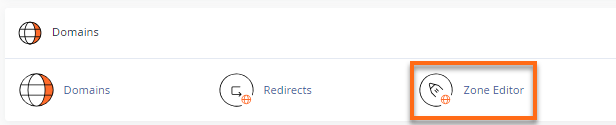
- Look for the Domains section, then click Zone Editor.

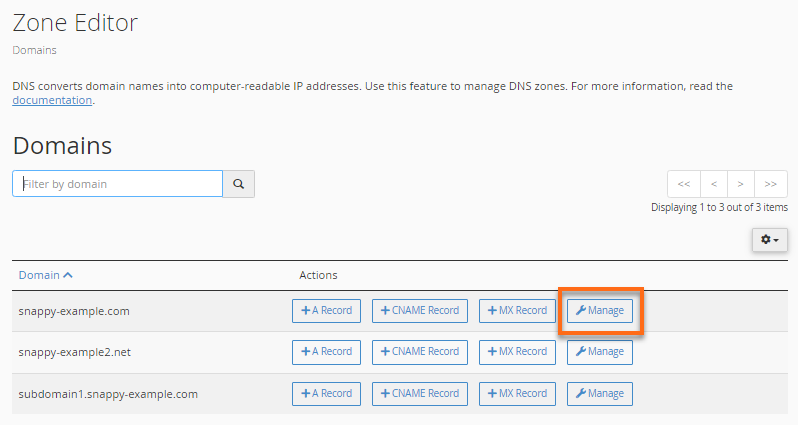
- On the next page, locate the domain name you need to edit and click its Manage button to view the domain's complete set of DNS records.
- Locate the DNS record you wish to update.
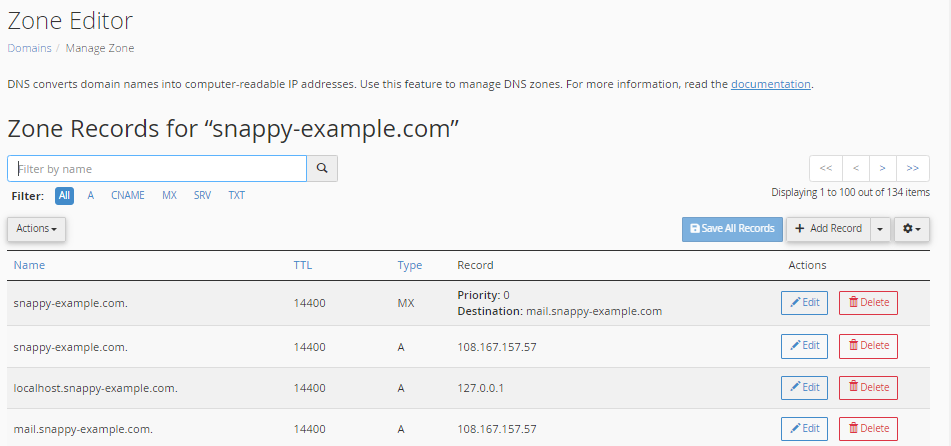
- Make the necessary updates.
- Select Edit to update the DNS record, then click Save Record.
- Click on the Delete button to remove a DNS record. A confirmation pop-up will appear. Click Continue.
How to Add DNS Records
Option 1: This method applies to A, CNAME, and MX records.
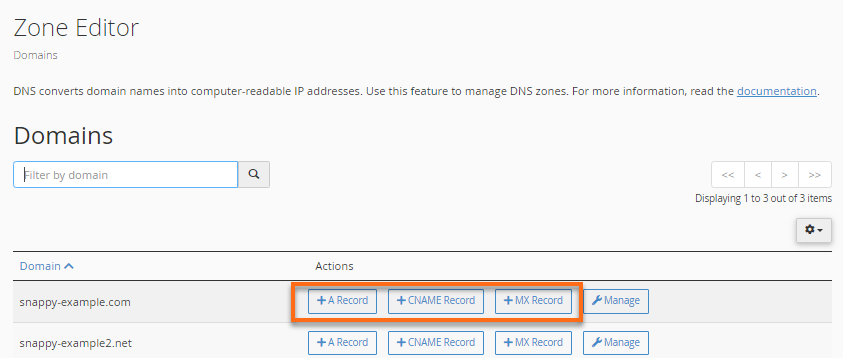
- Click the appropriate + button in the Zone Editor section.
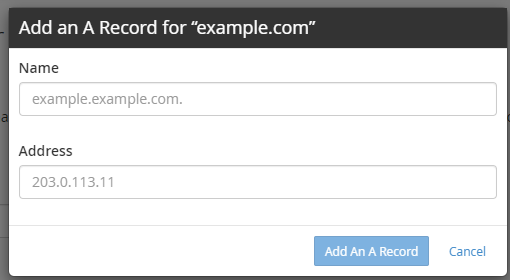
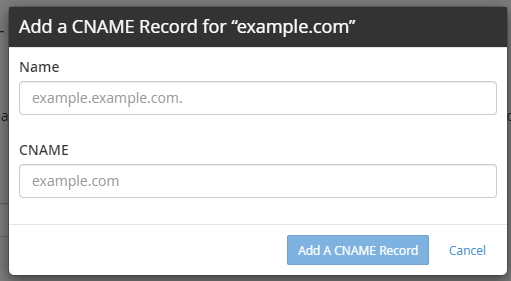
- Enter the values for the DNS record.
A Record
CNAME Record
MX Record
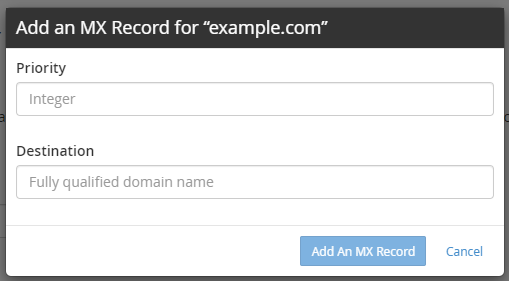
- Click on the Add button to save the DNS record.
Option 2: This method applies to all DNS records, including TXT records.
- Navigate to your cPanel's Zone Editor under the Domains section.
- Locate your domain and then click its Manage button.
- Click the +Add Record button located on the right side.

- Select the record type from the Type dropdown, then enter the values to complete. The number of records and the details for each type you must add depend on your hosting or mail provider.
- A Record

- MX Record

- CNAME Record

- AAAA Record

- TXT Record
Select TXT from the Type dropdown, then enter the name and the TXT value provided by your service (for example, a domain ownership verification string). Copy the value exactly as your provider gives it to you.
- A Record
- Click the Save Record button.
Note: New and updated DNS records can take time to propagate, so changes may not take effect right away.
More About DNS Zone Functions
The following information will assist you in understanding the purpose of each DNS zone.
Name Servers
Name servers help locate the correct server and DNS zone for a domain, allowing DNS records to be resolved properly. Name servers store a domain's DNS records and answer requests for them, which tells the Internet where to find the domain's IP address.
If a domain was purchased from HostGator and we're your current registrar, you can update your name servers within your Customer Portal. For instructions, see What are my Name Servers?
A Record
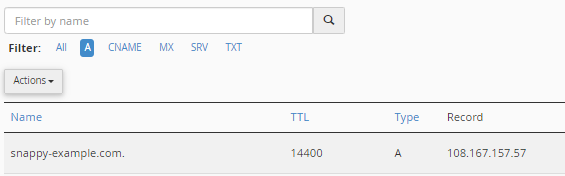
The A (address) record connects the domain to an IP address. This is one of the primary records used in DNS servers, and one of its functions is to tell us where a website is hosted.
What does it look like?
Where do I find my domain's IP address?
Depending on your host, you can find the IP address assigned to your domain in the control panel. For HostGator, you can find it within your Customer Portal and cPanel. For more information, please check out the article, What is My Server Address?
AAAA Record
The AAAA record works like an A record, but it connects the domain to an IPv6 address instead of an IPv4 address. You only need an AAAA record if your hosting provider gives you an IPv6 address for your domain.
CNAME Record
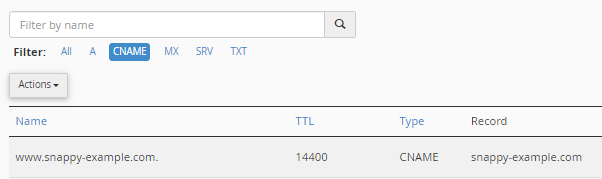
The CNAME (canonical name) record is used to alias a domain or subdomain to another. It points subdomains to another domain name, like www and mail, and never directly to an IP address.
What does it look like?
MX Record
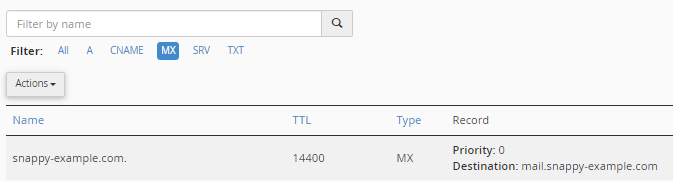
The MX (Mail Exchange) record controls where email messages are delivered. They tell mail servers where to deliver email messages. Depending on your email host, MX records vary. Some may have multiple MX records, like Google Workspace, and some may only have one, like HostGator.
Setting up your email requires the following:
- MX record - Your preferred email host will provide this (usually referred to as the "destination").
- Mail's A record - This is the IP Address pointing to your preferred email host.
- Email routing - This is your email delivery method.
If your domain uses HostGator's name servers, your email is typically set up to use our servers by default. If you have changed your MX records (for example, to use Google Workspace), your custom MX records will override this default.
What does it look like?
TXT record
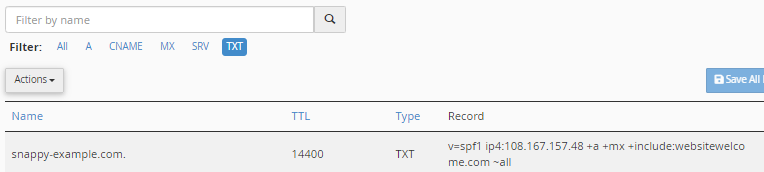
TXT records must be formatted according to the requirements of the service or technology being used. One purpose of TXT records is to validate ownership. A provider may require you to add a TXT record in your control panel to prove ownership of your domain. To add a TXT record, follow Option 2 in How to Add DNS Records.
What does it look like?
Related Articles
If you're looking for information about updating DNS records for Google Workspace, the following articles may help.
- Google Workspace (Formerly G Suite) Setup Part 1 - This article walks you through setting up Google Workspace for domains registered with HostGator.
- Guide to Using Google Workspace with an External Domain - This article will guide you through purchasing and setting up Google Workspace with domains not registered with HostGator.
Here is another set of related articles about DNS records, name servers, and server addresses.