Knowledge Base
Categories: Management
HostGator Individual Ownership – Update Email Address
Updating the Primary Contact email address is an essential security step for maintaining control over your HostGator account. The Individual Ownership – Update Email Address process ensures that only verified users can request changes by submitting valid identification and required supporting documents. This helps protect your account from unauthorized access while ensuring smooth account recovery and communication.
This article discusses the following:
Required Documents
To update the primary contact on an account, gather all the required documents:
- Valid Government-Issued Photo ID (full color): A valid, unexpired, government-issued photo ID of the individual requesting to become the Primary Contact.
- Driver's license
- ID card
- Military Photo Identification
- Passport
- The ID provided must match the name on any supported legal documentation that will be requested.
- The ID must be in color – Black and white scans/photos will be rejected.
- The ID must be legible – All text, including your name, address, and expiration date, must be clearly readable. Avoid blurry or low-resolution images.
- The ID must be valid and not expired – Expired documents will not be accepted.
- Upload must be a scan or clear photo of the physical ID – Screenshot of digital IDs or photos of screens displaying your ID are not accepted.
- Additional Documents: To help us verify your identity and process your request, please upload at least one of the acceptable documents listed below.
- Utility Bill (dated within 90 days of submission)
- Leases
- Credit Card Statements dated within 90 days of submission
- Bank Statements dated within 90 days of submission
- Vehicle Registration Card
- Student/Worker Visas
- Voided Check
- Vehicle Insurance (policy documents or a bill, so long as an address is listed in addition to the name)
- The document must match the name and address shown on your submitted identification, be clear and legible.
- Partial documents will not be accepted – Make sure the full page is visible (do not crop out or redact names, addresses, or dates).
Account User and Roles
- Account Owner/Primary - Who manages everything on the account, including Admin, Tech, Billing, and Domain.
- Admin/Tech - Handles the Technical or Administrative tasks on the account.
- Domain Owner – Listed as the domain name registrant on the domain(s) in the account.
- Other – None of the above descriptions fit your role.
Only the Account Owner/Primary and Admin/Tech roles can proceed to submit a request to update the primary contact email address. For the Domain Owner role, please refer to the Updating WHOIS Information article.
How to Submit a Request to Update Email Address
- Go to https://www.hostgator.com/my-account/account-recovery-new.
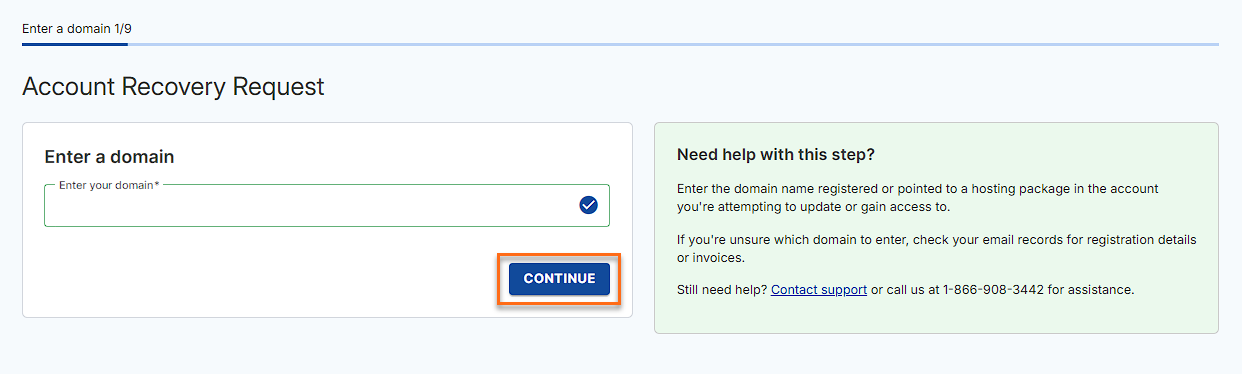
- Enter your domain and click Continue.
- Select your role from the options and click Continue.
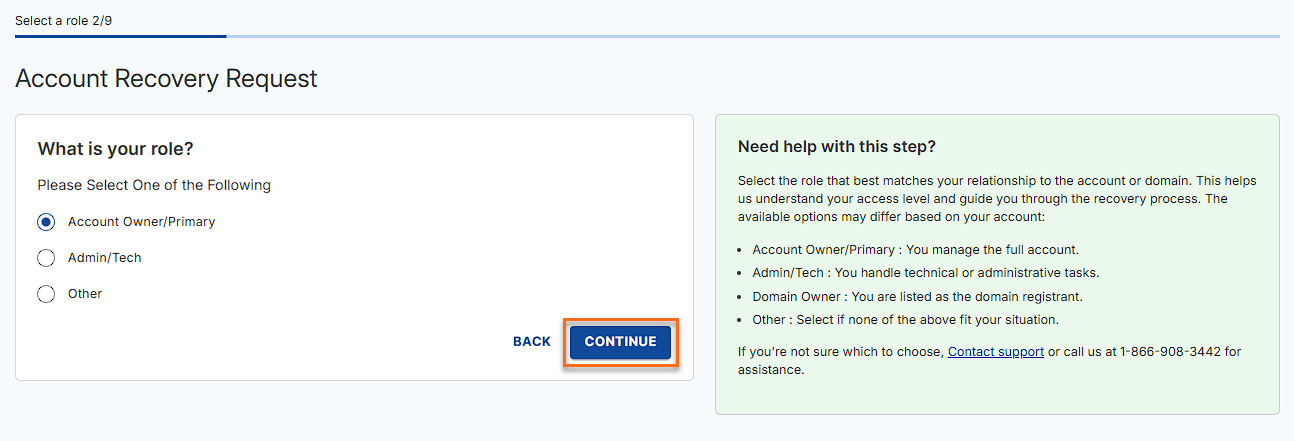
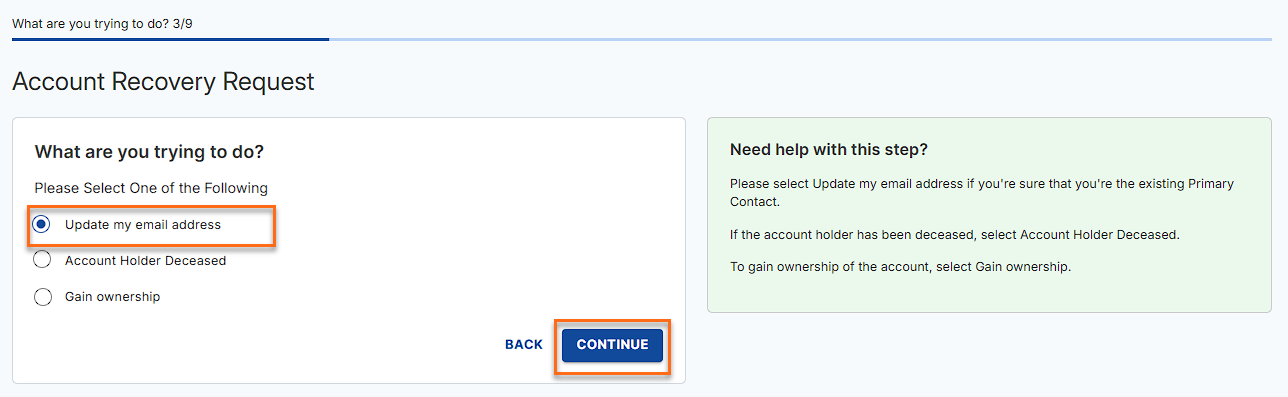
The roles displayed on this step may depend on the available User/Roles added to the account. - Select Update my email address and click Continue.
The options available may depend on the role you select
- Enter your User ID and click Continue.
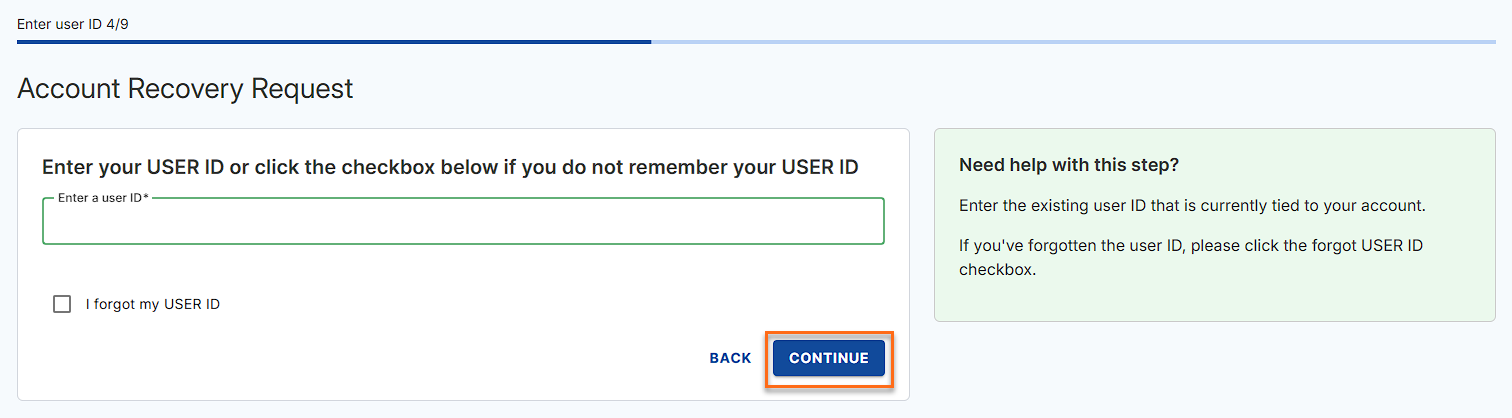
If you forgot your User ID, check the I forgot my User ID and click Continue.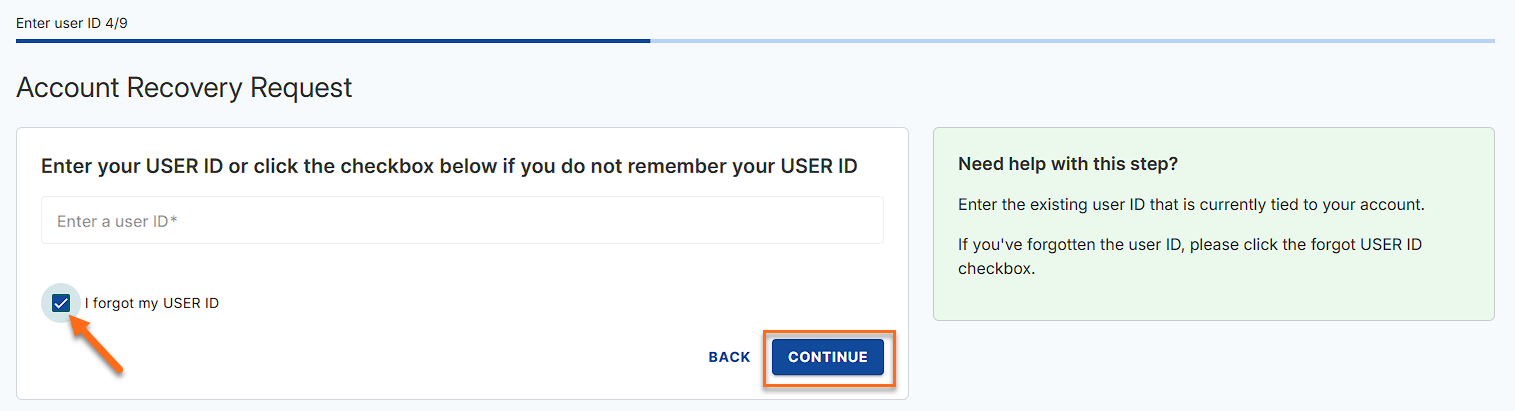
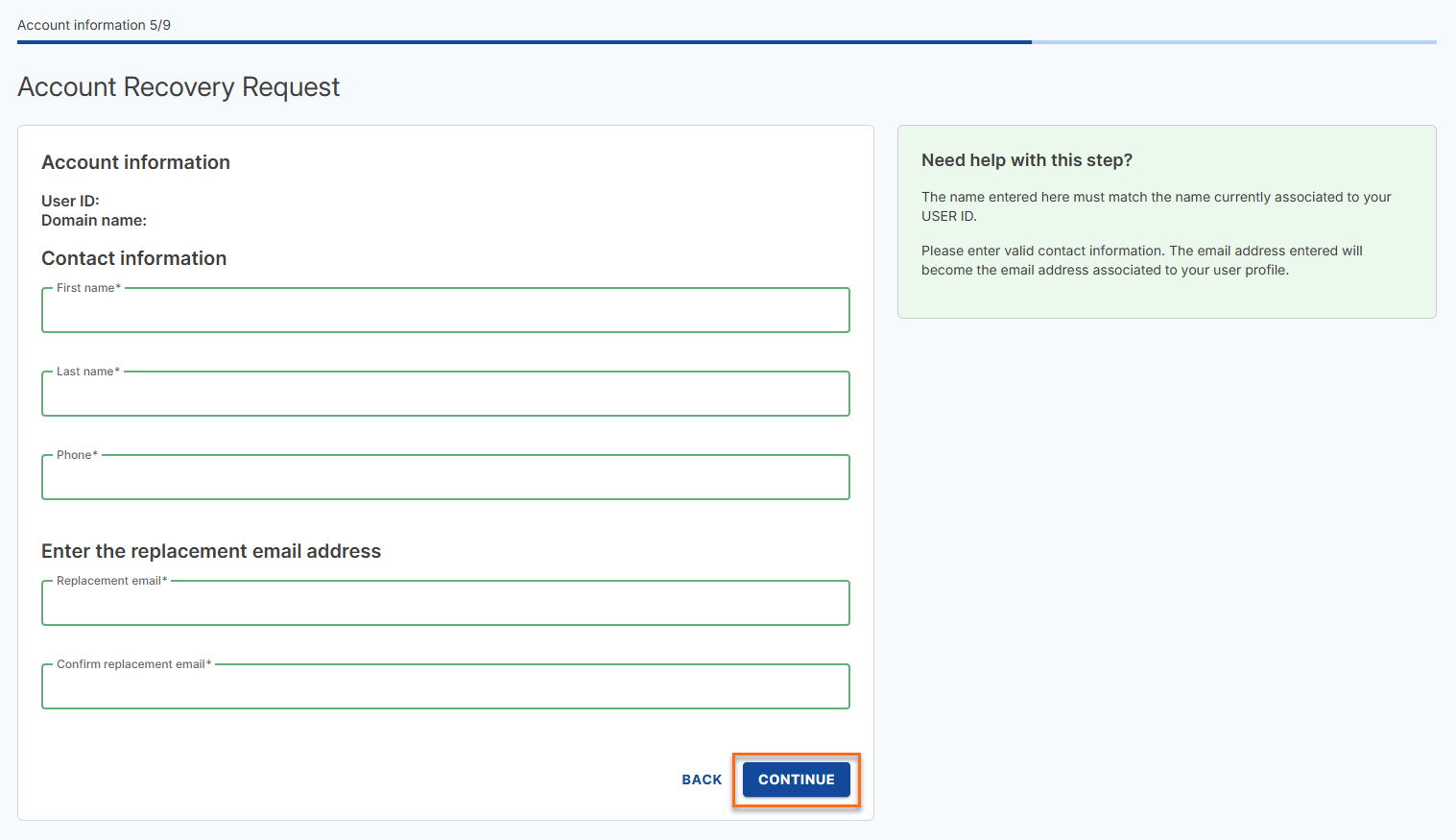
- Fill in the contact information and the email address for replacement and click Continue.
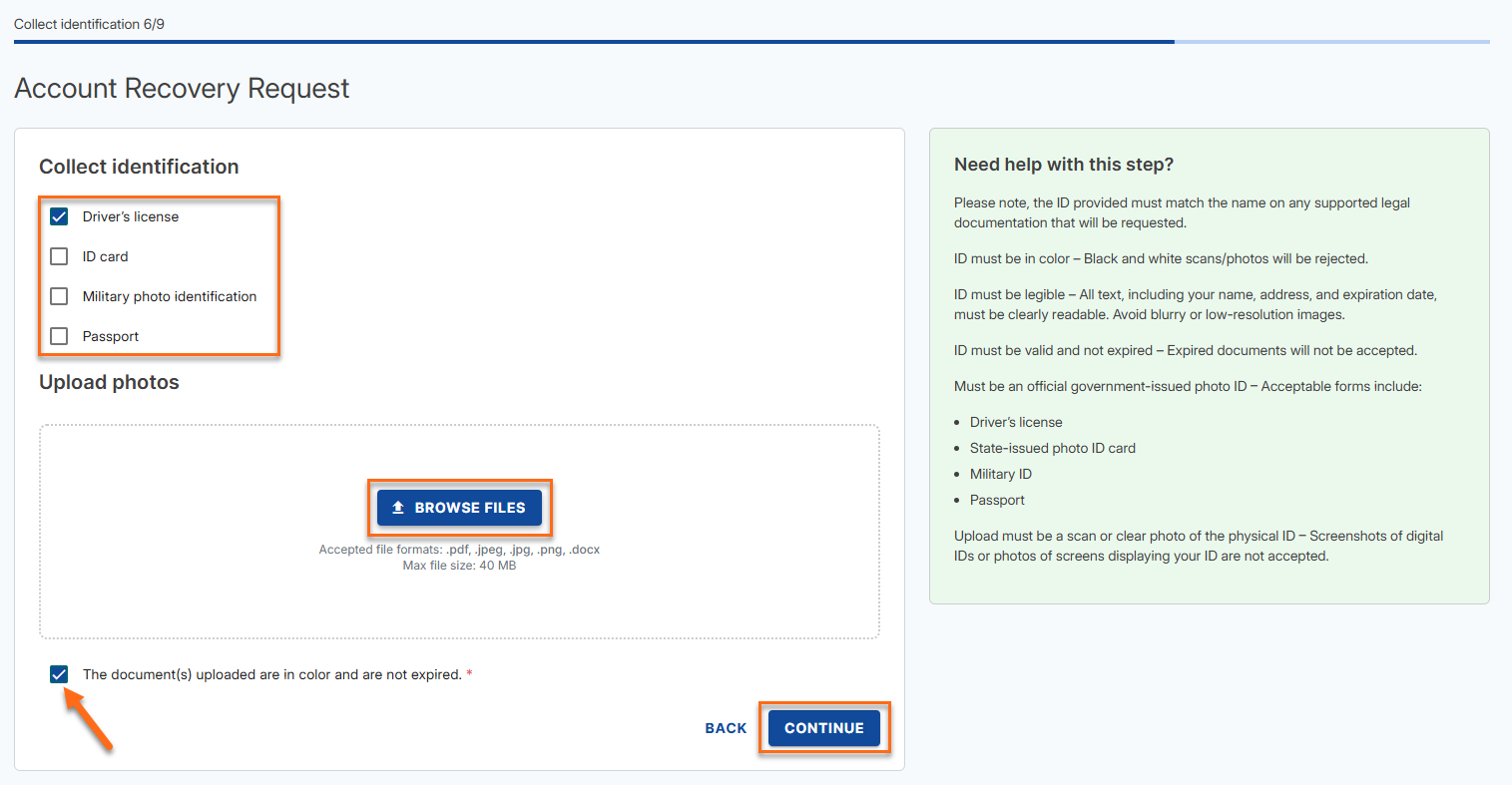
- Select the Government ID that you will upload and click Browse Files to upload your Government ID. Check the box that says The document(s) uploaded are in color and are not expired, then click Continue.
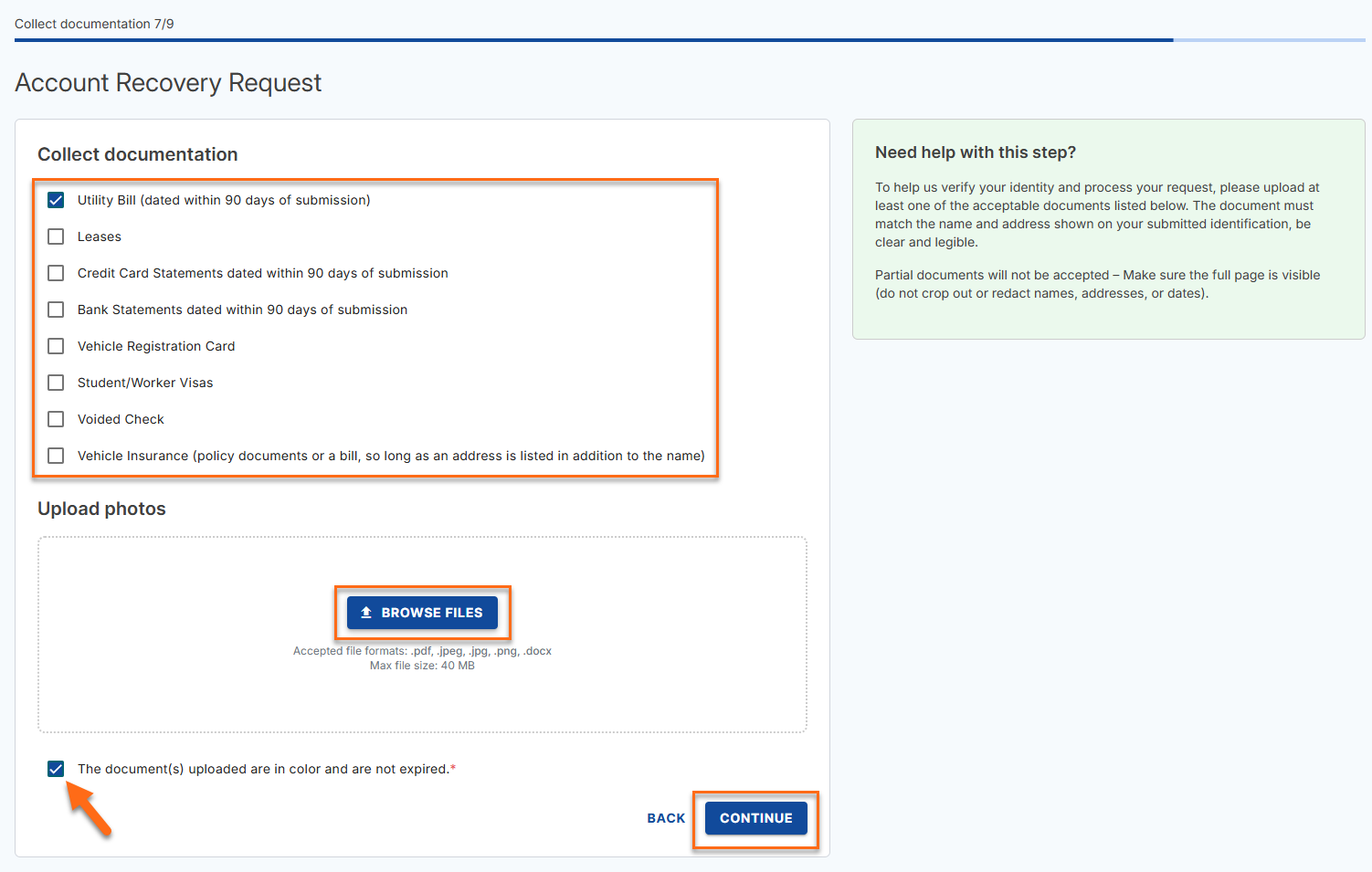
- Select the additional documents you will upload and click Browse Files to upload your documents. Check the box that says The document(s) uploaded are in color and are not expired, then click Continue.
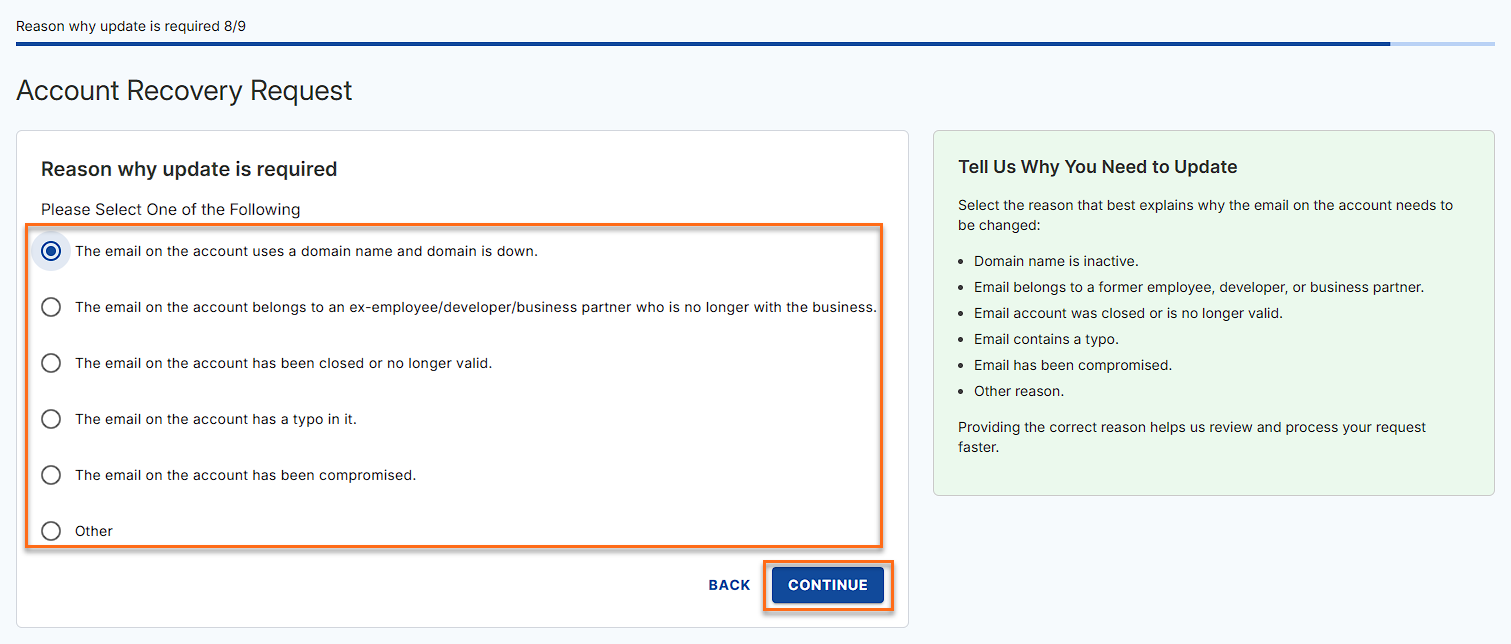
- Select the reason for the update and click Continue.
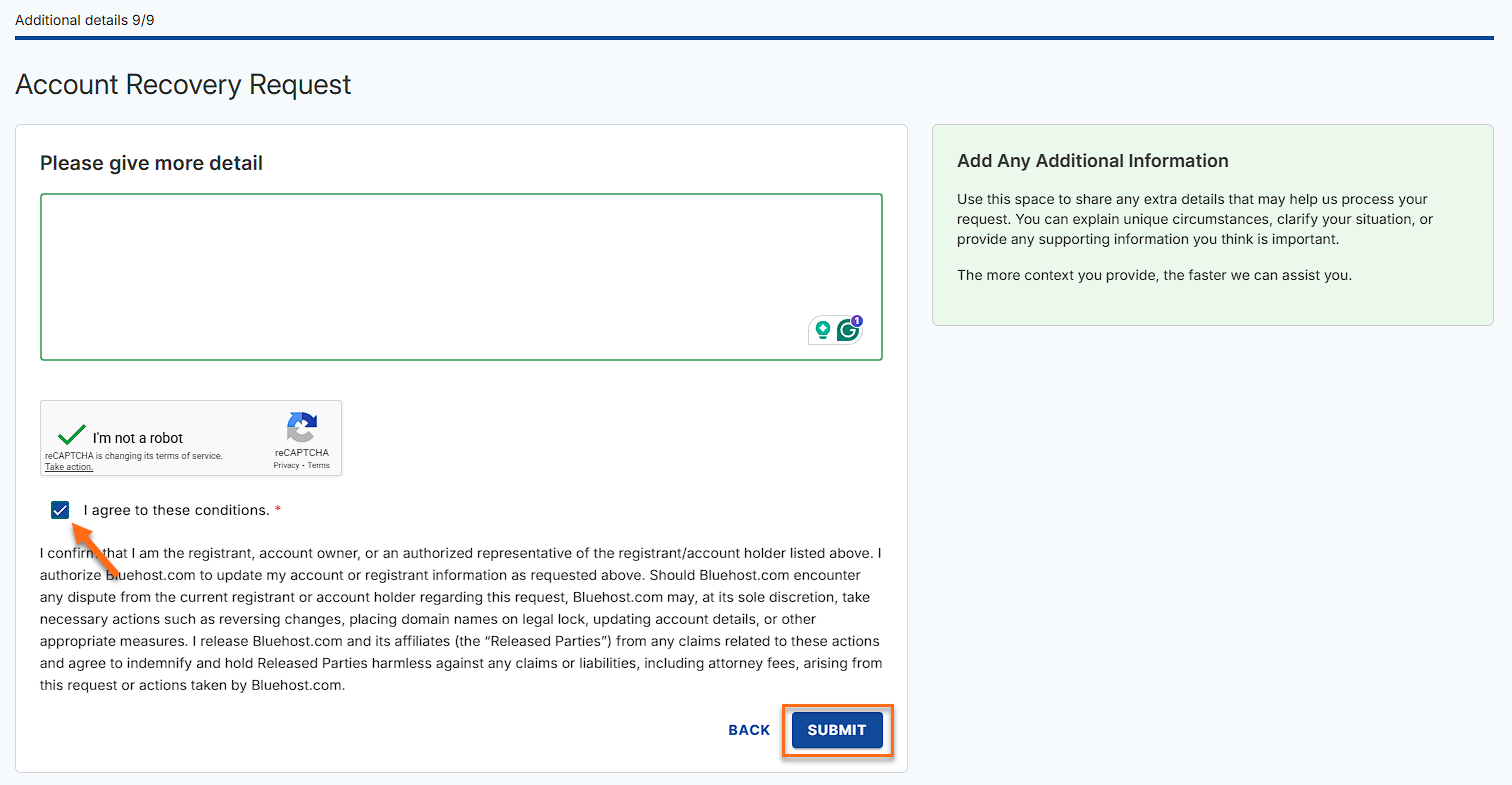
- Provide more details, check the I agree to these conditions, and click Submit.
- Lastly, you should see the Request Confirmation page with your ticket number on it.
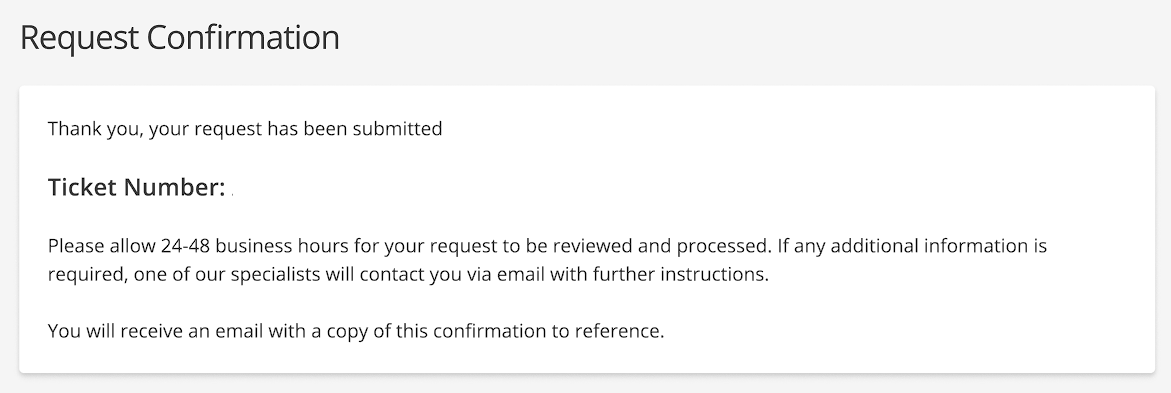
Please take note of your ticket number for your reference.
Related Articles
Did you find this article helpful?