How to Protect a Directory with a Password
You can password-protect directories (folders) to protect all files using the Directory Privacy feature of cPanel. This feature uses .htaccess and htpasswd to limit access to specific files and folders on your website. This also limits access to sub-folders within the password-protected directories.
This article discusses the following topics:
How to Password-Protect a Directory
Step 1: Create a name for the protected directory
- Log in to your cPanel.
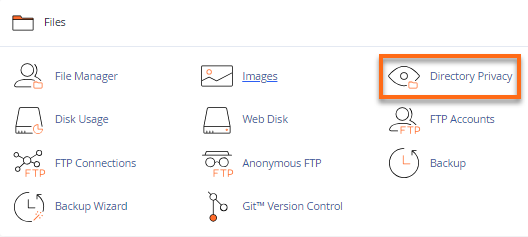
- Within the Files section, click on the Directory Privacy icon.
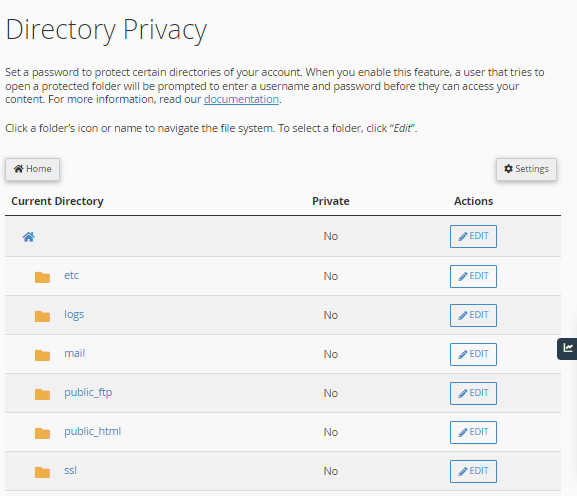
- Locate the name of the directory you wish to password protect, then click its Edit button.
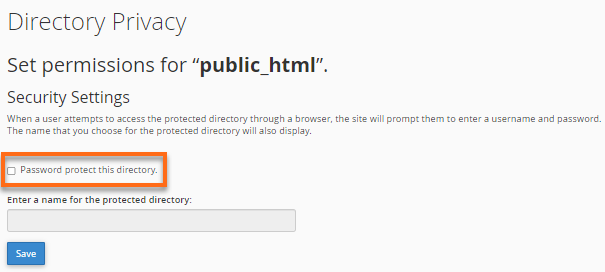
- Put a checkmark on Password protect this directory.
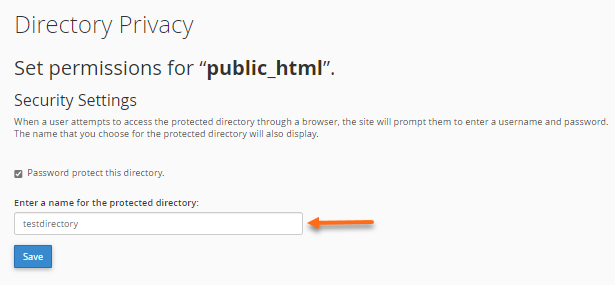
- Enter a name for the selected directory. Note that this serves as the label of that directory. It does not change the directory's actual name.
- Click on the Save button.
- A confirmation page will appear. Click Go Back.
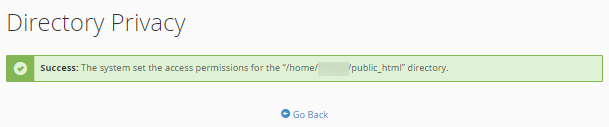
Step 2: Create a user for the protected directory
Once done creating the directory name, you need to create a user who can access the directory.
To create a user:
- Within the Directory Privacy section, fill out the Username, New Password, and Confirm Password boxes. You can utilize the Password Generator button to generate a strong password.
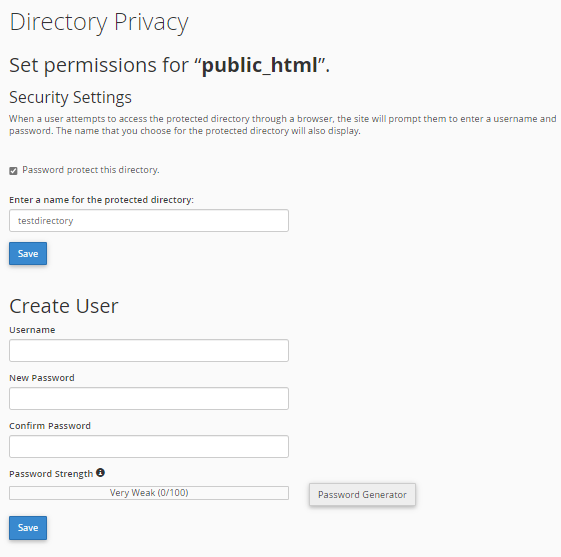
- Click the Save button.
How to Check if the Directory has been Password Protected
Launch your browser and view the directory to ensure your directory has been password protected.
If the browser prompts you to log in, your folder has been password protected. This example shows the public_html (the domain name, example.com) has been accessed in a browser. When accessed, a pop-up box will show up.
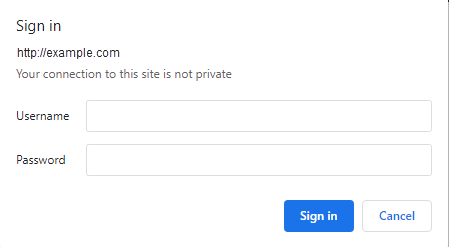
You can enter the user and password you created earlier to access the directory.
Common Issues for Password-Protected Directories
- Password-protected directory is showing a 404 error
- Password-protected directory is showing a 500 error after login
Password-protected directory is showing a 404 error
The 404 error usually appears when pulling up the password-protected directory due to the following reasons:
- URL used is set up with a shared server SSL - If you are accessing a password-protected directory with a URL that includes the use of a shared server SSL (https://securexxx.hostgator.com/~<user>/<whatever>) and receiving a 404 error, this is because Apache is looking for a 401 page and serving a 404 when it is not found.
- Conflict with the CMS-generated .htaccess file - The .htaccess file generated by the Content Management Systems (CMS), like WordPress, may conflict with the .htaccesss generated by the Directory Privacy.
To resolve this, add a single line to the .htaccess file in the protected directory to give Apache the 401 pages it is looking for (ErrorDocument 401 Authorization Required).
For information on how to add this line to your .haccess file, please read:
Sample scenario:
In the following code, please be sure to replace yourusername with your actual cPanel username, and also be sure the gator1234 is replaced with your actual server number. This can be found in your Welcome email.
Before fix:
[root@gator1234 /home/yourusername/www/home]# more .htaccess.old
AuthType Basic
AuthName "home"
AuthUserFile "/home/yourusername/.htpasswds/public_html/home/passwd"  require valid-user
After fix:
[root@gator1234 /home/yourusername/www/home]# more .htaccess
AuthType Basic
AuthName "home"
AuthUserFile "/home/yourusername/.htpasswds/public_html/home/passwd"  require valid-user
ErrorDocument 401 "Authorization Required"
Password-protected directory is showing a 500 error after login
Check the folder ownership on the .htpasswds folder (above public_html). Change them from user.user to user. Make sure the permissions are set to 750 and refresh your protected page. The error will be gone.