How to Import your MySQL Database
You can import the contents of a MySQL database in multiple ways. This article will cover two methods done directly within the tools on our servers.
This article also discusses common issues, recommended solutions, and some commonly asked questions.
How to Import Databases via phpMyAdmin
To import databases via phpMyAdmin:
- Log in to the cPanel.
- Locate the Databases section, then click the phpMyAdmin icon.
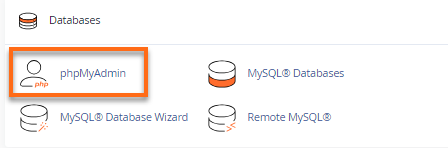
- If the database does not exist, please create a database first, a user, and give the user full privileges via MySQL® Databases. Note the username and password.
You may want to refer to this article for instructions: How to Create or Delete a MySQL Database or User.
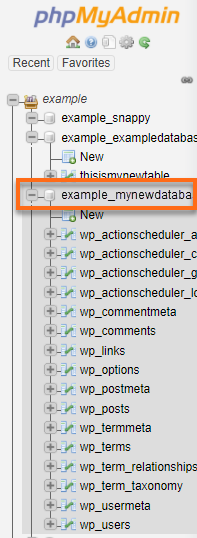
- Inside the phpMyAdmin, select the new database name from the left-hand menu.
- Click the Import tab in the main area of phpMyAdmin.
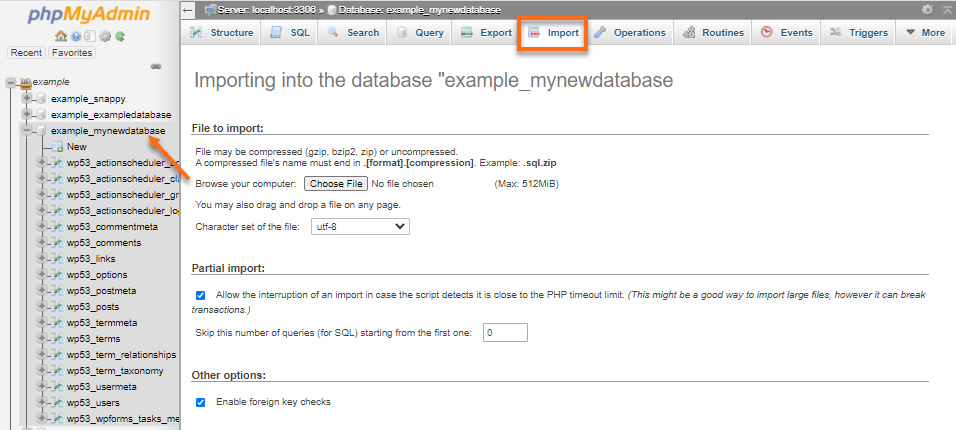
- Browse for the .sql file on your computer using the Choose File button.
- Once the .sql file is attached, scroll down and click on the Go button.
- A confirmation prompt will appear, notifying you about the successful import.
How to Import Databases via Command Line (SSH)
Advanced users may wish to use SSH to access and change their accounts, offering a more robust set of options with fewer limitations. These instructions will require a basic familiarity with SSH. If you want to learn to use SSH, please check the article below.
To import your database after you have logged in to your account with SSH:
- Upload your database to your home directory (This may be done via cPanel File Manager, an FTP client, or SSH).
- If the database does not exist, please create a database, a user, and give the user full privileges to the database. Note the username and password.
For assistance with creating a Database and Database user, please see the article below:
- Log in to your server via SSH.
- Use the
ls -lcommand to verify that the file is in your current directory.
- If the file is not present, upload/move the file to the correct directory or navigate to the directory where the file is located.
- Enter the following command, replacing 'user_name,' 'database_name, and 'file.sql' with the correct values for your database and file:
mysql -p -u user_name database_name < file.sql
- You will be prompted for your database user password, and then your database will be imported.
- HostGator recommends using the database user with the database user's password.
- Make sure your database name and username have your HostGator cPanel username prefix (for example, 'cPanelUsername_databasename'; 'cPanelUsername_databaseUsername').
Common Issues
Your import file is too large!
The phpMyAdmin upload limit on HostGator shared and reseller hosting packages is 50MB. This is also the default on VPS and Dedicated servers.
Users on a VPS or Dedicated server may increase this value by increasing the cPanel PHP max upload size and the cPanel PHP max POST size from WHM under Tweak Settings.
Frequently Asked Questions
How do you create a MySQL backup via your phpMyAdmin?
It is always important to create a backup of your database to be restored in case of unforeseen events.
You can do this through the backup feature of your cPanel or the export tab of phpMyAdmin.
Do you need to create a database before you import another one?
There needs to be an existing database and database user to attach the imported .sql file. One database is for one .sql file.
If you have multiple .sql files to be imported, you must create databases for each through your cPanel.
If you have no existing database, create a new one via cPanel's MySQL Databases section.
How do you add a MySQL database and database user to your account?
Please refer to the article, How to Create or Delete a MySQL Database or User, for creating a database and a database user.
Do you have to remove the old database before importing the backup database file, or is that done automatically?
If you wish to use a different .sql file or import your backup file for your existing database, you must first DROP all the database tables. Not dropping all tables will retain the tables that do not exist in the new .sql file and overwrite the existing ones. However, you can still retain some tables in that database. The tables in your new .sql file will overwrite those with the same name in the database.