Showing Email Headers in Smartermail
Find Full Message Headers in SmarterMail Webmail
When investigating mail bouncebacks or why a message was moved to the spam folder, it is helpful to have the mail headers for the affected message. You can find this information in SmarterMail webmail by using the following steps. These steps apply to SmarterMail webmail. If you use a different webmail, the steps will differ.
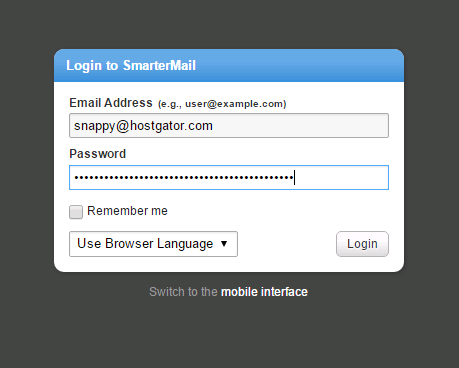
- Log in to SmarterMail: Log in to SmarterMail using the account that received the message. This may be the sender in the case of a bounceback or the recipient in the case of mis-filtered mail.
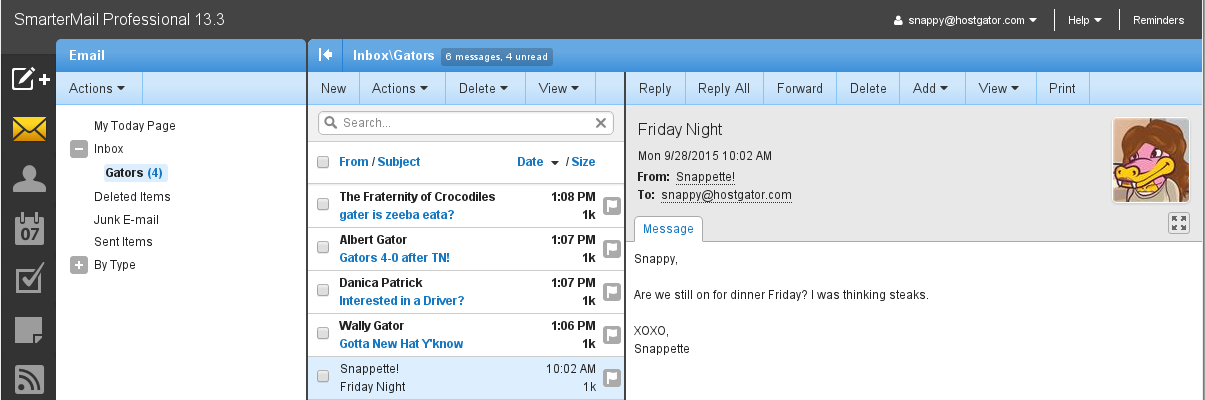
- Select Message: Select the message or bounceback that you need to view the headers for from your inbox.
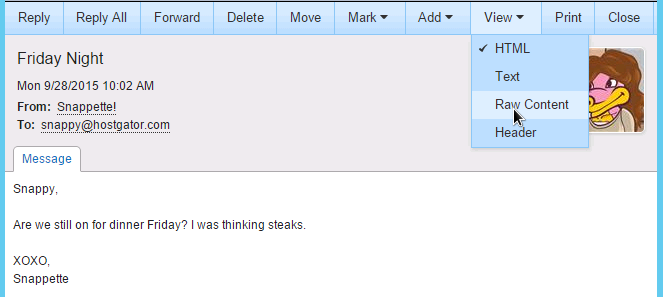
- Click on View and select Raw Content: The View menu item will have a dropdown option. In the dropdown, select "Raw Content" to view the full header information.
 Raw Content includes the full text of the message. Copy only the header section if the message contains sensitive information.
The image below shows the full headers for the message.

If we asked you for the headers in a support ticket, send them as a reply to that ticket. If you are reporting the issue for the first time, contact us via phone or chat. Headers can include email addresses and IP addresses, so share them only with HostGator Support.
Message headers include information such as the sending address, the servers the message passed through, the spam score, and any spam filters that were triggered. This can help identify the reason a message was returned or filtered, and can help when investigating issues with sending or receiving mail.