HostGator Professional Email - How to Use Smart Write AI to Write Emails
Smart Write is the AI writing assistant inside HostGator Professional Email. Describe what you need in a sentence or two, and it can draft a fresh email, write a response to a message you received, or tidy up text you've already typed. Nothing goes out on its own: every result appears right in the composer, ready for you to check and edit first.
Below, you'll learn how to use Smart Write from your browser and from your Android phone.
What You Need First
The Professional Email Ultra plan includes Smart Write, which HostGator's plan comparison lists as AI (Compose, Reply). The Pro and Plus plans don't offer it. See the Professional Email Product Overview for every plan feature, and visit the HostGator Professional Email page for current plans and pricing.
| Plan | Smart Write (AI Compose, Reply) |
|---|---|
| Professional Email Pro | Not included |
| Professional Email Plus | Not included |
| Professional Email Ultra | Included |
Before you start, make sure you have:
- A Professional Email address and its password. Your Customer Portal login won't open Webmail.
- Webmail in your browser, or the Professional Email mobile app on Android.
Log In to Professional Email Webmail
- Option 1: Access Webmail Through the HostGator Customer Portal ⤵
- Option 2: Access Webmail Directly ⤵
Option 1: Access Webmail Through the HostGator Customer Portal
- Log in to your Customer Portal.
- Click Email in the left-side navigation menu.
- Optional: If multiple Professional Email subscriptions are listed, click Manage for the plan you want to access.
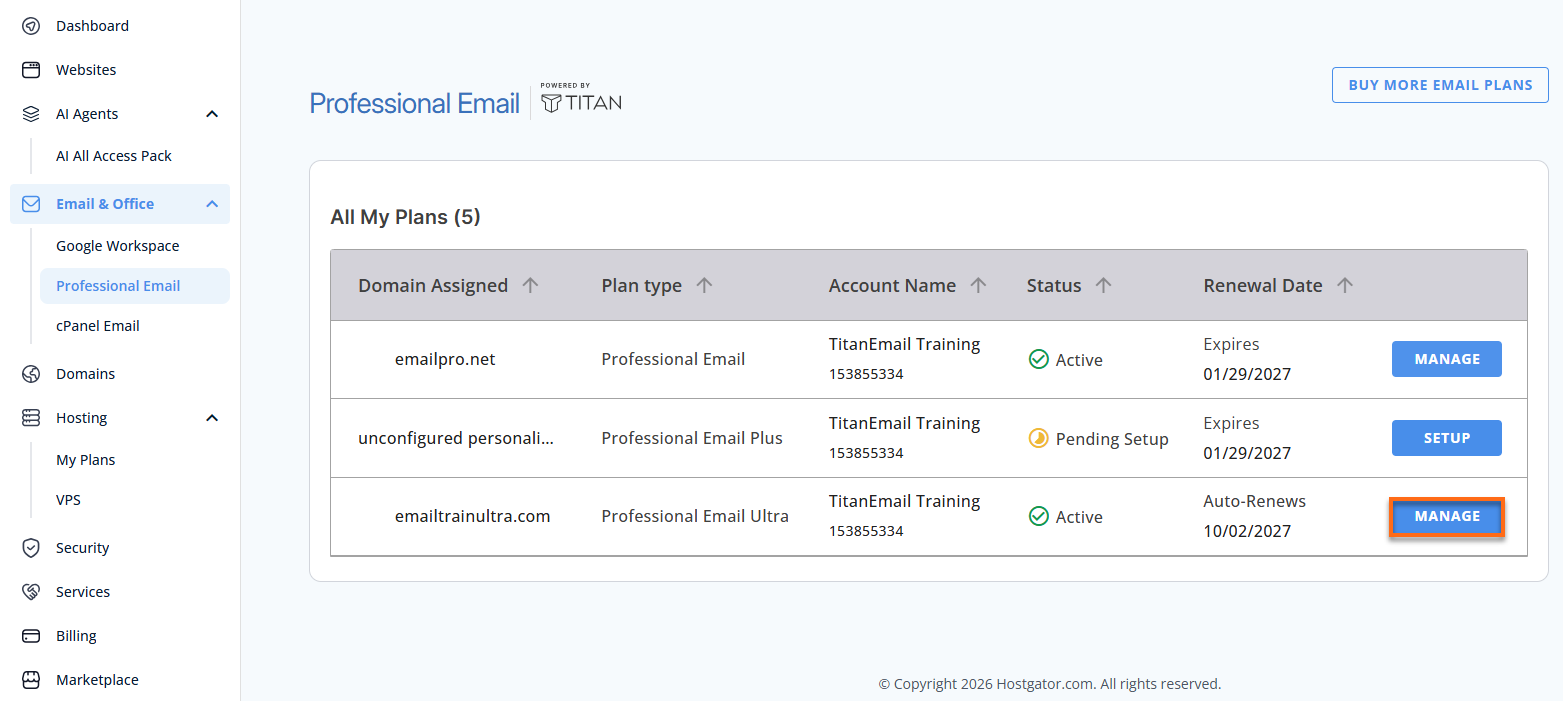
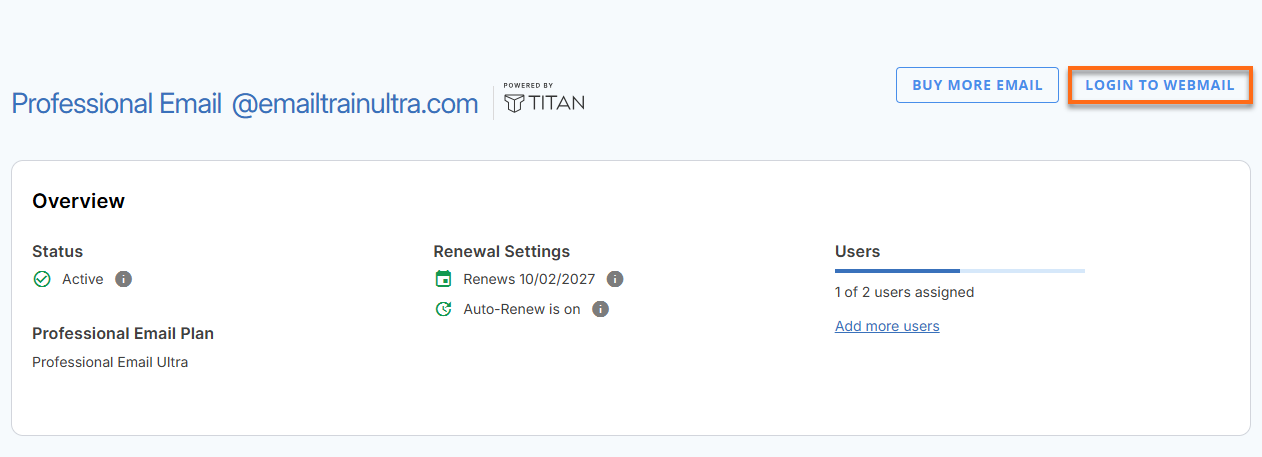
- You’ll be automatically redirected to the Email Management page, where you can manage your email settings and subscriptions.
- Click Login to Webmail.
- Enter your Professional Email username and password.
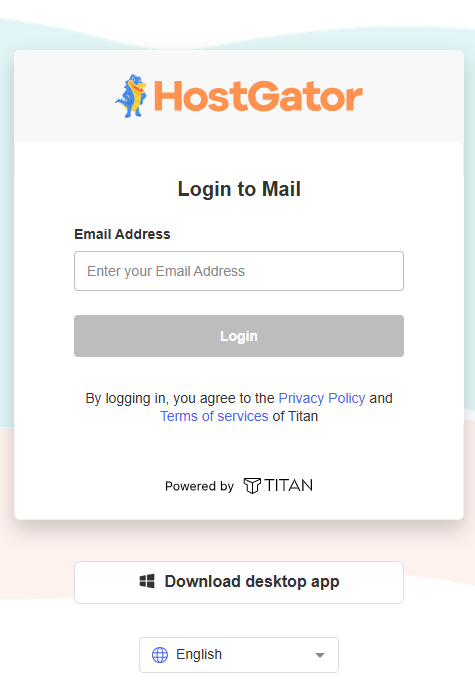
- Click Login.
Option 2: Access Webmail Directly
- Go to the Professional Email login page.
- Enter your email address and password.
- Click Login.
Using Smart Write in Webmail
From one Smart Write window, you can draft a message, answer an email, or improve a draft.
Open Smart Write
- Start a message with New Email, or reopen a draft.
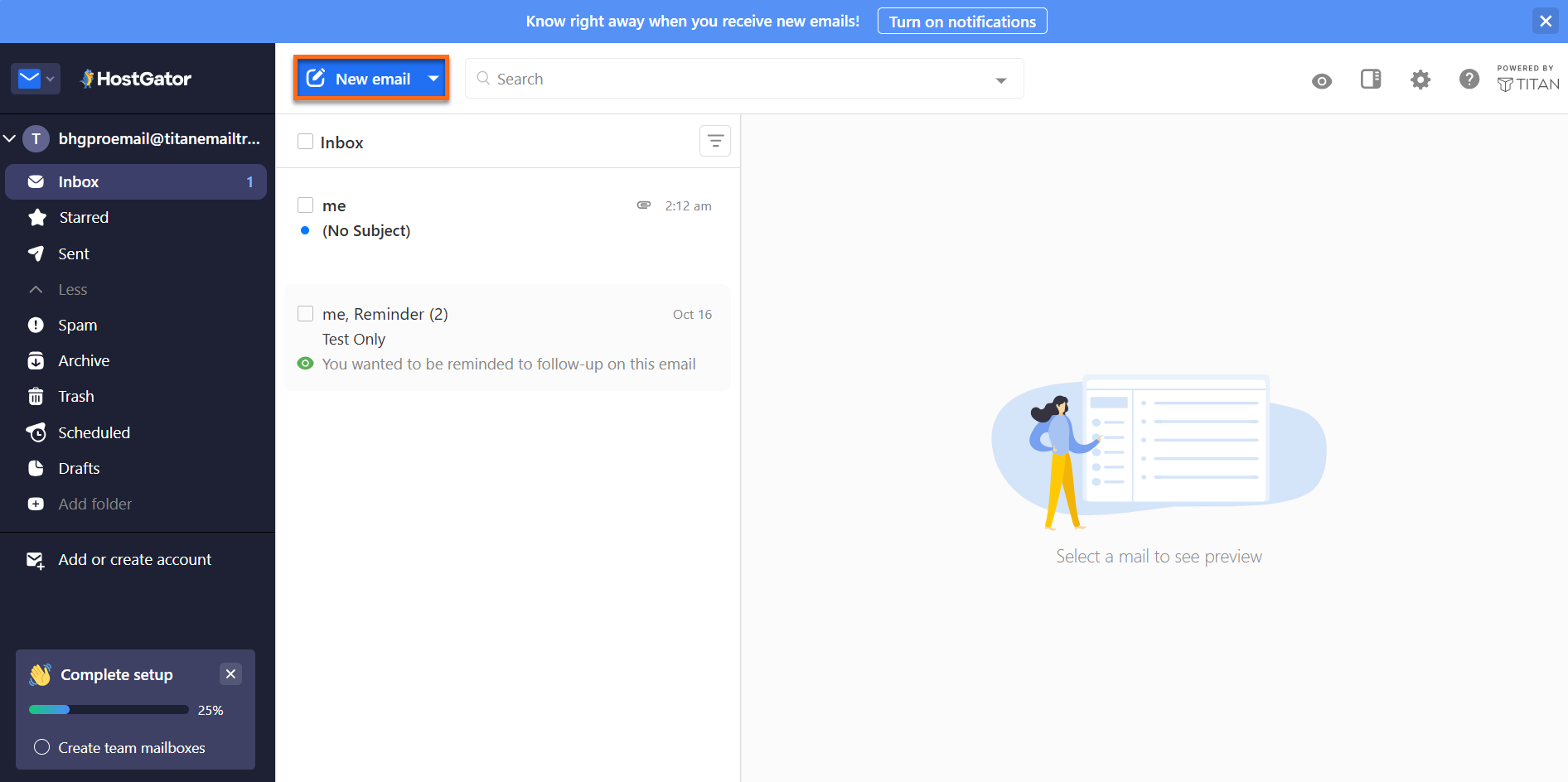
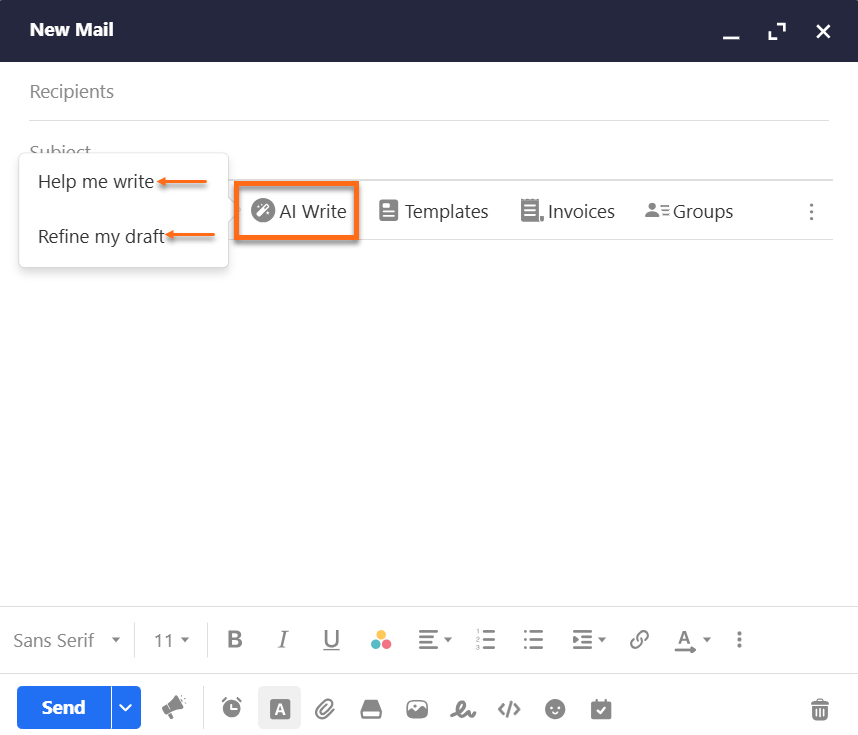
- Under the subject line, choose AI Write. You'll see two options: Help me write, which creates a message from a short prompt, and Refine my draft, which improves text you've already written.
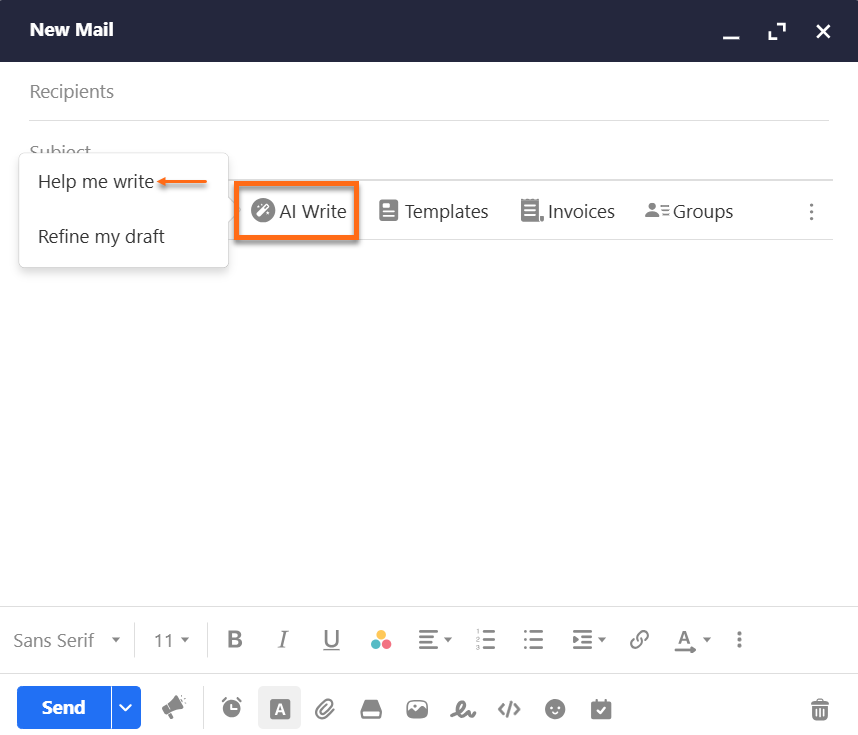
- Choose Help me write.
- On your first use, confirm with Yes, use Smart Write AI.
Pick a Tab and Generate Your Text
The Smart Write AI window has three tabs. Choose the one that fits your task.
| Tab | What It Does | What You Enter |
|---|---|---|
| Help me Write | Creates a new message from a brief description | Your prompt (75 words maximum), plus tone, length, and language |
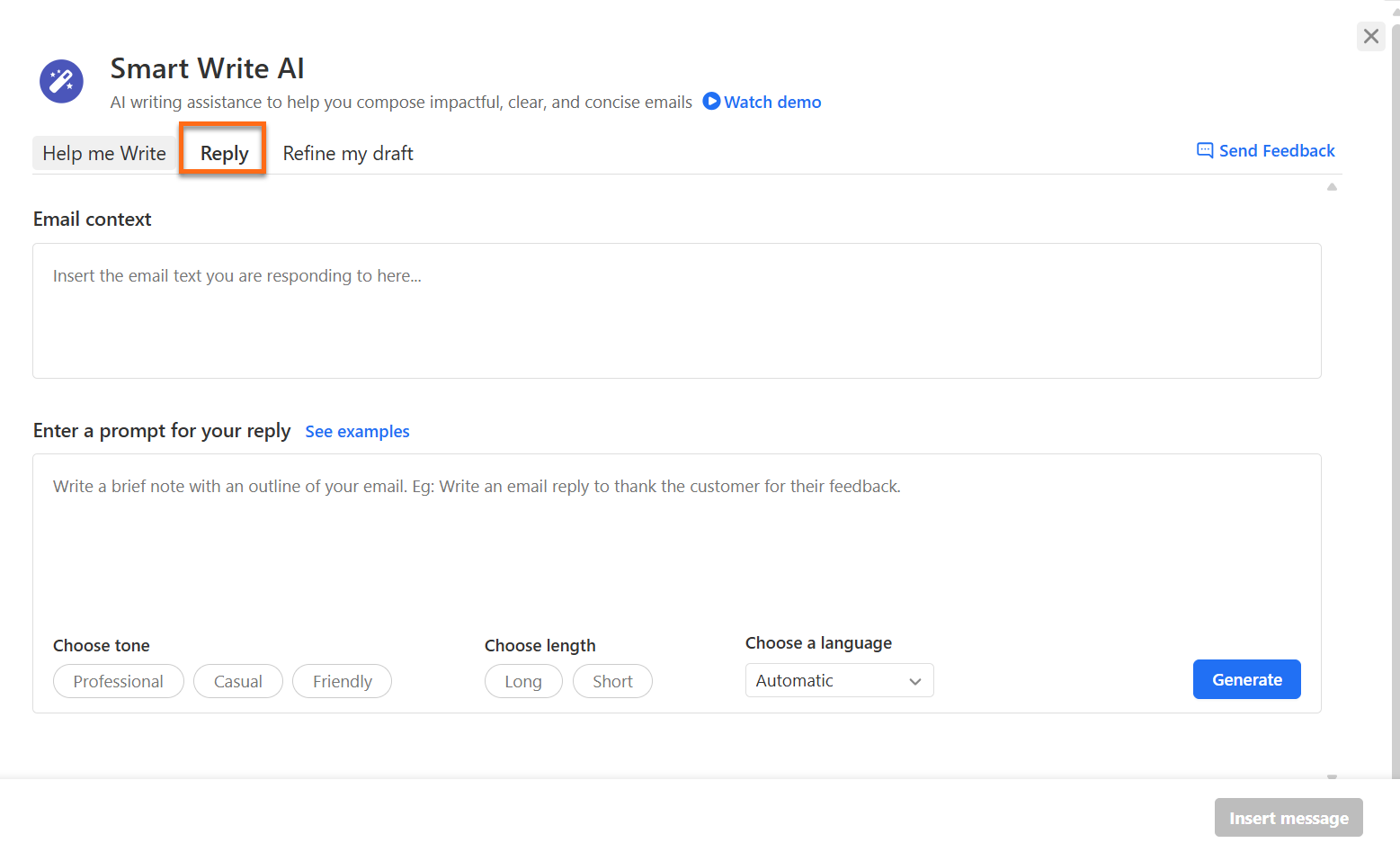
| Reply | Writes a response to an email you received | The original message (1,000 words maximum), your prompt, plus tone, length, and language |
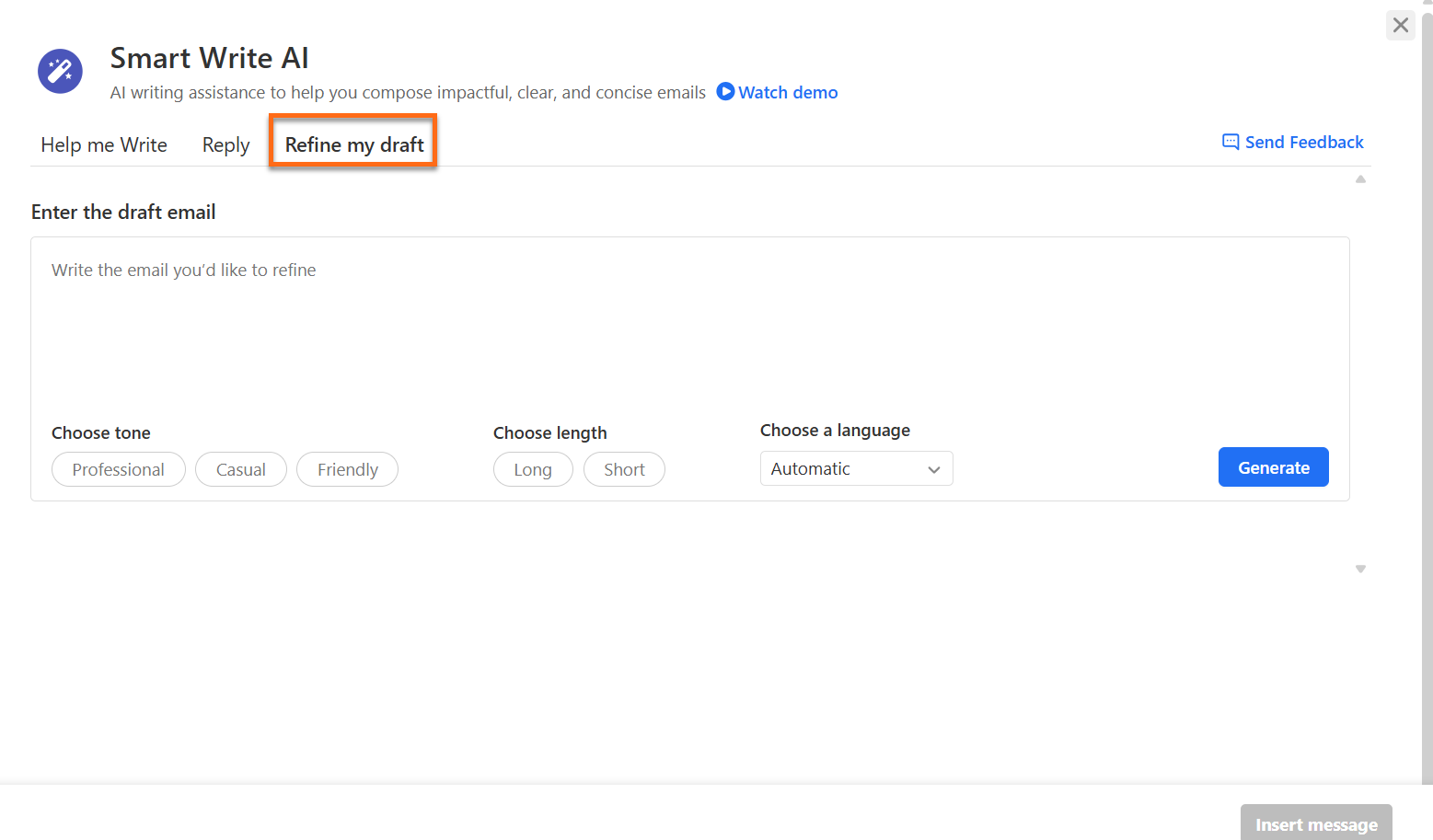
| Refine my draft | Sharpens the wording, grammar, and structure of your text, and keeps its meaning | Your draft, plus tone, length, and language |
You can adjust these settings:
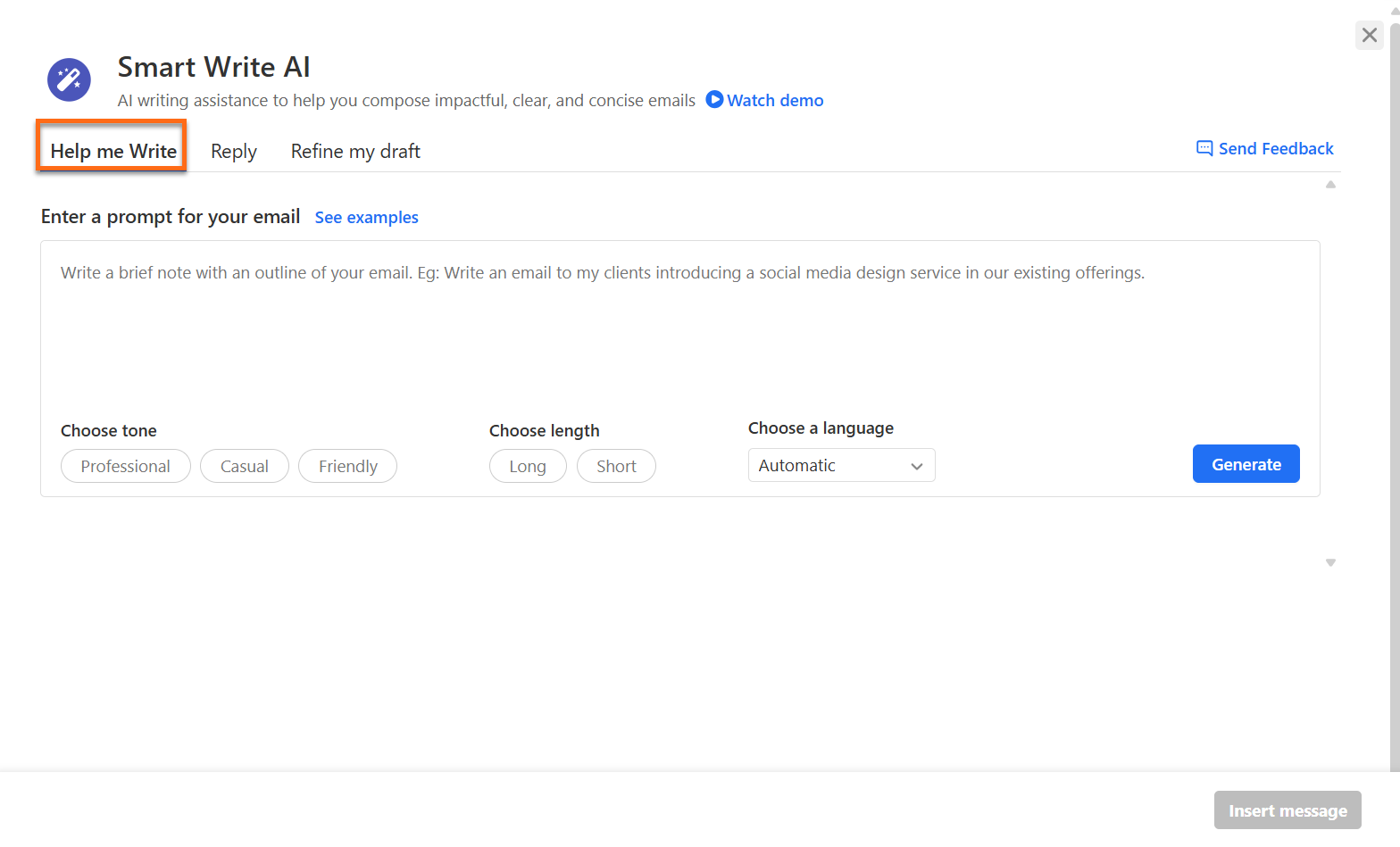
- Tone: Pick Professional, Casual, or Friendly.
- Length: Pick Long or Short.
- Language: Leave it on Automatic, or choose another.
- See examples: On the Help me Write and Reply tabs, this shows sample prompts for inspiration.
Help me Write: Drafts a new message from a short description. Use it when you know what you want to say but need help putting it into words.
Reply: Drafts a reply to a message you received. Use it to answer questions, confirm details, or follow up without starting from a blank page.
Refine my draft: Improves the tone, grammar, structure, and clarity of a message you've already written, while keeping your original meaning. Use it to polish an important email before you send it.
- Complete the fields on your tab and click Generate.
- Read through the result, then click Insert message.
- To respond to an email you received, open it and use the Reply with Smart Write AI button, or press Ctrl+Shift+E (Cmd+Shift+E on a Mac). Smart Write jumps to the Reply tab and pre-fills the original message.
- If a result misses the mark, click Regenerate or Give me another option for a new version, up to twice per prompt. After that, revise your prompt and run Generate once more.
How Smart Write Handles Your Data
When you use Smart Write, your prompt and message text go to OpenAI's ChatGPT API, which produces each draft and is governed by OpenAI's terms of use. Our email platform provider states that OpenAI sees only what you submit through Smart Write, can't see anything else in your mailbox, doesn't train its models on your data, and holds onto it for 30 days at most.
Frequently Asked Questions
Q: Does Smart Write send my emails?
A: No. It only places a draft in your composer, so you choose when, and whether, to send it.
Q: Can I write in a language other than English?
A: Yes, in Webmail. Pick a language from the dropdown on any tab. The Android app doesn't support language choice yet.
Q: I can't find AI Write. What should I do?
A: AI Write appears only on the Professional Email Ultra plan. If you're on Ultra and still don't see it, check Webmail rather than the Android app, since some features live only there. Otherwise, consider upgrading to Ultra.