How to Get Started with Google Meet in Google Workspace
Google Meet comes with your Google Workspace account, so you can talk face to face with coworkers and clients without installing anything. Launch a call in seconds, set one up ahead of time in Google Calendar, or hand out a link that anyone can click.
Follow along to hold your first meeting. You'll start, schedule, and join calls, learn the basic controls, and wrap up cleanly.
What You Need First
| What | Details |
|---|---|
| Account | Your Workspace email and password |
| Browser | A current browser such as Chrome, Firefox, Edge, or Safari. A computer needs no download |
| Camera and mic | Built-in hardware is fine, and a headset reduces echo |
| Phone app (optional) | Google Meet for Android or iPhone, from Google Play or the App Store |
Meet is only a few clicks away from wherever you already work:
| Where You Are | What to Do |
|---|---|
| Any browser | Open meet.google.com |
| Gmail or Google Drive | Open the Google apps grid at the top right and pick Meet |
| Google Calendar | Click Join with Google Meet on an event that has a link |
Your Google Workspace plan decides how large your meetings can get and which extras you have:
| Plan | Meeting Size | Extras |
|---|---|---|
| Business Starter | Up to 100 participants | None |
| Business Standard | Up to 150 participants | Polling, breakout rooms, and recording |
| Business Plus | Up to 500 participants | Polling, breakout rooms, recording, and attendance tracking |
Open Google Workspace From Your Customer Portal
If you bought Google Workspace through HostGator, you can reach it straight from your Customer Portal.
- Log in to your Customer Portal.
- Click Email & Office in the left-side navigation menu.
- Optional: If multiple Google Workspace subscriptions are listed, click Manage for the plan you want to access.
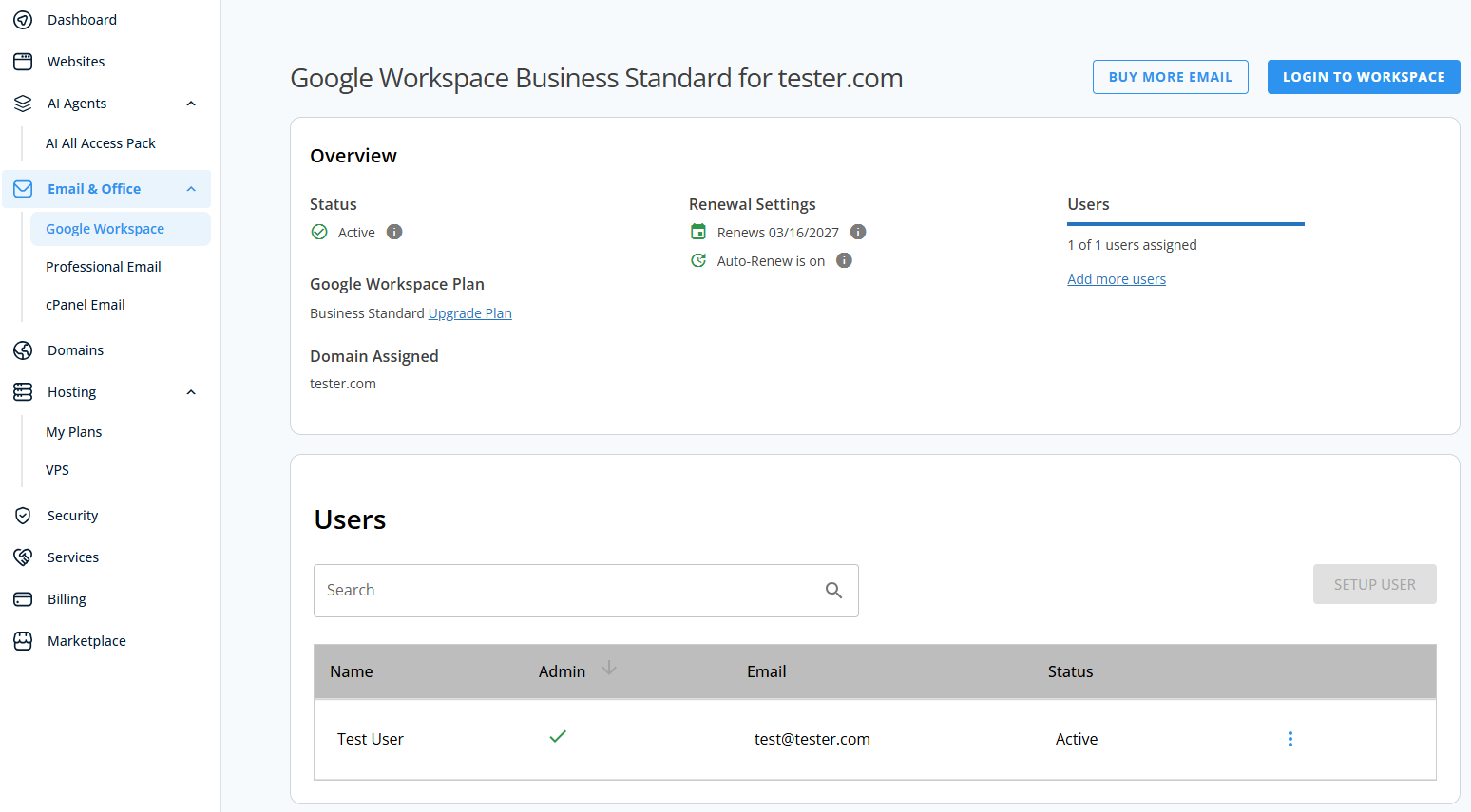
- You’ll be automatically redirected to the Email Management page, where you can manage your email settings and subscriptions.
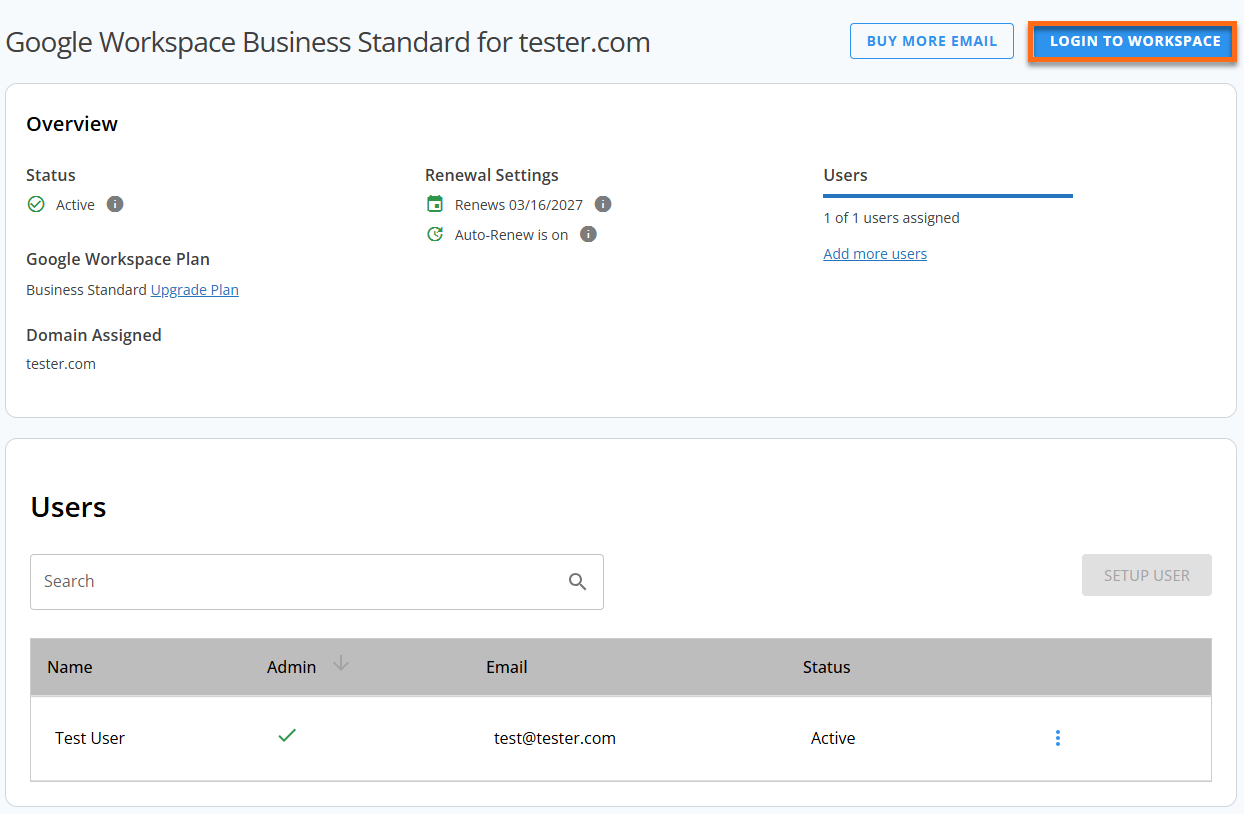
- Click Log in to Workspace.
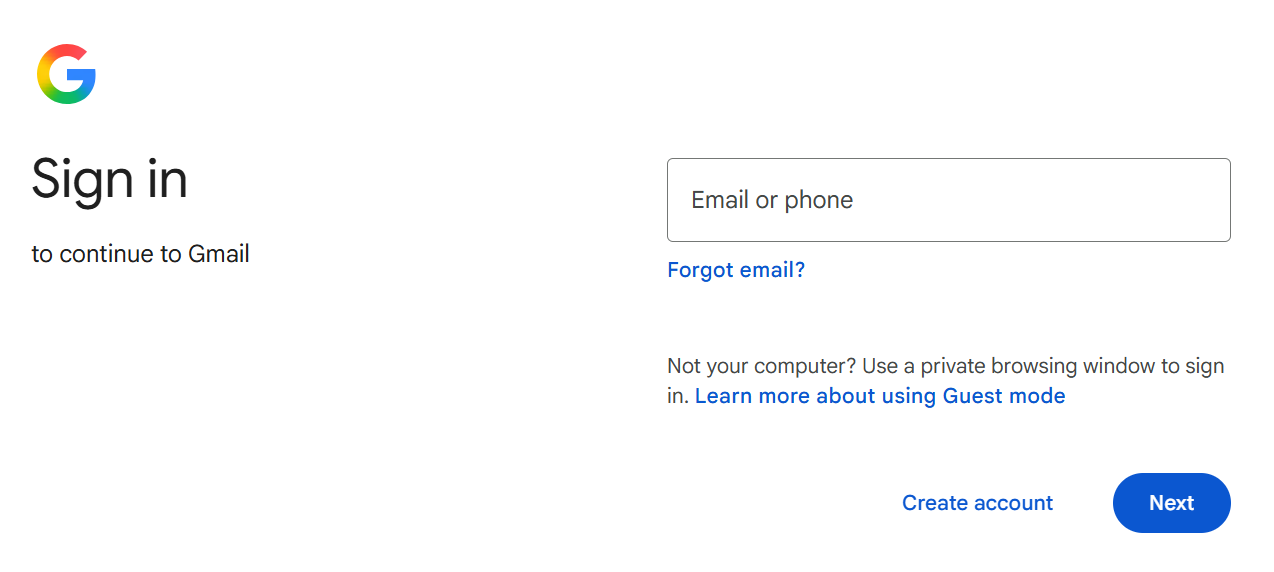
- Enter your Google Workspace email and password if Google asks for them.
- Open the Google apps grid at the top right and select Meet.
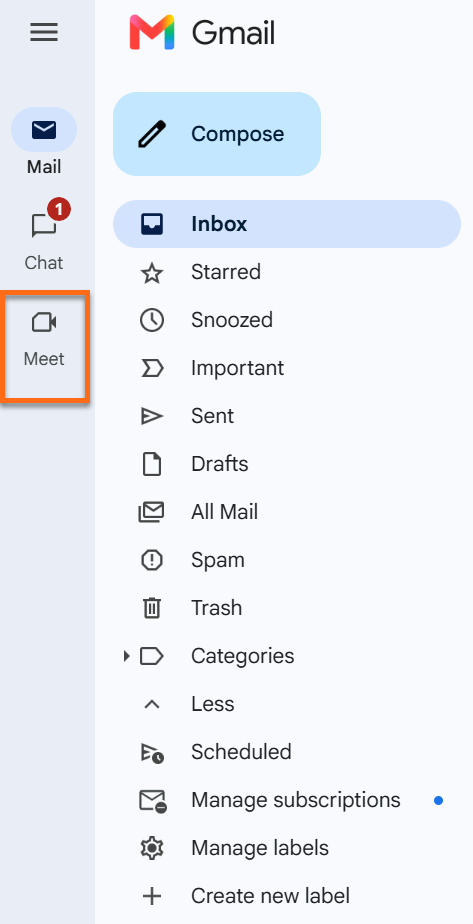
Start a Call in Google Meet
Pick this route to talk immediately, or to generate a link you can send out for later.
- Open meet.google.com on your computer.
- Select New meeting.
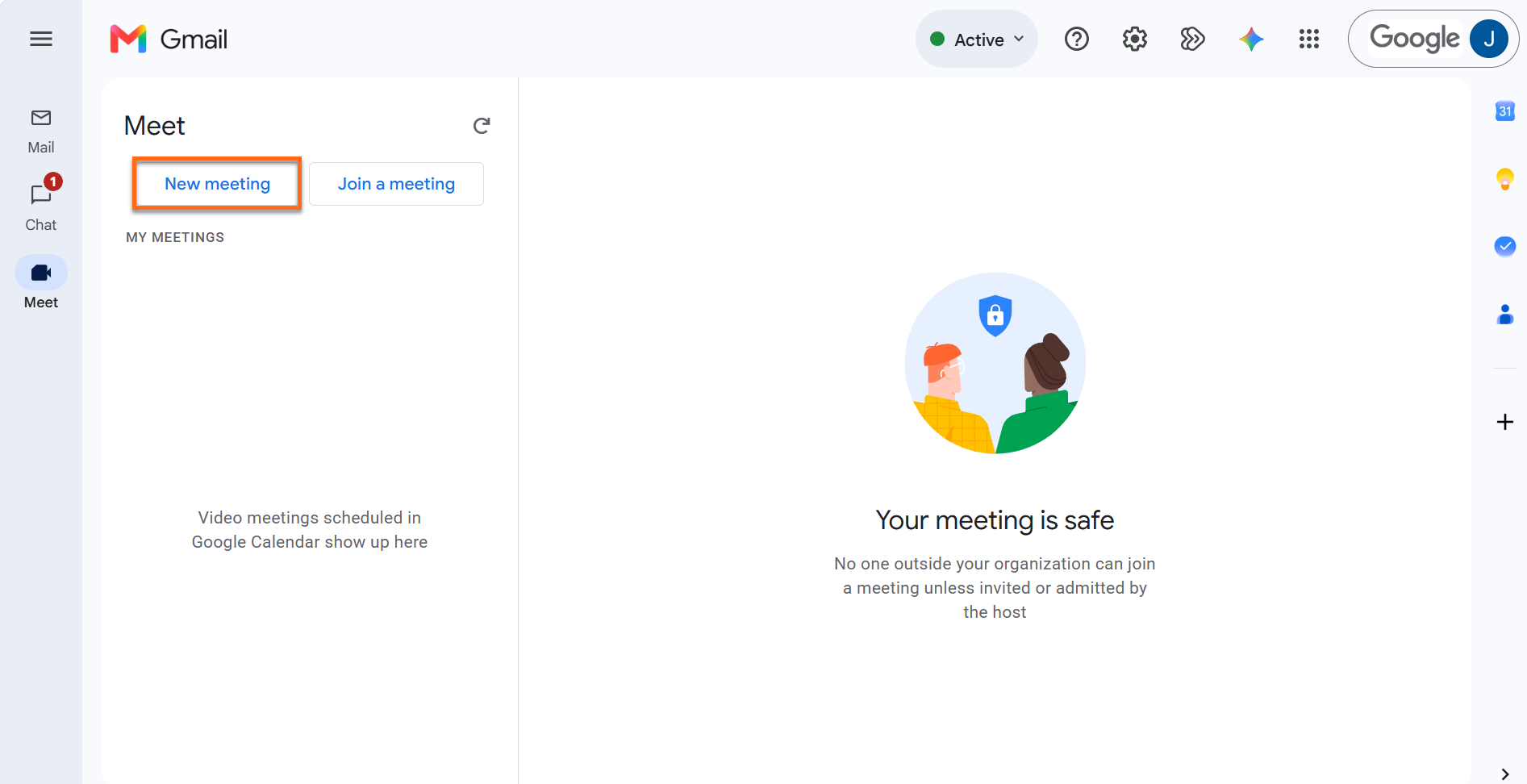
- Choose from the options in the table below.
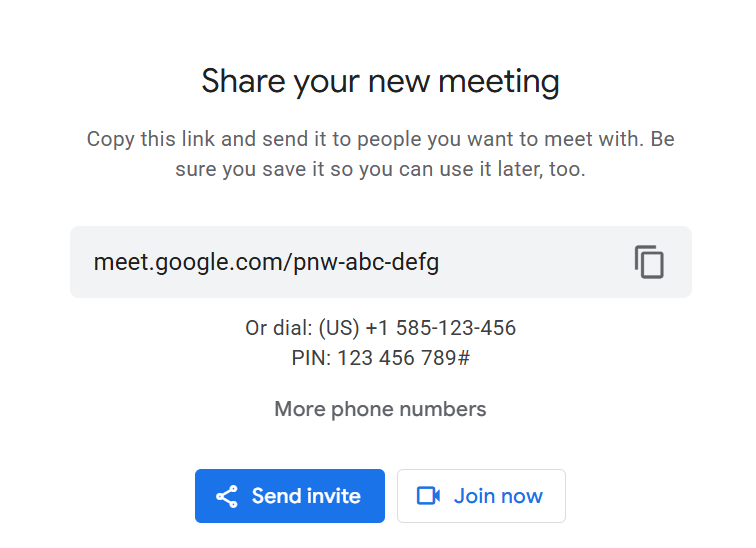
Option What Happens Start an instant meeting You land in a brand-new meeting at once Create a meeting for later Meet hands you a link. Send it out, and when the time comes, open the link, or paste it into Enter a code or link and click Join Schedule in Google Calendar Takes you to Google Calendar to pick a time (see the next section) - Bring others in. Click Add others for an instant meeting, or copy the meeting link and share it.
https://meet.google.com/abc-defg-hij, that's abc-defg-hij. Typing it on the Meet home page gets someone in.Schedule a Meeting in Google Calendar
Add guests to a Calendar event, and Google usually attaches a Meet link on its own.
- Open Google Calendar on your computer.
- Click Create at the top left and choose Event.
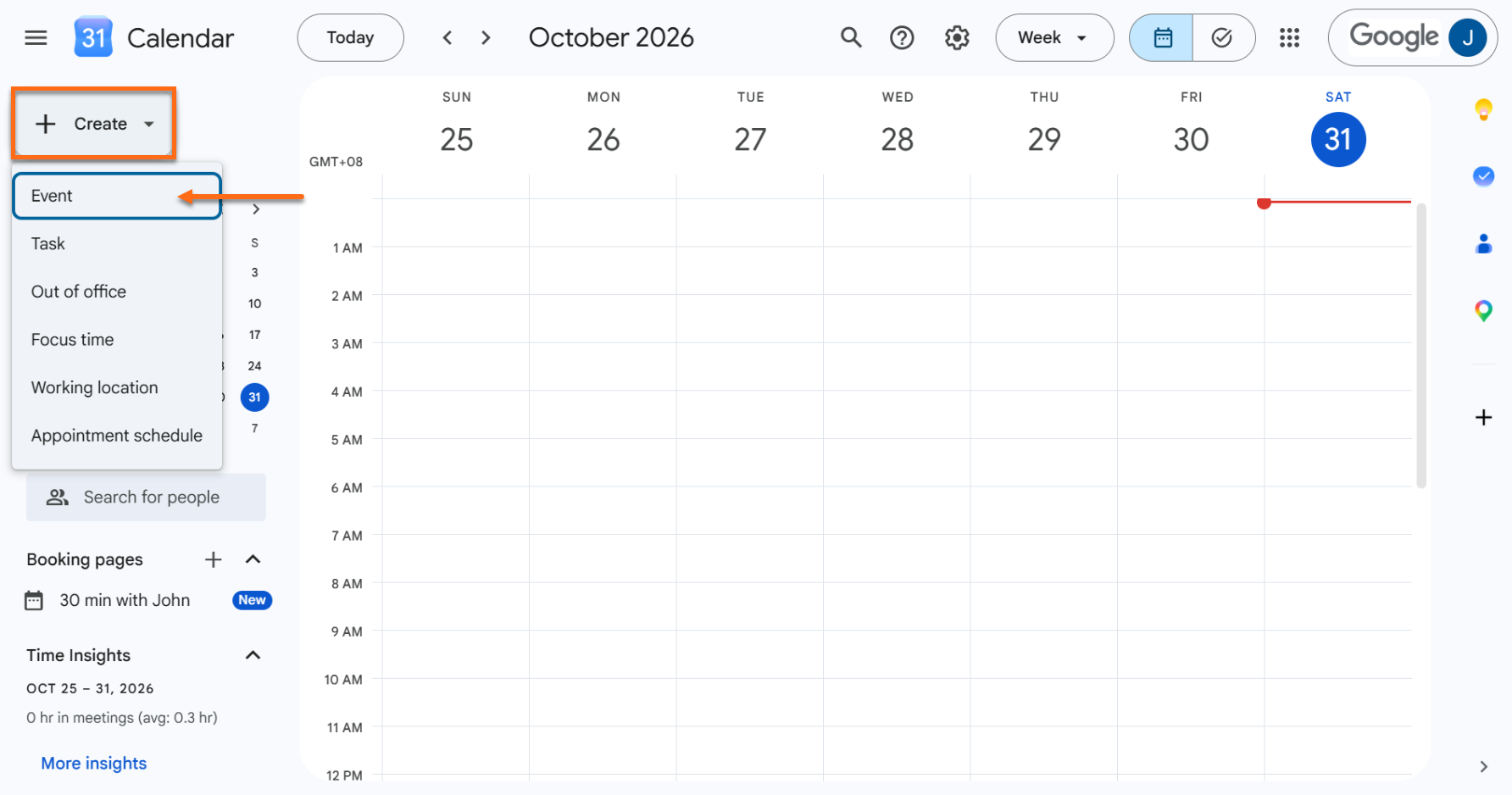
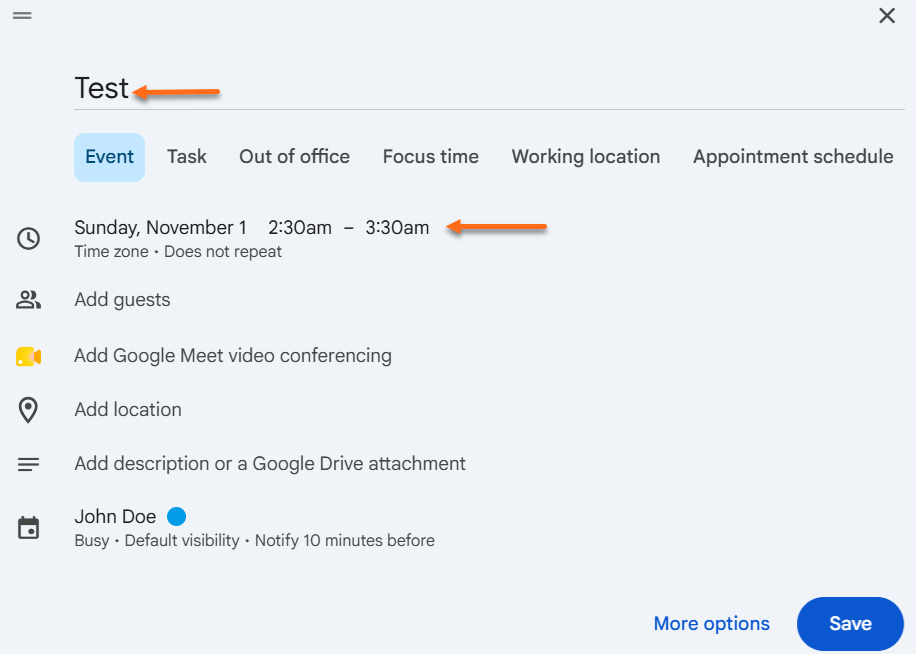
- Name the event and set its date and time.
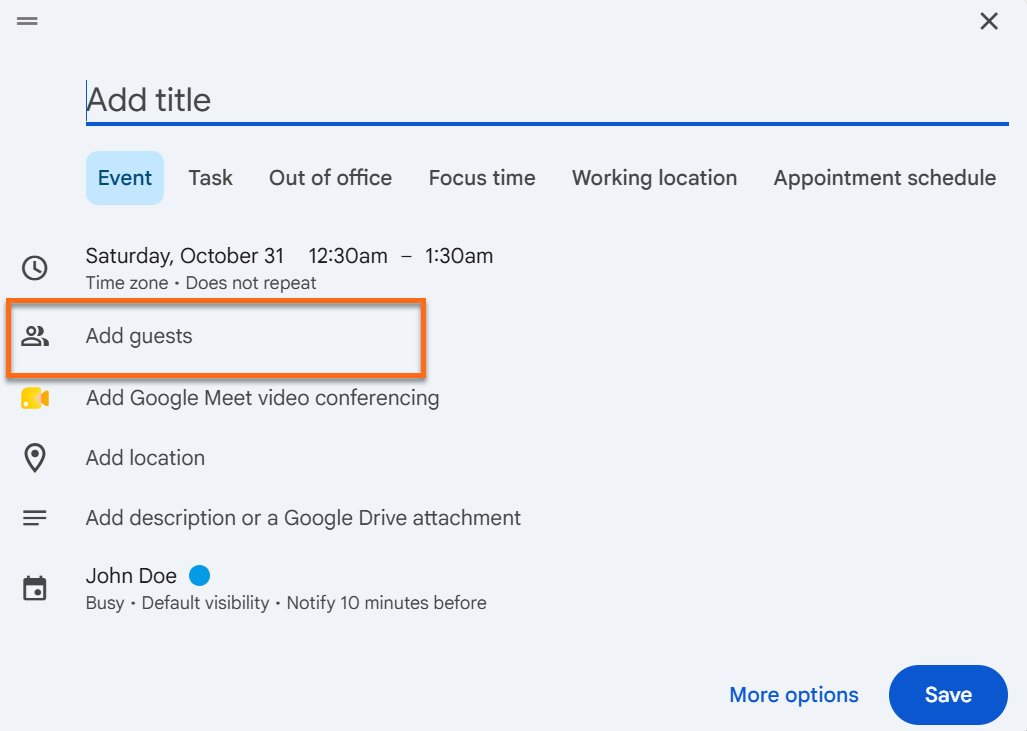
- Type your guests' email addresses under Add guests.
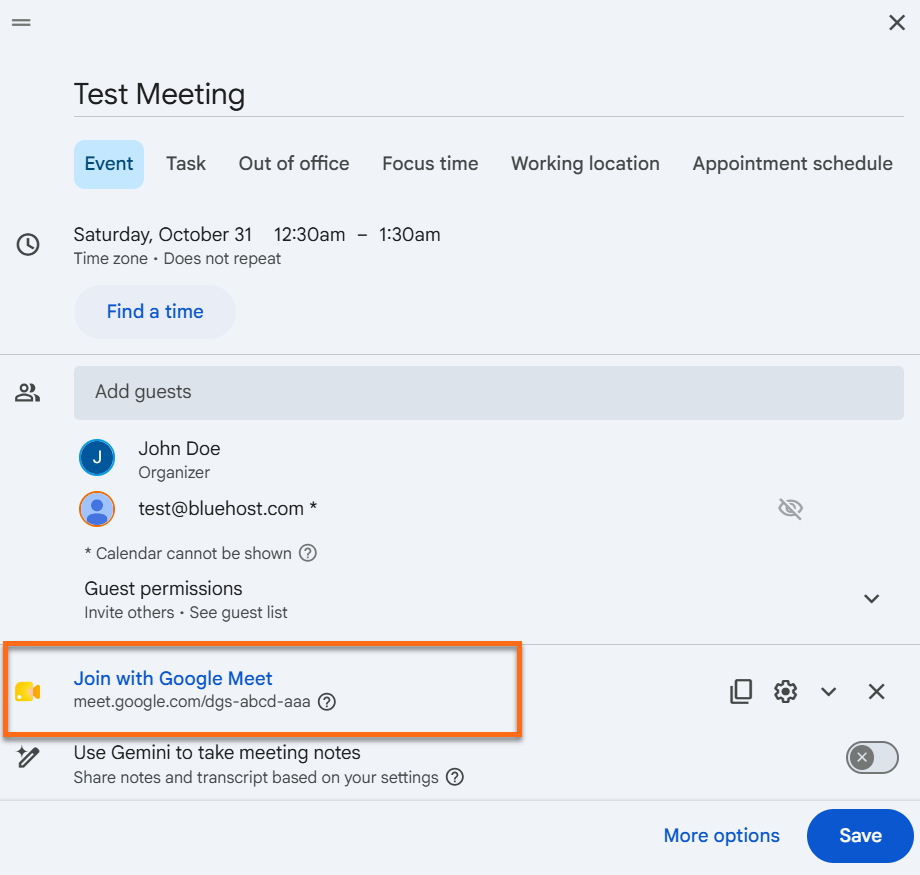
- Look for Join with Google Meet in the event. If it's missing, click Add Google Meet video conferencing.
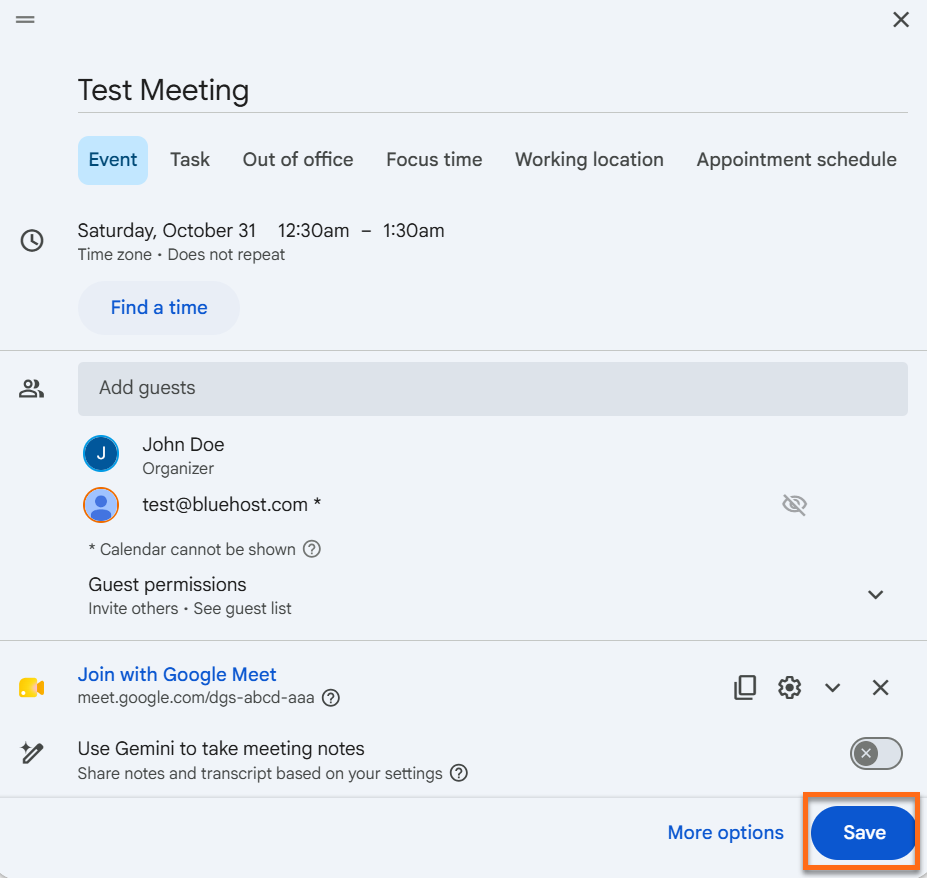
- Click Save.
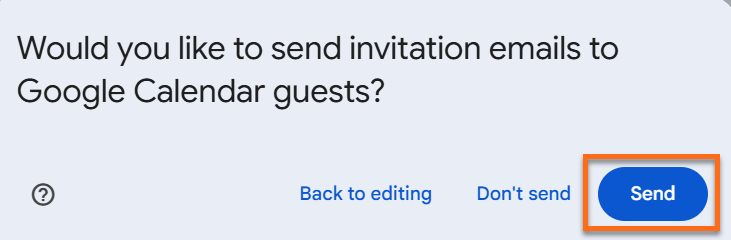
- Click Send when Calendar offers to email the invitation.
Join a Meeting
Join through a Calendar event, a link, or a code. Meet always shows a preview first, so you can confirm that your camera and microphone work.
From a Calendar Invitation
- Open Google Calendar.
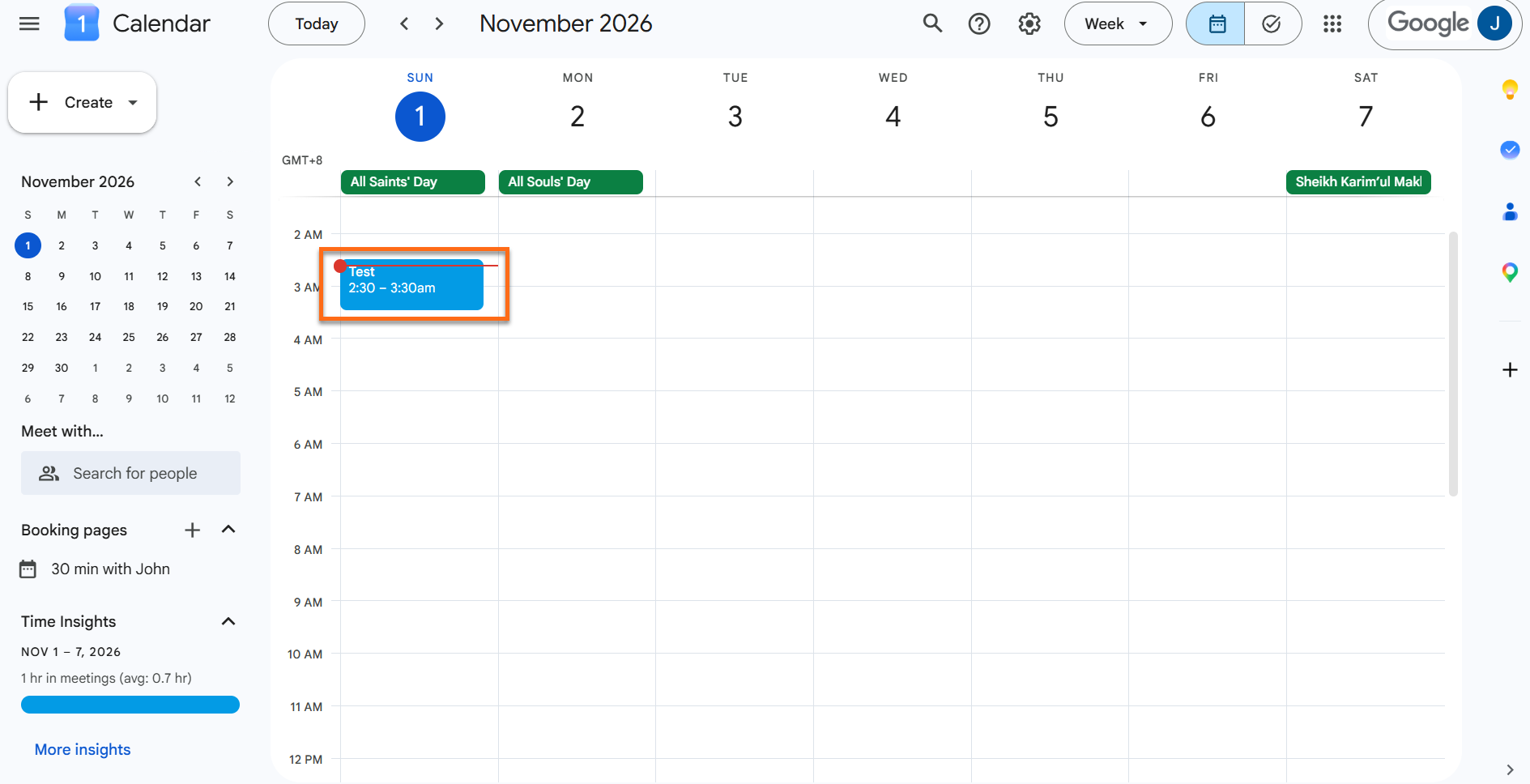
- Click the event.
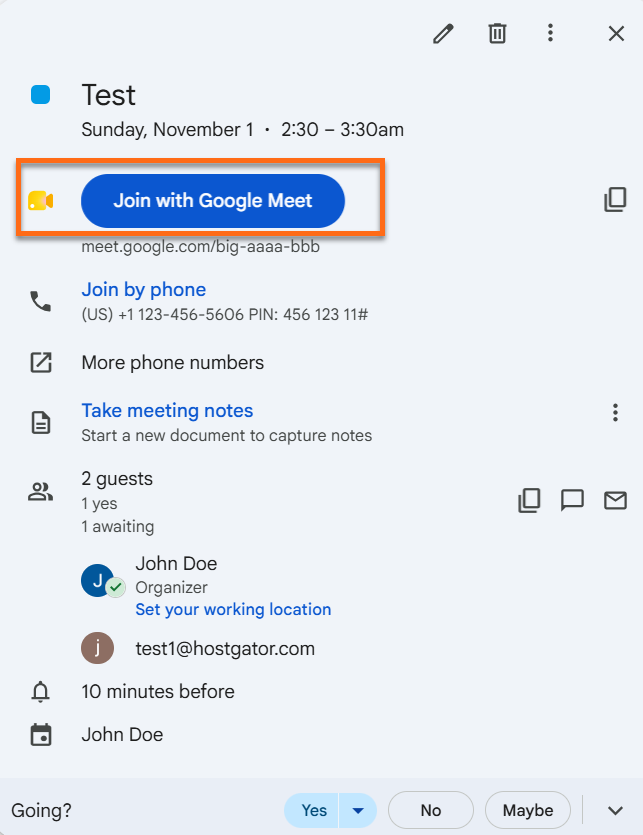
- Click Join with Google Meet.
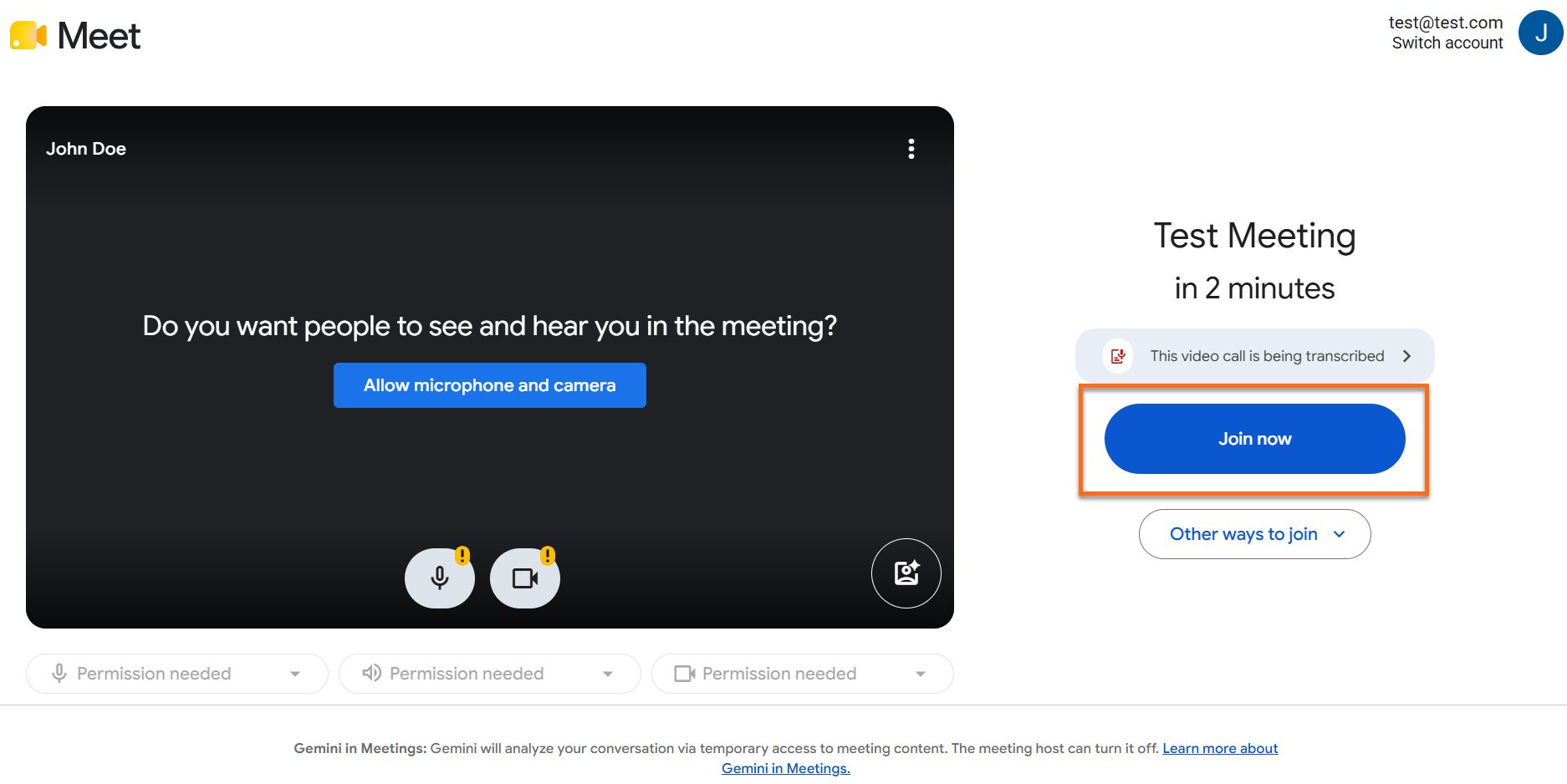
- Click Join now on the preview screen.
From a Meeting Link
- Click the link in your invitation, chat, or email.
- Click Join now on the preview screen.
With a Meeting Code
- Go to meet.google.com.
- Enter the code in Enter a code or link and click Join.
- Click Join now on the preview screen.
Use the Meeting Controls
These controls appear once you're in a meeting:
| Control | What It Does |
|---|---|
| Microphone | Switches your sound on or off |
| Camera | Switches your video on or off |
| Captions | Displays live text of the conversation |
| Present now | Shares your screen |
| Show everyone | Shows who's attending and lets you invite more people |
| Chat | Lets you type messages without interrupting the speaker |
| Raise hand | Flags that you'd like to ask something |
| Activities | Opens breakout rooms, polls, Q&A, and recording, depending on your plan |
| More | Reaches extras such as background changes |
Leave or End a Meeting
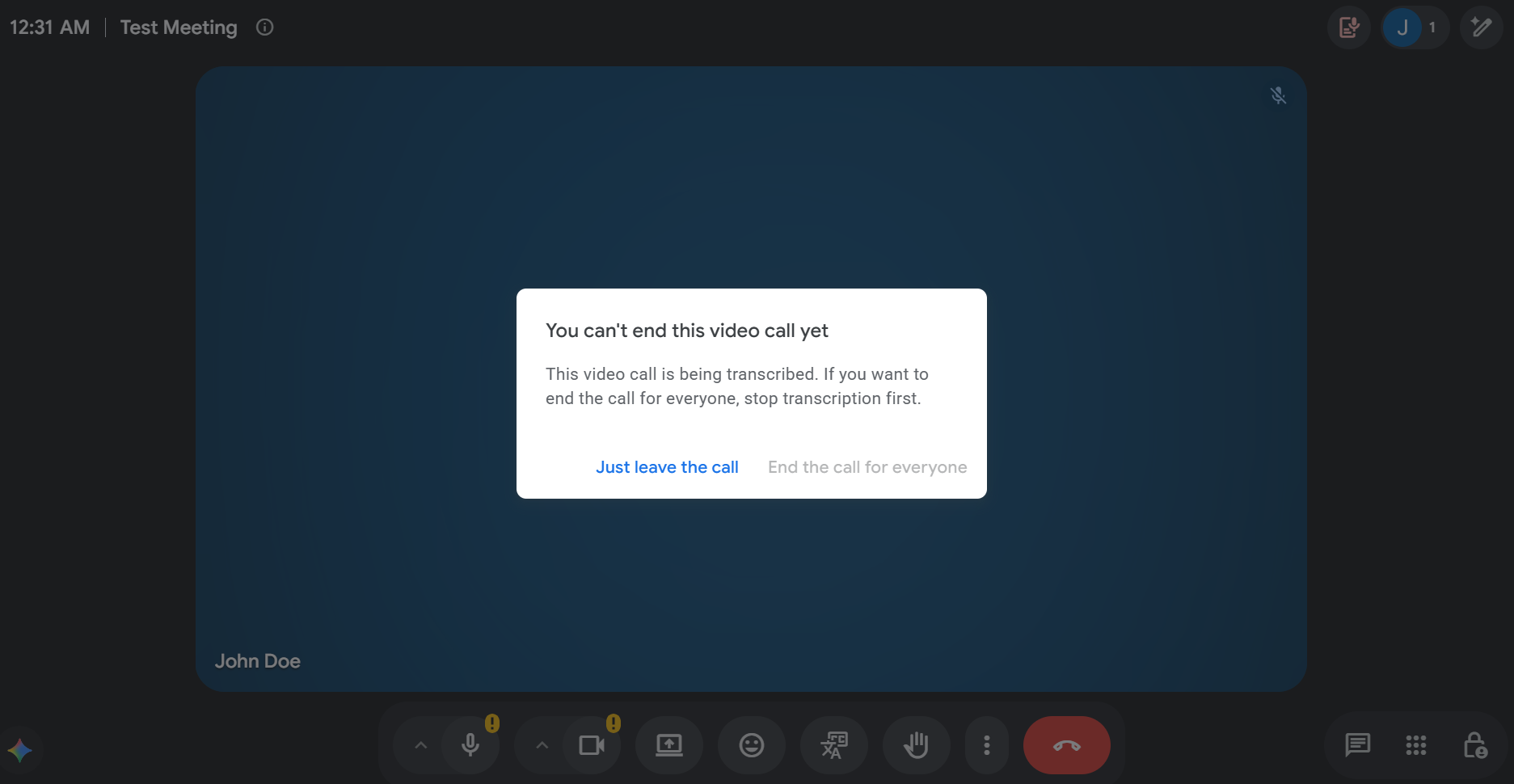
When you finish, click Leave call at the bottom of the screen. The person who started the meeting gets a choice:
- Just leave the call: You step out, and the call continues for everyone else.
- End the call for everyone: Meet removes every participant, breakout rooms included, and no one can return until you rejoin.