Knowledge Base
Categories: Plesk Client Side
How to Create an FTP User in Plesk
To create an FTP user in Plesk, follow the steps below. Although different versions of Plesk may look slightly different, the buttons, icons, and menu options remain consistent across the platform.
Create an FTP User in Plesk
- Log in to Plesk.
- Click on Websites & Domains.
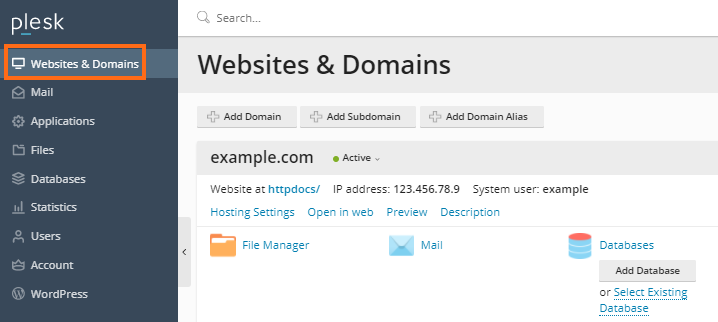
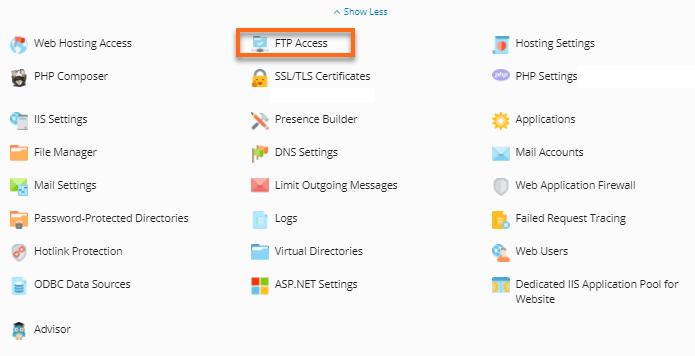
- Under the Dashboard tab, click on FTP.
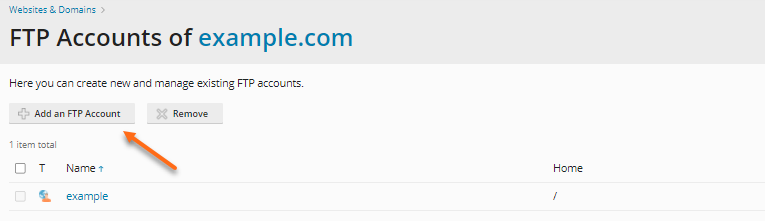
- Click on Add an FTP Account.
- Fill out all the necessary information.
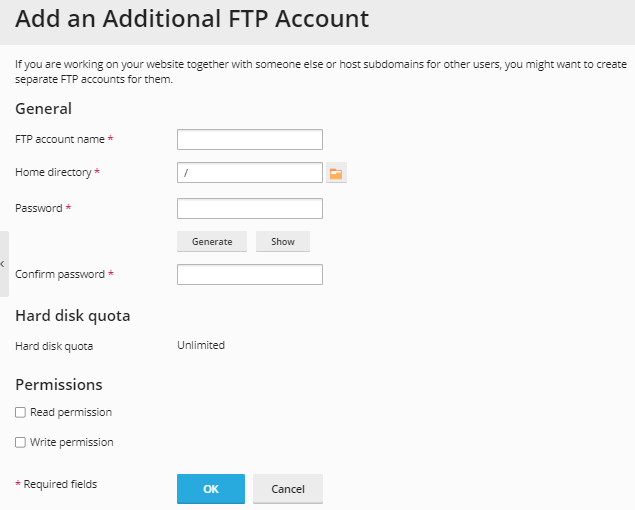
- FTP account name: What do you want the login to be? (Required field)
- Home Directory: This will be the highest directory they will have access to. By default, they have access to/for the Subscription. Do note that they will have access to everything below this point. (Required Field)
- Password and Confirm password: Type in what the FTP password should be for this user. (Required Fields)
- Hard disk quota: The amount of disk space on the server that the FTP user can occupy.
- Read permission: To allow the FTP user to view the contents of the home directory and download files from it, select the Read permission checkbox.
- Write permission: To allow the FTP user to create, view, rename, and delete directories in the home directory, select the Write permission checkbox.
- Click on the OK button, and the new FTP user will be created.
Note: You must use the IP address to connect via FTP. To locate the IP Address, go to Web Hosting Access under Websites & Domains.
Did you find this article helpful?