Xcitium Backup History: View and Manage Website Backups
The Xcitium Backup History dashboard provides a centralized solution for monitoring website backups, checking backup status, and efficiently managing restore points.
With this powerful backup management tool, you can quickly identify issues, troubleshoot failed backups, and restore your website with confidence.
What You Can See in Backup History
When you access Xcitium Backup History, you can:
- View backup date and time
- Check backup status (completed, failed, or in progress)
- Review included and skipped files
- Access restore and download options
This allows you to maintain full visibility into the health and recovery readiness of your website backups.
Backup Storage and Limitations
Backups are stored for up to 90 days only. After this period:
- Older backups are automatically deleted
- Restore and download options are no longer available
If storage becomes full:
- New backups may fail
- Alerts will appear in your dashboard
Best practices for backup management:
- Delete unnecessary backups
- Upgrade storage when needed
- Regularly check backup status
When You Should Use Backup History
You can use this page to:
-
Confirm Backup Success: Ensure your backups are completed, and your website data is secure.
- Troubleshoot Failed Backups: Identify issues and analyze logs to resolve backup errors quickly.
-
Restore Your Website: Recover your full site or specific files from a previous backup.
-
Download Backup Files: Store backup copies locally for additional protection.
-
Track Website Changes: Monitor file additions, deletions, and updates over time.
Access View Backup History
- Log in to your Customer Portal.
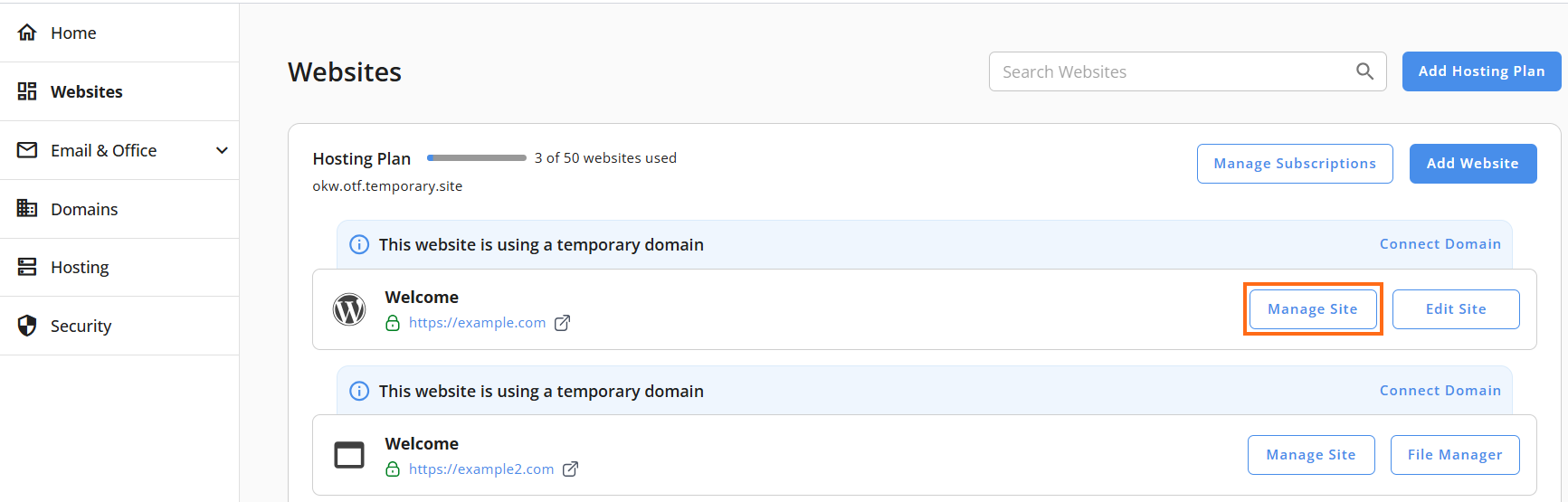
- Go to Websites from the left navigation menu.
- Click Manage Site next to the website you want to manage.
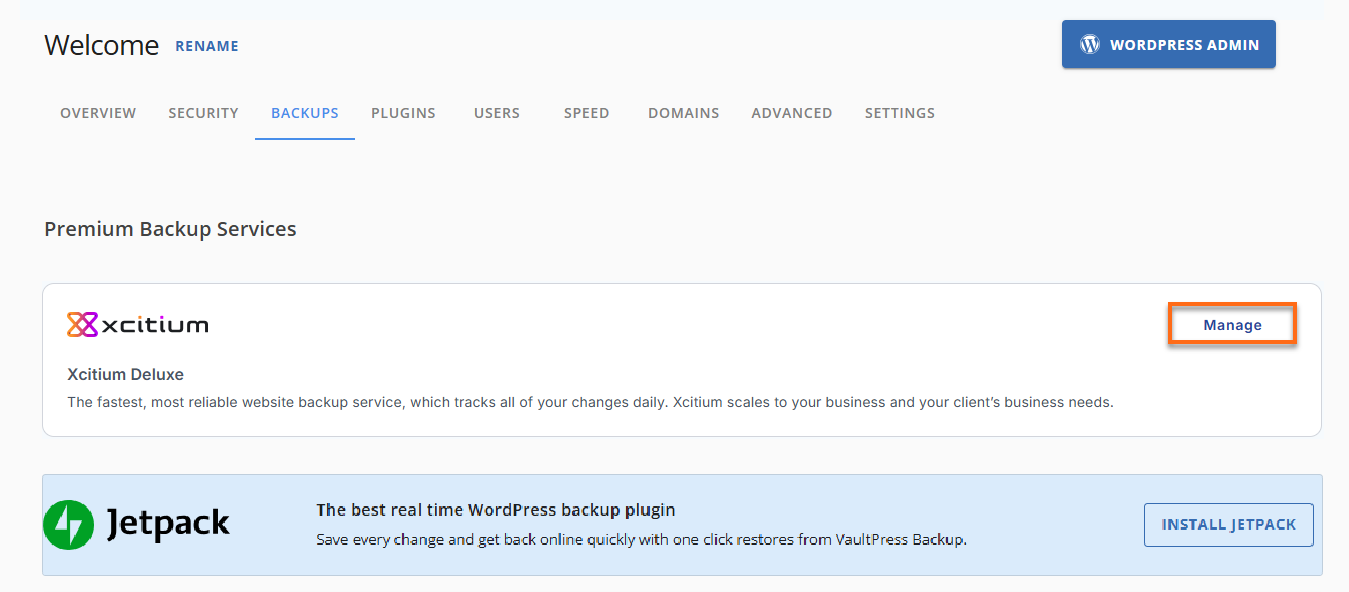
- Click Backups in the top menu.
- Under Premium Backup Services, click Manage for Xcitium.
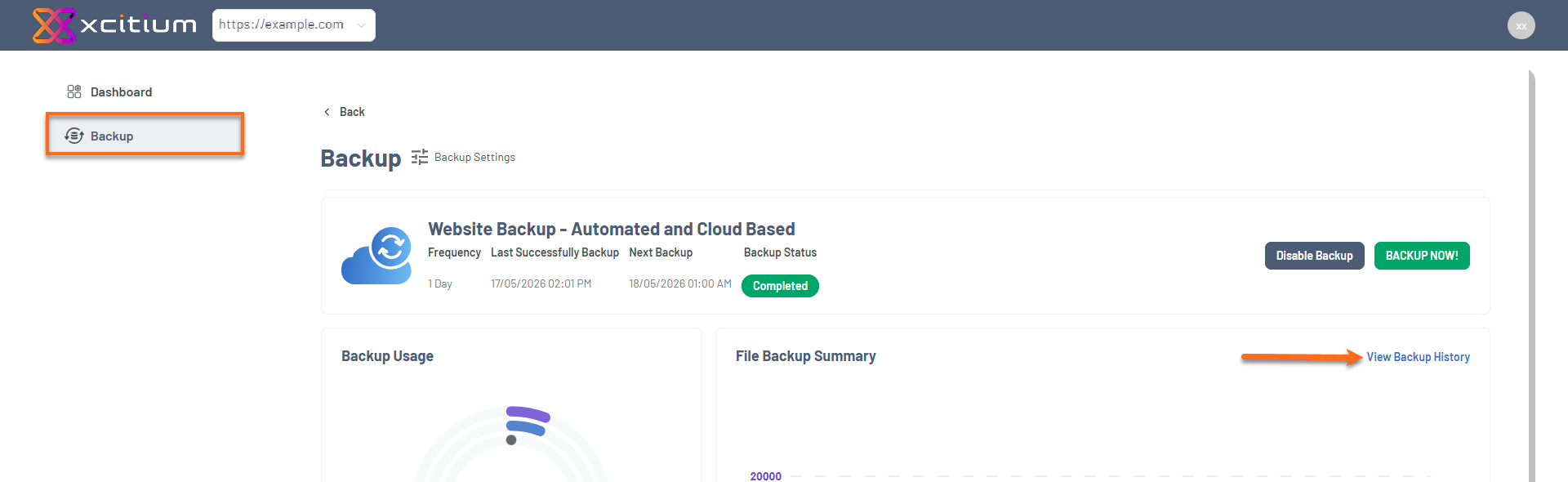
- Navigate to the Backup section in the left menu, then click View Backup History.
How to Read Your Backup History Data
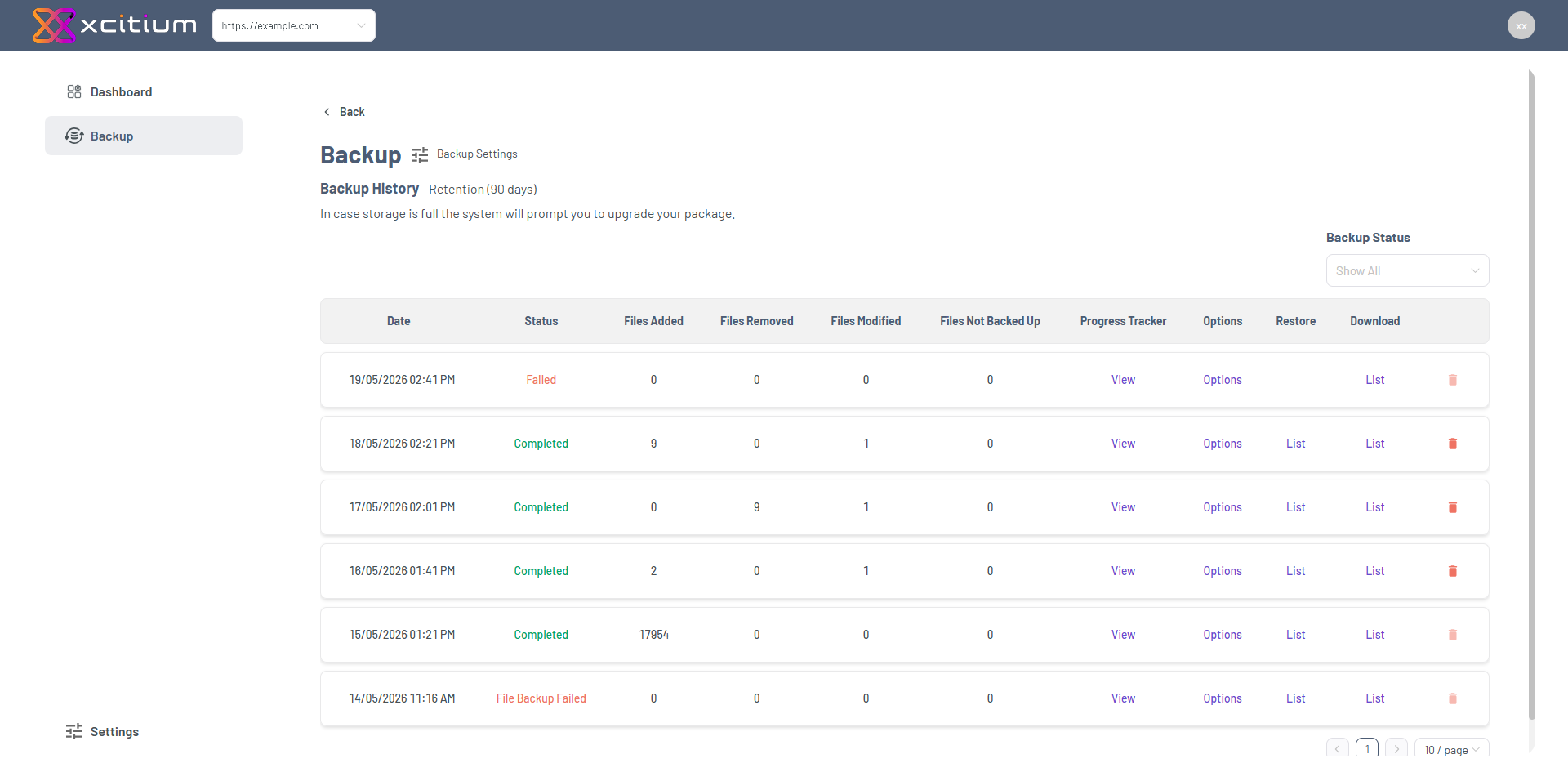
Date
Shows when the backup was created.
Backup Status
Indicates success, failure, or progress.
Here’s what each status means:
- Completed – Backup successful
- Completed Partially – Some files skipped
- In Progress – Backup running
- File Backup Failed – File issue occurred
- DB Backup Failed – Database backup failed
- Failed – Backup did not complete
Use the Progress Tracker to identify issues and review backup logs.
Files Added
New files included in the backup.
Files Removed
Deleted files since the last backup.
Files Modified
Updated files.
Files Not Backed Up
Skipped or excluded files
- File restrictions
- Errors during backup
- System limitations
Progress Tracker
The Progress Tracker allows you to:
- Monitor each step of the backup process
- Determine where failures occurred
- Examine timestamps for each action
To view it:
- Look for a backup entry.
- Click View under Progress Tracker.
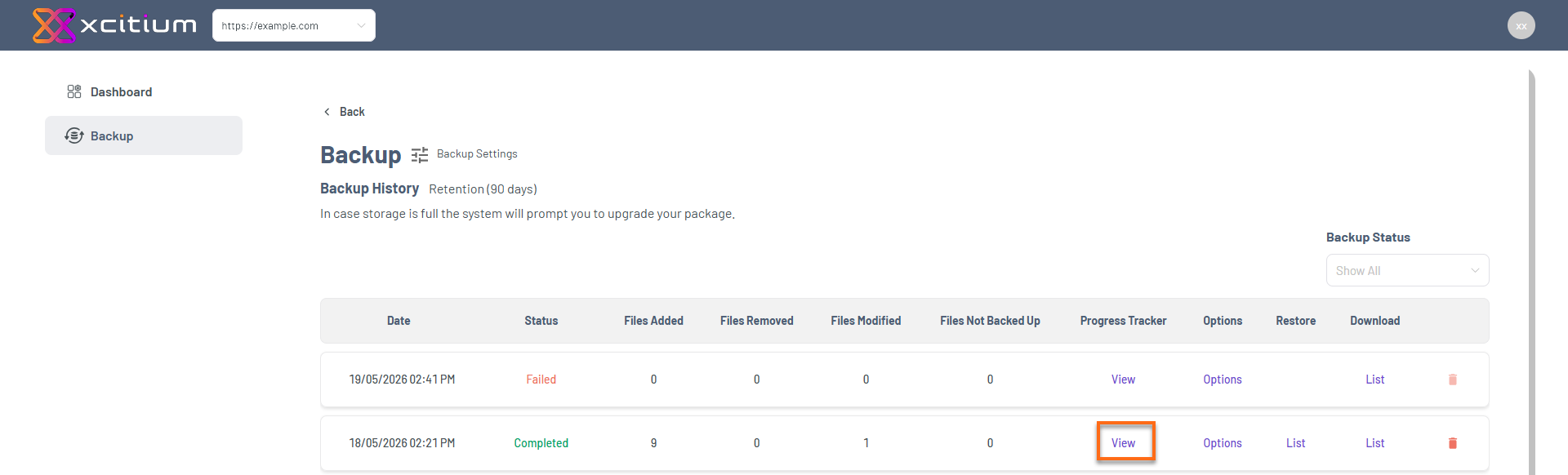
- Review backup progress tracker details.
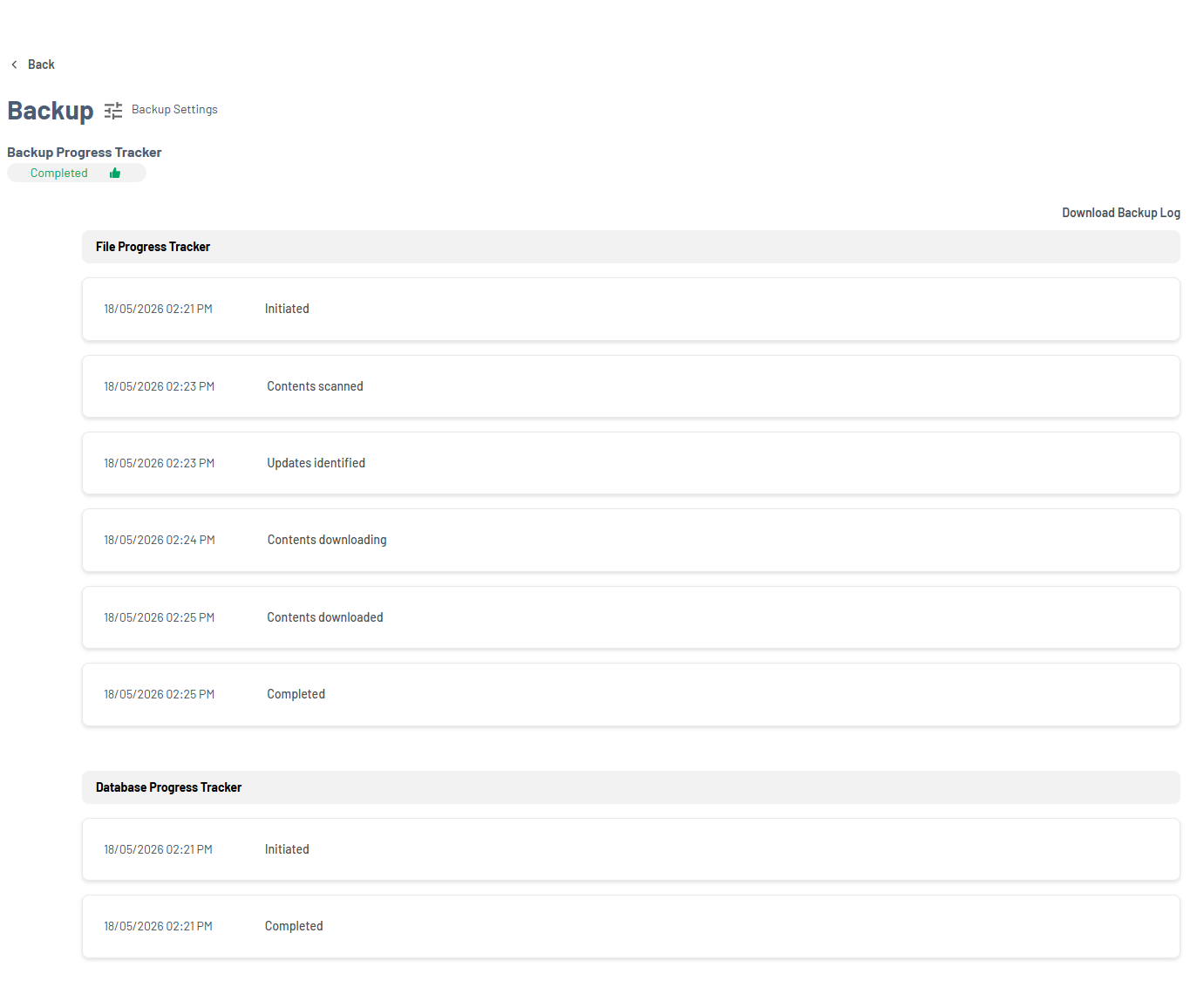
You can also download logs for detailed troubleshooting.
Option
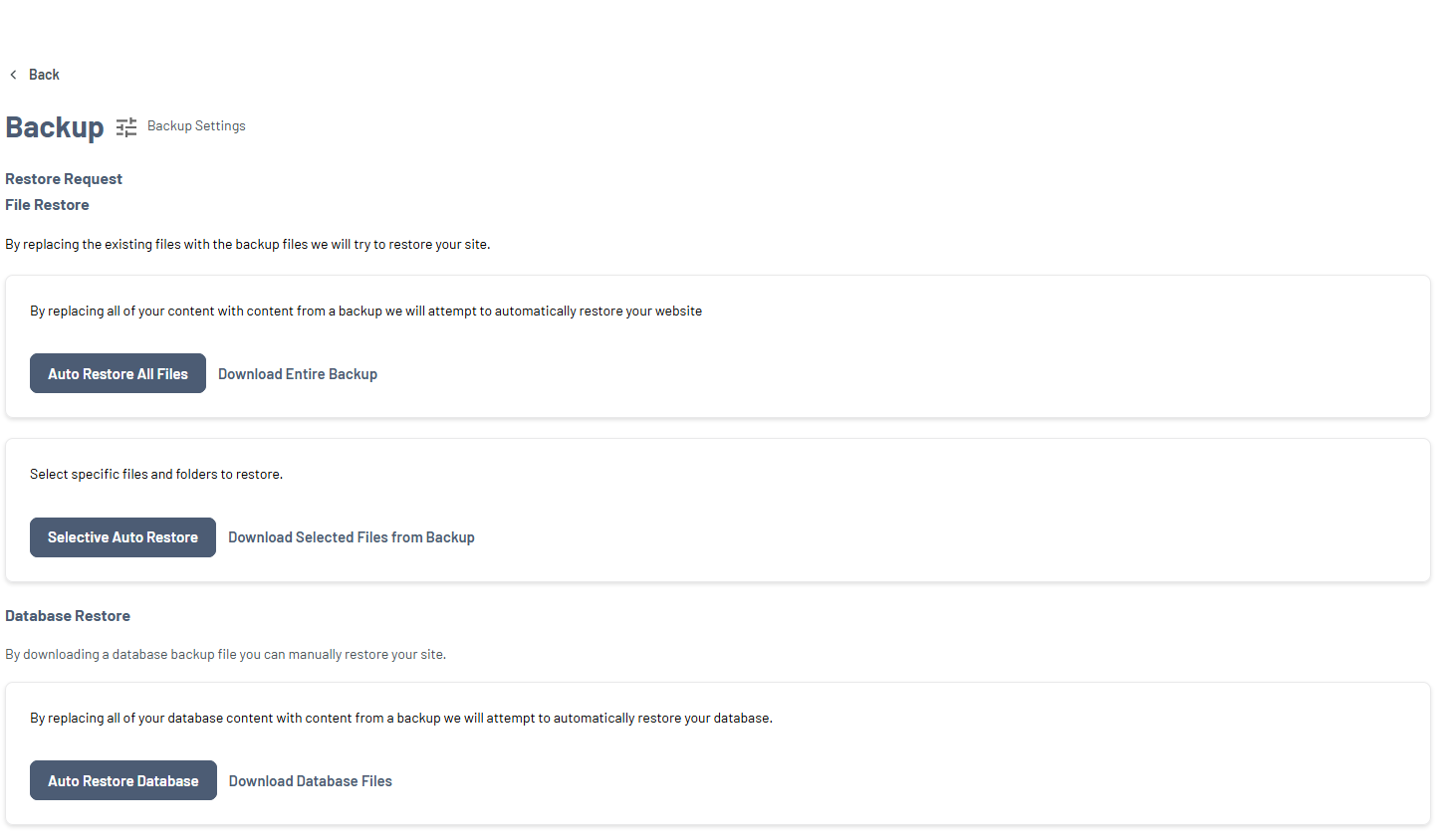
Provides actions for a selected backup, including restore and download functions.
Click Options next to a backup to:
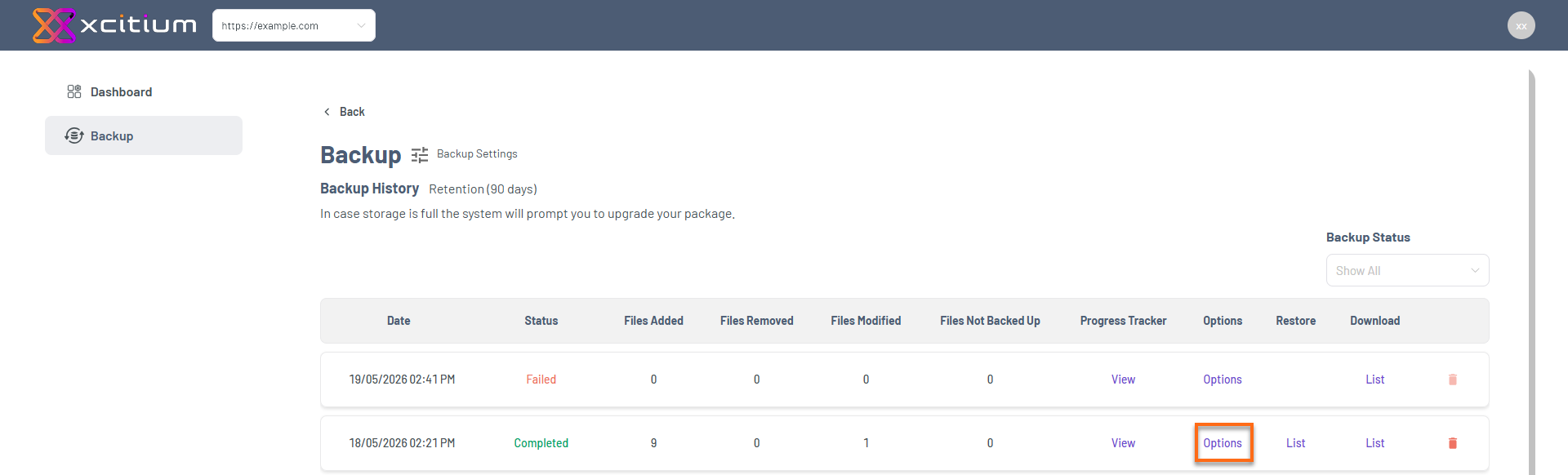
- Restore website files
- Restore your database
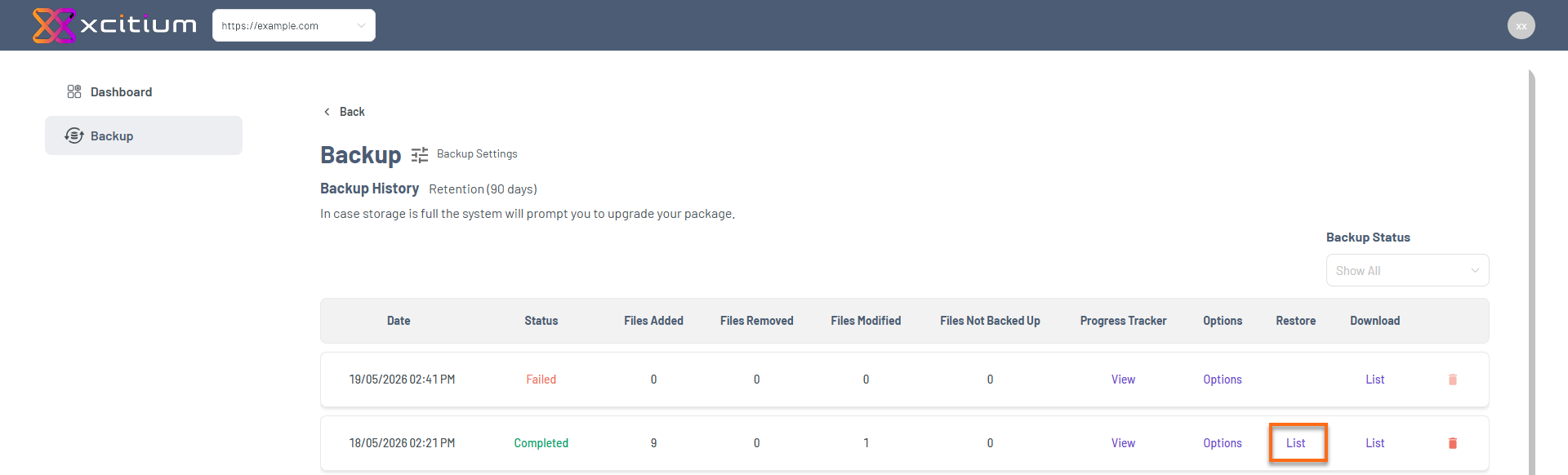
Restore
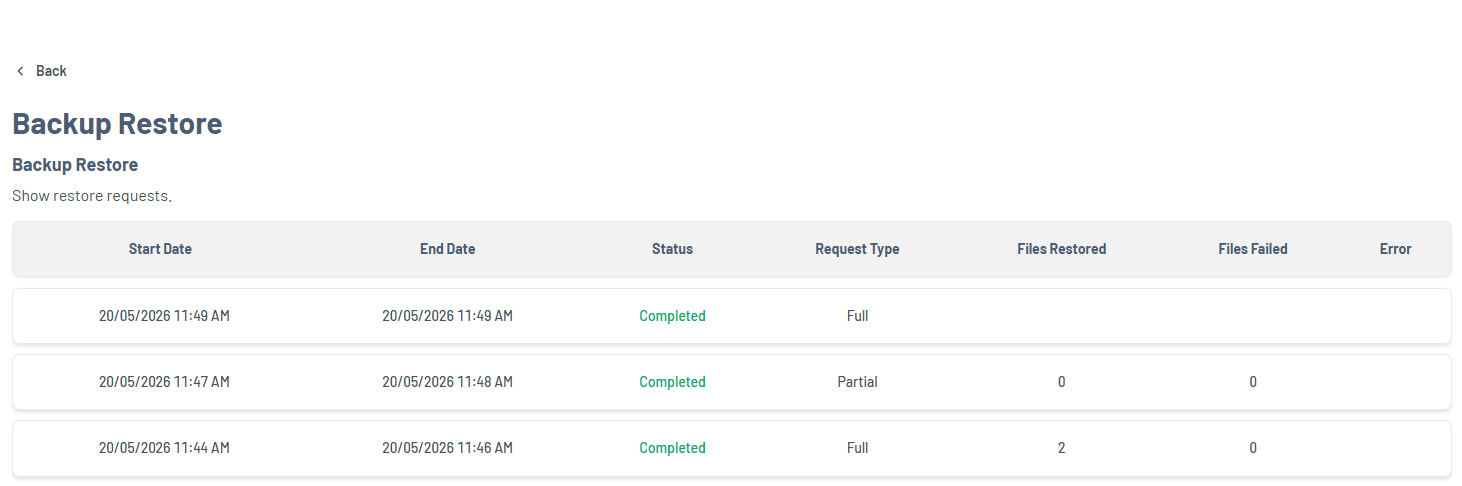
View all restore request files from previous backups. Click List to display restore requests along with their details and status.
Download
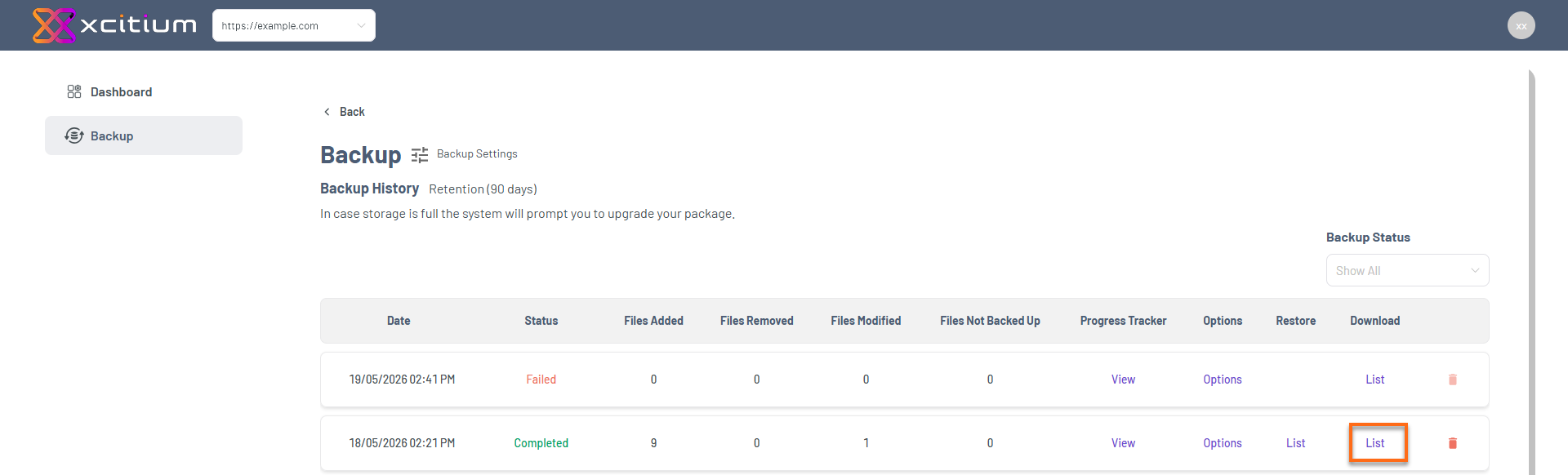
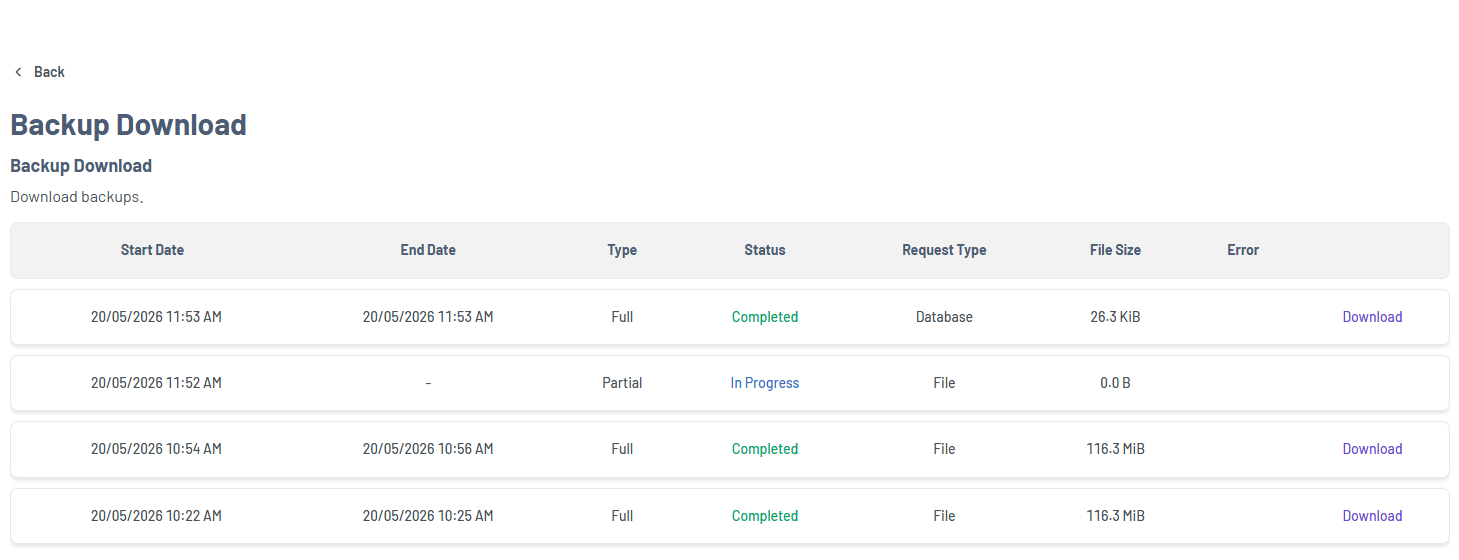
Save backup files locally for extra security. Click List to see the available files you can download.
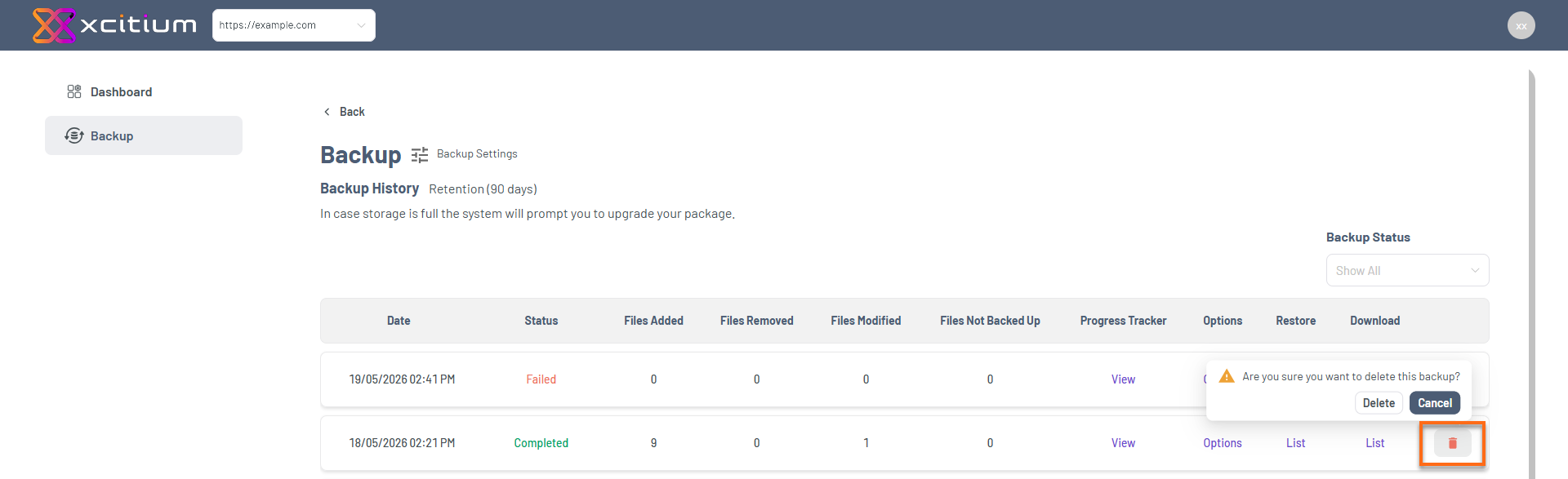
Delete
Permanently remove backups you no longer need.
Why Xcitium Backup History Matters
Regularly checking your backup history in Xcitium ensures:
- Your backups are working correctly
- You always have a reliable restore point
- Your website remains protected from data loss