Knowledge Base
Categories: Files
Xcitium Backup Download: Get Website Files and Database
Managing backups is essential for website security and recovery. The Xcitium Backup Download feature lets you safely download website files and databases, ensuring you always have a local backup before making changes.
Before performing any restore of your website, it’s best practice to download your website backup to protect your data and enable quick recovery.
Access Download Restore
To access backup downloads in Xcitium:
- Log in to your Customer Portal.
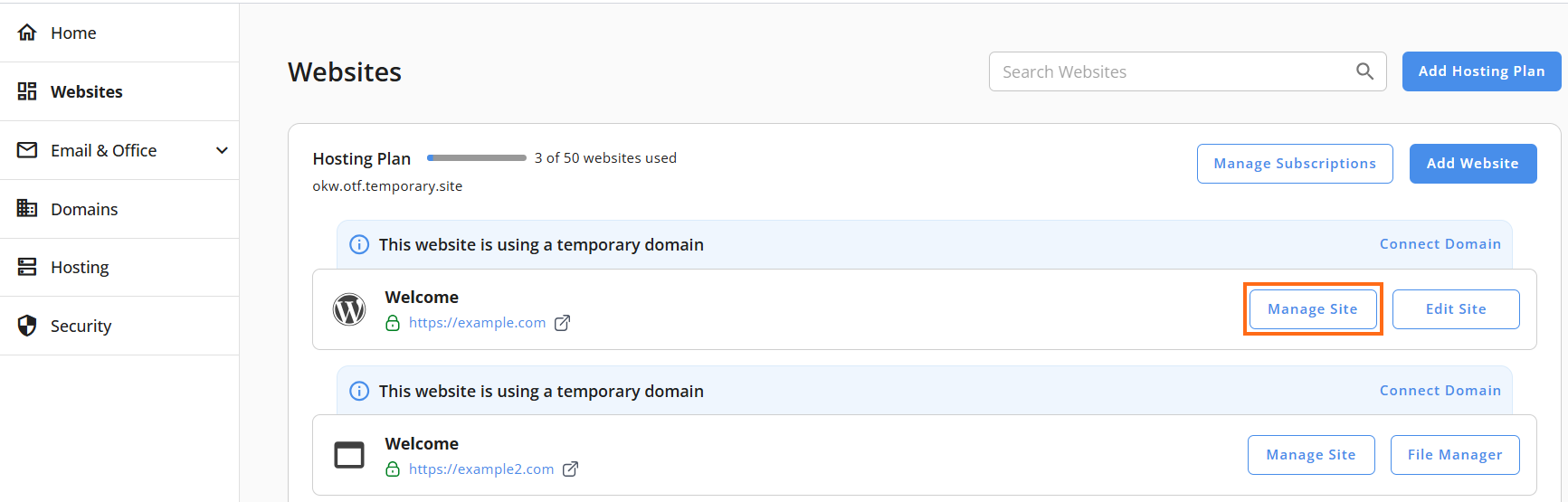
- Go to Websites from the left navigation menu.
- Click Manage Site next to the website you want to manage.
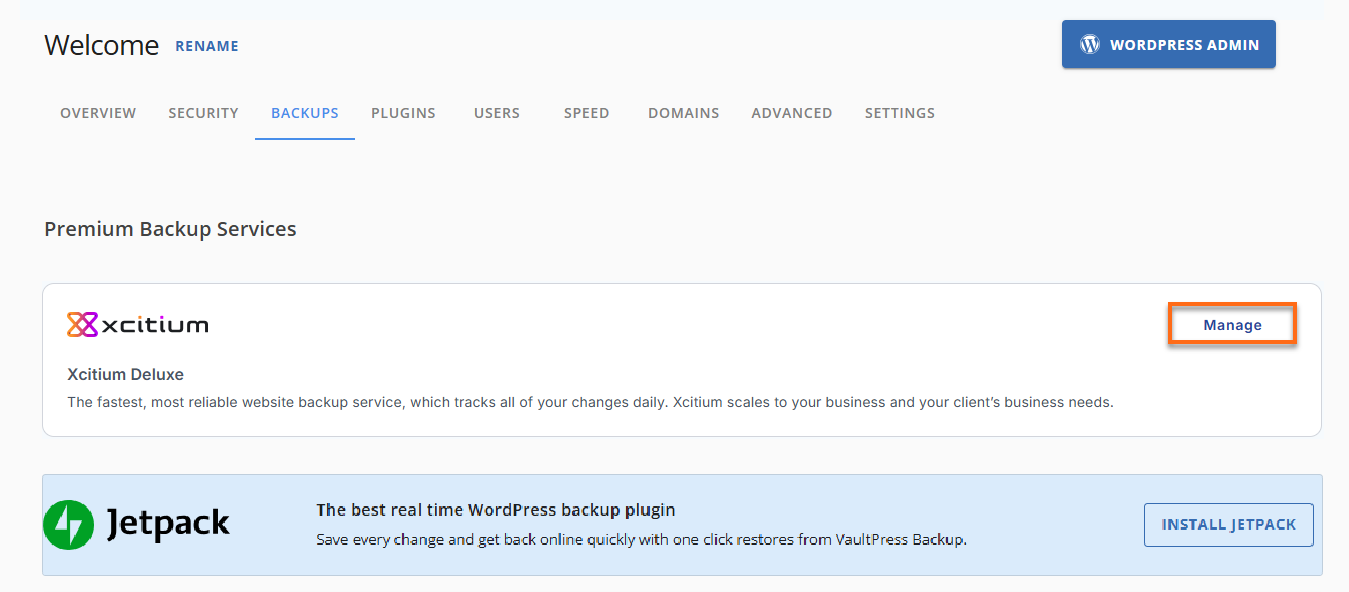
- Click Backups in the top menu.
- Under Premium Backup Services, click Manage for Xcitium.
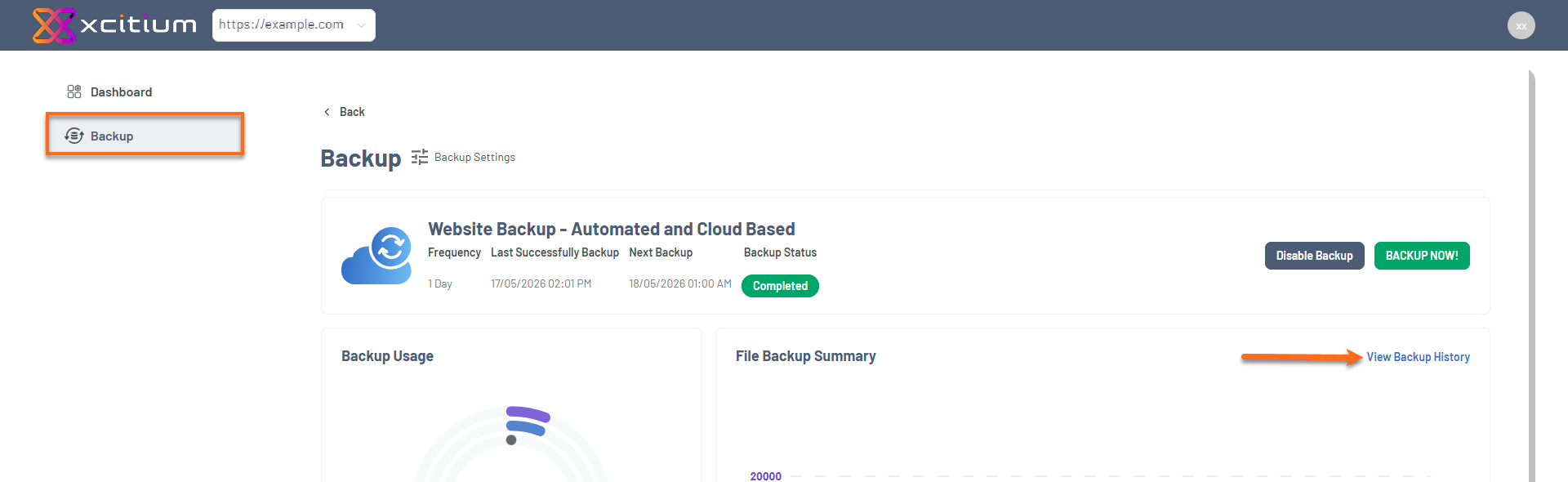
- In the Xcitium dashboard, go to Backup in the left menu.
- Click View Backup History.
- Click Options next to the backup you want to download
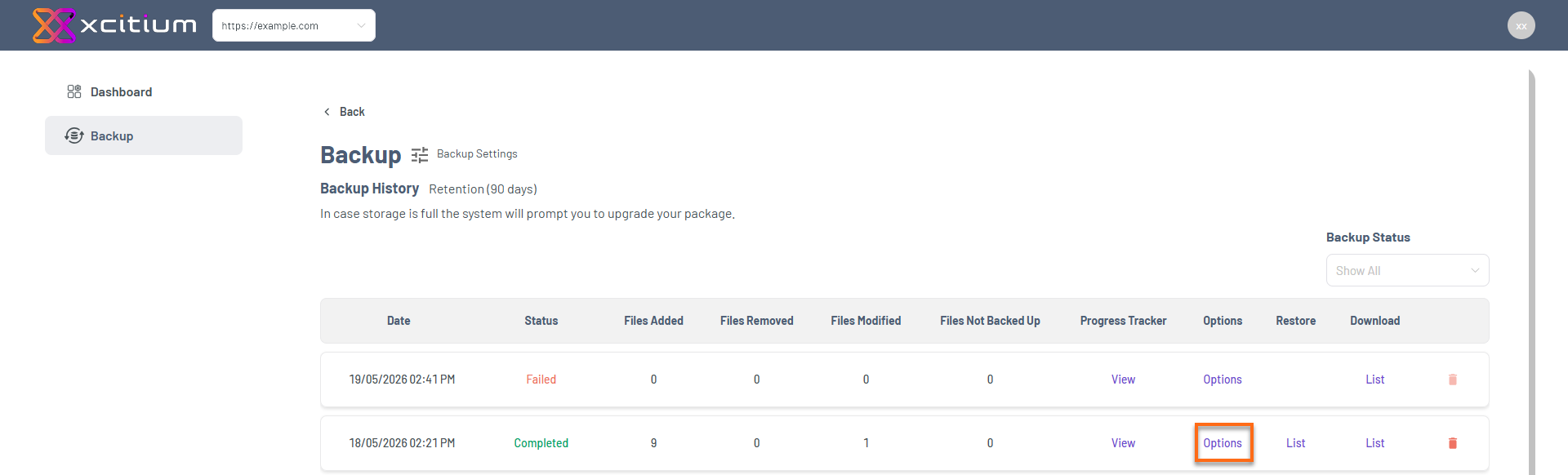
This opens the backup download dashboard, where you can choose your download type.
Download Files and Database
The Xcitium Backup Download tool gives you two main options:
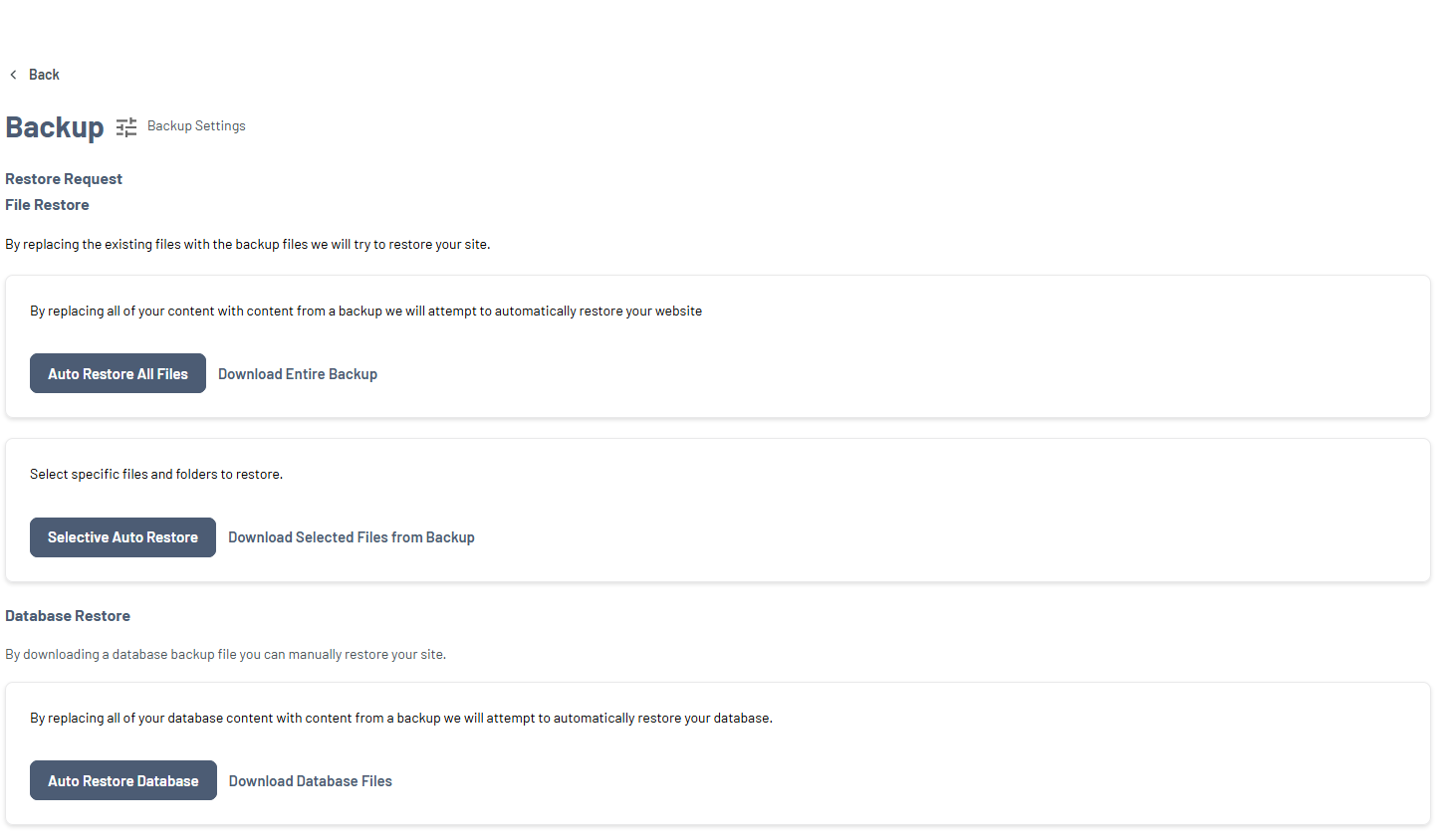
File Download Options
Option 1: Download All Files (Full Backup)
Use this option to create a complete website backup copy.
Best for:
- Full website backup
- Preparing for a full restore
Steps:
- Go to the File Restore section.
- Click Download Entire Backup.
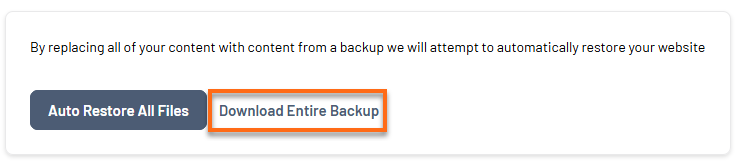
- Confirm the download.
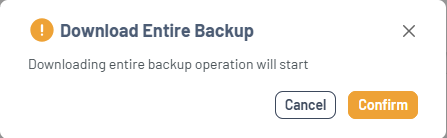
- Wait for the completion.
- Click Download to save locally.
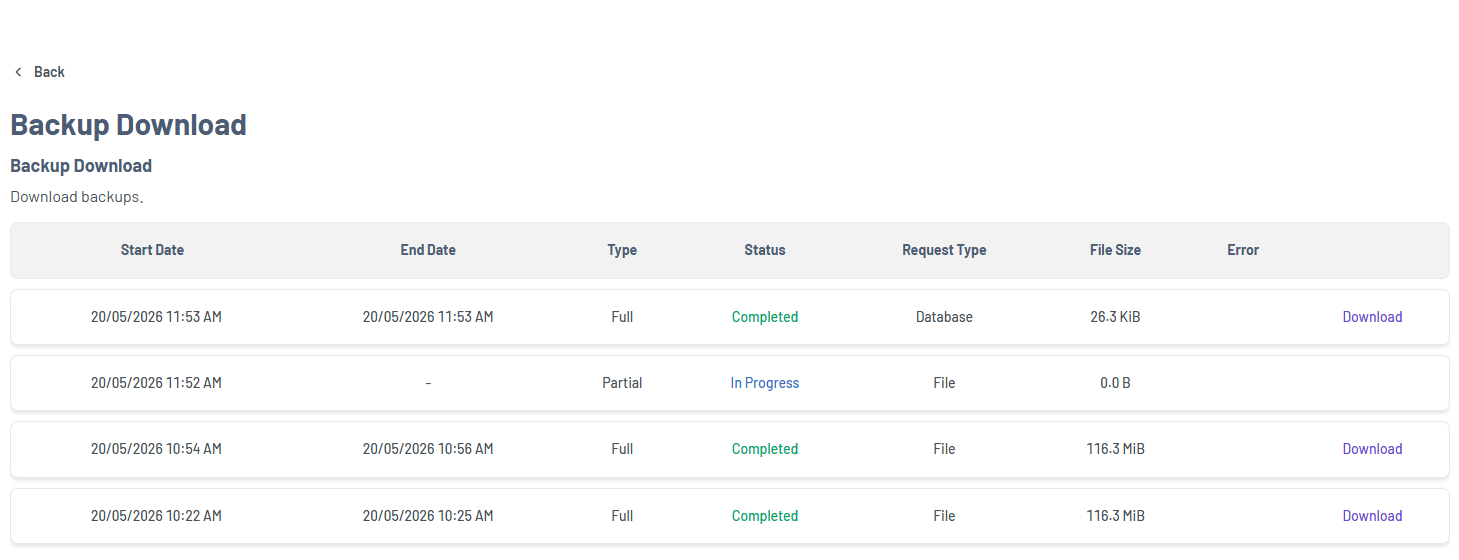
- You now have a full backup of your website files
- Ideal for safeguarding complete site data
Option 2: Download Selected Files (Partial Backup)
Use this option for targeted backup downloads.
Best for:
- Recovering specific files
- Downloading selected folders or assets
Steps:
- Go to the File Restore section.
- Click Download Selected Files from Backup.
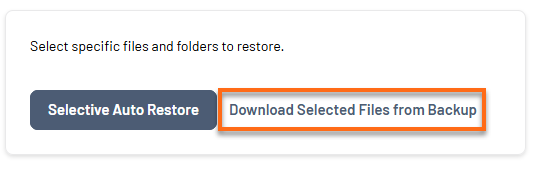
- Choose files/folders.
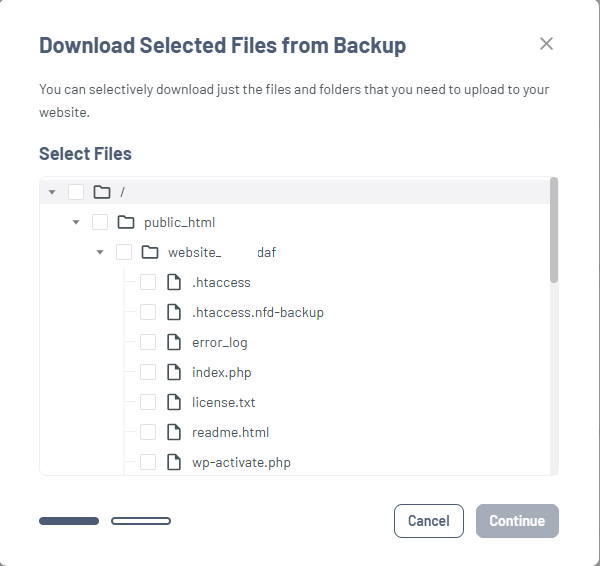
- Click Continue.
- Click Download after selection.
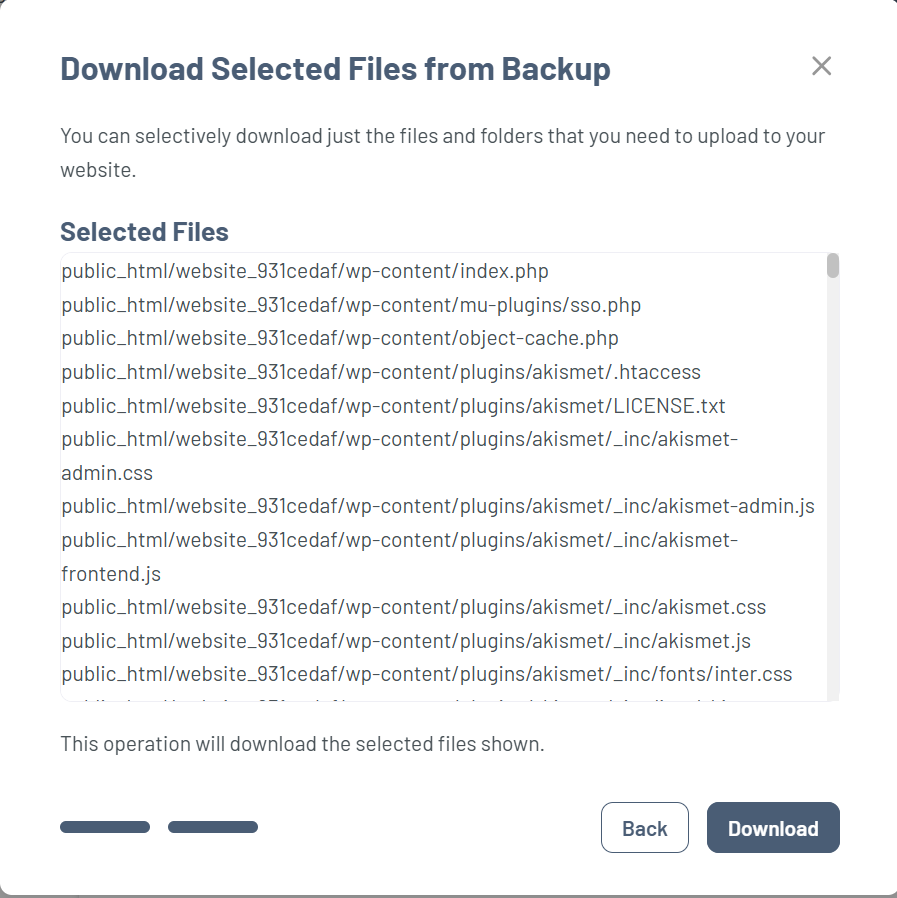
- Wait for the download to complete.
- Click Download to save your files locally.
- Only selected files are downloaded
- Faster and more flexible option
Database Download
The Database Download option lets you download your website’s data, including:
- Content
- User information
- Settings and configurations
Steps:
- Go to the Database Restore section.
- Click Download Database Files.
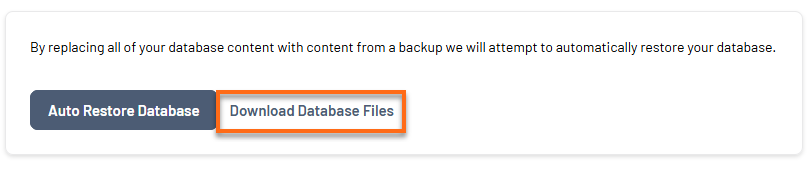
- Confirm the action.
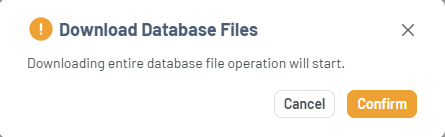
- Wait for completion.
- Click Download to save the database locally.
- Ensures full protection of your website data
- Essential before performing major updates
Did you find this article helpful?