Xcitium Backup Restore: Recover Website Files and Database
Managing backups is critical for website security, stability, and recovery. The Xcitium Backup Restore feature lets you quickly restore website files and databases, helping you fix issues and protect your data.
This powerful website restore tool ensures you can recover from errors, missing files, or database corruption with confidence.
Access Backup Restore
- Log in to your Customer Portal.
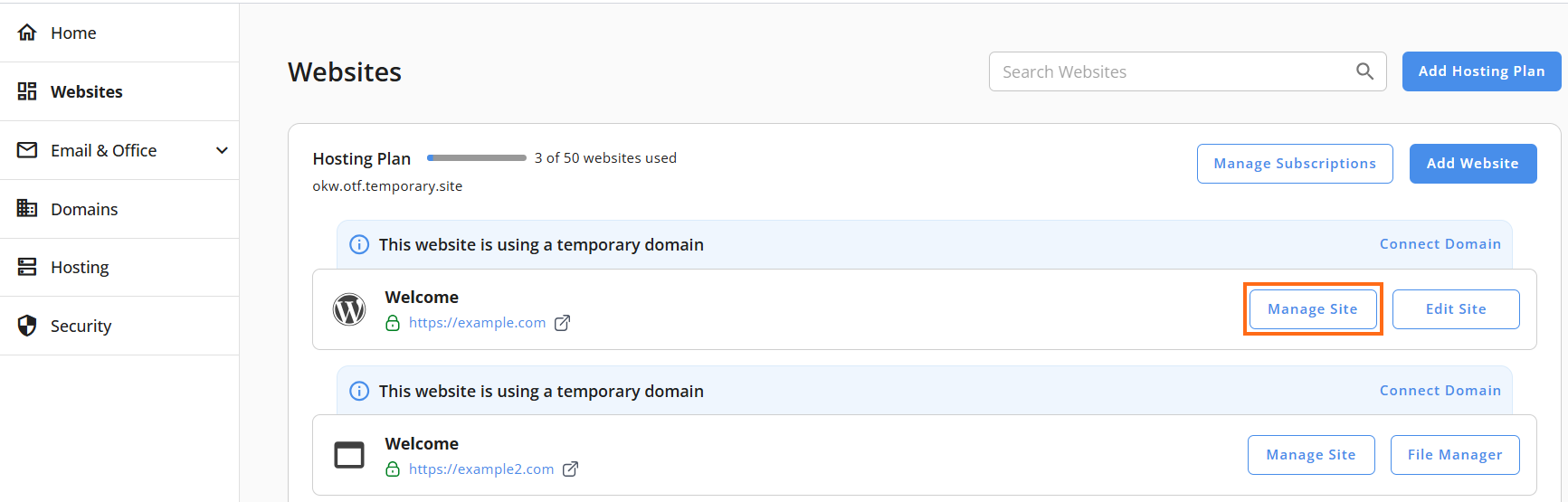
- Go to Websites from the left navigation menu.
- Click Manage Site next to the website you want to manage.
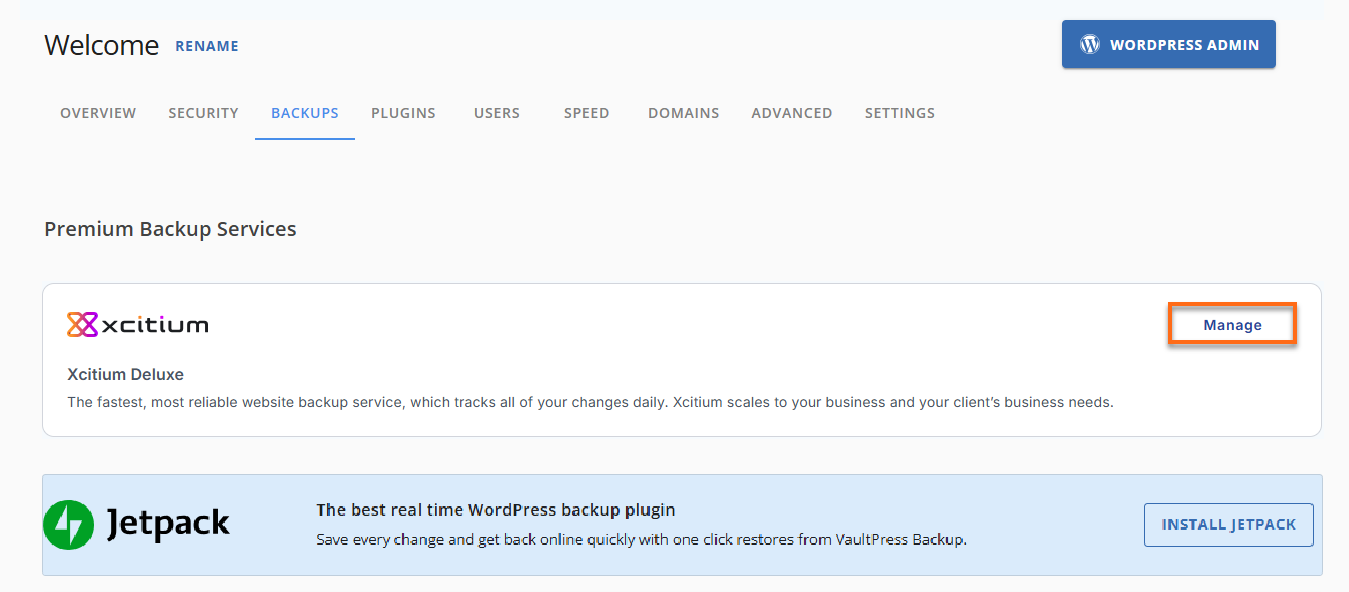
- Click Backups in the top menu.
- Under Premium Backup Services, click Manage for Xcitium.
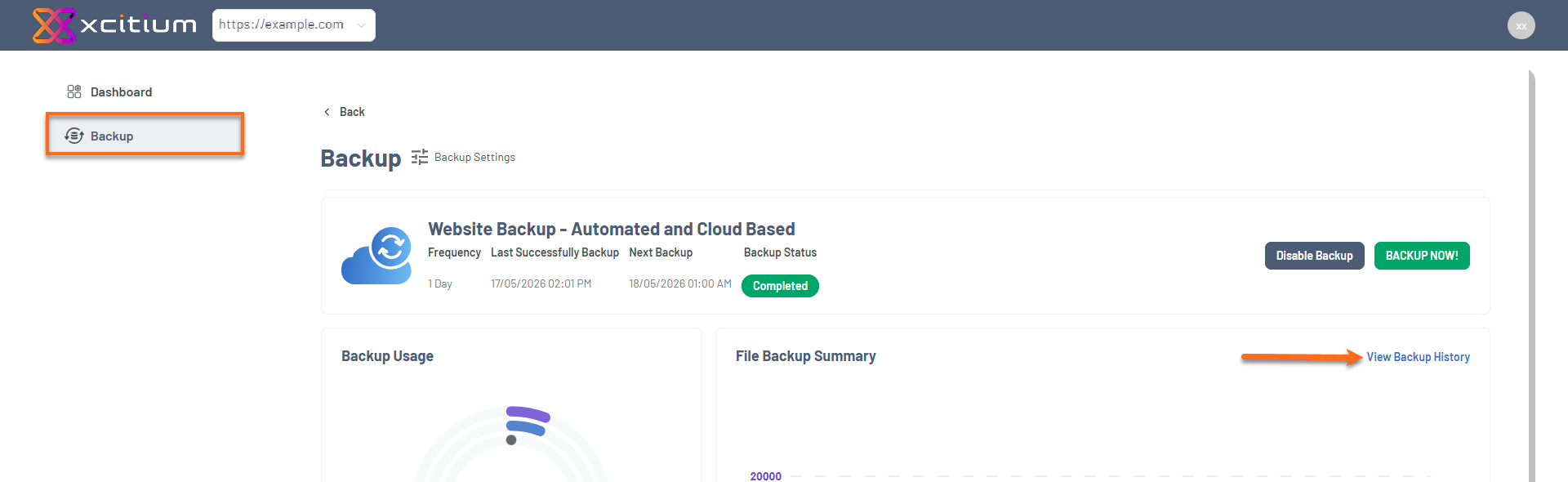
- In the left menu, go to Backup and click View Backup History.
- Click Options next to the backup you want to restore.
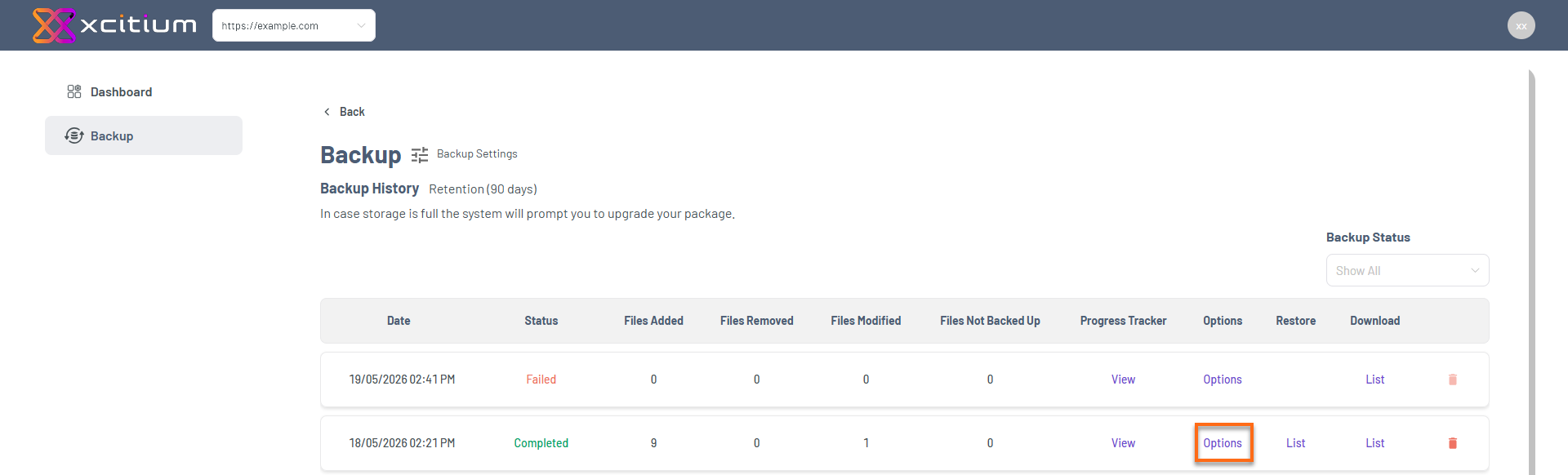
This gives you access to all available backup restore options.
Choose Your Restore Option
The Xcitium restore feature provides two main options:
Selecting the correct option ensures efficient website recovery.
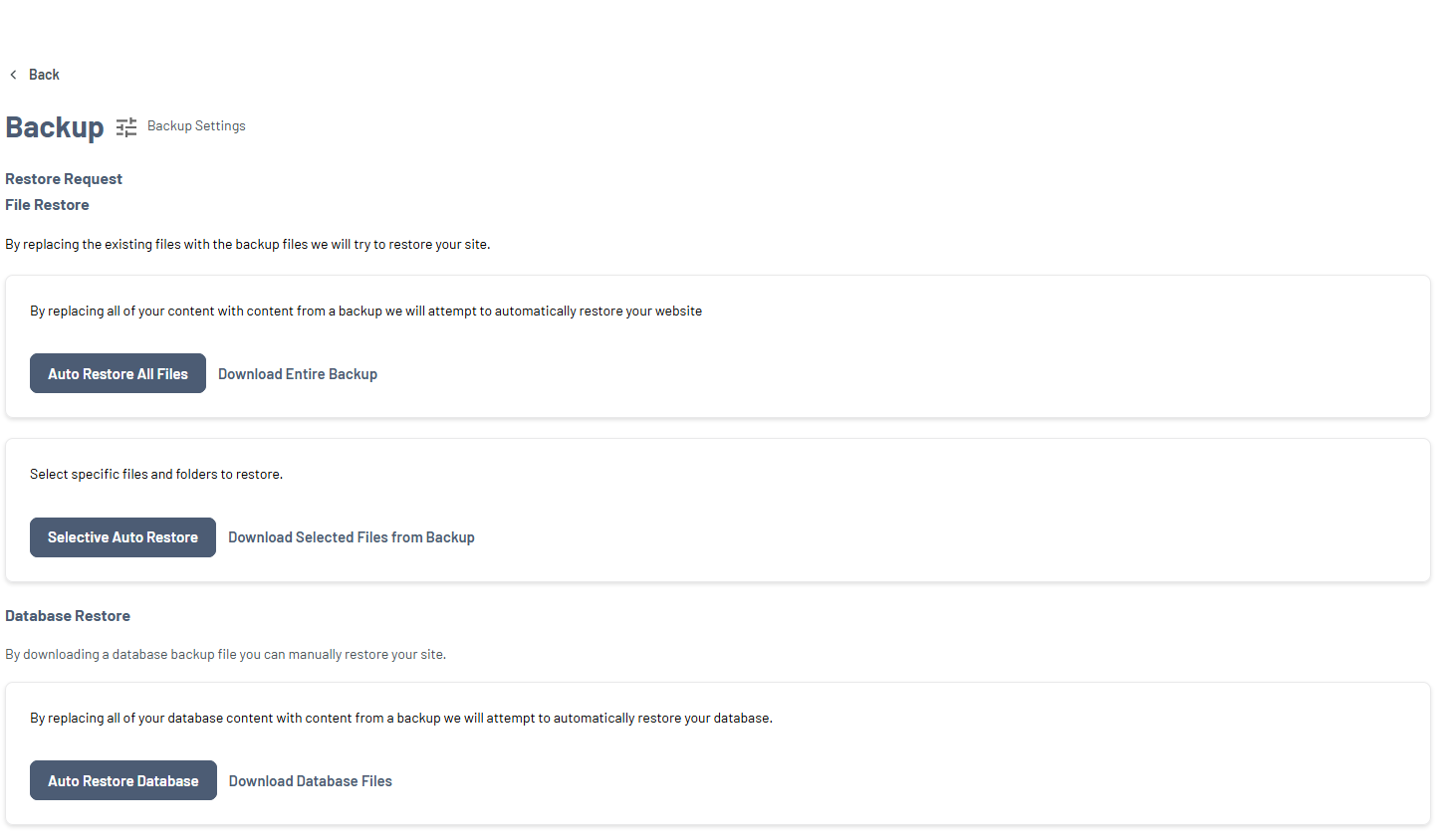
Before using backup restore in Xcitium, keep these in mind:
- Restoring will overwrite your current files or database
- Restore actions cannot be undone without another backup
- Always download a backup copy first
- Verify the correct backup date and version
These steps help prevent accidental data loss during website restoration.
File Restore
The File Restore option lets you recover your website files efficiently.
Option 1: Restore All Files (Full Website Recovery)
Use this if your entire site needs to be restored.
Best for:
- Completely broken website
- Full site recovery
Steps:
- Go to File Restore.
- Click Auto Restore All Files.
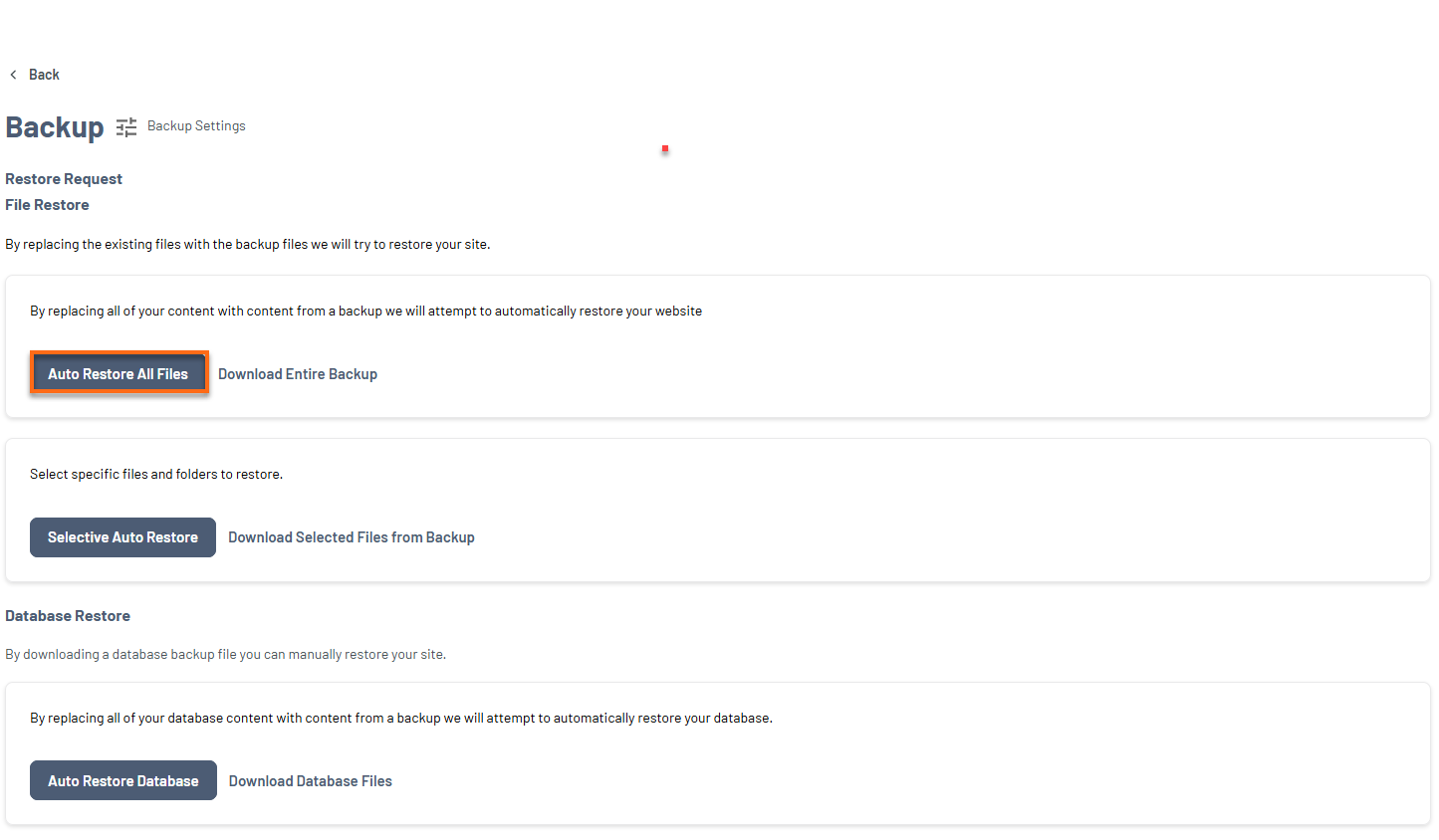
- Confirm the Auto Restore action.
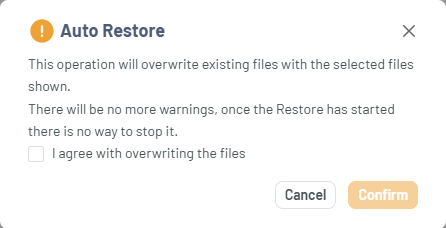
- All files are replaced
- Suitable for major failures
- Success message appears when completed
Option 2: Restore Selected Files (Targeted Recovery)
Use this if only part of your site needs fixing.
Best for:
- Missing images or assets
- Fixing specific errors
Steps:
- Go to File Restore.
- Click Selective Auto Restore.
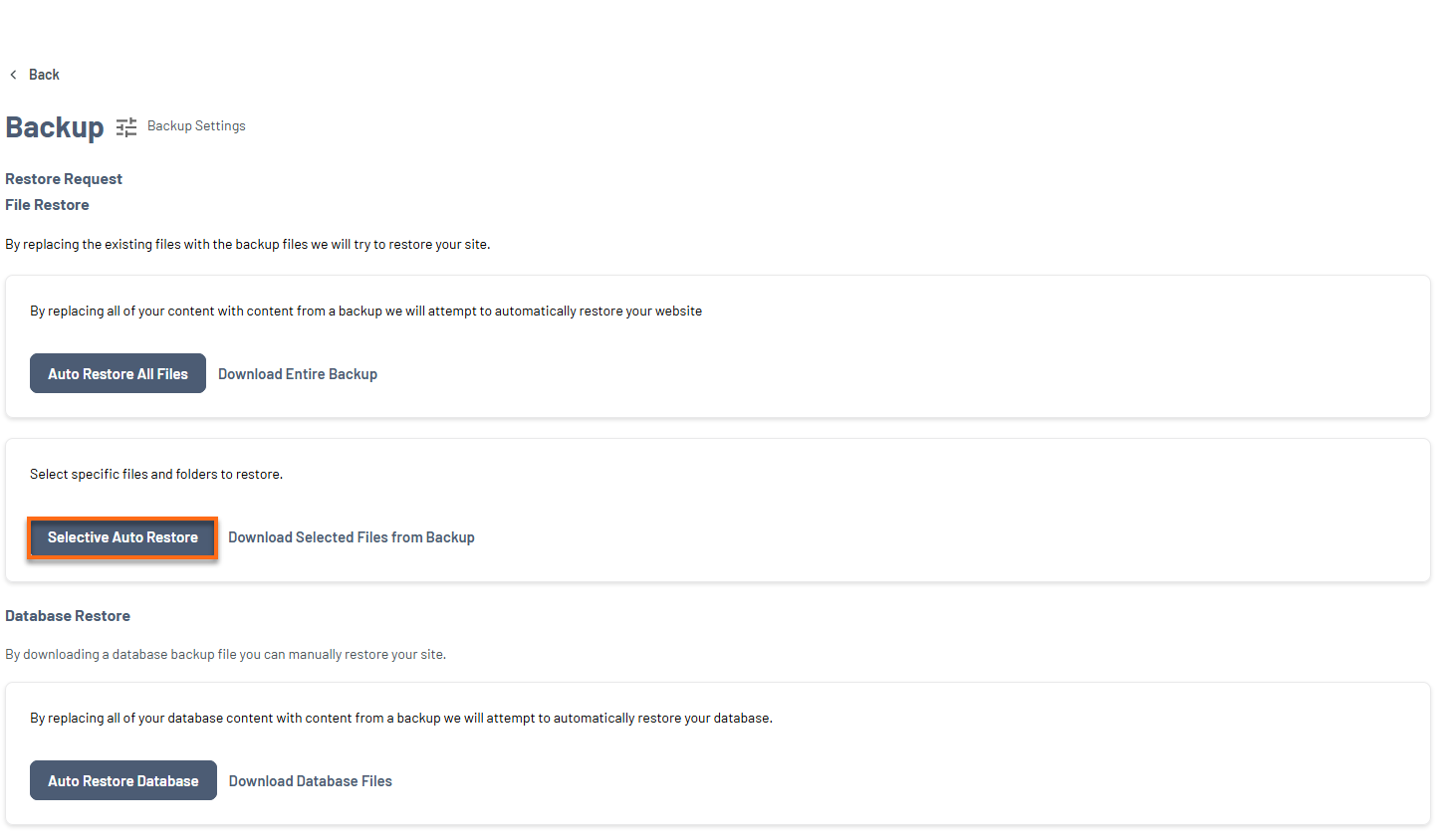
- Select files or folders.
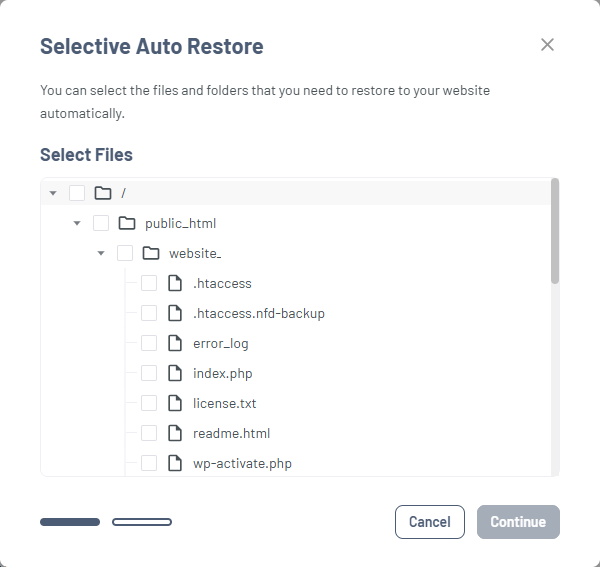
- Click Continue.
- Confirm overwrite, then click Restore.
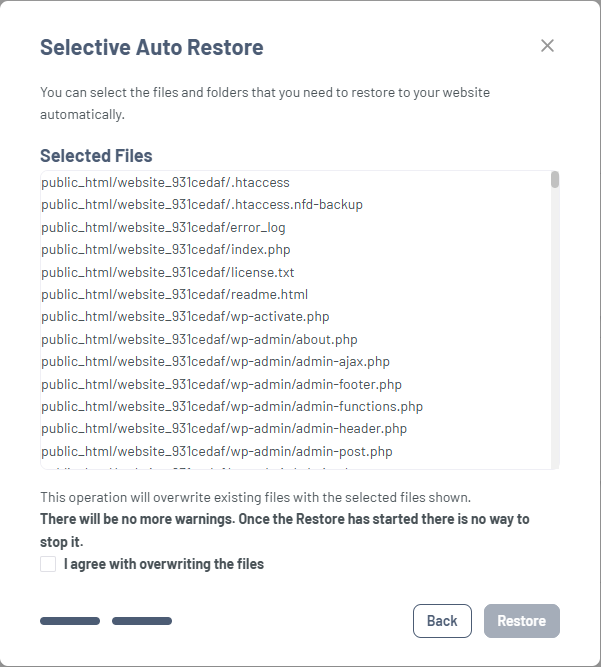
- Only selected files are restored
- Other files remain unchanged
- Process cannot be stopped once started
Database Restore
The Database Restore option allows you to fully recover your website database.
Best for:
- Corrupted database
- Incorrect content or settings
Steps:
- Go to Database Restore.
- Click Auto Restore Database.
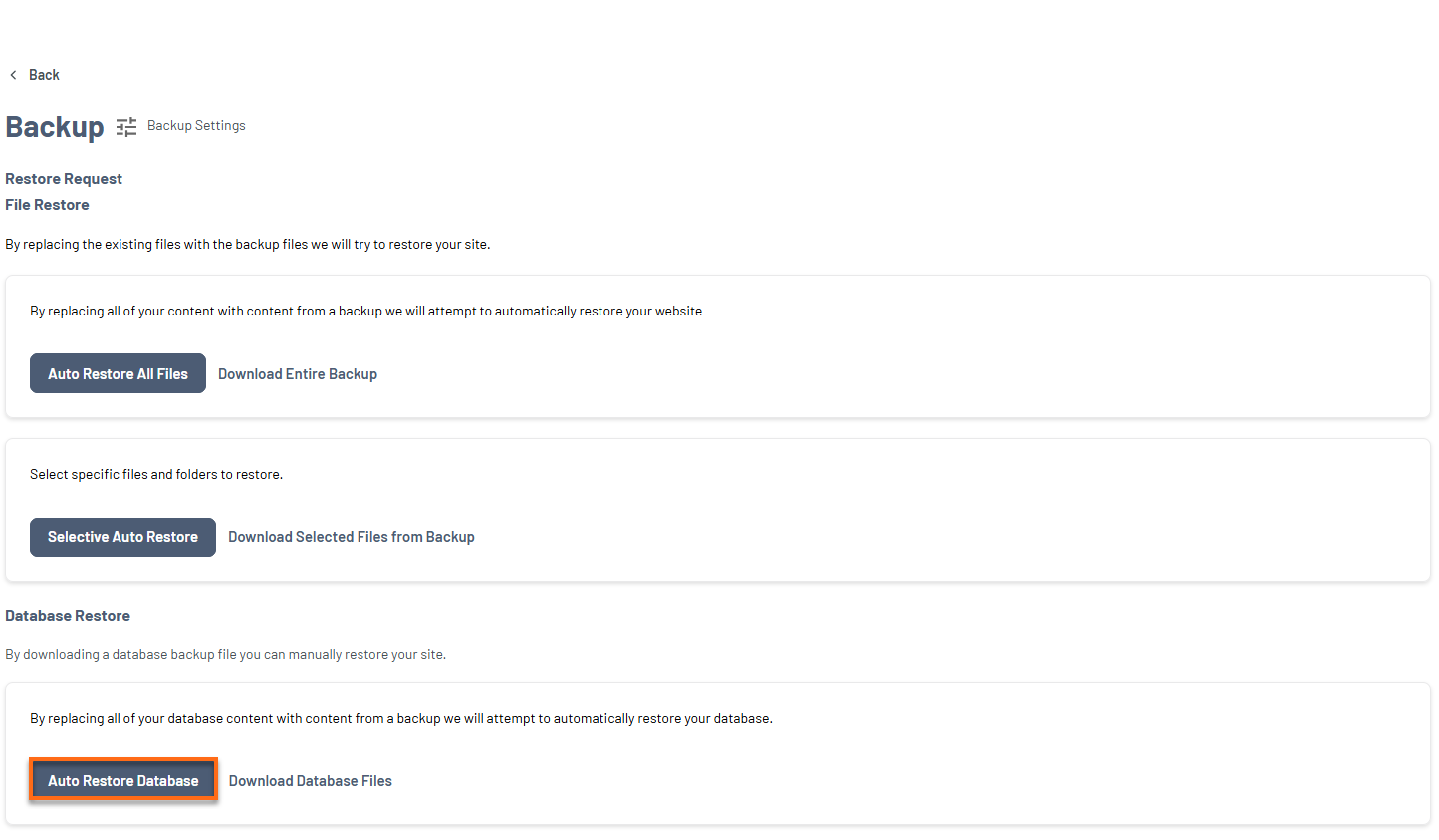
- Confirm the Auto Restore action.
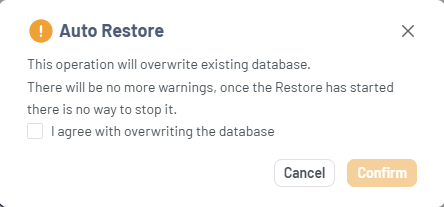
- Restores users, content, and settings
- Fully replaces the existing database
Track Restore Progress
To monitor your website restore progress:
- Return to the Backup History dashboard.
- Check the Backup Restore section.
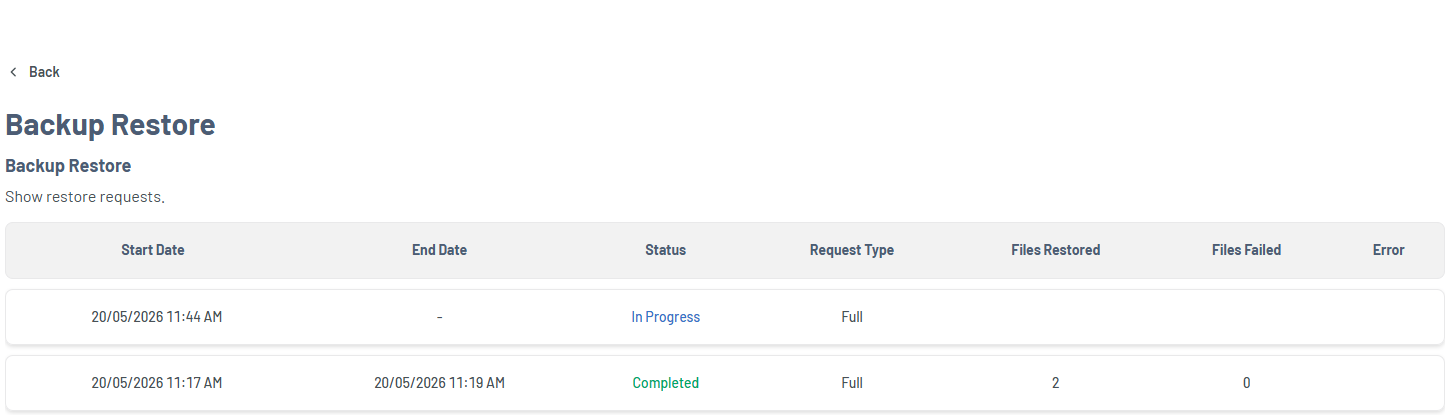
This helps ensure your restore is completed successfully and allows quick troubleshooting if needed.
For more details, refer to:
Xcitium Backup History: View and Manage Website Backups