Save time by importing your contacts into HostGator Professional Email with a CSV (comma-separated values) file, rather than entering each one by hand. Once imported, your contacts are listed under My Contacts and show up as recipient suggestions while you write an email.
Use the steps below to import contacts into your HostGator Professional Email account.
Log In to Professional Email Webmail
- Option 1: Access Webmail Through the HostGator Customer Portal ⤵
- Option 2: Access Webmail Directly ⤵
Option 1: Access Webmail Through the HostGator Customer Portal
- Log in to your Customer Portal.
- Click Email in the left-side navigation menu.
- Optional: If multiple Professional Email subscriptions are listed, click Manage for the plan you want to access.
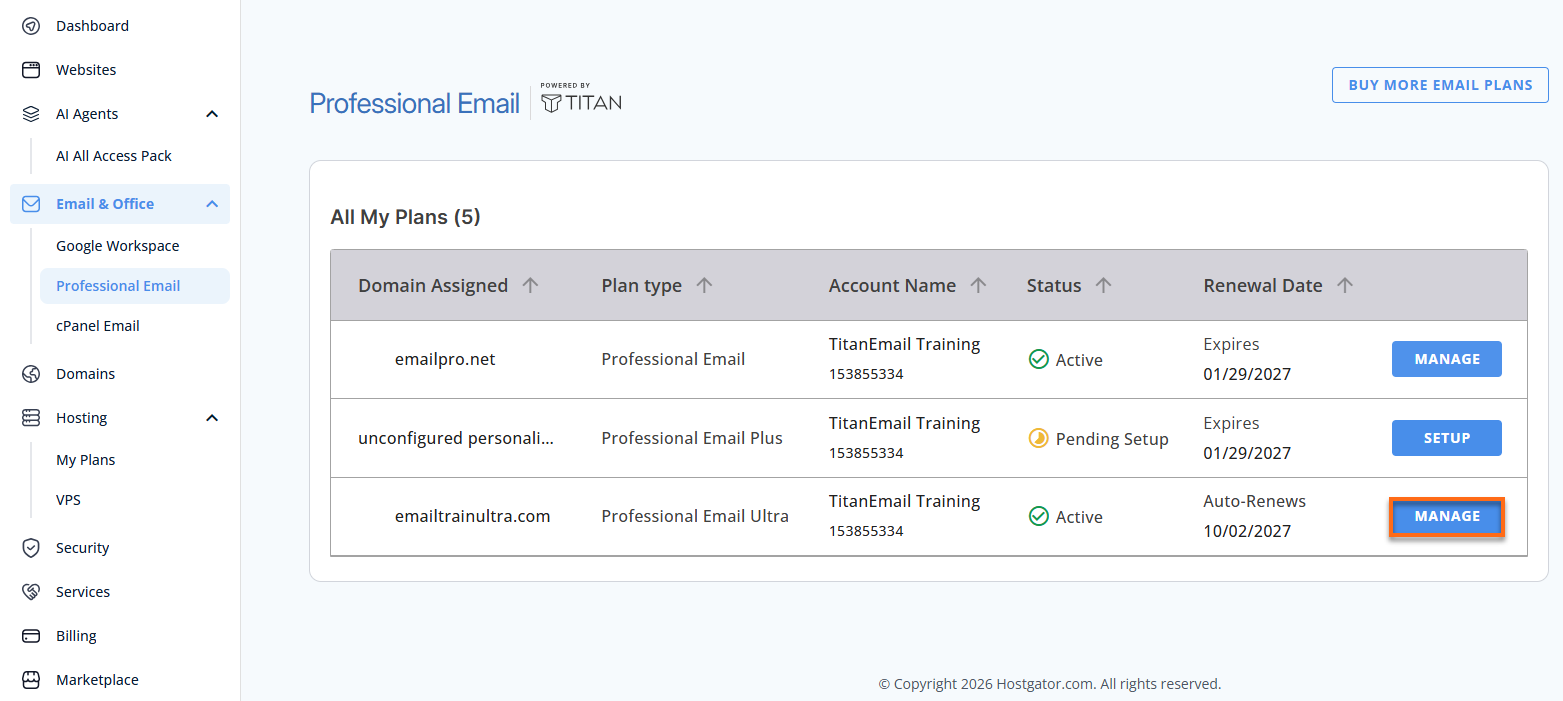
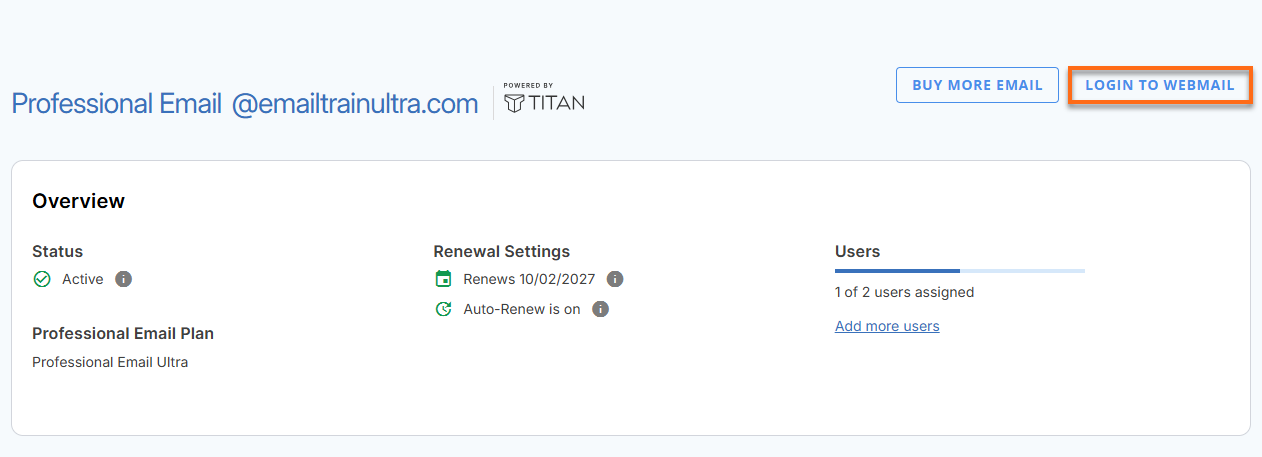
- You’ll be automatically redirected to the Email Management page, where you can manage your email settings and subscriptions.
- Click Login to Webmail.
- Enter your Professional Email username and password.
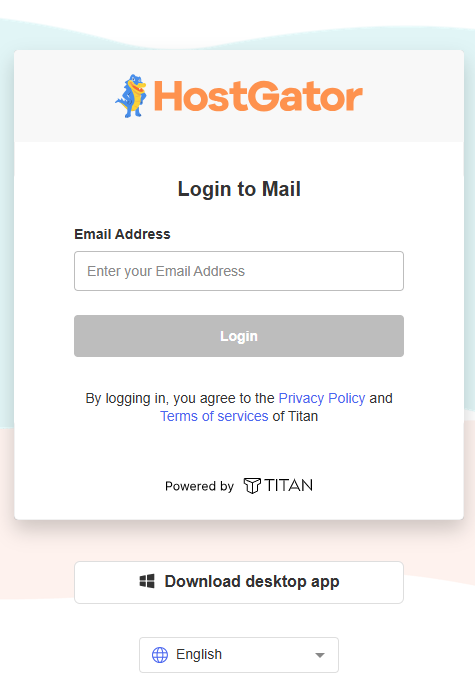
- Click Login.
Option 2: Access Webmail Directly
- Go to the Professional Email login page.
- Enter your email address and password.
- Click Login.
Import contacts from a CSV file
A CSV file is an easy way to add several contacts to your email account in one go.
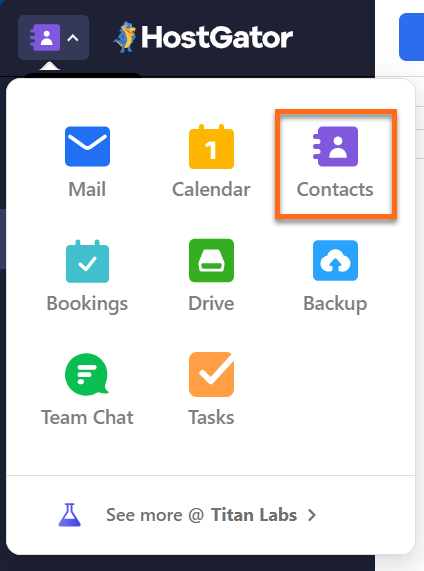
- From your webmail, click the app switcher (the envelope icon) in the upper-left corner.
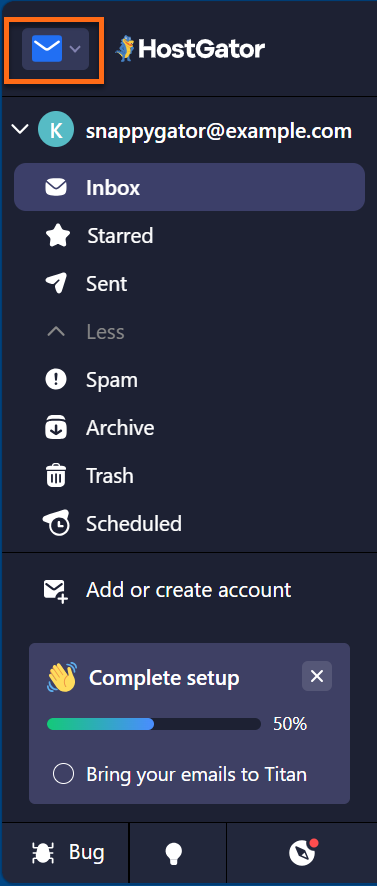
- Choose Contacts.
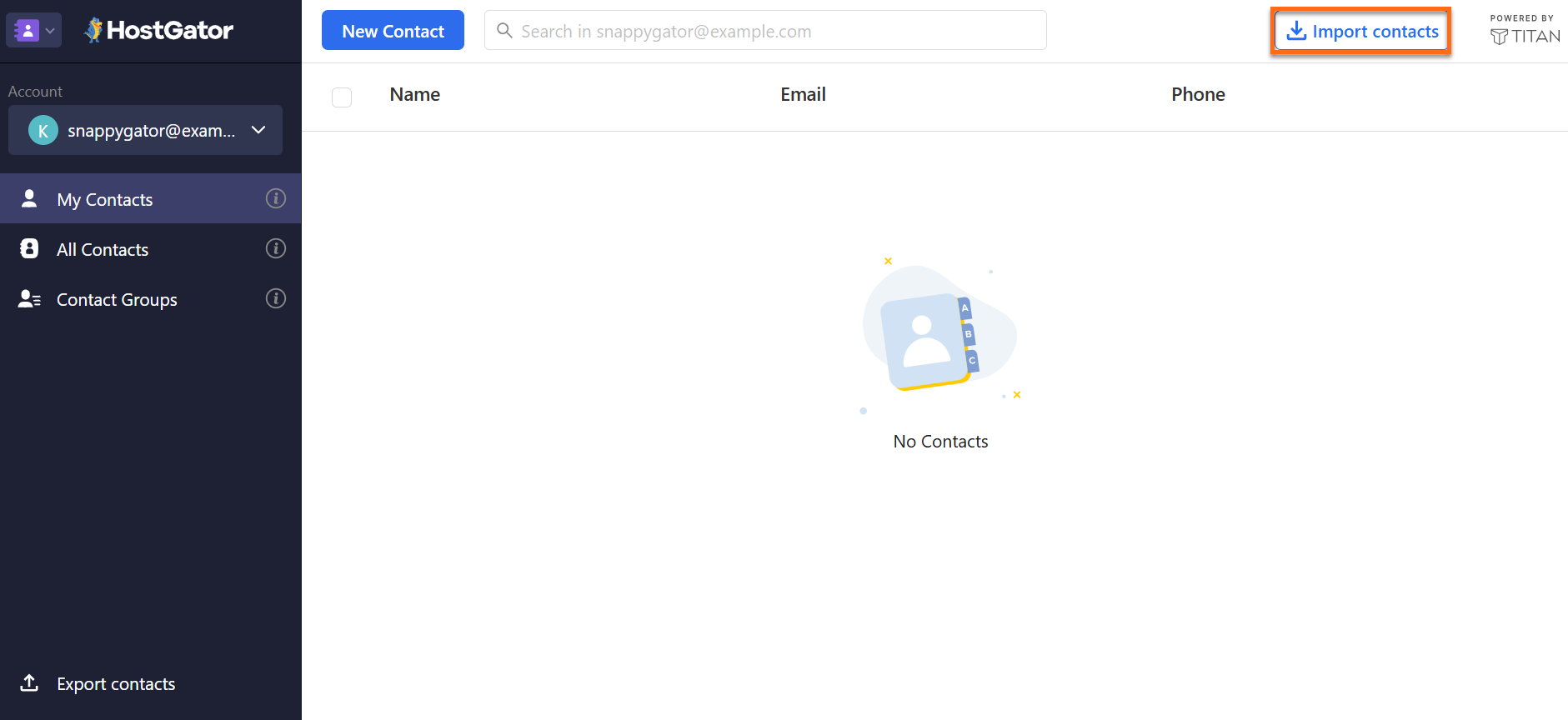
- In the upper-right corner, click Import contacts.
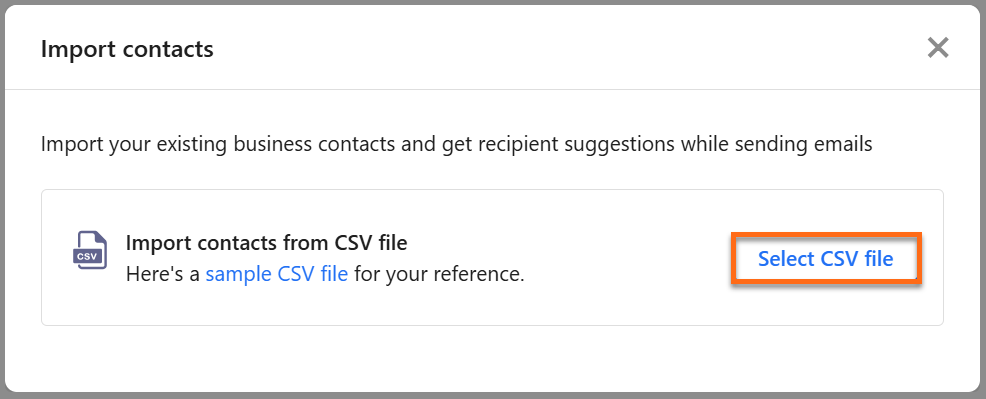
- When the Import contacts window opens, click Select CSV file and pick the file from your computer.
Tip: Check your file against the sample CSV file in the Import contacts window first, so your column headers line up correctly.
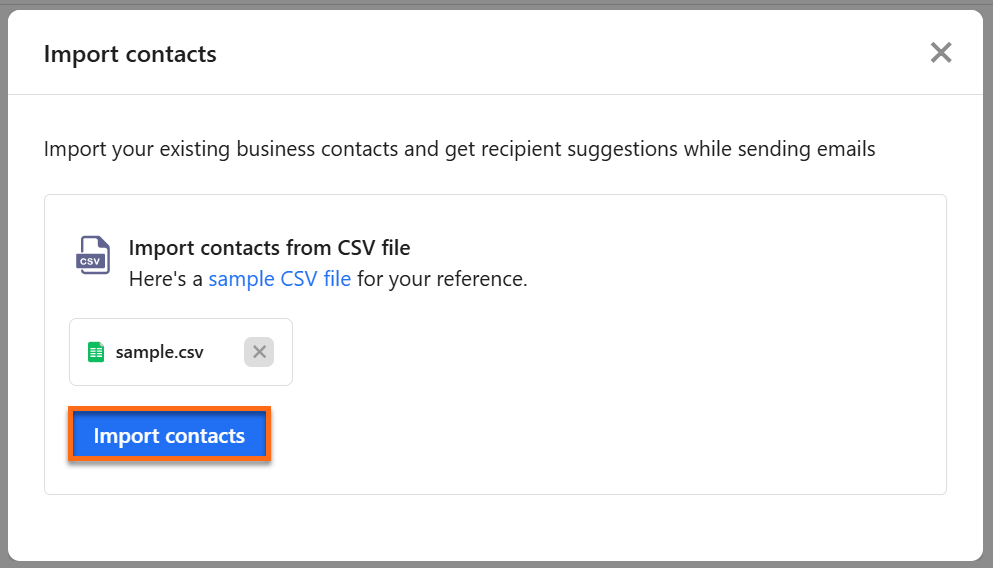
- Make sure the right file name is shown, then click Import contacts.
- A confirmation message appears showing the number of contacts imported.

Success: When you see a message like 3 contacts imported successfully, the import is complete. You'll find your new contacts under My Contacts.
Tips and troubleshooting
- The import fails or contacts don't look right. Compare your file to the sample CSV file in the Import contacts window. Your column headers should match, and the file should be saved as a CSV, not an Excel workbook.
- Contacts were added to the wrong account. Contacts are stored separately for each email account. Before importing, check which account is chosen in the Account selector on the Contacts page.
- You want a backup of your contacts. Click Export contacts in the lower-left corner of the Contacts page to download a copy.