Hotlinking - Enable and Disable Hotlink Protection
Hotlink Protection helps prevent other websites from directly linking to files hosted on your website, such as images, documents, and media. This helps reduce unauthorized bandwidth usage and protects your website's resources.
You can manage Hotlink Protection from the following:
Access Hotlink Protection from Customer Portal
To access the Hotlink Protection settings:
- Log in to your Customer Portal.
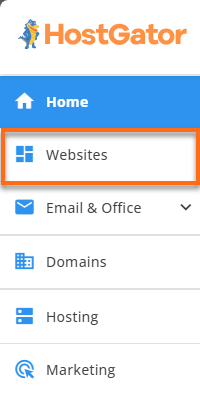
- Click Websites on the left-hand menu.
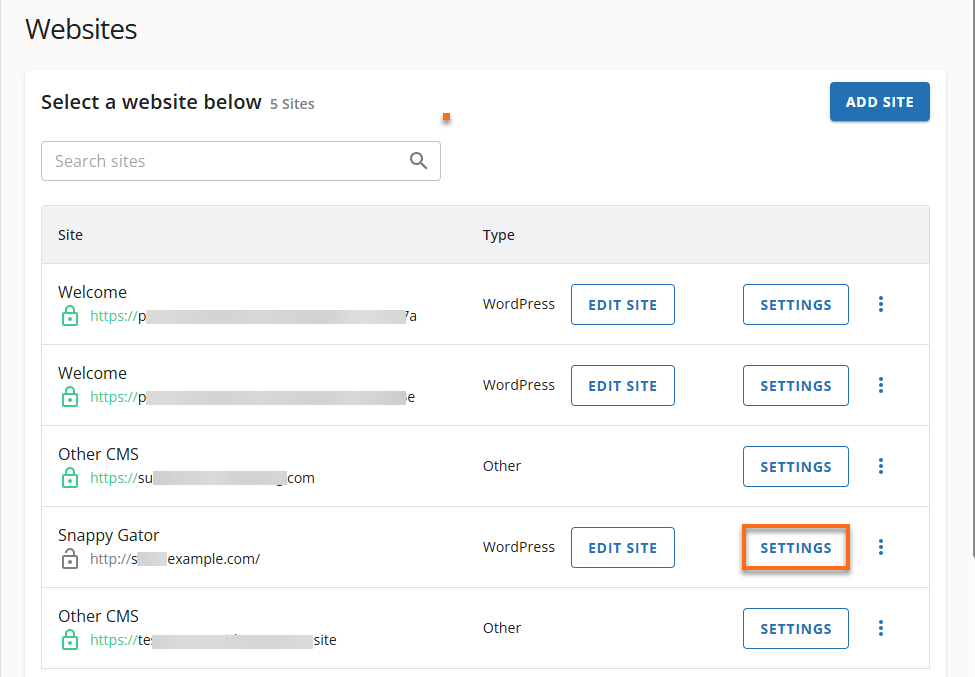
- Locate the website you want to manage, then click Manage Site.
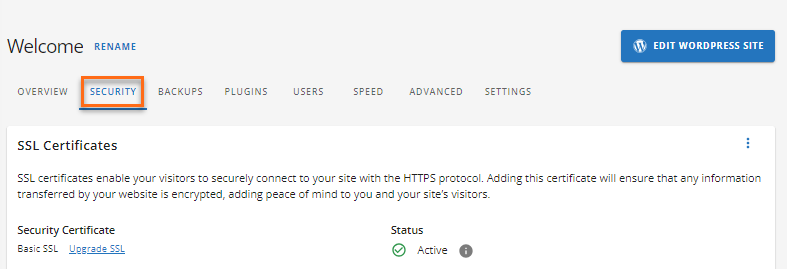
- Navigate to the Security tab.
- Scroll down to the Hotlink Protection section, then click Manage.

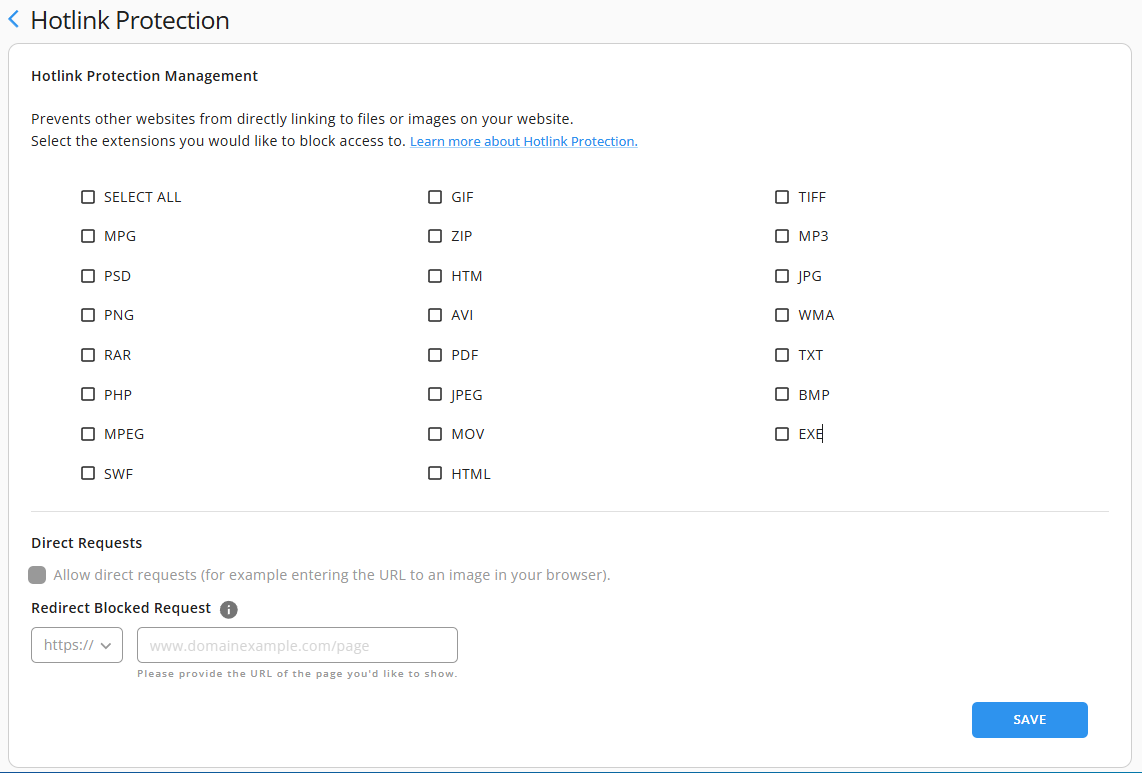
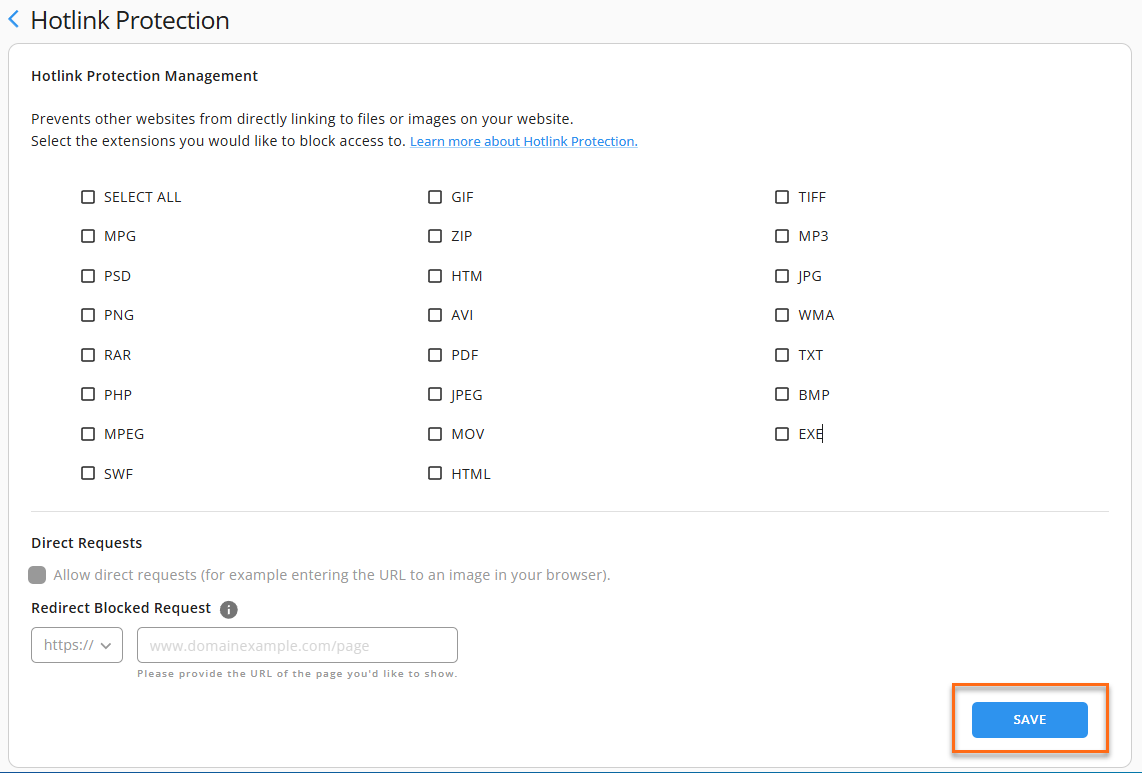
- The Hotlink Protection Management page will open.
Configure Hotlink Protection in Customer Portal
Hotlink Protection allows you to choose which file types should be protected from unauthorized direct linking.
Select File Extensions
Check the boxes for the file extensions you want to protect. To protect all available file types, select Select All.
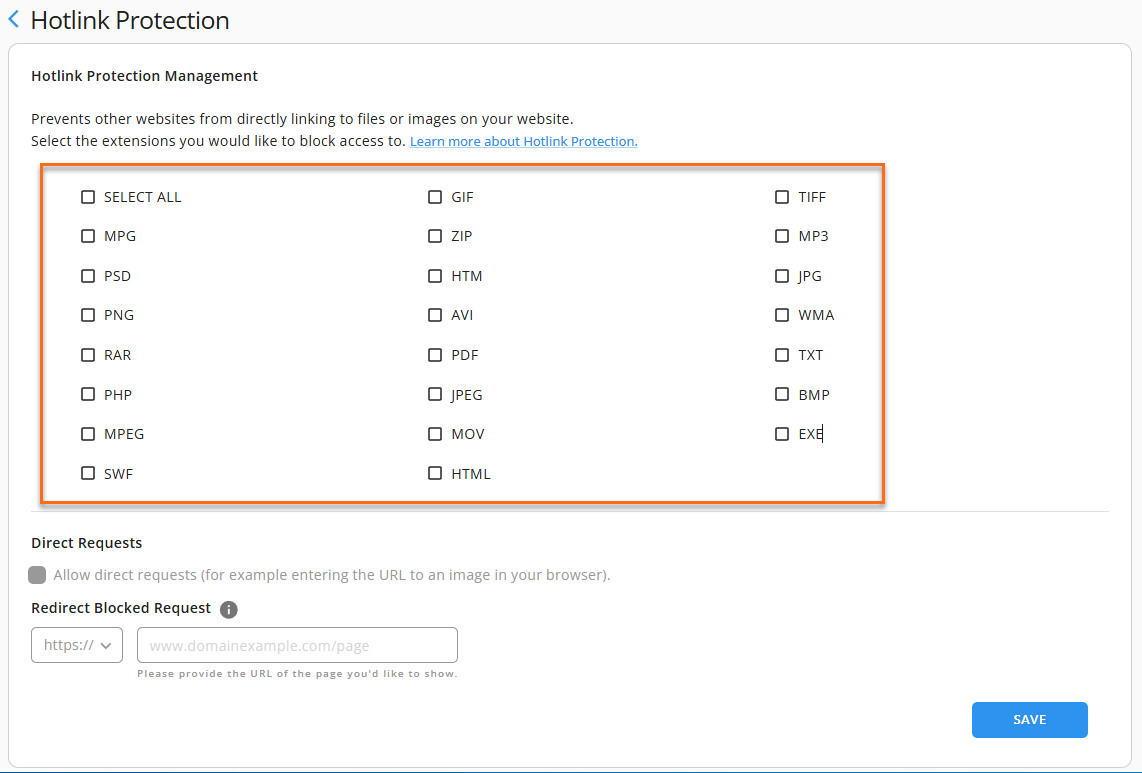
The available file extensions include:
- Images: GIF, JPG, JPEG, PNG, BMP, TIFF, PSD
- Documents: PDF, TXT, HTM, HTML
- Archives: ZIP, RAR
- Media: MP3, MPG, MPEG, AVI, MOV, WMA, SWF
- Other Files: PHP, EXE
For most websites, protecting image file types such as JPG, JPEG, PNG, and GIF is sufficient to prevent image hotlinking.
Allow Direct Requests
The Allow direct request option lets visitors access a protected file by entering it's direct URL into their browser.
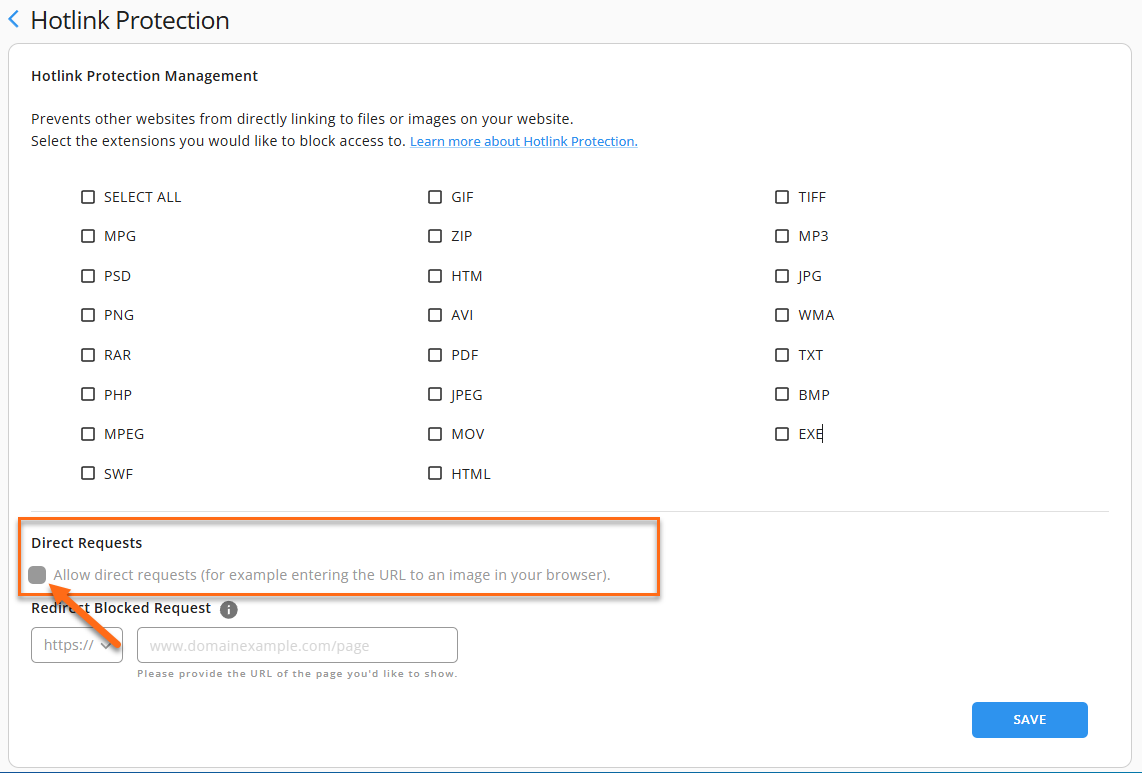
- Enabled - Visitors can open the file directly using its URL.
- Disabled - Direct requests are restricted, and Hotlink Protection rules are enforced.
For example, if someone enters https://yourdomain.com/images/logo.png directly into their browser, enabling this option allows the file to load normally.
Redirect Blocked Requests
Instead of blocking unauthorized requests, you can redirect them to another webpage.
To configure a redirect:
- Select the appropriate protocol https:// or http://.
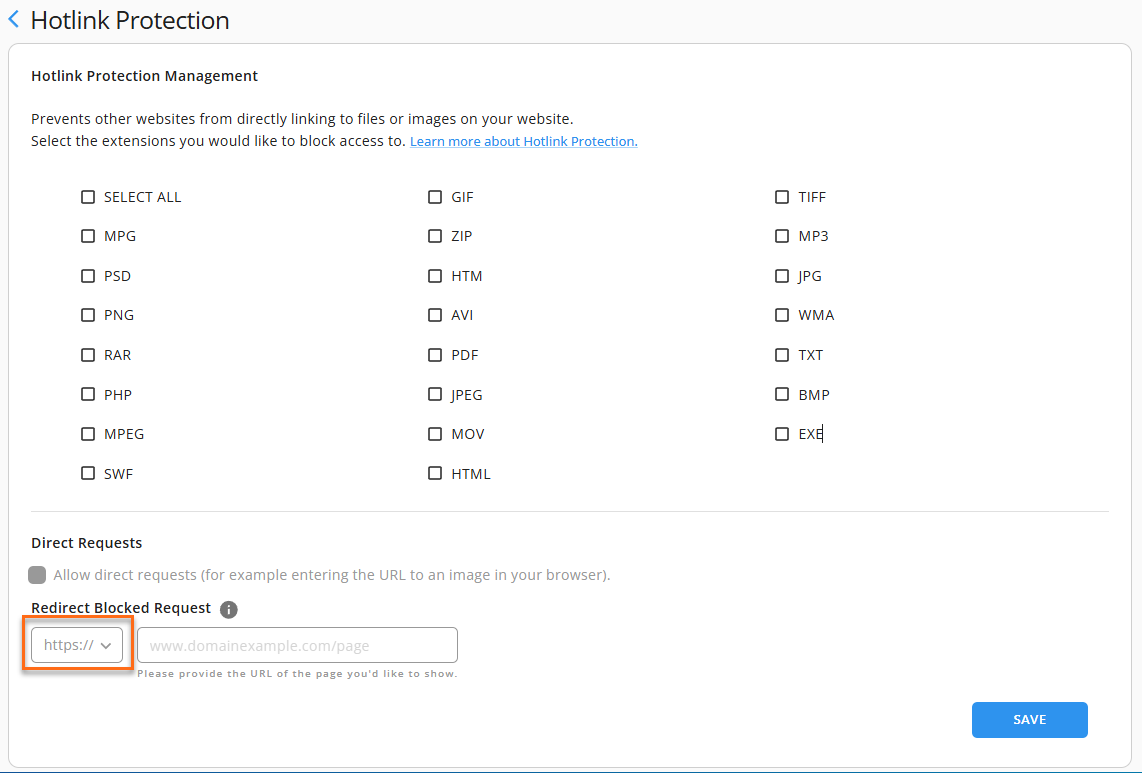
- Enter the destination URL in the Redirect Blocked Request field.
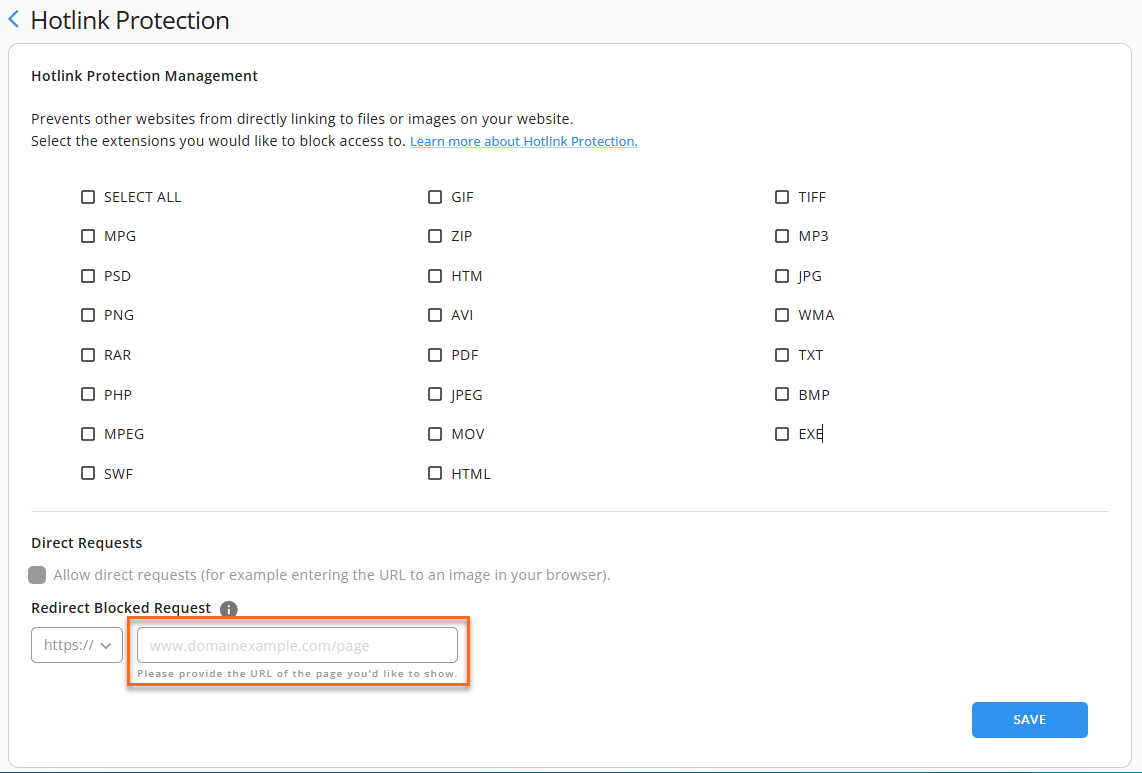
- Click Save.
Configure Hotlink Protection from cPanel
Enable Hotlink Protection:
- Log in to cPanel.
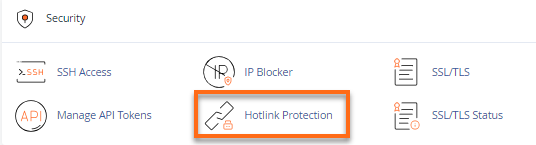
- Look for the Security section, then click Hotlink Protection.
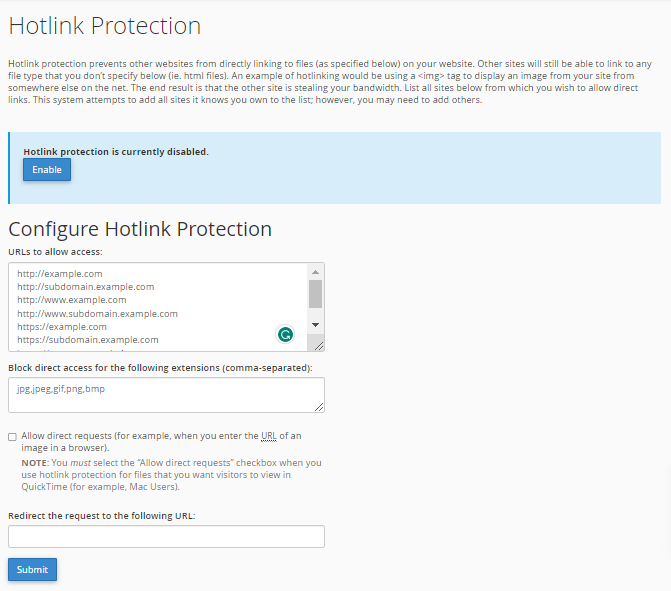
- Make sure the domain name you wish to protect is in the box called URLs to allow access.
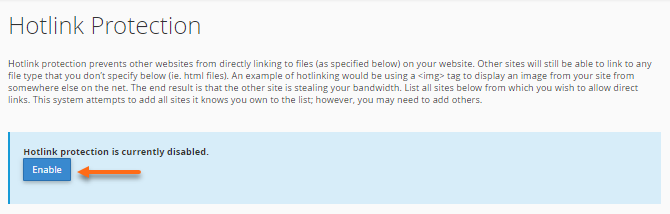
- If you're satisfied with the URLs and current settings, click the Enable button.
If you want to further configure the settings, proceed to Step 5 (without clicking the Enable button yet).
- Provide the extensions you would like to block in the Block direct access for the following extensions (comma-separated).
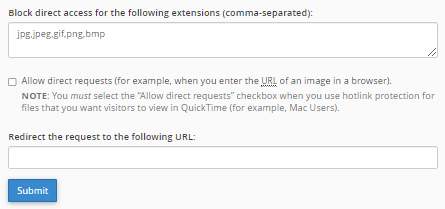
- Leave the Redirect the request to this URL box blank unless you want outside users to be redirected to another page. If yes, input the destination URL.
- Hit Submit.
- A successful confirmation page will appear.
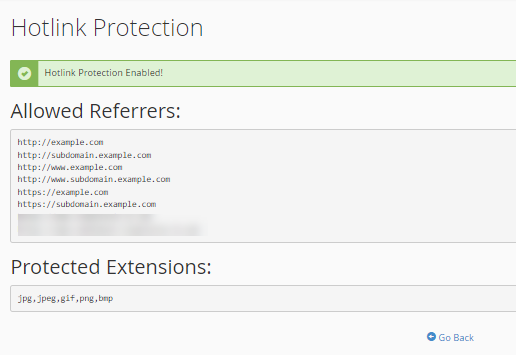
- Click Go Back.
Disable Hotlink Protection
- On the Hotlink Protection page, click Disable.
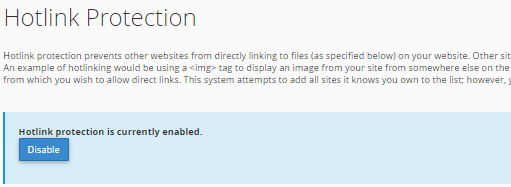
- A confirmation page will be displayed.
You have now protected your images from being hotlinked. Just be sure that all of your additional domains are on the Hotlink list.