Knowledge Base
Categories: Plesk Administration
Installing an Application in Plesk
How To Install a New Application in Plesk
- Log in to Plesk.
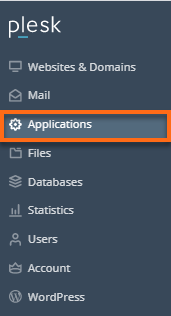
- Go to the Applications tab.
- Find the application you would like to install from the Featured Applications tab.
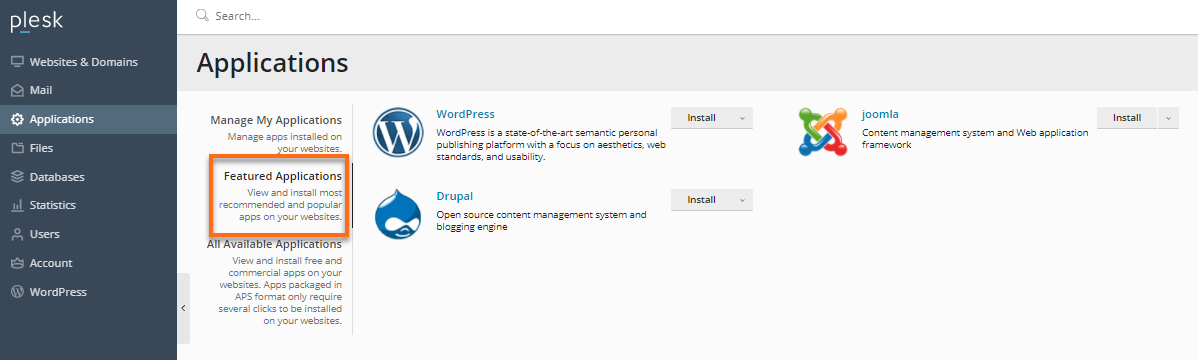
- If you do not see the desired application listed in Featured Applications, click All Available Applications and then click Show Search to display the search bar and search the application by name.
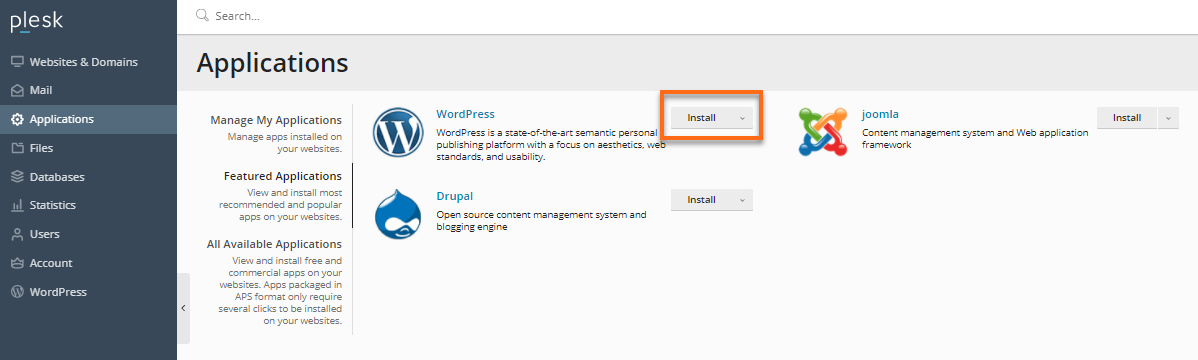
- If the application is available, click Install in the results list. The application will download onto the server and then present you with a configuration wizard.
- Read the license agreement and check the I accept checkbox if you agree; then click Next to proceed.
- In the first field at the top of the page, specify the domain and location where you would like to install the application.
Warning: Do not leave the second field blank if you do not want the application to be your main website or if you already have content on the main file directory of your account.
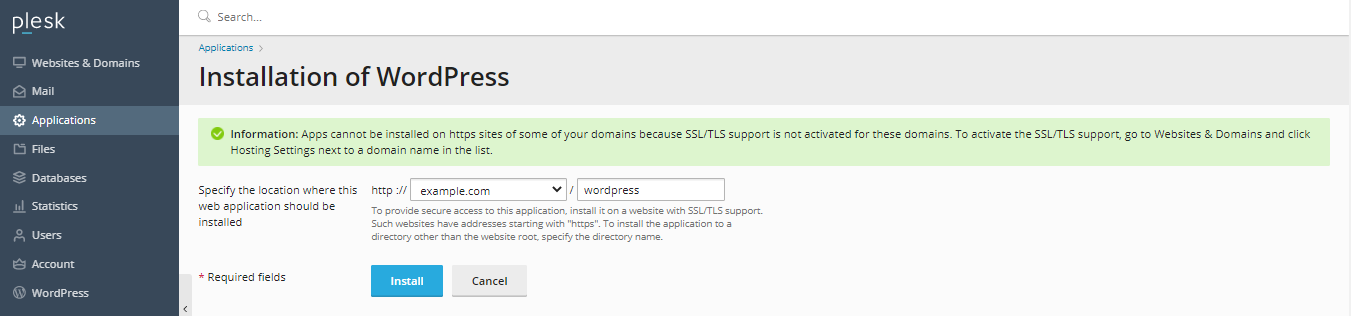
If you use http://example.com/application (where example.com is your domain and application is the file extension where the application can be accessed), the application will be installed to a subfolder on your domain.
- Click Install to finish the installation process.
- In the Administrative access section, choose to either Grant administrative access to an existing user (which will integrate logins with the Control Panel) or Use administrative credentials not connected to any particular user.
- Click on Show All Settings to specify more options:
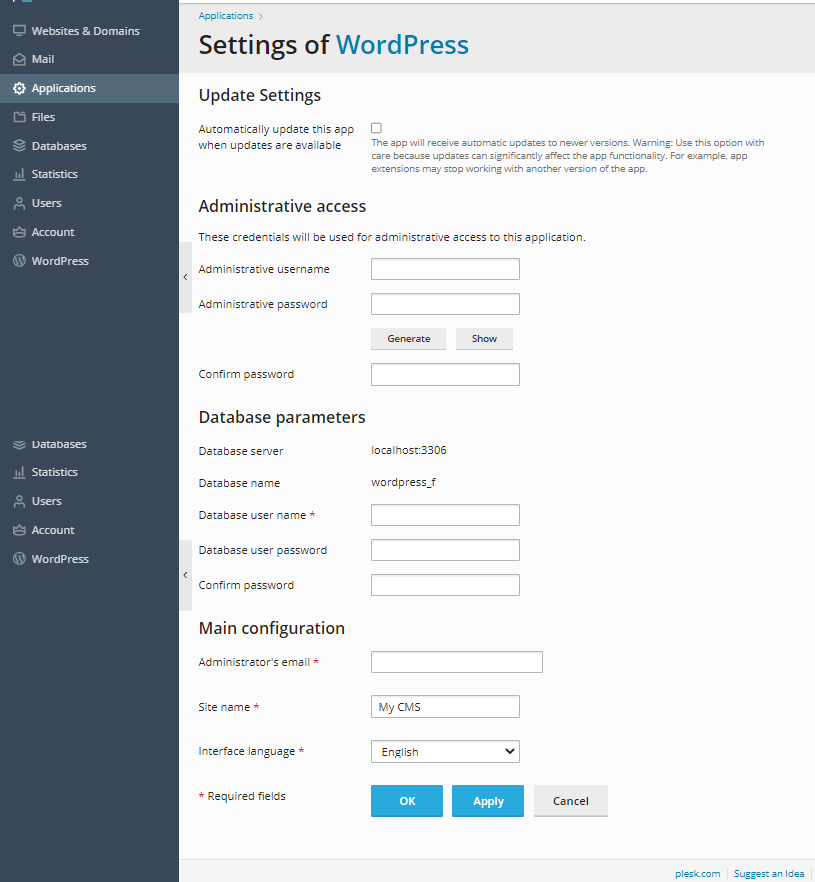
- Administrator's email - Leave this field as-is if you wish to keep integration between the Control Panel and the application.
- Site name - Choose a site name.
- Interface language - Choose an interface language.
- Database name and Database user name are generated by Plesk; you can change these if you have specific needs.
- Database user password - Create a password if you've chosen to use administrative credentials not connected to any particular user.
You are redirected to an application management page where you can choose to change any settings you may have missed or misconfigured during installation.
Did you find this article helpful?