Knowledge Base
Categories: FTP
How to Connect to FTP Using Windows Explorer
Microsoft has developed an easy way for you to connect and upload files to your website. This article will walk you through connecting to an FTP account using Windows Explorer.
We are not referring to Windows Internet Explorer, but the actual Windows Explorer you use to manage files on a Windows PC. Internet Explorer once had a built-in FTP client, which many people used, but you can NOT access FTP through Internet Explorer anymore.
Connecting to FTP Using Windows Explorer
To connect to your primary FTP account, you will first need your FTP account logins.
- Server: Your primary domain or the IP address of your server.
- Username: cPanel username (e.g., [email protected])
- Password: The password associated with the user account you're using.
To begin, open Windows Explorer. You can do this by navigating to Start and clicking on "Computer," or you can use the shortcut Windows key + E.
- Once Windows Explorer is open, you should see something similar to the following:
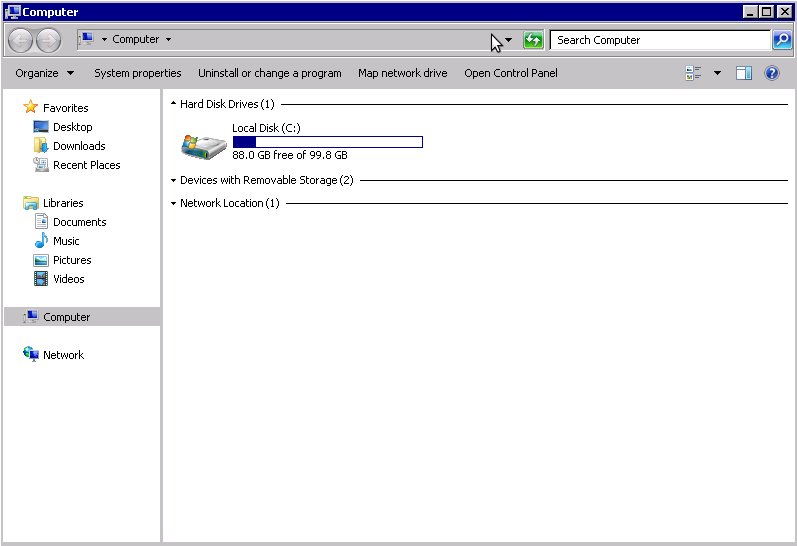
- Type ftp://[email protected] into the top address bar. Replace username with your cPanel username and example.com with your primary domain name. This action will attempt to connect you and prompt you for a password.
If you enter ftp://example.com, you will be connected anonymously. You cannot upload or download when you connect anonymously, so be sure to use ftp://[email protected], so you will be prompted to input a password.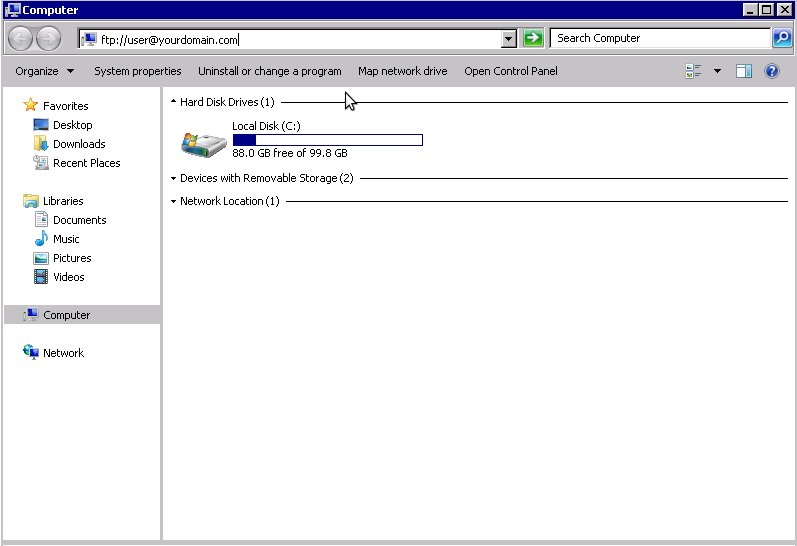
- Input the full username and password for the account you wish to connect to, and click Log On.
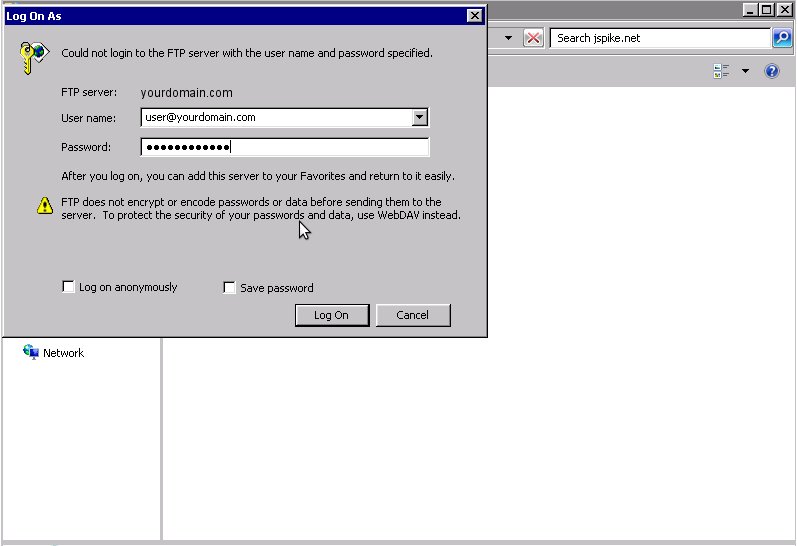
- At this point, you should have an active FTP connection. You can now drag and drop files between this window and your computer to upload or download files.
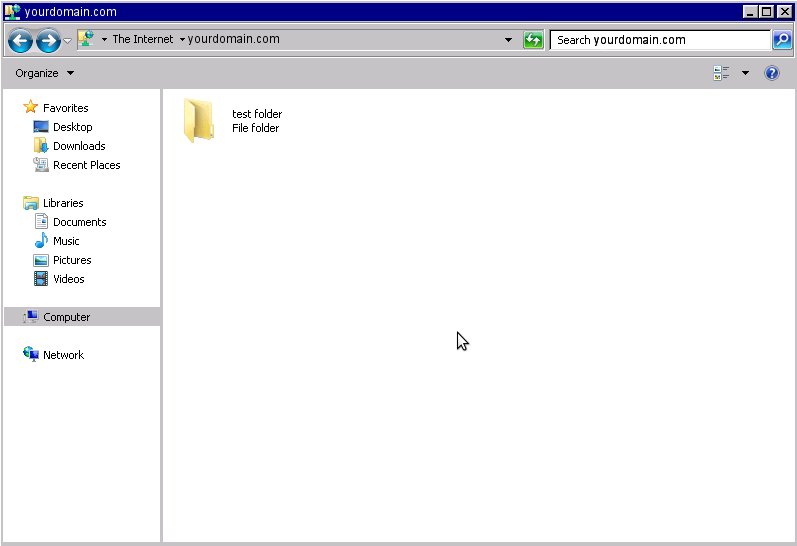
If you forget to enter a username and password, then you may see a folder called "pub". If so, you have accidentally tried to connect to anonymous FTP, and your connection has failed. Please try again.
Did you find this article helpful?