Knowledge Base
How to Unsubscribe Email Notifications in Softaculous
You will learn how to disable email notifications in Softaculous using the simple steps below. This guide helps you stop installation, backup, update, and other script-related alert emails in your cPanel Softaculous Email Settings.
- Log in to cPanel.
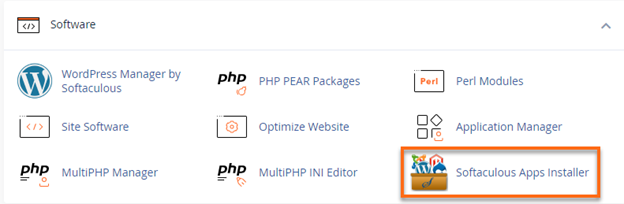
- Click the Softaculous Apps Installer icon.
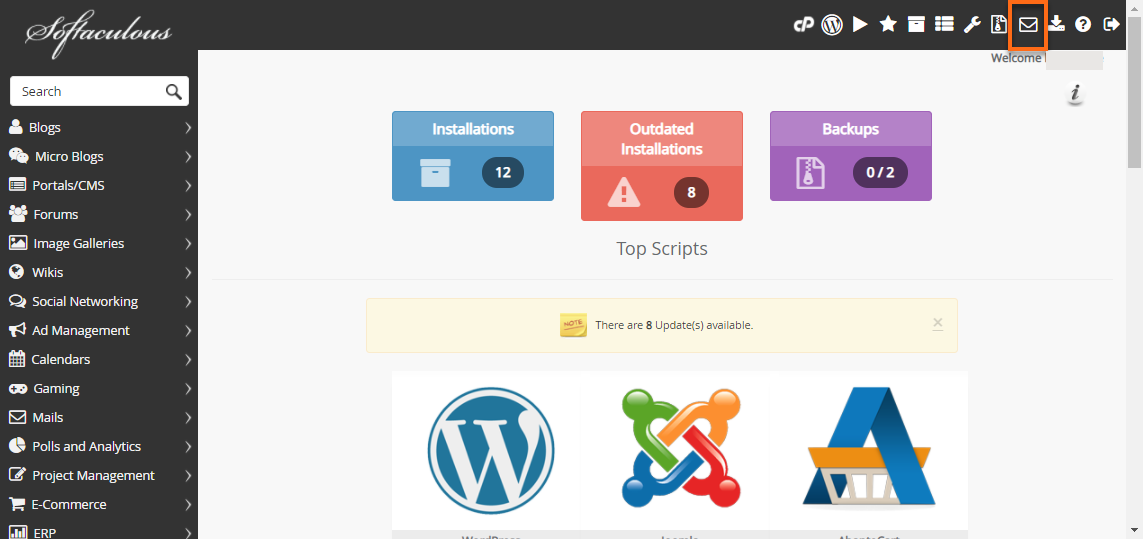
- Click Email Settings in the Softaculous Home Page.
- Update your Email Settings.
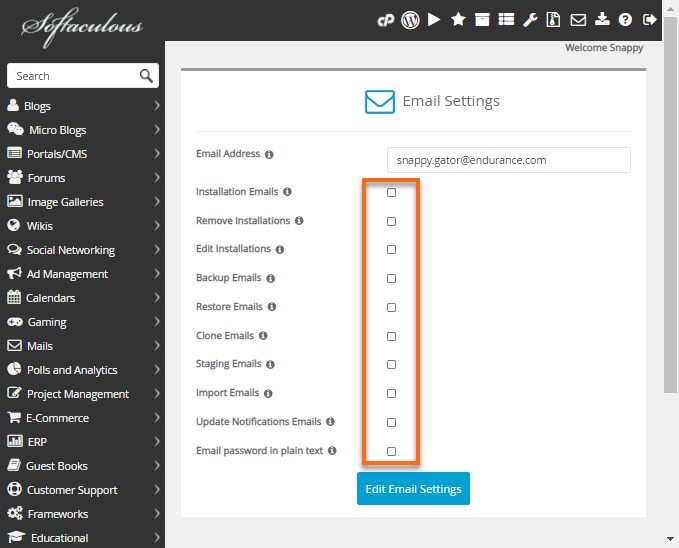
Manage your Email Settings:
- Installation Emails: Uncheck the box to disable the email notification when you install a script.
- Remove Installations: Uncheck the box to disable the email notification when you uninstall a script.
- Edit Installations: Uncheck the box to disable the email notification when you edit an installation.
- Backup Emails: Uncheck the box to disable the email notification when you back up an installation.
- Restore Emails: Uncheck the box to disable the email notification when you restore a backup.
- Clone Emails: Uncheck the box to disable the email notification when you clone an installation.
- Staging Emails: Uncheck the box to disable the email notification when you create a staging copy of your installation.
- Import Emails: Uncheck the box to disable the email notification when you import the installation.
- Update Notification Emails: Uncheck the box to disable the email notification about script updates available, or plugin/theme updates available.
- Click the Edit Email Settings to save the new setup.
Notes:
- If you don’t have access to your cPanel or forgot your access and need help, contact us via phone or chat.
- If you still receive email notifications even after terminating your account, contact your web host to terminate the account properly. There might be some files in your account that need to be removed by them.
Did you find this article helpful?