How to Update WordPress Plugins in HostGator
Updating your WordPress plugins regularly is one of the easiest and most effective ways to keep your website safe, fast, and working perfectly. These updates provide essential security patches, bring you the newest features, and fix pesky bugs. By staying current, you protect your site from potential vulnerabilities and ensure the best experience for your visitors.
Before You Begin: Back Up Your Website
It is always a good practice to create a full backup of your website before running any updates. Think of this as your safety net—if an update happens to cause an unexpected issue, you can quickly restore your site to exactly how it was before.
- Why it matters: Backups protect you against data loss or site crashes.
- How to do it: You can use a dedicated backup plugin, or if you have a plan that includes it, use tools like CodeGuard for easy, automated backups and restores.
Updating Plugins via the HostGator Customer Portal
Managing your plugins is simple directly from your HostGator dashboard.
- Log in to your Customer Portal.
- Go to Websites from the left navigation menu.
- Click Manage Site next to the website you want to manage.
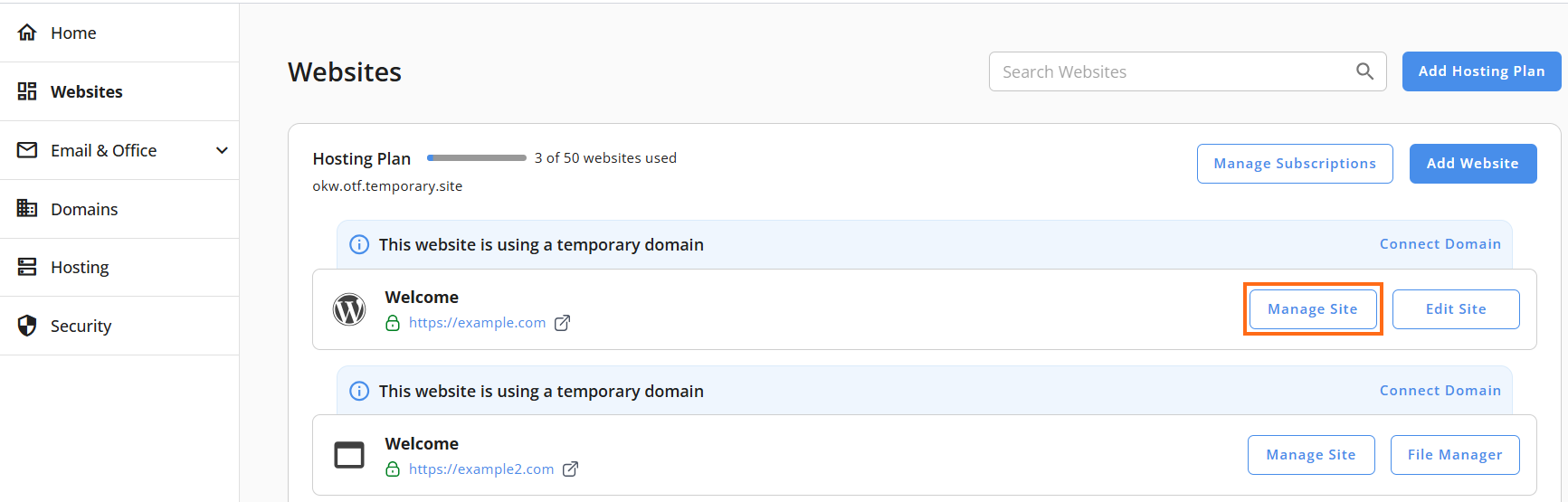
- Click the Plugins tab.
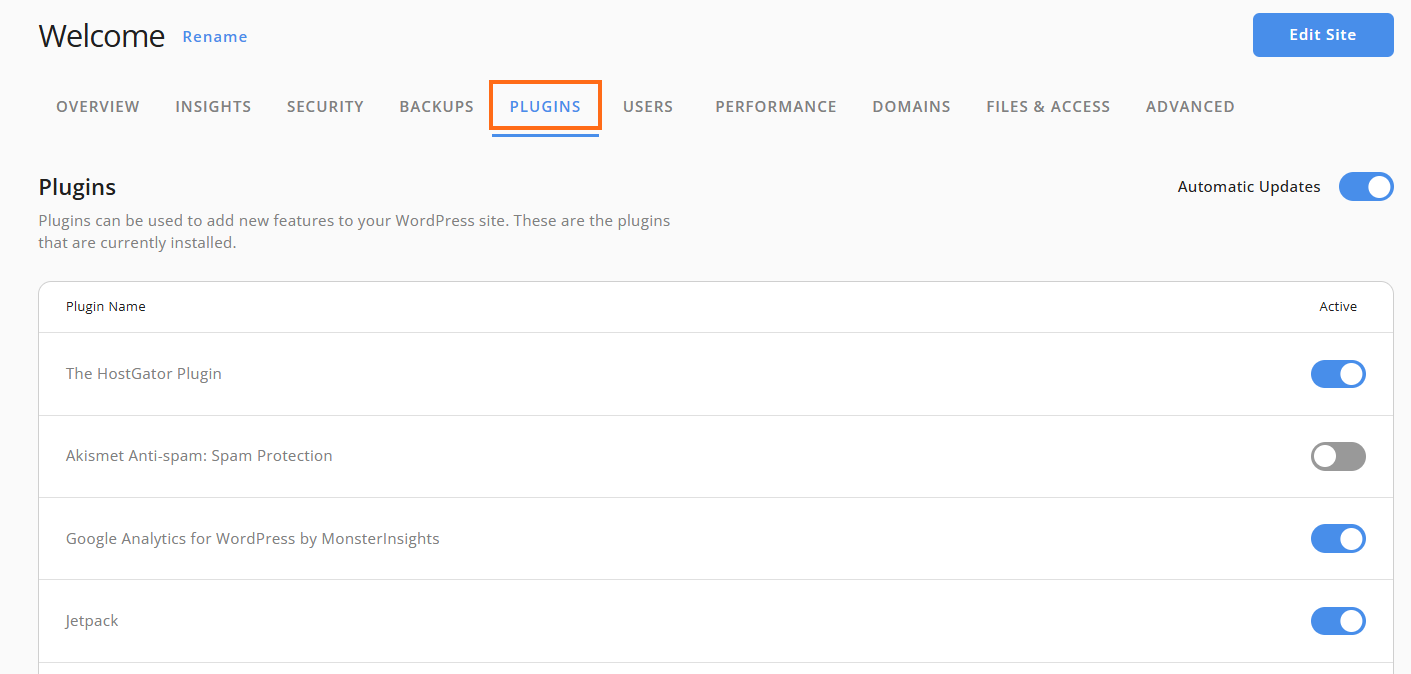
From here, you have total control over your plugin settings:
- Enable Automatic Updates: This keeps your plugins up-to-date in the background automatically. It is the best way to ensure you always have the latest security patches without having to lift a finger.
- Deactivate Automatic Updates: Use this if you need to keep a specific version of a plugin to maintain compatibility with a custom theme or another plugin.
- Manual Control: You can choose when to run updates. This is great if you prefer to test updates in a staging environment first to make sure everything looks good before updating your live site.
- Active (blue toggle): The plugin is enabled and currently running on your website.
- Inactive (grey toggle): The plugin is installed but is currently turned off and not in use.
Alternative: Updating via the WordPress Dashboard
You can also manage updates directly within the WordPress site itself.
- Log in to your WordPress Admin Dashboard.
- Go to Plugins in the left-hand menu.
- Any plugin with an available update will show a notification banner.
- Click Update next to each specific plugin.
- Bulk Updates: To update several at once, check the boxes next to your plugins, select Update from the Bulk Actions dropdown menu, and click Apply.
Enabling Auto-Updates for Specific Plugins
If you prefer to automate specific plugins from inside WordPress:
- Go to Installed Plugins.
- Select the plugins you want to update automatically.
- Click the Bulk actions dropdown, select Enable Auto-updates, and click Apply.
Troubleshooting Common Issues
If you run into trouble during an update, don't panic. Try these steps to get things back on track:
- Clear your cache: Sometimes a simple page refresh or clearing your browser cache does the trick.
- Deactivate conflicting plugins: If an update fails, try deactivating other plugins one by one to see if one is causing a conflict.
- Check your PHP version: Ensure your site is running a compatible PHP version in your HostGator dashboard settings.
- Restore from backup: If all else fails, use your backup to return your site to a stable state and reach out to the plugin developer for further help.