Knowledge Base
Categories: Files
Add Site in Xcitium Backup
Adding a site in Xcitium Backup allows you to include additional websites in your backup system, ensuring full website backup protection through automated processes.
The primary website is usually set up automatically. However, any additional websites must be manually added to ensure they are fully protected and recoverable using a reliable backup and restore solution.
Access Xcitium Backup
- Log in to your Customer Portal.
- Go to Websites from the left navigation menu.
- Click Manage Site next to the website you want to manage.
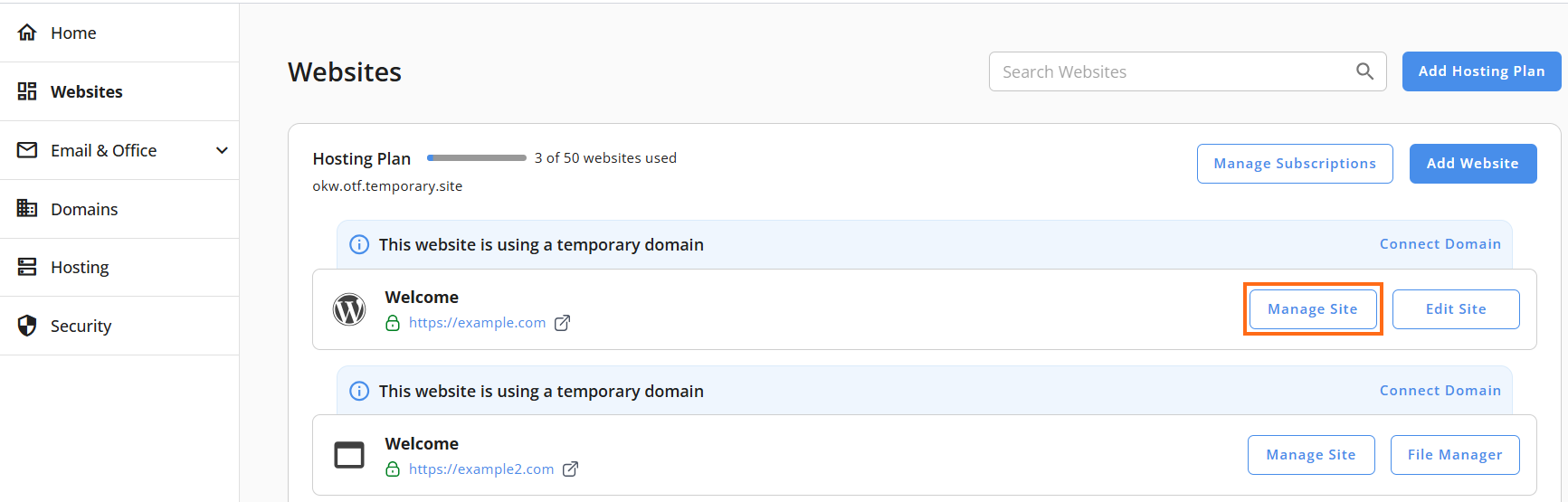
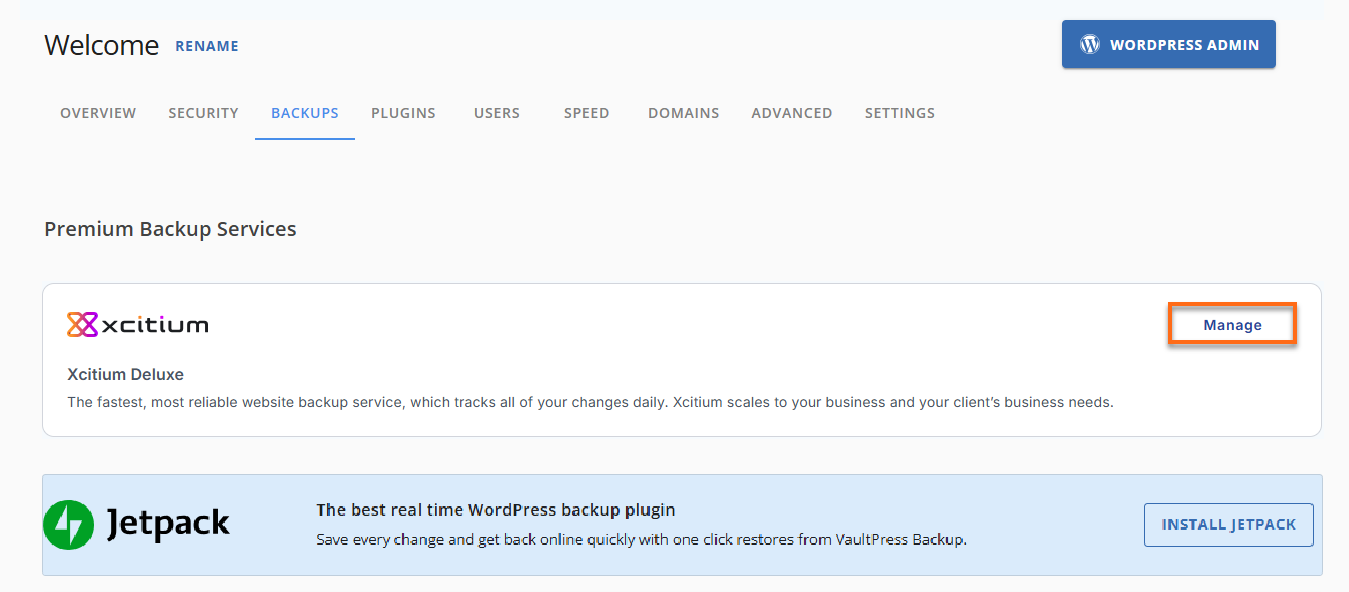
- Click Backups in the top menu.
- Under Premium Backup Services, click Manage for Xcitium.
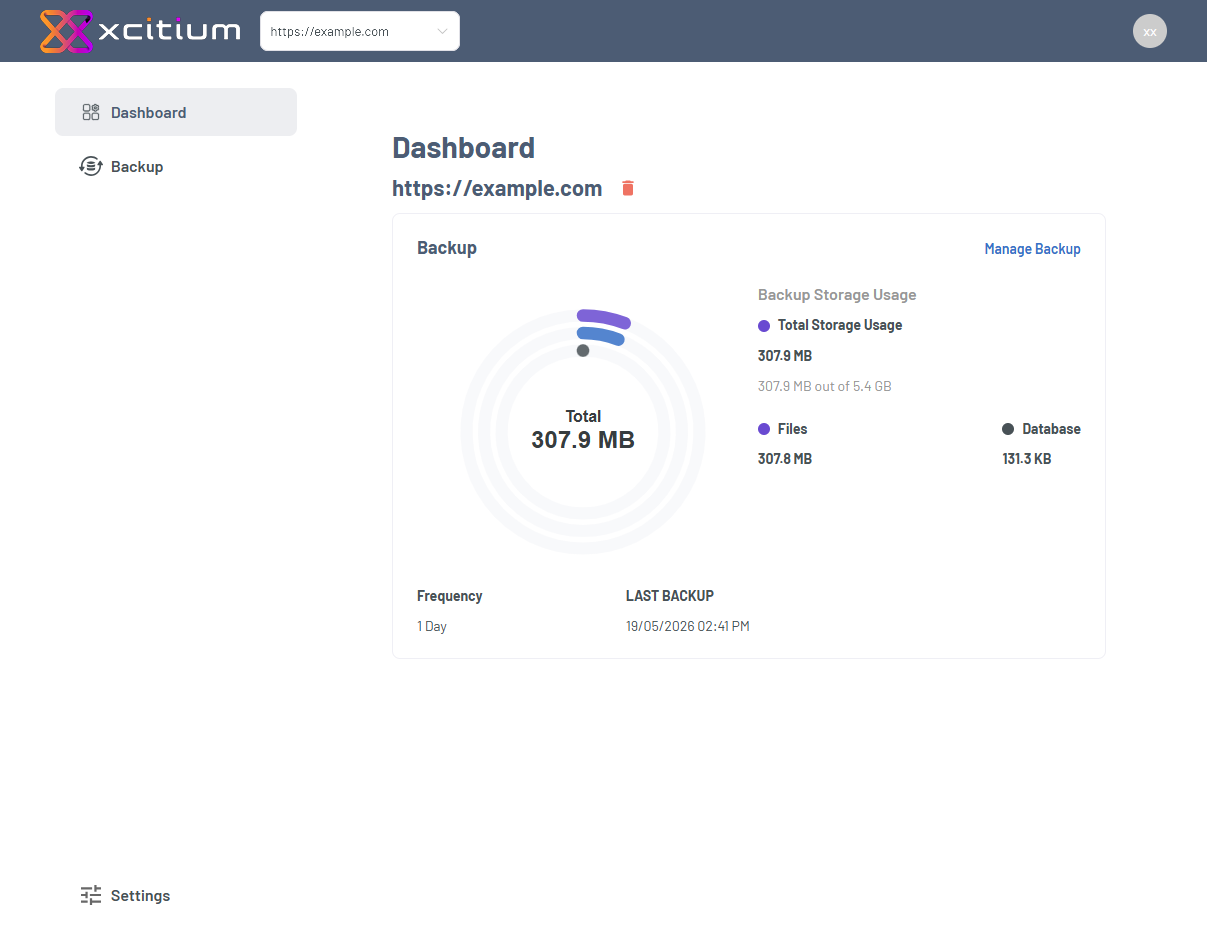
You will be redirected to the Xcitium Backup dashboard, where you can manage sites and configure website backup settings.
Add a New Site
To begin your Xcitium backup site setup:
- In the Site Selector dropdown, click ➕ Add new site.
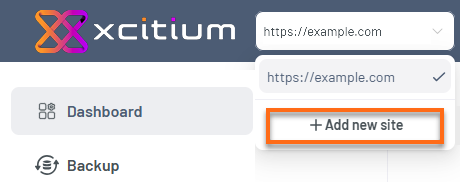
- Enter your website domain.
Double-check the domain name to avoid setup errors.
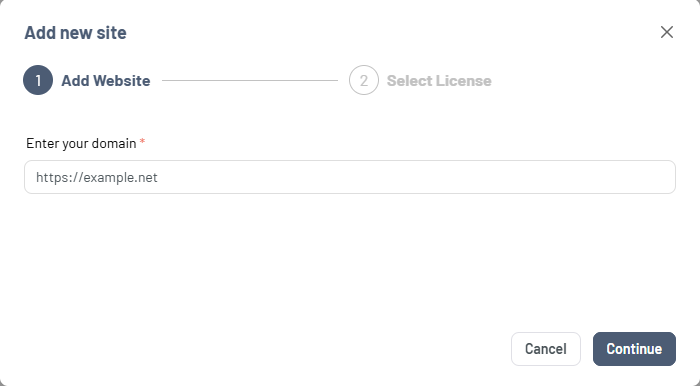
- Click Continue.
- Choose a License from the dropdown.
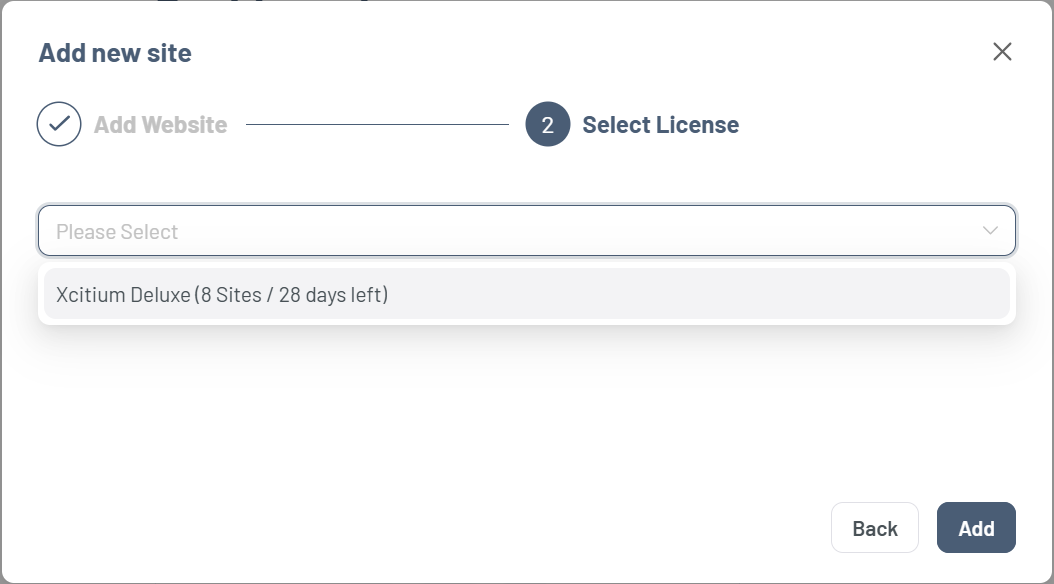
- Click Add.
This process ensures the site is registered in your secure backup system.
Complete Setup and Configure Backup Settings
After adding the site:
- Go back to the Site Selector dropdown.
- Choose the newly added website.
- In the Dashboard, click Backup Settings.
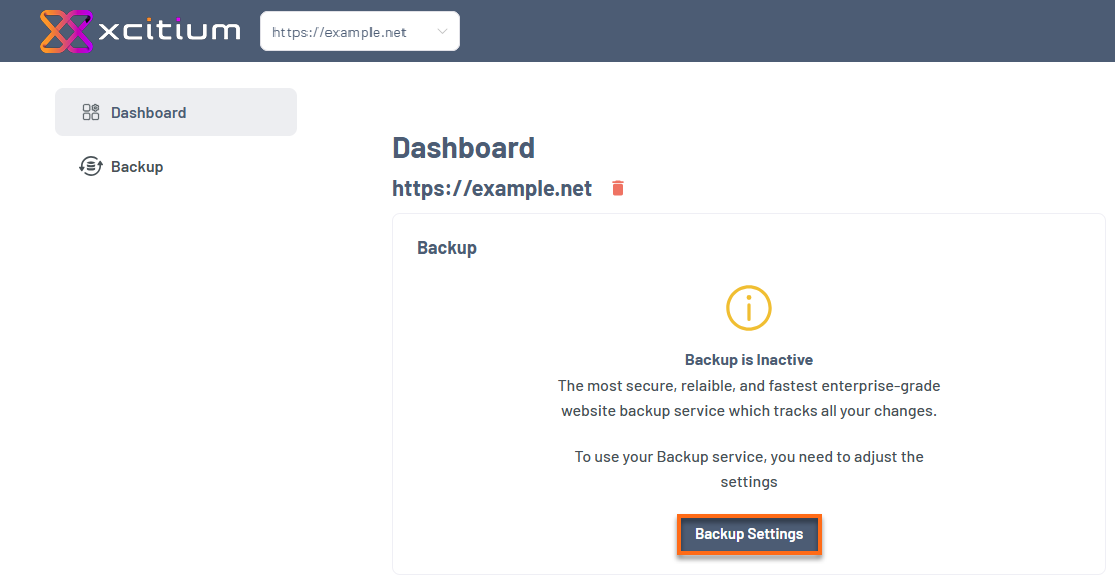
To fully enable automated website backups, follow the configuration guide for:
Did you find this article helpful?