Creating a Subscription - Plesk
A subscription is an instance of a service plan assigned to a reseller or customer account, much like creating a new cPanel account in WHM and assigning a Package to it. In other words, a subscription is an agreement that allows one to use the resources and services of a service plan to run websites and possibly resell them.
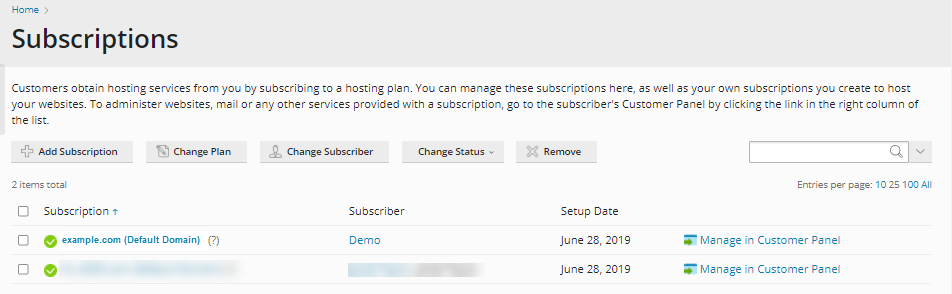
Example: You create a reseller service plan called MegaMoney. When you want to grant domain privileges and resources to a MegaMoney customer, you will need to subscribe that domain to the MegaMoney plan.
While the reseller's customers can be subscribed to hosting service plans, the resellers can have their own subscriptions to reseller service plans for their own purposes.
About Subscriptions
Each subscription is linked to the main domain, which is the domain created along with the subscription. You can create and host multiple domains under one subscription, but we recommend against it, as it can limit future growth. Specifically, any subscription that hosts multiple domains will be limited to 1 IP address and 1 SSL certificate. This means only one domain per subscription can ever have SSL, and all domains on the same subscription will share the same IP address at all times.
You can also customize existing subscriptions, thereby unsyncing them from the service plan. A custom subscription may be useful if you want to offer unique terms that differ from your regular business terms.
You can change an association between a subscription and service plans at any time as follows.
- Change the subscription to use a different service plan.
- Add and remove addon plans to the subscription.
- Remove the subscription for the service plan and its addons completely.
Parallels Plesk Panel allows for the following subscription states:
- Synced - This means the subscription is associated with a particular service plan, and any changes made to the plan are automatically applied to the subscription.
- Unsynced - This indicates that some services or resources offered with the associated service plan cannot be provided to the subscription, perhaps because you ran out of a particular service or resource.
- Locked - This indicates that the subscription is excluded from syncing with its associated service plan. This happens when you change the subscription parameters without changing the associated service plan.
Parallels Plesk Panel also supports different types of user accounts:
Administrator - Parallels Plesk Panel Administrator is the topmost account with all system privileges.
- Can perform all operations in the system
- Can manage all other user accounts, etc.
- The administrator uses the admin username and password to access the Panel.
Resellers - Subscribers to a reseller service plan.
- Can sign up their own customers
- Sell hosting service plans
- Host its own websites
- Operate within the limits of a purchased service plan
- Have a unique username and password to access their own administrative control panel
Customers - Subscribers to a hosting service plan.
- Some customers have permission to create additional domains for themselves
- Some are only allowed to manage those that they have
- Customers use their own control panel to configure service users, web hosting, and other services, such as mail.
Users - A service user account eligible to manage customer sites based on permissions defined by user roles.
- The user role is an entity that includes privileges to perform operations and access certain areas in the Panel.
How To Create a Subscription
- Log in to your Plesk admin panel.
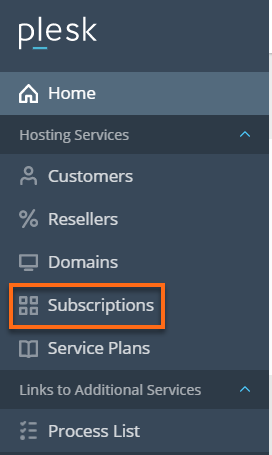
- In the left-hand menu, click on the Subscriptions tab.
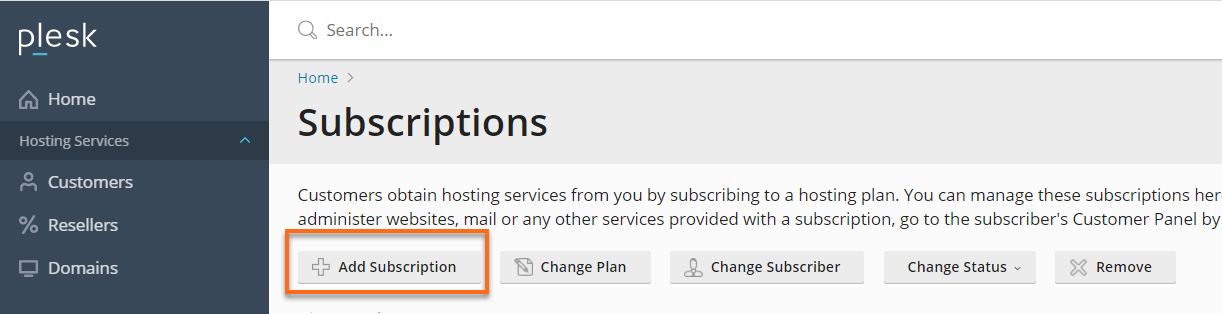
- Click the Add New Subscription button.
- Type the main Domain name for your new account. Then, select a Service Plan that is appropriate for this new account.
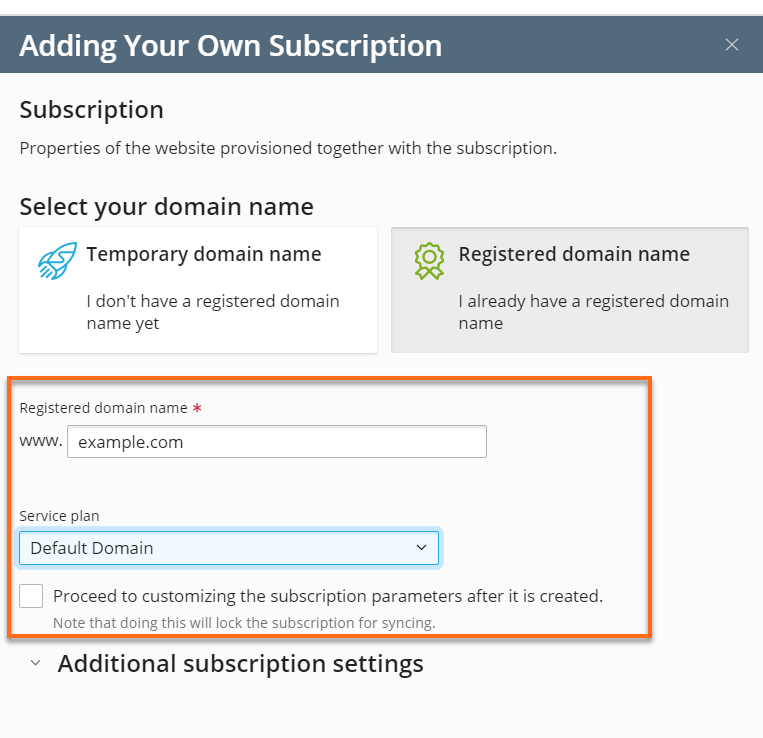
- Adjust the settings to your preference.
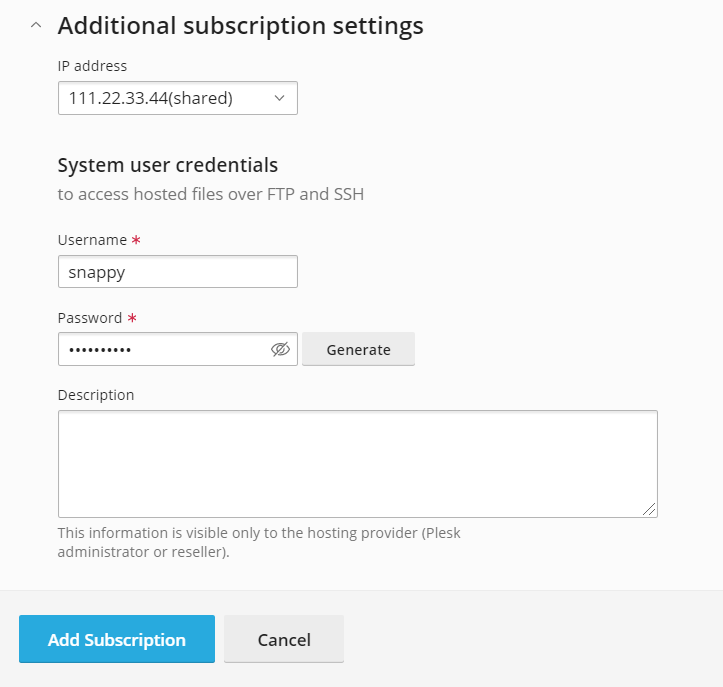
- The default "shared IP" is fine for now and can be updated later.
- Enter the desired control panel username and password. Repeat the password as directed.
- Click on the Add Subscription button.
How To Manage a Subscription
To manage your Subscription.
- Navigate to your Plesk admin panel.
- Click Subscription on the left-side menu.
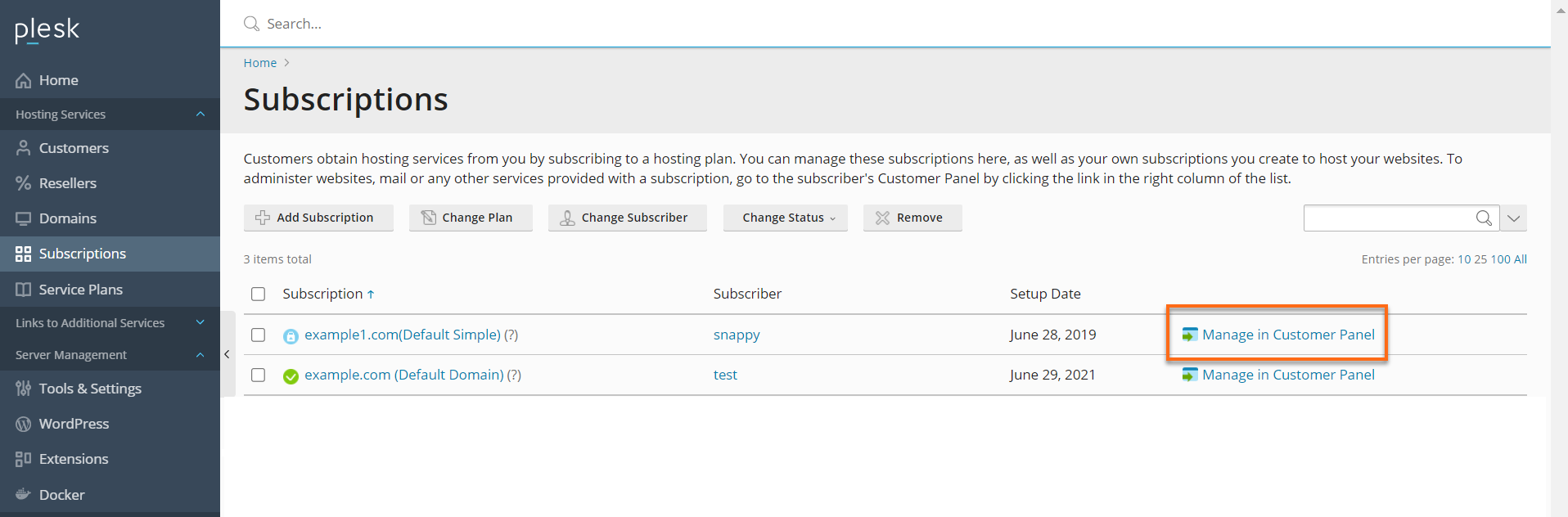
- In the Subscription section, click the domain you wish to modify. You can also click the adjacent Control Panel link to access the reseller/customer control panel.