Knowledge Base
Categories: Security
How to Add HostGator Malware Protection Site Seal
Displaying a HostGator Malware Protection Site Seal is an effective way to enhance your website's credibility and highlight active malware protection to your visitors. A visible security badge reassures users that your site is monitored and protected, helping build trust and improve engagement.
This guide walks you through the simple steps to add the HostGator Malware Protection Site Seal code directly from your hosting portal and display it on your website. By following these instructions, you'll be able to showcase your website security protection and strengthen your site's overall SEO performance and user confidence.
Add HostGator Malware Protection Site Seal
The HostGator Malware Protection Site Seal can only be added after Complete Security is purchased and a domain name is assigned to your account.
- Log in to your Customer Portal.
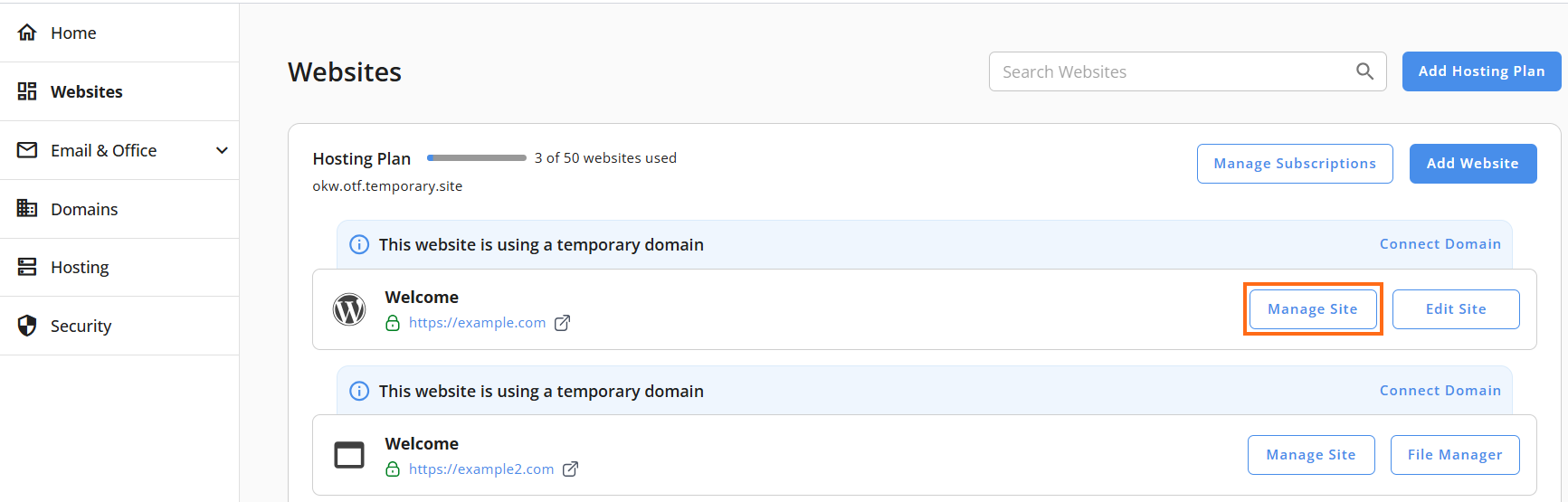
- Go to Websites from the left navigation menu.
- Click Manage Site next to the website you want to manage.
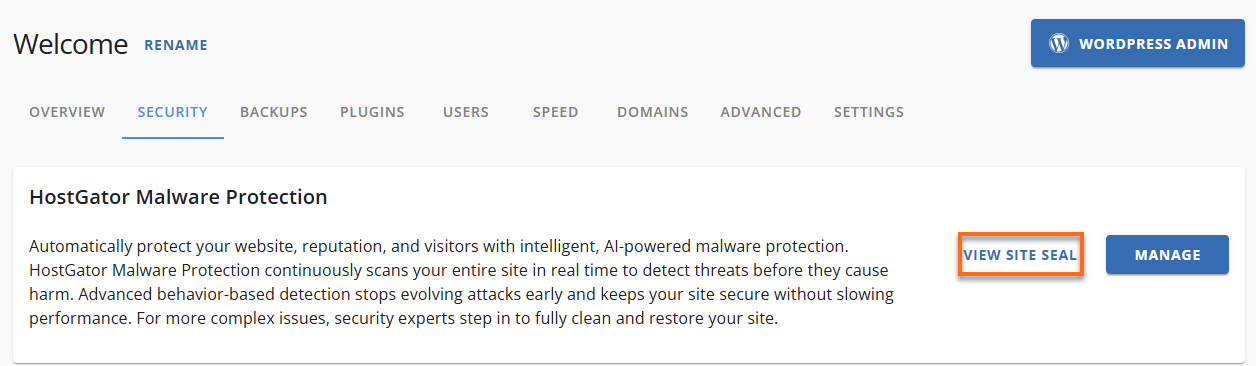
- Navigate to the Security tab in the horizontal menu. Click View Site Seal in the HostGator Malware Protection section.
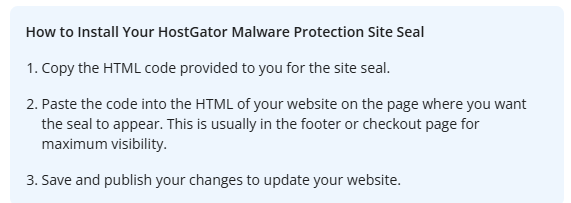
- Copy the generated HostGator Malware Protection Site Seal code snippet provided.
- Paste the code into your website where you want the security badge to appear, following your platform's instructions.
- Verify the Site Seal display.
If the HostGator Malware Protection Site Seal does not appear immediately, clear your browser cache and reload your website.
Did you find this article helpful?