How to Generate a CSR in cPanel
A Certificate Signing Request (CSR) is a required step when obtaining an SSL certificate, as it securely generates the information needed to issue and validate your certificate. This guide walks you through creating a CSR directly in cPanel, ensuring you provide the correct details for successful SSL activation. It also explains key requirements, optional settings like passphrases, and important considerations to help avoid errors during the process.
If you need to read more information on CSR and how to request it online, please read the article below:
To generate a CSR through the cPanel:
- Log in to cPanel.
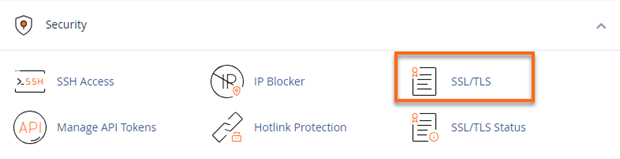
- Look for the Security section, then click on SSL/TLS.
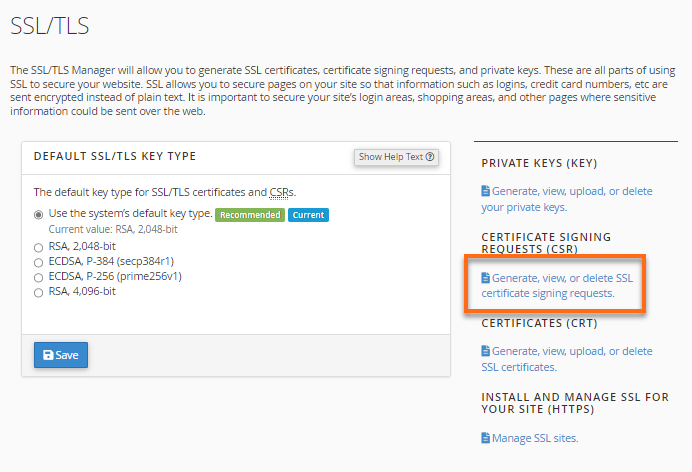
- Under Certificate Signing Requests (CSR) on the right panel, click the Generate, view, or delete SSL certificate signing requests link.
- Fill out the necessary fields on the next page. When filling in the details, use only alphanumeric characters.
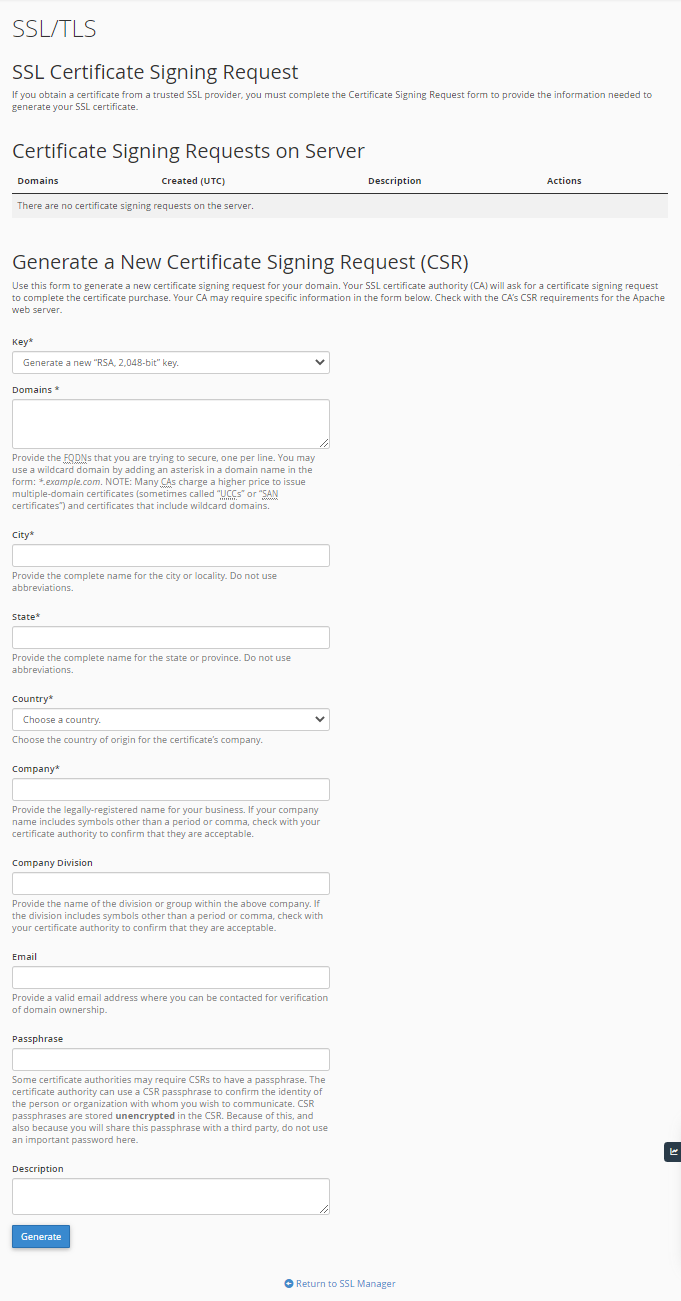
*Required fields to fill out.- Key* - A completely new Private Key will be generated if you select Generate a New 2048-bit key. If the private key was generated separately, select it from the dropdown.
- Domains* - The fully qualified domain name on which the SSL will be activated. The domain name for all Wildcard certificates should be written with an asterisk in front of it (e.g.,*.hgexample.com). To create your CSR for multiple domains, enter each domain on a new line.
- City* - The complete name of the city or locality. Do not use abbreviations.
- State* - The complete name of the state or province. Do not use abbreviations.
- Country* - The country of origin for the certificate's company from the dropdown list.
- Company* - The legally-registered name for your business. If your company name includes symbols other than a period or comma, check with your certificate authority to confirm that they are acceptable.
- Company Division - The name of the division or group within the above company. If the division includes symbols other than a period or comma, check with your certificate authority to confirm that they are acceptable.
- Email - A valid email address where you can be contacted to verify domain ownership.
- Passphrase - Some certificate authorities may require CSRs to have a passphrase. The certificate authority can use a CSR passphrase to confirm the identity of the person or organization with whom you wish to communicate. CSR passphrases are stored unencrypted in the CSR. Because of this, and because you will share this passphrase with a third party, do not use an important password here.
- Is the passphrase optional or mandatory?
A passphrase is a word or phrase that protects private key files. It prevents unauthorized users from encrypting them. Usually, it's just the secret encryption/decryption key used for Ciphers. Usually, we do not set up this protection on SSL certificates.
A passphrase is optional, and without it, SSL can still be imported on SiteLock.
If we protect the private key with a passphrase, the Apache Web Server cannot use it unless we supply the passphrase each time it restarts or reboots. And since storing that passphrase in the filesystem would defeat the point of the passphrase, you need a way to pass it to Apache from the outside each time it restarts or reboots.
If the private key is not encrypted, its protection lies only with the superuser, who can read it. Therefore, it relies heavily on the system's integrity and is highly protected, reducing the chances of compromise.
Note: The CSR will automatically generate without a passphrase if you install a FREE SSL.You can use this free online service https://www.ssllabs.com/ssltest/, which performs a deep analysis of the configuration of any SSL web server.
- Description - Keywords to locate a particular CSR in the list quickly.
- Click Generate.
- Congratulations! You can now use the Encoded Certificate Signing Request to activate the certificate purchased with HostGator or any other certificate provider. Please include -----BEGIN CERTIFICATE REQUEST----- and -----END CERTIFICATE REQUEST----- when submitting the CSR code for SSL activation.