What Is a Security PIN?
When you sign up for web hosting with HostGator, we will ask you to create a Security PIN. The security PIN is a 6-digit number that only you know. When you contact us for support, we use it to confirm that we are speaking with the correct person (the account owner).
Your security PIN is similar to the PIN on your ATM/debit card. Anyone who knows your PIN has access to your account. For that reason, you should protect your PIN and avoid disclosing it to anyone you do not wish to provide access to your account.
This article discusses the following topics.
Should I share my PIN with my web designer?
No. Generally, there is no reason to share your PIN with your web designer. Instead, it is recommended that you provide the web designer access via the control panel or FTP.
How do I set up my security PIN?
You can set your security PIN during the HostGator account setup process. Our account registration form will ask you to assign your security PIN.
What if I forget my PIN?
If you are the account owner and have forgotten your security PIN, you can change it in your Customer Portal.
How can I change my security PIN?
If you need to change your security PIN at any time, you can do so in the My Profile section of your Customer Portal.
To change your security PIN:
- Log in to your Customer Portal.
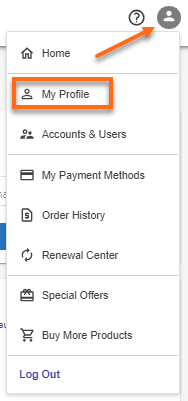
- Click your profile icon in the top-right corner, then select My Profile from the list of options.
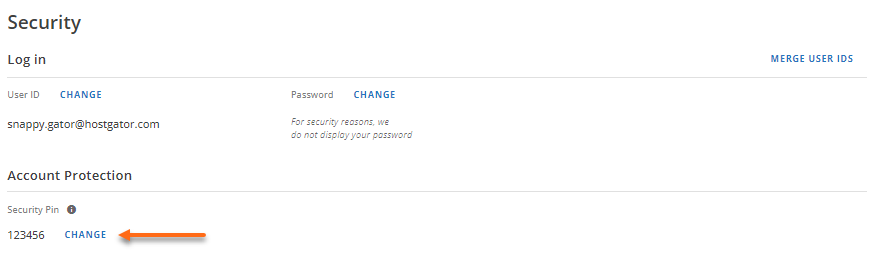
- Under the My Profile & Security, go to the Security section and click the Change link under Security PIN.
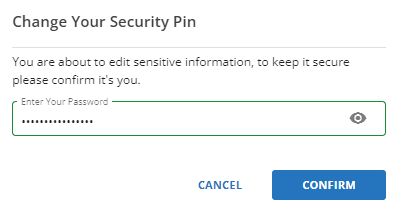
- A pop-up window will appear, asking you to enter your account password. Enter your account password to proceed.
- In the next pop-up window, enter your new security PIN. You'll be prompted to use a PIN with:
- 6 numbers
- No more than 2 repeated numbers
- No more than 2 sequential numbers
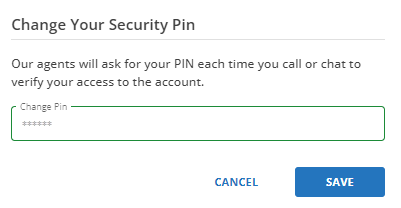
- Once done, click the Save button.
Alternate methods of verification
If you are unable to provide your security PIN, we can still verify that you are the account owner in other ways. You can contact us by phone or chat, and the agent you are connected to will assist you with verifying your identity.