Professional Email - How to Fix "Invalid From address" Error
HostGator Professional Email looks at the From address on every message you send. When that address is formatted incorrectly, or doesn't match the account the message is sent from, the message is rejected and you receive an "Invalid From address" error.
This article covers the error messages you might see and how to fix the settings behind them, whether you send from an email program or from webmail.
Invalid From Address Error Messages
A rejected message is returned with a 550 5.7.1 code, followed by one of these messages:
| Error Message | What It Means |
|---|---|
550 5.7.1 Invalid From address. Different emails [address 1] and [address 2] found |
The From address doesn't match the email address of the account that is sending the message. |
550 5.7.1 Invalid From address. Different domains [domain 1] and [domain 2] found |
The domain in the From address differs from the domain of the account that is sending the message. |
550 5.7.1 Invalid From address. Mail is not following RFC 5322. 'From' header is invalid |
The From address isn't formatted as the RFC 5322 email standard requires. |
550 5.7.1 Invalid From address. Mail is not following RFC 5322. 'From' header does not exist |
The message was sent with no From address at all. |
Follow the steps below to fix the error.
Log In to Professional Email Webmail
- Option 1: Access Webmail Through the HostGator Customer Portal ⤵
- Option 2: Access Webmail Directly ⤵
Option 1: Access Webmail Through the HostGator Customer Portal
- Log in to your Customer Portal.
- Click Email in the left-side navigation menu.
- Optional: If multiple Professional Email subscriptions are listed, click Manage for the plan you want to access.
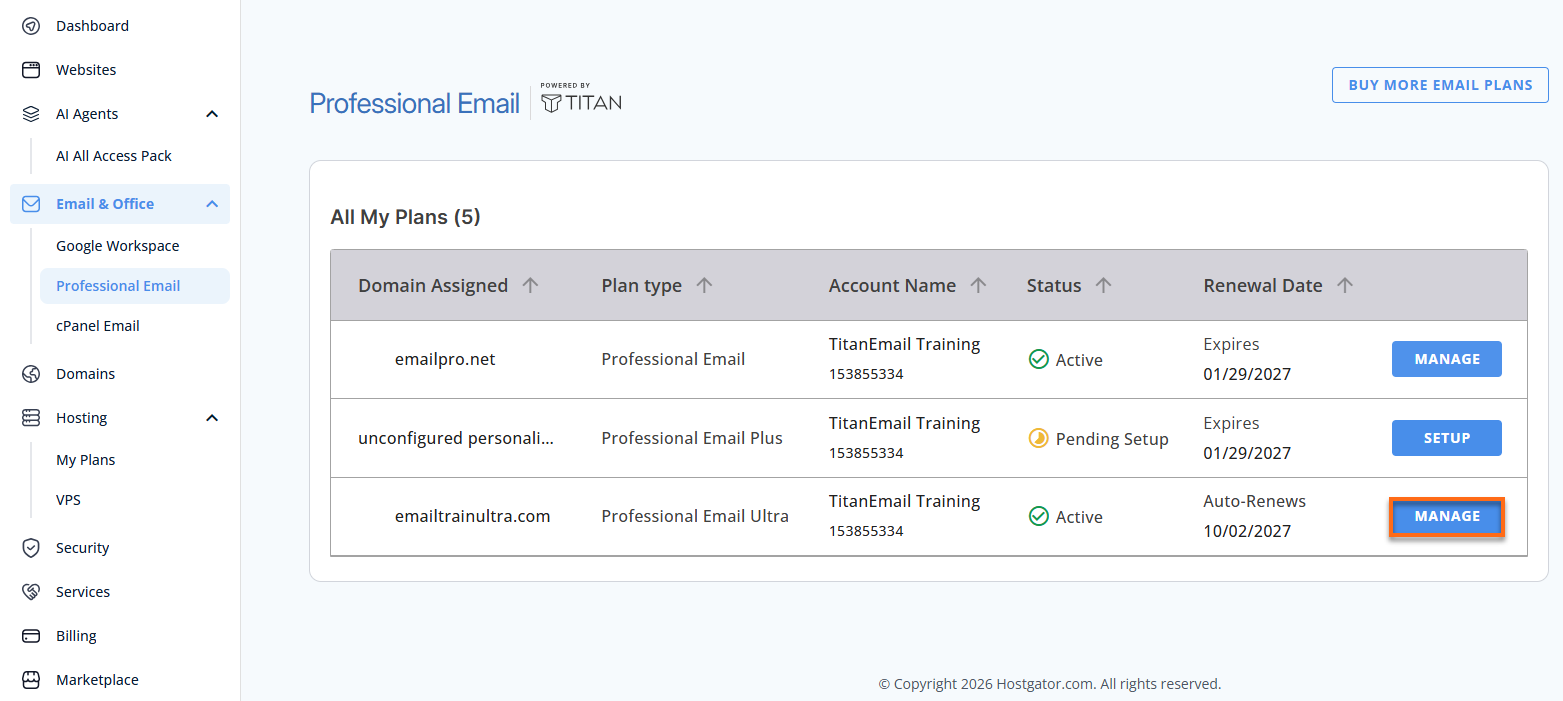
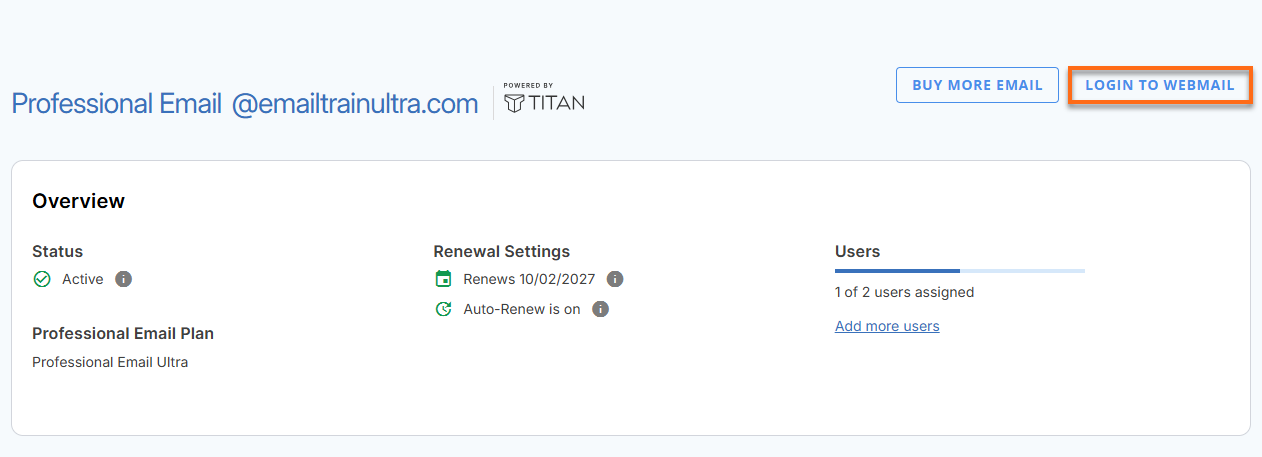
- You’ll be automatically redirected to the Email Management page, where you can manage your email settings and subscriptions.
- Click Login to Webmail.
- Enter your Professional Email username and password.
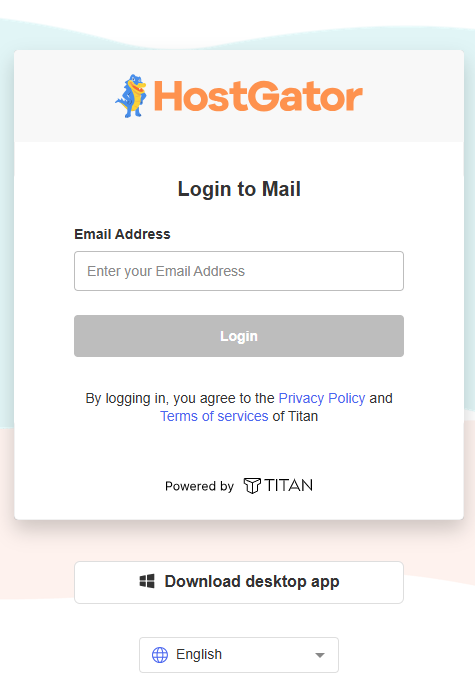
- Click Login.
Option 2: Access Webmail Directly
- Go to the Professional Email login page.
- Enter your email address and password.
- Click Login.
Fix the Error in Webmail
When you send from HostGator Professional Email webmail, check the name that's saved on your account:
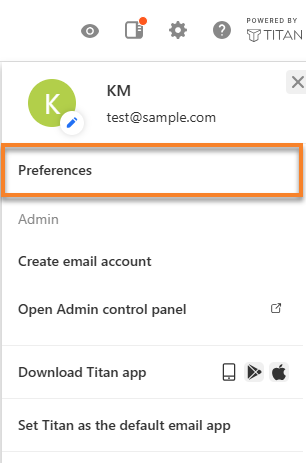
- Click Settings at the top right corner.
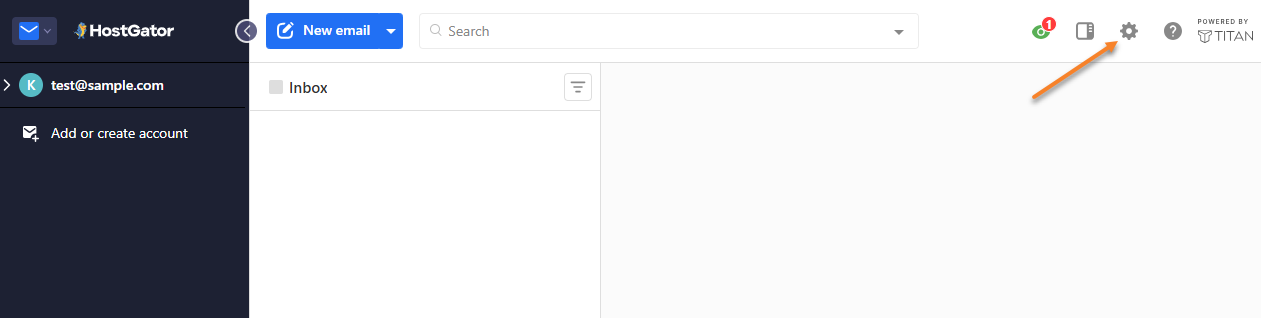
- Click Preferences.
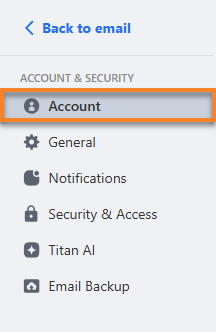
- Locate the Account section.
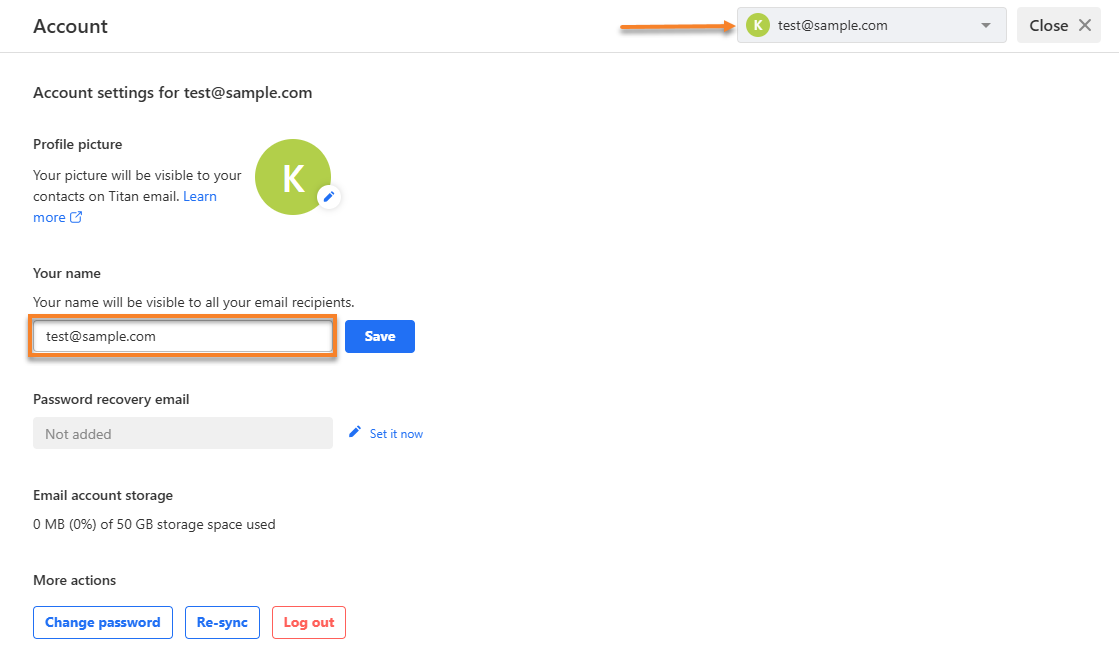
- Check the Your name field. If it holds an email address, confirm that it exactly matches the address you're logged in with.
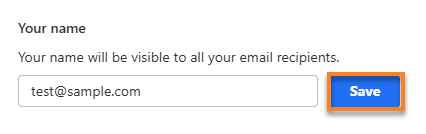
- Click Save.
Fix the Error in an Email Program
When you send from Outlook, Thunderbird, or Apple Mail, this error is typically caused by two settings that don't match. Follow these steps to bring them in line:
- Open the account settings in your email program.
- Locate the Message From setting and confirm it holds a single, valid email address.
- Confirm that this address is an exact match for the Mail From address.
- Save your changes, then send a new message.
If the Error Continues
The "Different domains" Error
If this error persists after you've corrected the address, close and reopen your email program so it stops using old, saved settings.
The RFC 5322 Errors
These errors typically go away once the Message From and Mail From addresses match. If the message states that the From header does not exist, make sure a sending address is filled in.
Confirm the Fix Worked
Send a test message. Once the settings are correct, the message should no longer be rejected with a 550 5.7.1 error, and the recipient sees the matching From address.