HostGator Professional Email: How to Enable Two-Factor Authentication (2FA)
Two-factor authentication (2FA) helps protect your HostGator Professional Email account by asking for two pieces of information when you sign in: your mailbox password and a temporary 6-digit code from an authenticator app on your phone. If your password is ever exposed, the code adds a second layer of protection that makes it much harder for unauthorized users to access your inbox.
HostGator Professional Email runs on Titan Mail, so you turn on 2FA from the security settings in Titan Webmail.
This article explains how to enable 2FA, save your recovery codes, and resolve common sign-in issues.
How Two-Factor Authentication Protects Your Mailbox
With 2FA turned on, each sign-in is verified in two ways:
- Something you know: Your mailbox password.
- Something you have: A 6-digit code generated by an authenticator app on your phone. The code changes every few seconds.
With 2FA turned on, a stolen password alone usually isn't enough to sign in, because the sign-in also requires the code from your phone. 2FA applies when you sign in to Titan Webmail and the Titan mobile app.
What You Need
Have the following ready before you start setting up 2FA.
- Your Professional Email address and password. Titan asks you to re-enter your password before setup begins.
- A smartphone with an authenticator app, such as Google Authenticator or Microsoft Authenticator.
- A safe place to keep your recovery codes, like a password manager or a separate email account.
How to Enable Two-Factor Authentication
Follow these four steps to turn on 2FA for your mailbox.
Step 1: Sign In to Titan Webmail
Open your mailbox in Titan Webmail through the HostGator Customer Portal.
- Log in to your Customer Portal.
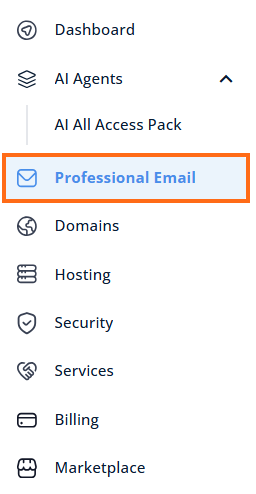
- Click Professional Email in the left-hand menu.
- Optional: In Professional Email, if multiple plans are listed, click Manage for the plan you want to use.
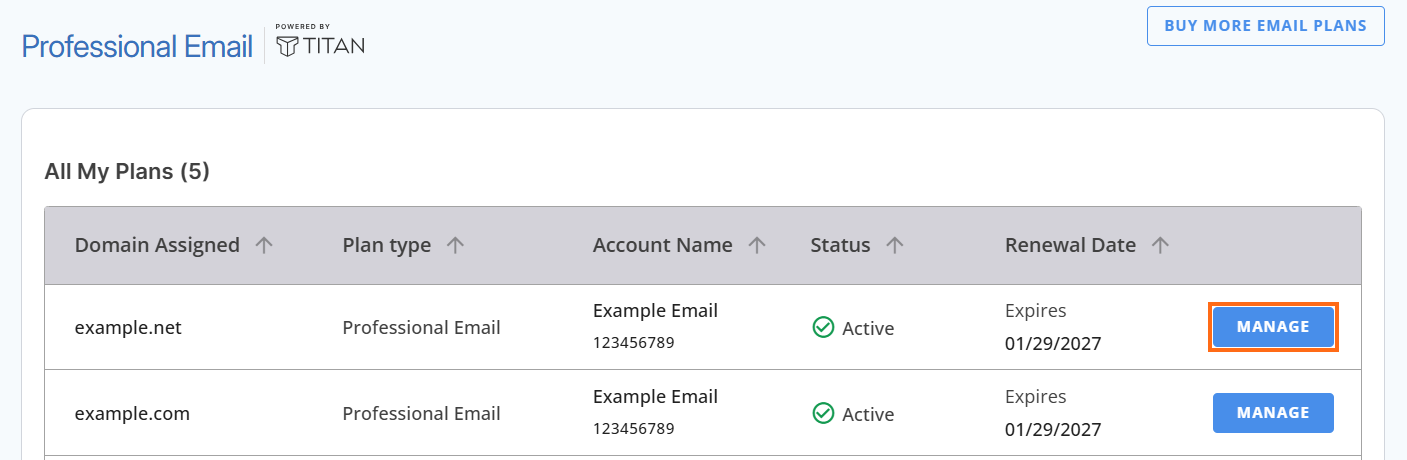
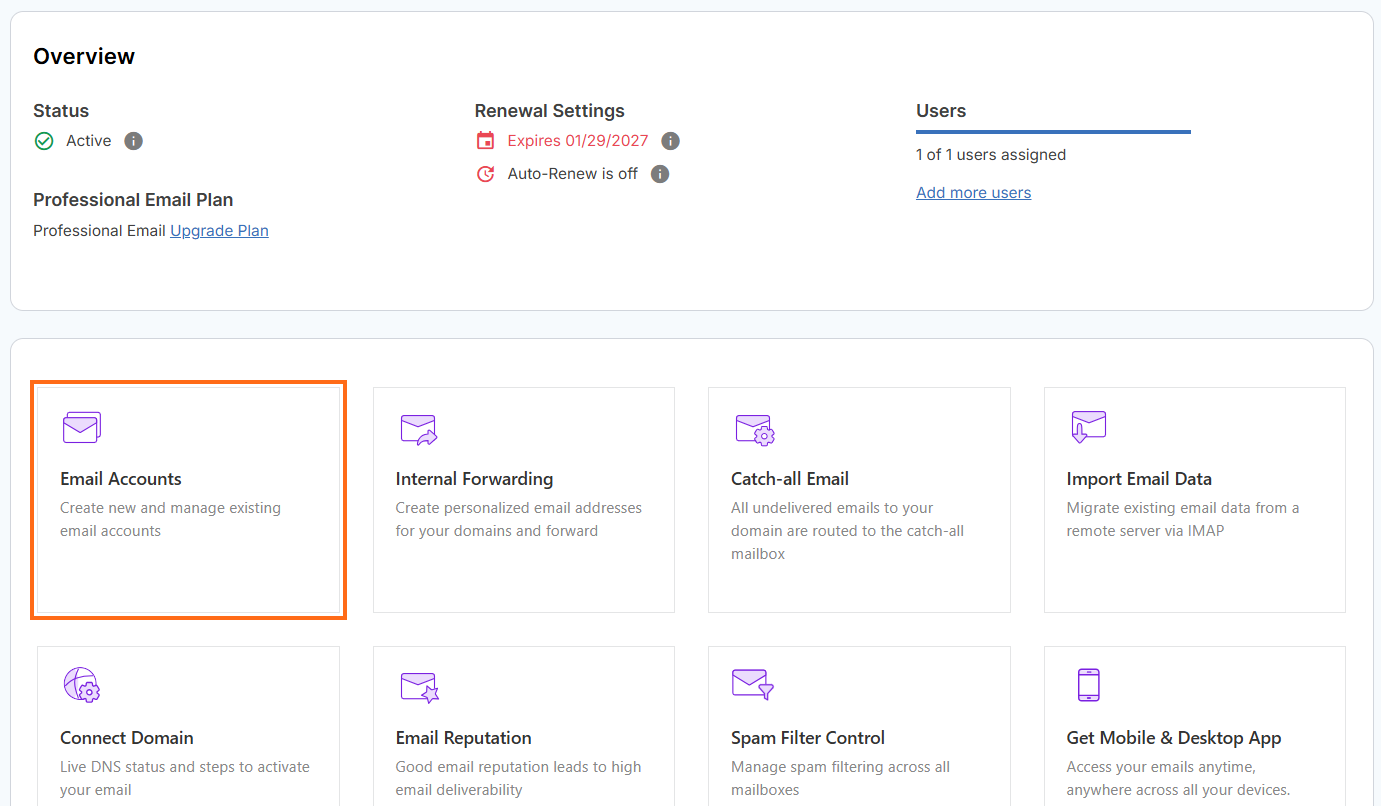
- You'll be taken to the Email Management page.
- Open Email Accounts to see every mailbox on the plan.
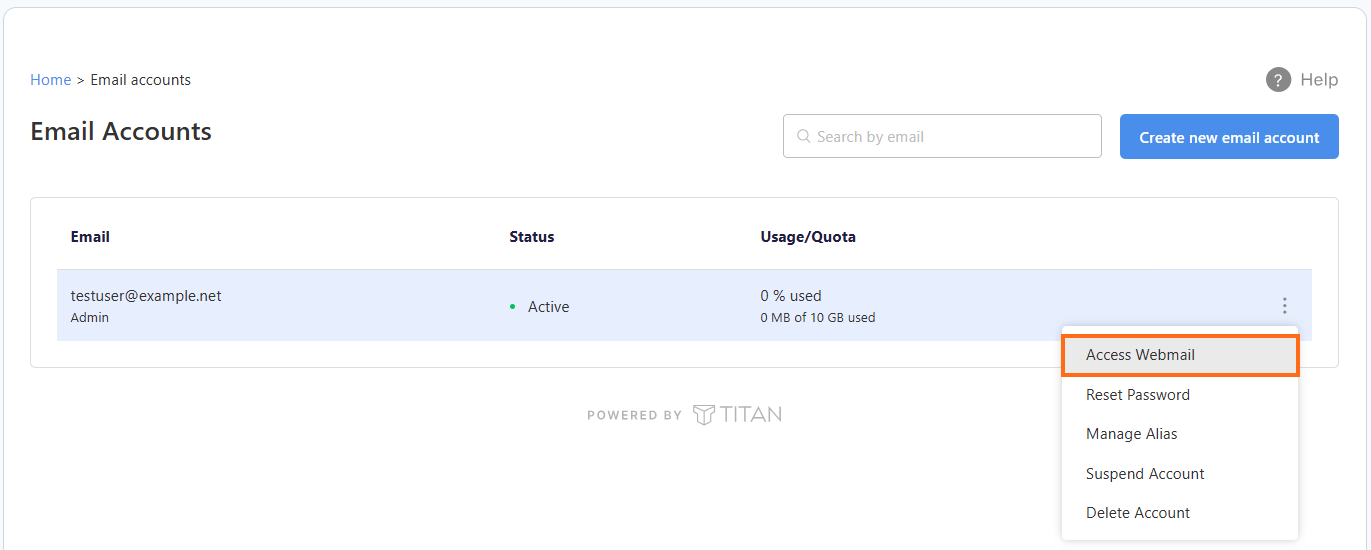
- Find the email account you want to manage.
- Hover over the email account and click the ellipsis icon (
⋮).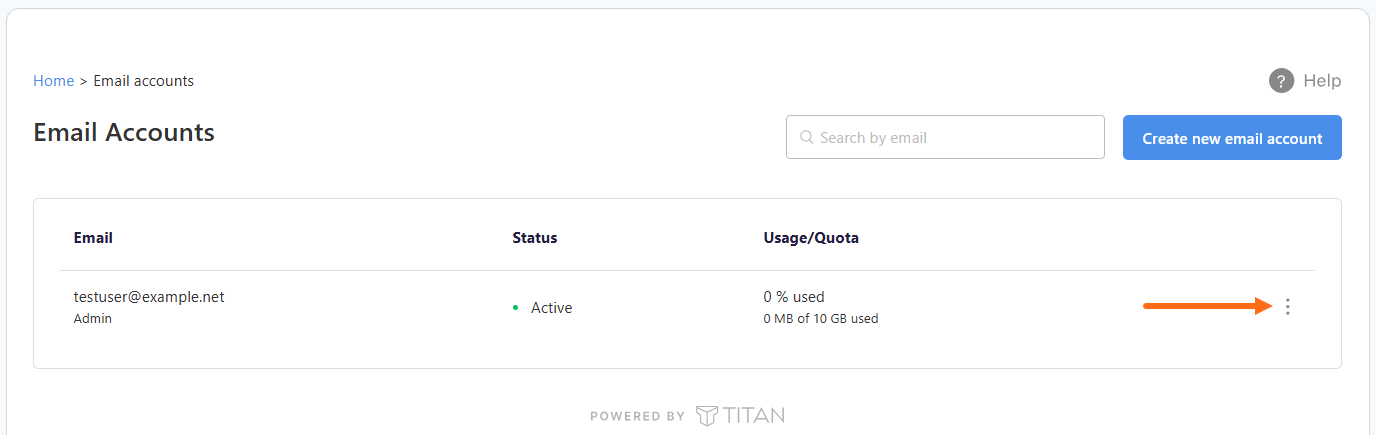
- Click Access Webmail to log in to your webmail.
- Type your email address and click Login. When the password field appears, enter your password and click Login again to sign in.
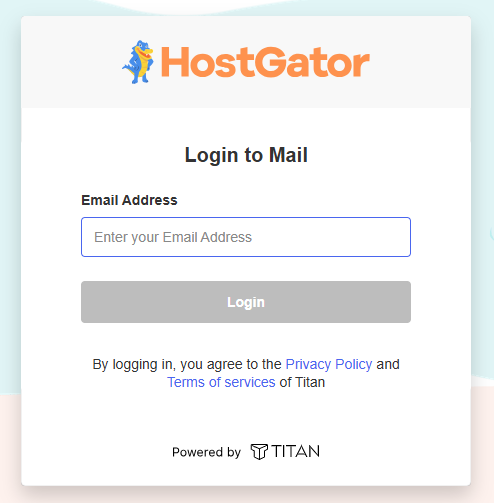
Alternatively, go directly to https://hostgator.titan.email/login/ to log in using your full email address and password.
Step 2: Open Security Settings
Go to the security settings in Titan Webmail and confirm your identity.
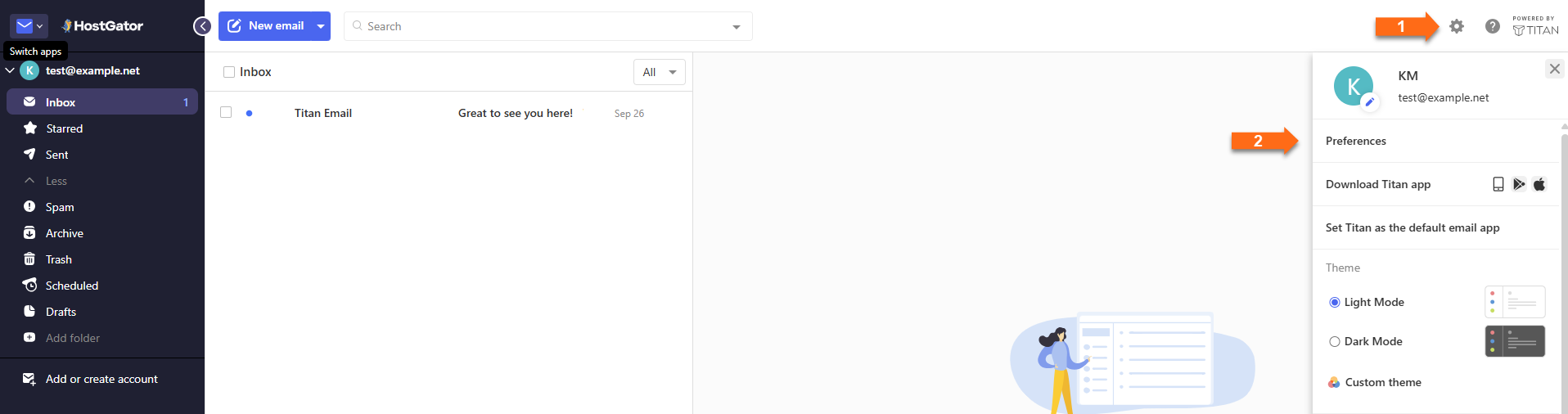
- In Titan Webmail, click the Settings (gear) icon in the top-right corner, then select Preferences.
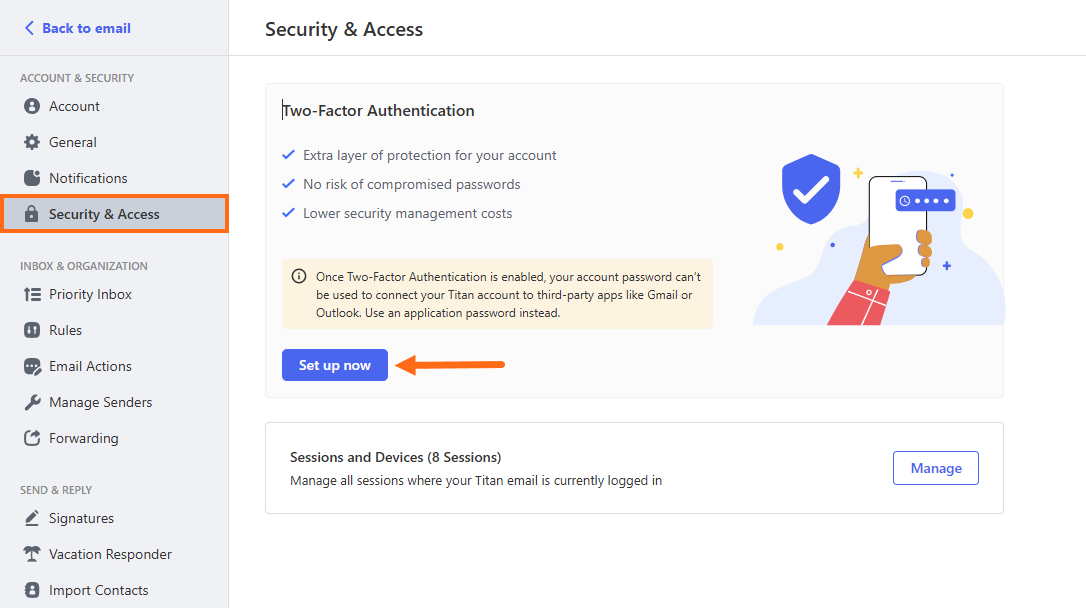
- Go to Security and click Set up now.
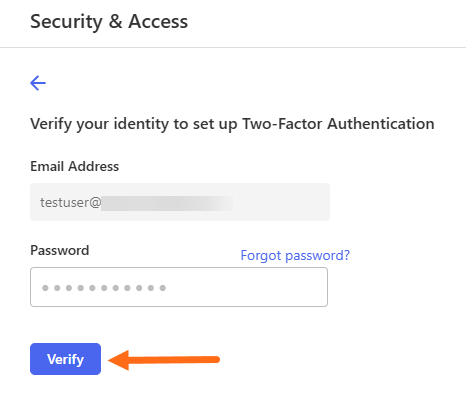
- Confirm your identity by entering your mailbox password, then click Verify.
Step 3: Link Your Authenticator App
Connect your mailbox to your authenticator app so it can generate sign-in codes.
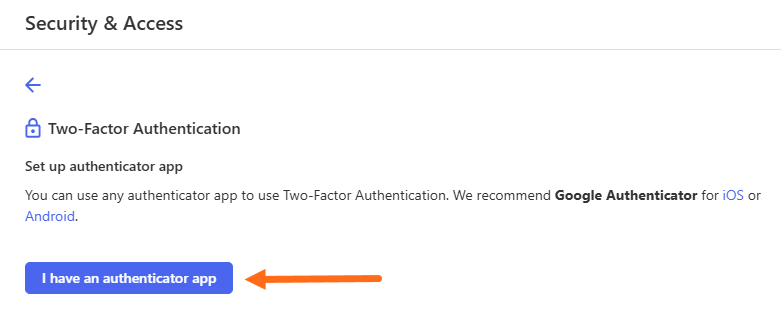
- Select I have an authenticator app. Titan displays a QR code and a setup key.
- In your authenticator app, choose the option to Add a new account.
- Point your phone's camera at the QR code. If scanning doesn't work, type the setup key into the app instead.
- After your mailbox is listed in the app, return to webmail and click Next.
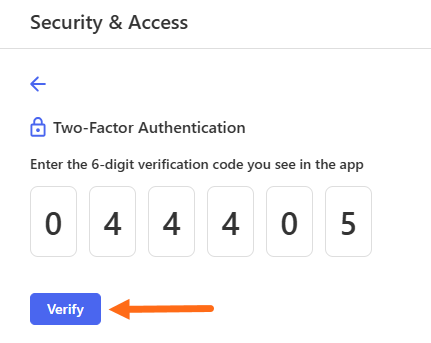
- Type the 6-digit code shown in the app and click Verify before the code changes.
Step 4: Store Your Recovery Codes
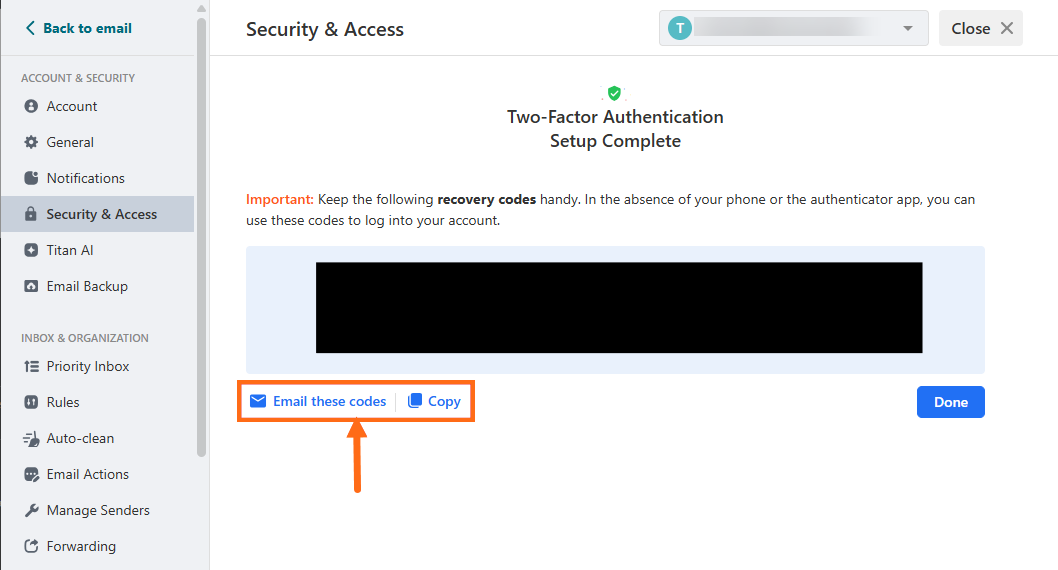
When Titan accepts your code, it shows a list of recovery codes. Store them securely.
Click Email or Copy to save the list.
Fix Common 2FA Problems
Use this table to resolve the most common issues with 2FA sign-in.
| Problem | Possible Reason | What to Do |
|---|---|---|
| Your phone can't read the QR code | Low light, or the camera isn't focusing | Type the setup key shown beside the QR code into your authenticator app. |
| You lost your phone or removed the authenticator app | No device is available to produce codes | Sign in with one of your saved recovery codes, then pair a new app under Settings > Preferences > Security > Manage. |
| Titan doesn't accept your code | The code has expired, or your phone's clock is off | Wait for the next code and enter it right away. Turn on automatic date and time on your phone. |
| Outlook or another mail app can no longer connect | Titan blocks third-party mail apps while 2FA is turned on | Use Titan Webmail or the Titan mobile app to access your email. If you need to keep using a third-party mail app, you'll need to turn off 2FA for your mailbox. |
| You lost your phone and can't find your recovery codes | No device or recovery code is available to complete sign-in | Ask your account admin to turn off 2FA for your mailbox. After you sign in, set up 2FA again with a new authenticator app. |
Turn Off 2FA If You're Locked Out
If your authenticator app and your recovery codes are both out of reach, an account admin may be able to restore your access by turning off 2FA for your mailbox from the HostGator Customer Portal. This requires an admin who can sign in to the Customer Portal. Individual mailbox users don't have this option.
- Log in to your Customer Portal.
- Click the Professional Email tab on the left-hand menu.
- Optional: If more than one Professional Email plan is listed, click Manage for the plan that includes the mailbox.
- Open Email Accounts to see every mailbox on the plan.
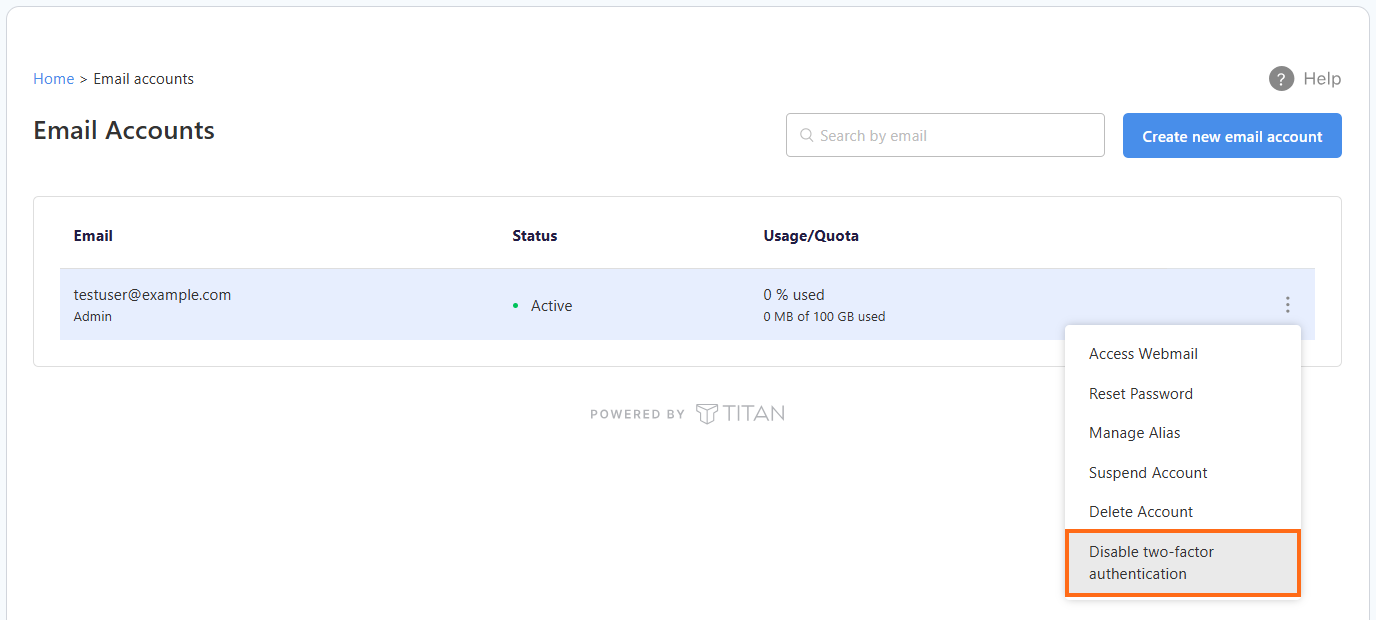
- Find the mailbox that's locked out.
- Click the ⋮ (ellipsis) icon next to it.
- Choose Disable Two-Factor Authentication.
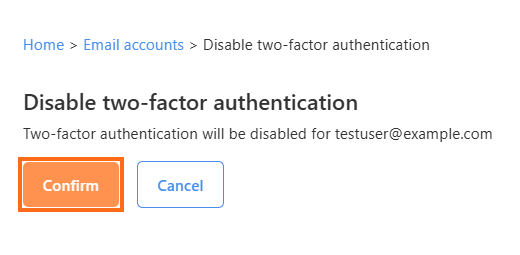
- Click Confirm to finish turning off 2FA.
- A success message appears once 2FA has been removed from the mailbox.
The mailbox user can sign in right away using just their email address and password.
If you can't sign in to the admin account, contact HostGator Support for help.
Common Questions About 2FA
Here are answers to questions people often ask about 2FA in Professional Email.
Q: Is 2FA Turned On for Every Mailbox on My Domain?
A: No. It protects only the mailbox where you set it up. Other users need to enable it for their own accounts.
Q: How Often Will I Need to Enter a Code?
A: You'll enter a code when you sign in to Titan Webmail or the Titan mobile app. Third-party mail apps can't connect while 2FA is turned on.
Q: Can One Authenticator App Handle Several Mailboxes?
A: Yes. Most apps let you add multiple accounts, and each mailbox gets its own entry and code.
Q: What If I Can't Find My Recovery Codes?
A: While you're signed in, go to Settings > Preferences > Security > Manage to view your recovery codes again, then save a new copy in a secure location. If you're signed out and don't have your phone or recovery codes, your account admin may be able to turn off 2FA for your mailbox.