To rename a Google Workspace user, sign in to the Google Admin console, go to Directory > Users, point to the user, and click Rename user. You can then update their name, the first part of their email address, or the domain their address uses.
Names change, companies rebrand, and sometimes a user needs an address on another domain. The Google Admin console lets you update a user's name and their email address, and the two are separate settings, so you can change one without touching the other.
This article explains how to update a user's name, change the username part of their email address, and move their address to a different domain. It also covers what happens to the old address afterward.
Before You Start
Check that you have the following:
- Access to the Google Admin console with permission to manage users. Without it, you won't see the controls used in these steps.
- The new name or email address you want to use. The address can't already belong to another user in your account.
- For a domain change, the new domain already added to your Google Workspace account. Only your primary domain and any secondary domains you've added are available. A domain you haven't added, such as gmail.com, can't be used.
Important: After you change a user's email address, they must sign in to their Google Account with the new address, and they may not be able to use Google Chat for up to 3 days. Let the user know before you make the change.
What Changes When You Rename a User
| What you change | What it affects | User signs in with a new address |
|---|---|---|
| Name | The first and last name shown in messages, invites, and the directory | No |
| Username | The part of the address before the @ symbol | Yes |
| Domain | The part of the address after the @ symbol | Yes |
A name change on its own leaves the sign-in address untouched. The new name shows up in messages the user sends, calendar invites, shared documents, and your company directory.
When you change a user's email address, the user:
- Receives email sent to the new address.
- Signs in with the new address, because the old address no longer works for signing in.
- Keeps all of their existing email, files, and data.
- Still receives email sent to the old address, which becomes an email alias. Messages sent to either address land in the same inbox.
Update a User's Name
Follow these steps to change the first or last name that appears in a user's messages and calendar invites. Their email address stays the same.
- Sign in to the Google Admin console using your administrator account.
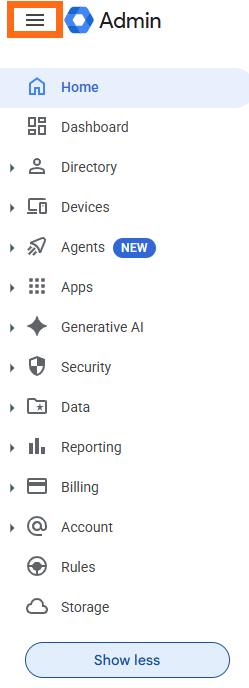
- Click the Menu hamburger icon (three horizontal lines) in the upper-left corner, next to Admin.
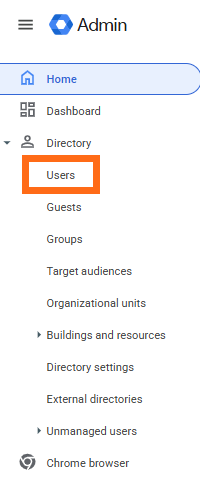
- Click Directory > Users.
- In the Users list, point to the user and click Rename user. If the list is long, search for the user at the top, open their account page, and click Update user on the left.

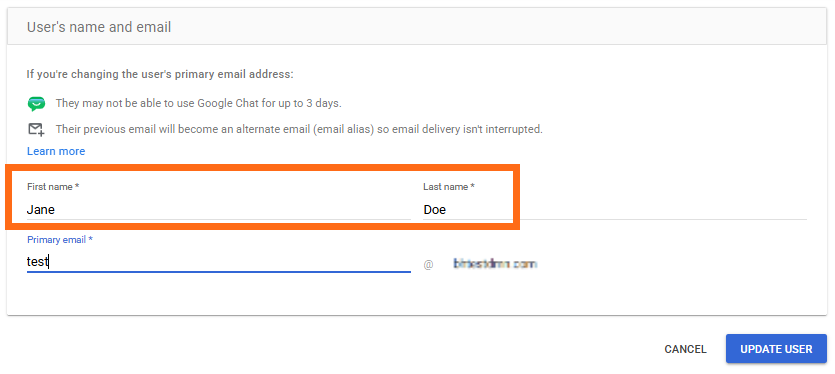
- Type the new name in the First name field, the Last name field, or both.
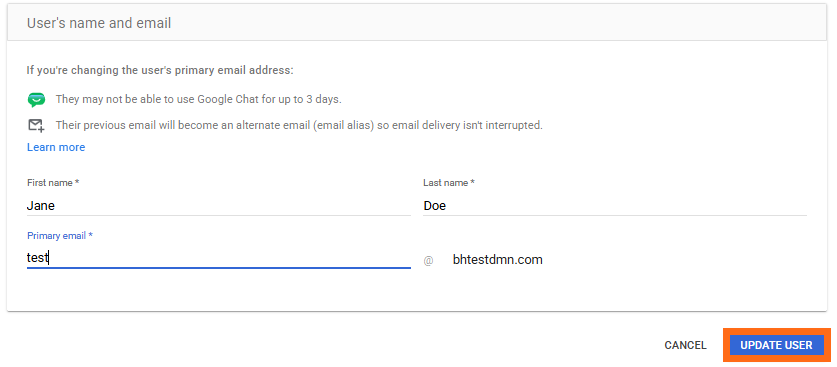
- Click Update user.
- Click Done.
Note: If your account lets users edit their own names and a user has already done so, the name you enter here won't show for that user.
Update a User's Email Address
Pick the option that matches what you want to change: the first part of the address (the username) or the second part (the domain).
Update the Username
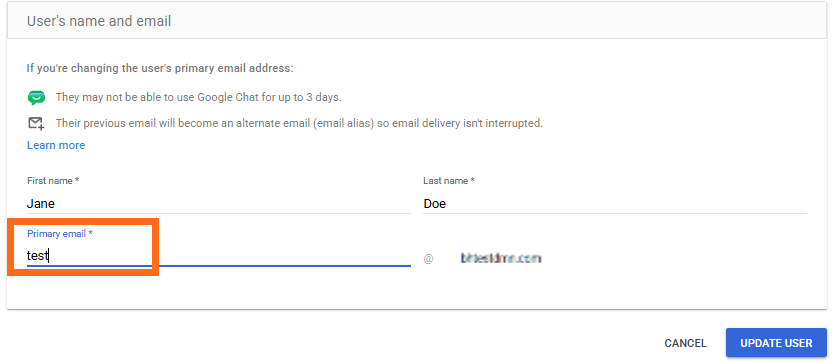
Use this option to change the part of the address before the @ symbol, for example from [email protected] to [email protected].
- Sign in to the Google Admin console using your administrator account.
- Click the Menu hamburger icon (three horizontal lines) in the upper-left corner, next to Admin.
- Click Directory > Users.
- In the Users list, point to the user and click Rename user. If the list is long, search for the user at the top, open their account page, and click Update user on the left.
- In the Primary email field, type the new username.
- Click Update user.
- Click Done.
Switch the Domain
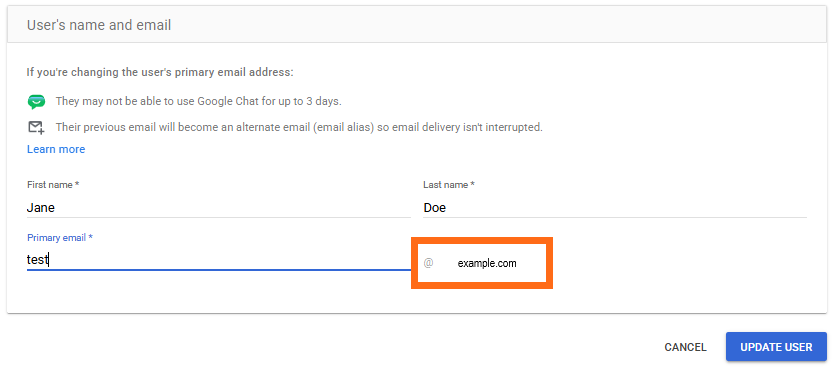
Use this option to move a user's address to a different domain in your account, for example from [email protected] to [email protected]. The new domain must already be added to your Google Workspace account.
- Sign in to the Google Admin console using your administrator account.
- Click the Menu hamburger icon (three horizontal lines) in the upper-left corner, next to Admin.
- Click Directory > Users.
- In the Users list, point to the user and click Rename user. If the list is long, search for the user at the top, open their account page, and click Update user on the left.
- Next to the @ symbol, select the new domain.
- Click Update user.
- Click Done.
Note: These steps move a single user to another domain. To give every user an address on a new domain, you need to change your account's primary domain, which is a separate process.
Handle the Old Email Address
After an address changes, people may keep emailing or sharing files with the old one. You have a few ways to deal with it:
- Keep the old address as an alias. This is the default. Messages sent to either address reach the user's inbox. The user can add a Gmail filter that labels messages sent to the old address and sends an automatic reply with their new address.
- Set up a temporary account. Create a user for the old address that forwards messages to the new one, so the user can manage anything still sent to the old address.
- Delete the old address. Messages and invitations sent to it bounce back to the sender, with a note that the user doesn't exist.
Troubleshooting
The Rename User Option Is Missing
Your administrator account may not have permission to manage users. Sign in with an account that has user management permission, such as a super administrator, and try again.
Google Reports a Conflict With an Existing Account
If the new address matches an existing Google Account, Google may ask you to resolve the conflict before the user can be renamed. Follow the prompts on screen, or choose a different address.
The User Can't Be Renamed
A user can have up to 30 email aliases. If the user has reached that limit, remove one of their aliases before you rename them.
Frequently Asked Questions
Q: Does the user keep their email and files after an address change?
A: Yes. The user keeps their existing email, files, and data. Only the address they sign in with changes.
Q: Will the old email address still work?
A: It can't be used to sign in, but it becomes an email alias. Messages sent to it still reach the user's inbox until you delete the alias.
Q: Does changing a user's name change their email address?
A: No. The first and last name are separate from the email address, so changing the name doesn't change the address the user signs in with.
Q: Can I move a user to a Gmail address?
A: No. Only your primary domain and the secondary domains you've added to Google Workspace are available. Other domains, such as gmail.com, can't be used.
Q: Can the user use Google Chat right after the address change?
A: Not always. After you change a user's primary email address, they may not be able to use Google Chat for up to 3 days.