How to Connect HostGator AI Credits to Dify
This guide shows you how to connect AI Credits to Dify on your HostGator Self-Managed VPS, so you can power your apps and workflows without setting up a separate provider account. You'll retrieve your Dify initialization password, install and configure the provider using your AI Credits API key and gateway URL, set a default model, and confirm the connection is working before you start building.
Before You Begin
- You'll need owner or admin access to the Dify workspace. Only these roles can manage model providers, and any provider you connect applies to the whole workspace.
- For AI Credits: you'll need an AI Credits API key. If you haven't created one yet, see How to Manage Your HostGator API Keys first. Your gateway endpoint is
https://gateway.ai.hostgator.com/.
Connect HostGator AI Credits to Dify
AI Credits reach Dify through Dify's built-in model provider — the same provider you'd use to connect a normal account — except you also fill in its API URL field with the AI Credits gateway address instead of leaving it on Anthropic's default endpoint.
- Log in to your Customer Portal.
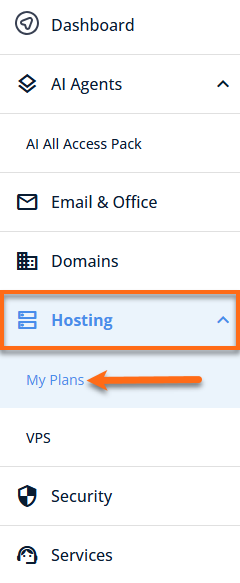
- From the left-hand menu, navigate to Hosting and select My Plans.
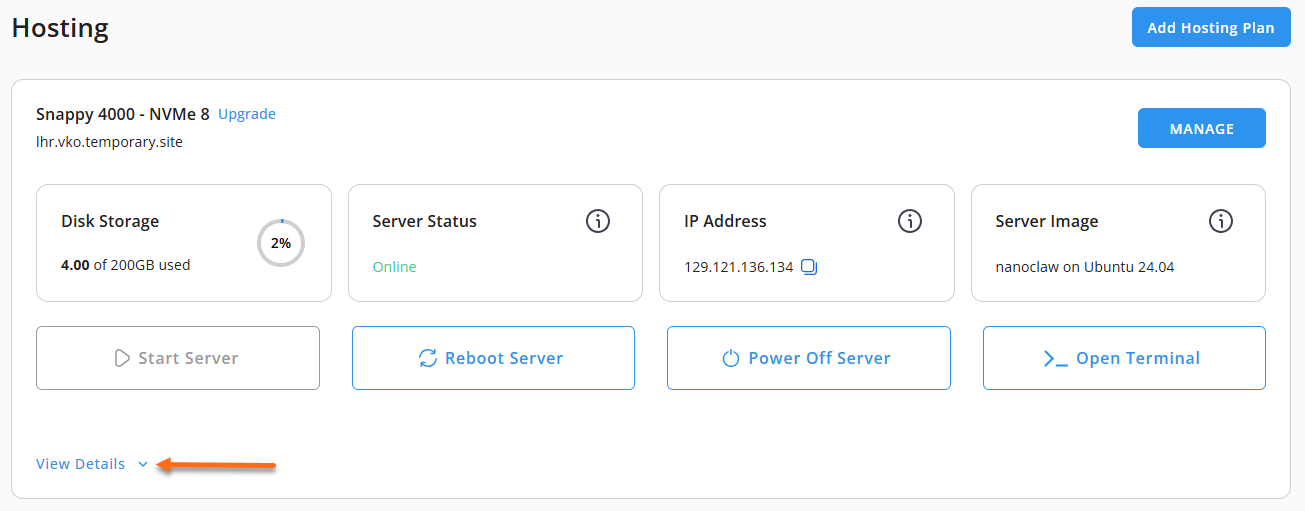
- Locate the server you want to manage, then click View Details in the bottom-left corner to expand the section and access additional server information.
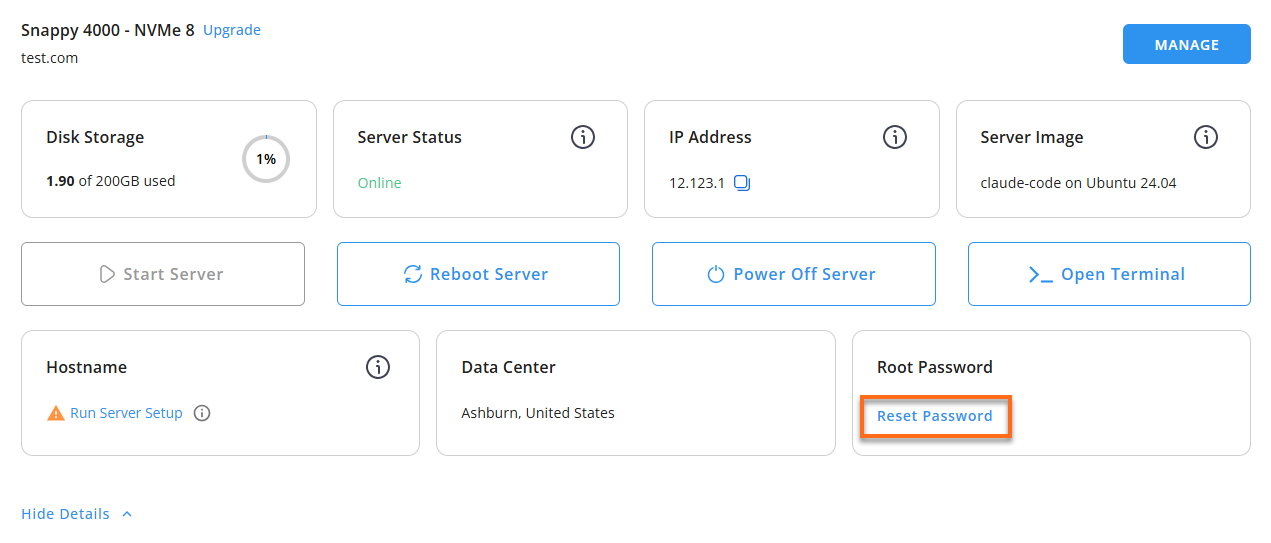
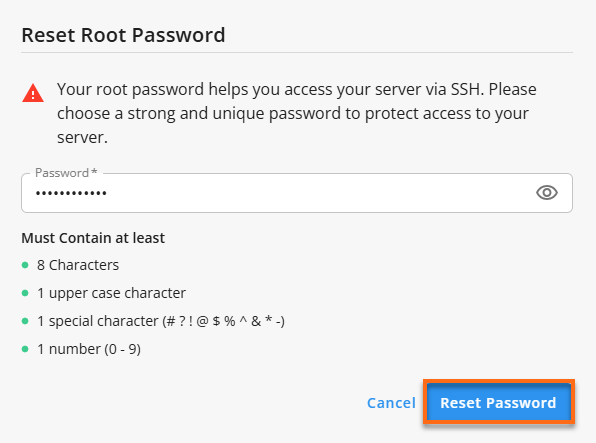
- Click the Reset Password button.
- In the pop-up window, type your new root password, then click Reset Password again to confirm and save the changes.
- Connect to your VPS via SSH.
Use your VPS IP and credentials with an SSH client, follow the prompts, and enter your root password when asked:Replaceyour_server_ipwith your actual server IP address.ssh root@your_server_ipLocate and Retrieve the Initialization Password
Run the following command to view the password stored in Dify's environment file:
cat /opt/dify/docker/.env | grep INIT_PASSWORDExample Output:
root@123456:~# cat /opt/dify/docker/.env | grep INIT_PASSWORD
INIT_PASSWORD=test123LMfQhKkW//c4Vdh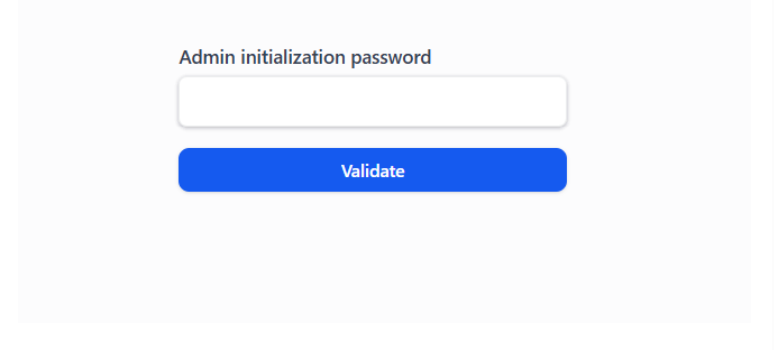
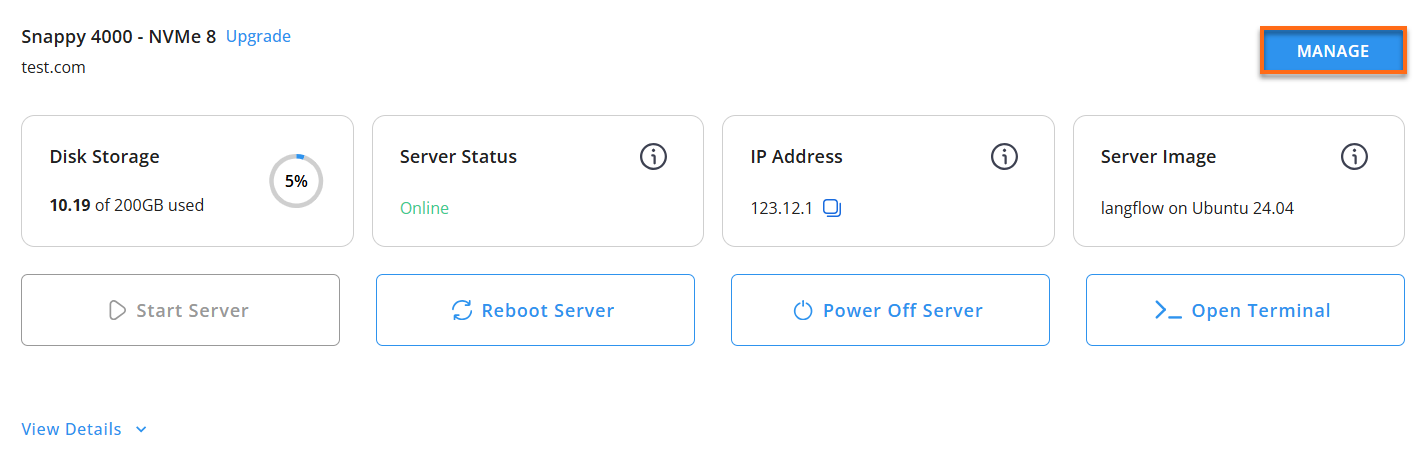
- Click the Manage button.
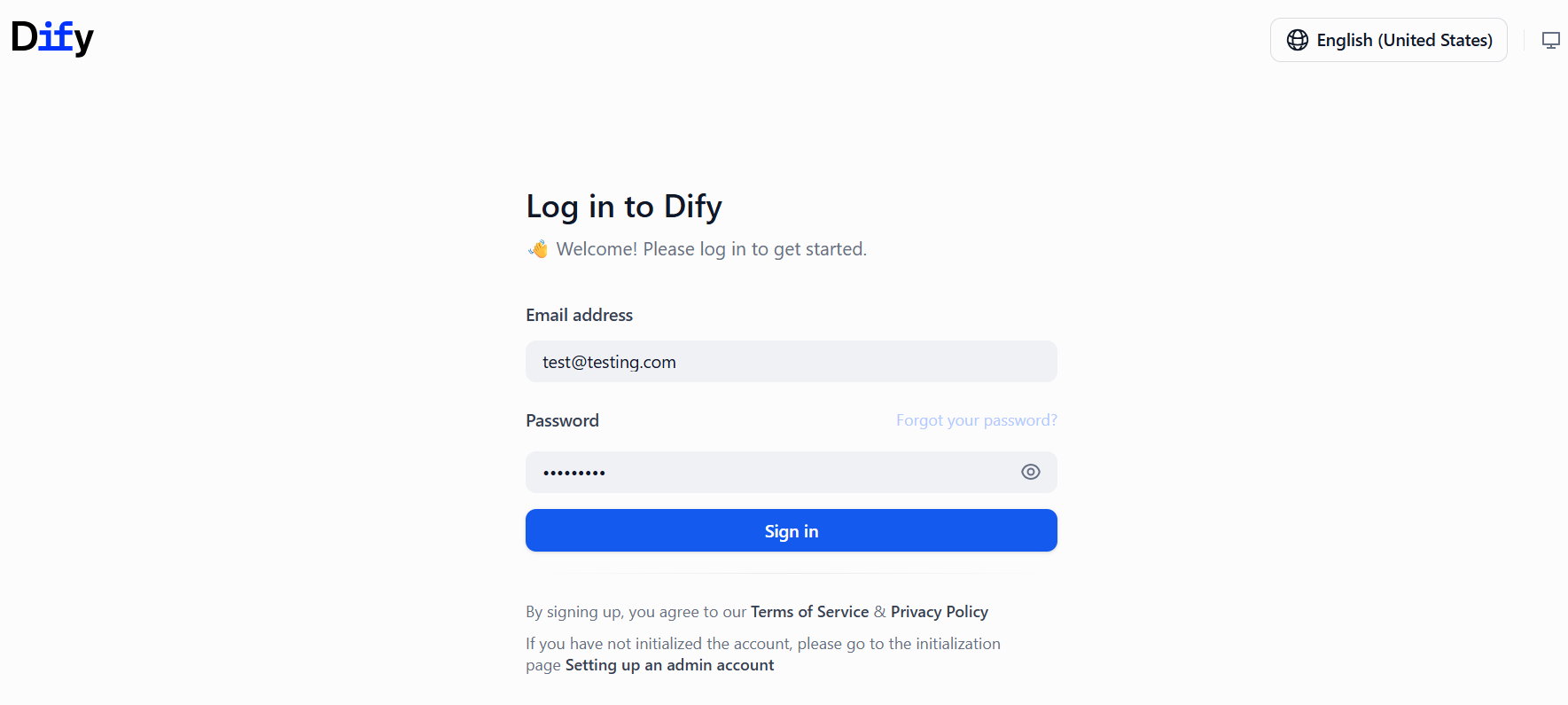
- Log in to your Dify dashboard.
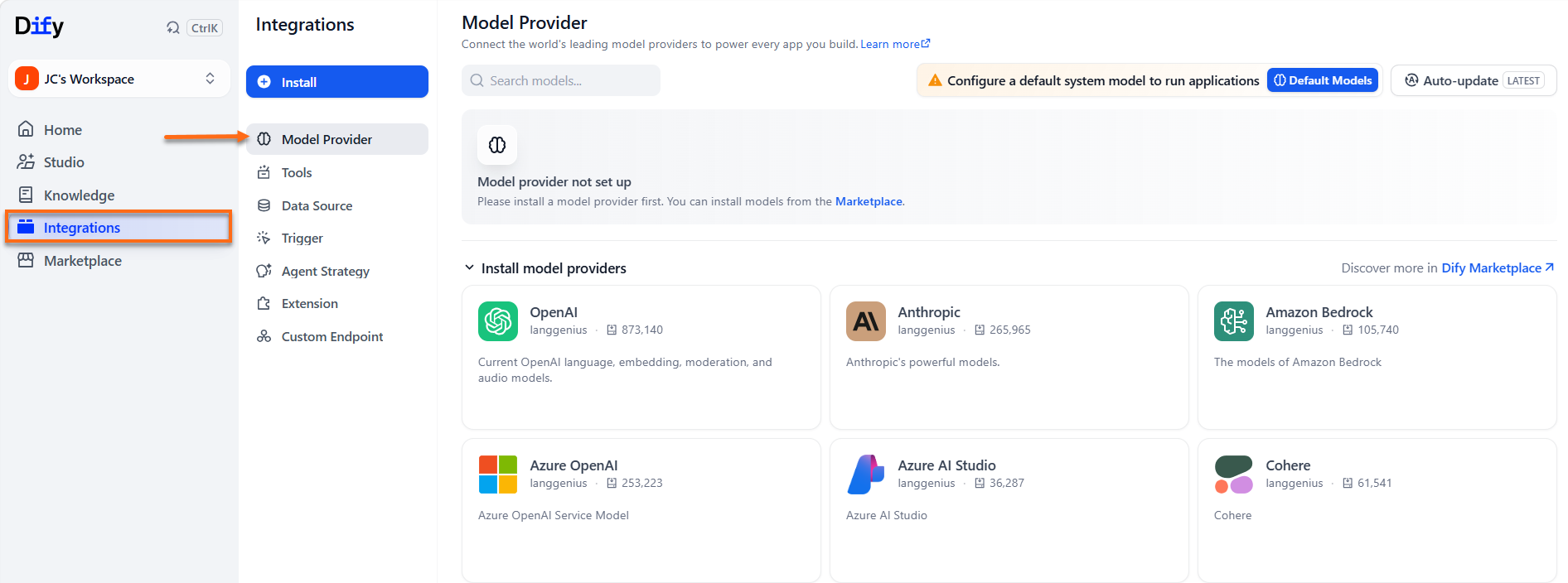
- Open Integrations, then click Model Provider.
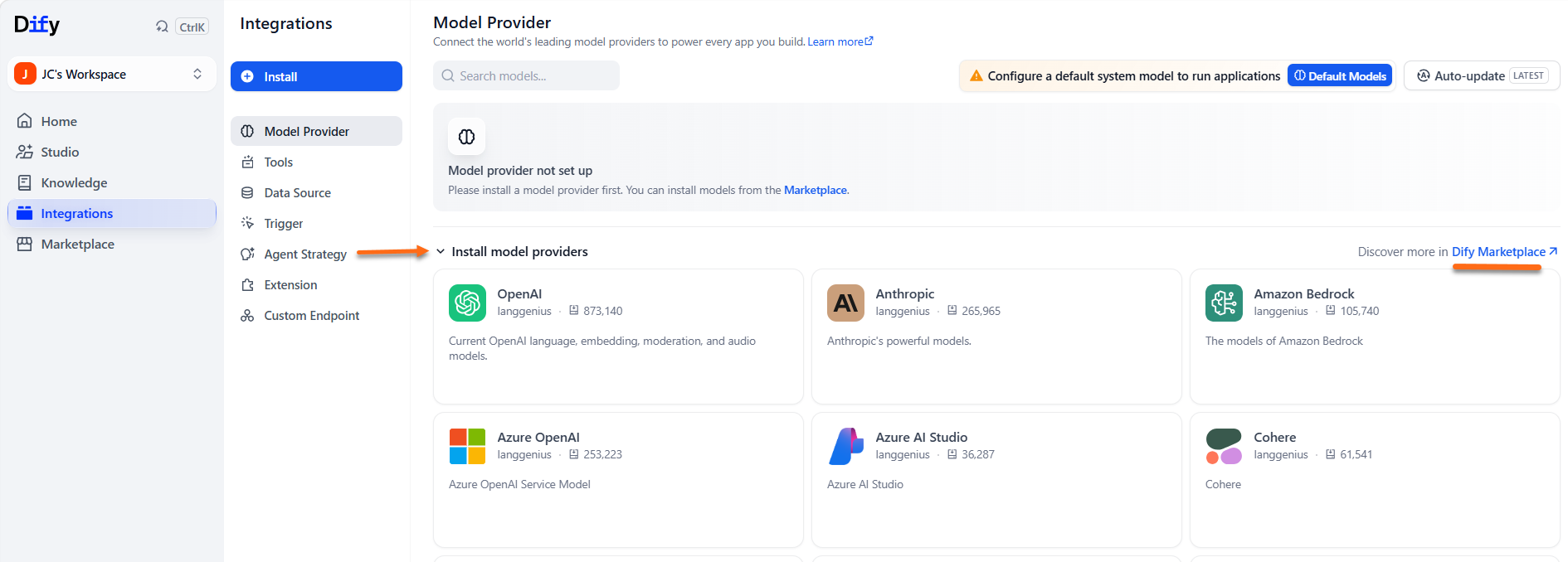
- Find the model you want to use under Install model providers (or the Marketplace) and install it if it isn't already added.
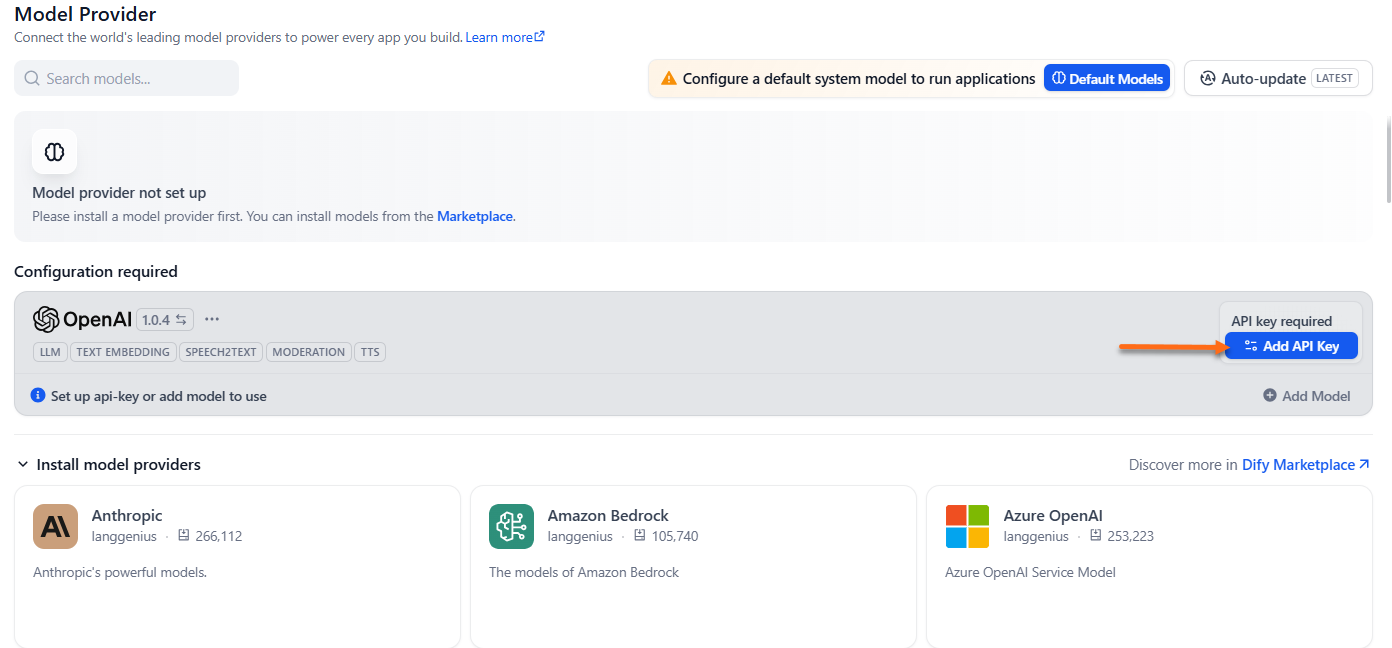
- Click Add API Key.
- Fill in the fields and then click Save.
- Authorization Name:
- API Key: your AI Credits API key
- API URL:
https://gateway.ai.hostgator.com/
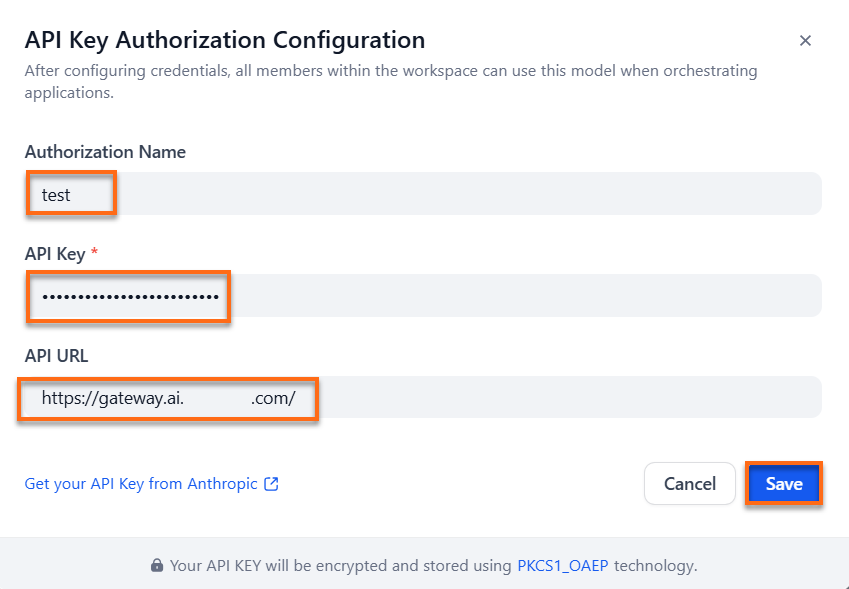
- Dify validates the key against that URL before the models become available.
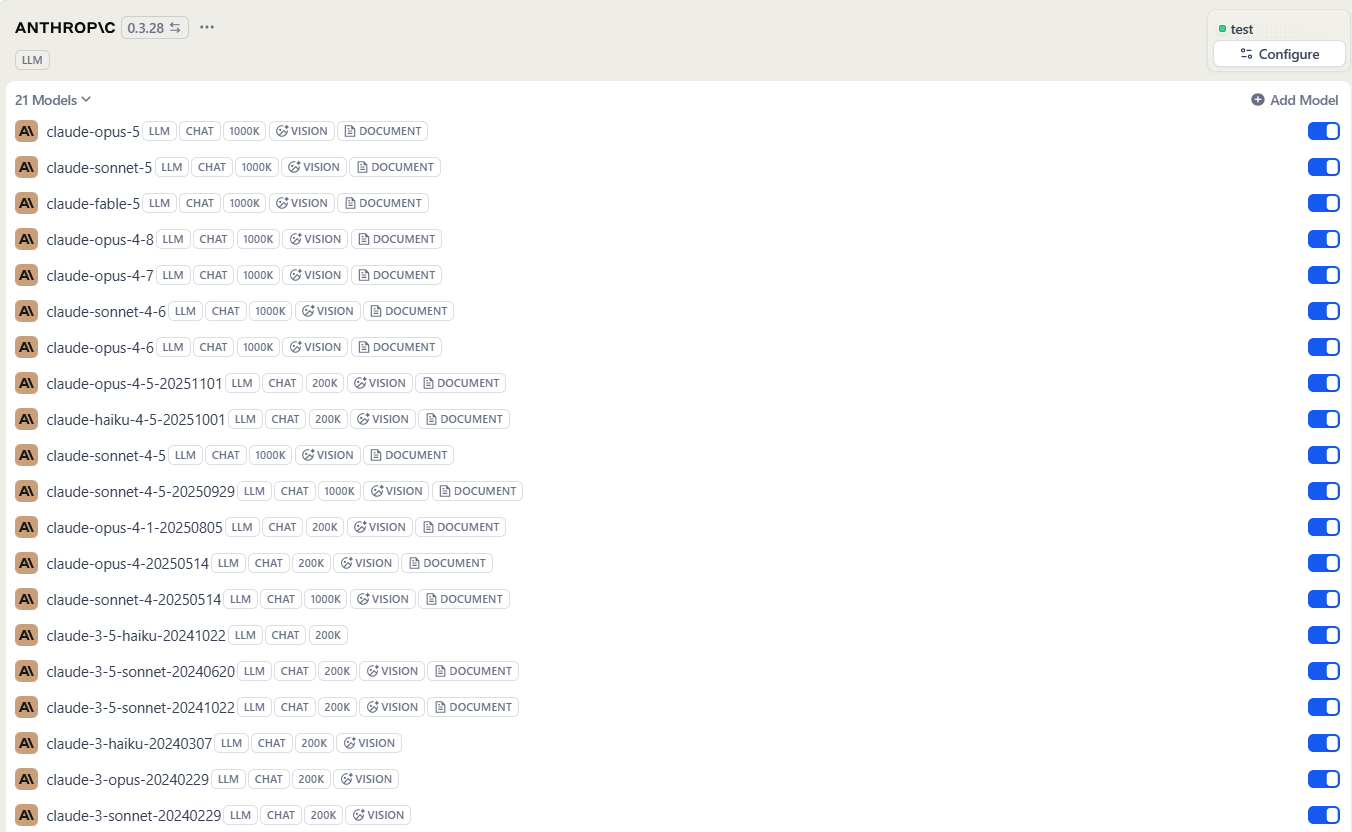
Once saved, models appear anywhere you pick a model in Dify — building an app, setting a workspace default, or configuring a node in a workflow — and each call is billed against your AI Credits balance rather than a direct Anthropic account.
Testing the Connection
To test the integrated model in Dify, follow these steps:
- On your current screen, click the Default Models button in the top-right corner.
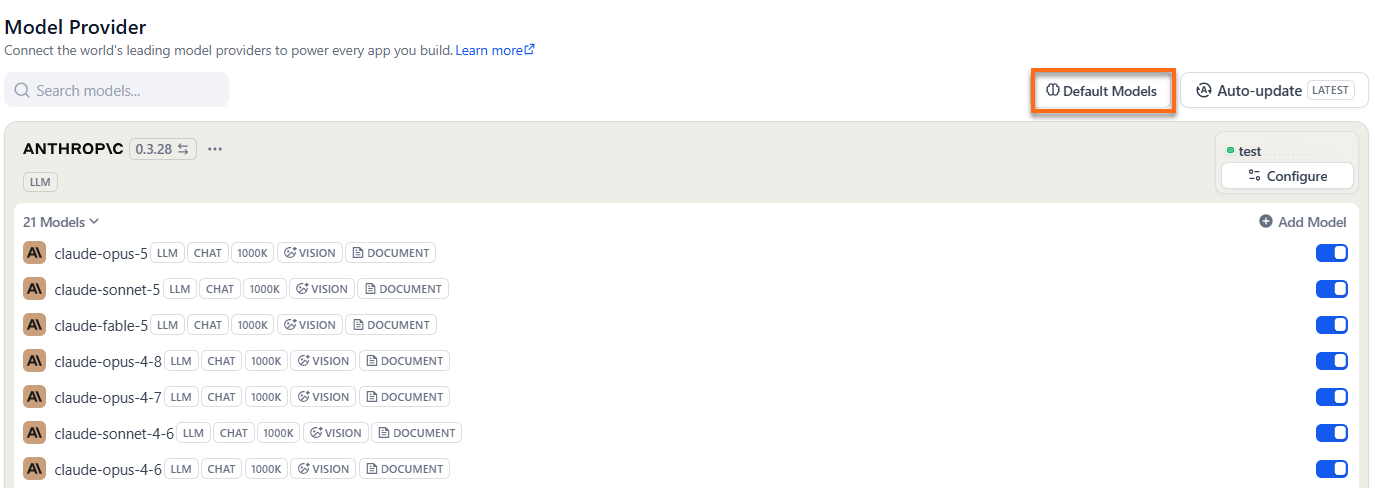
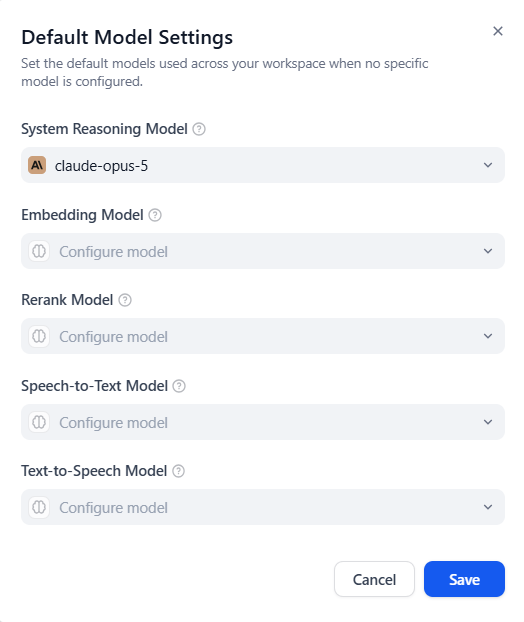
- Set your primary Anthropic model (e.g.,
claude-sonnet-4-6) as the default system model for System Reasoning or Chat. (Optional)- System Reasoning Model – the default for general LLM tasks
- Embedding Model – indexes and retrieves knowledge base content
- Rerank Model – reorders retrieval results by relevance
- Speech-to-Text Model – turns audio into text
- Text-to-Speech Model – turns text into audio
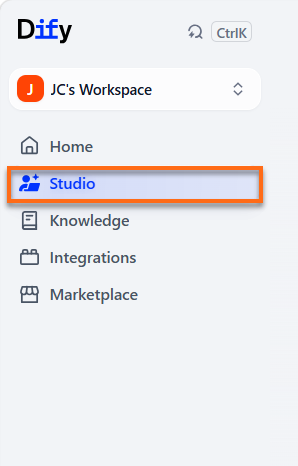
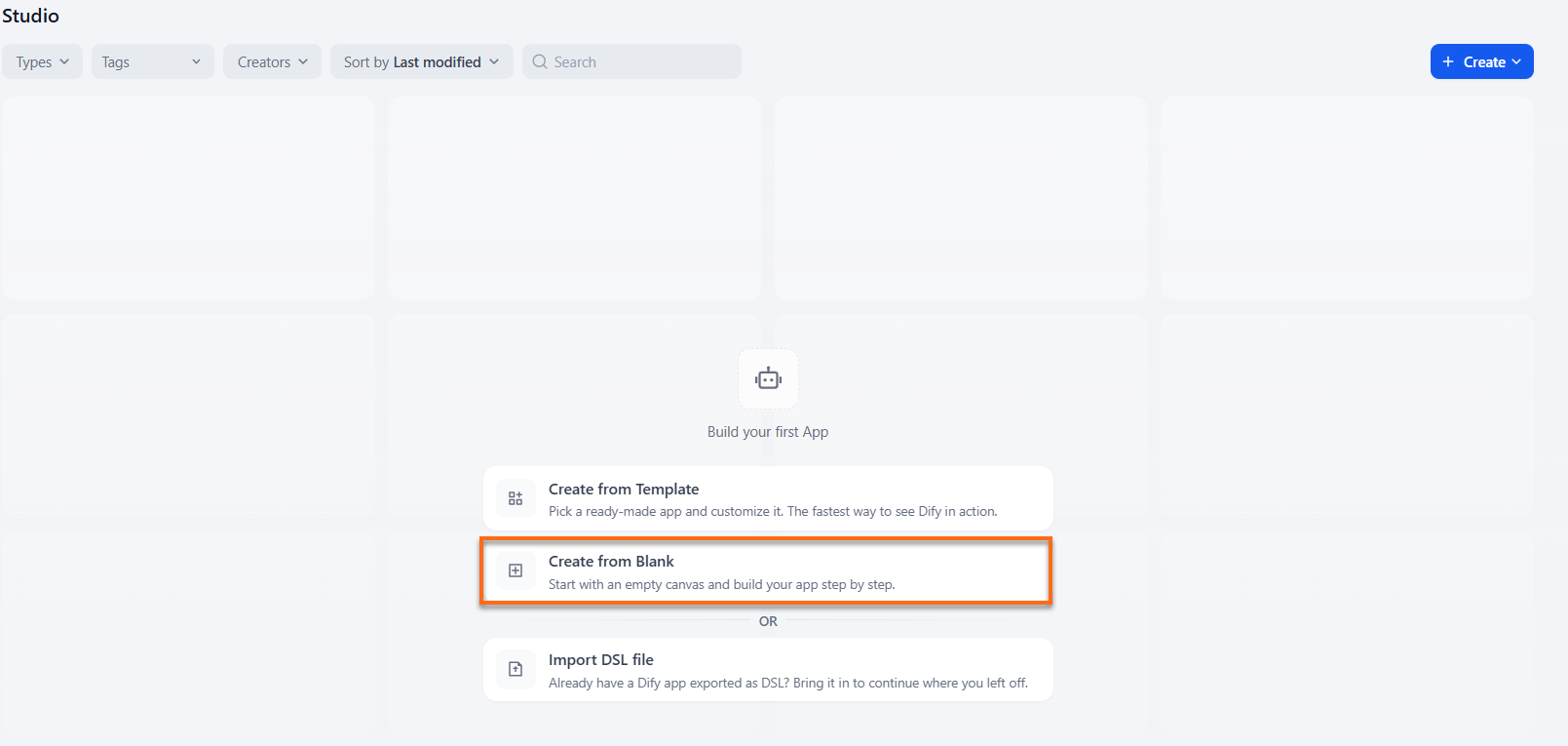
- Click Studio in the left sidebar menu.
- Click Create from Blank.
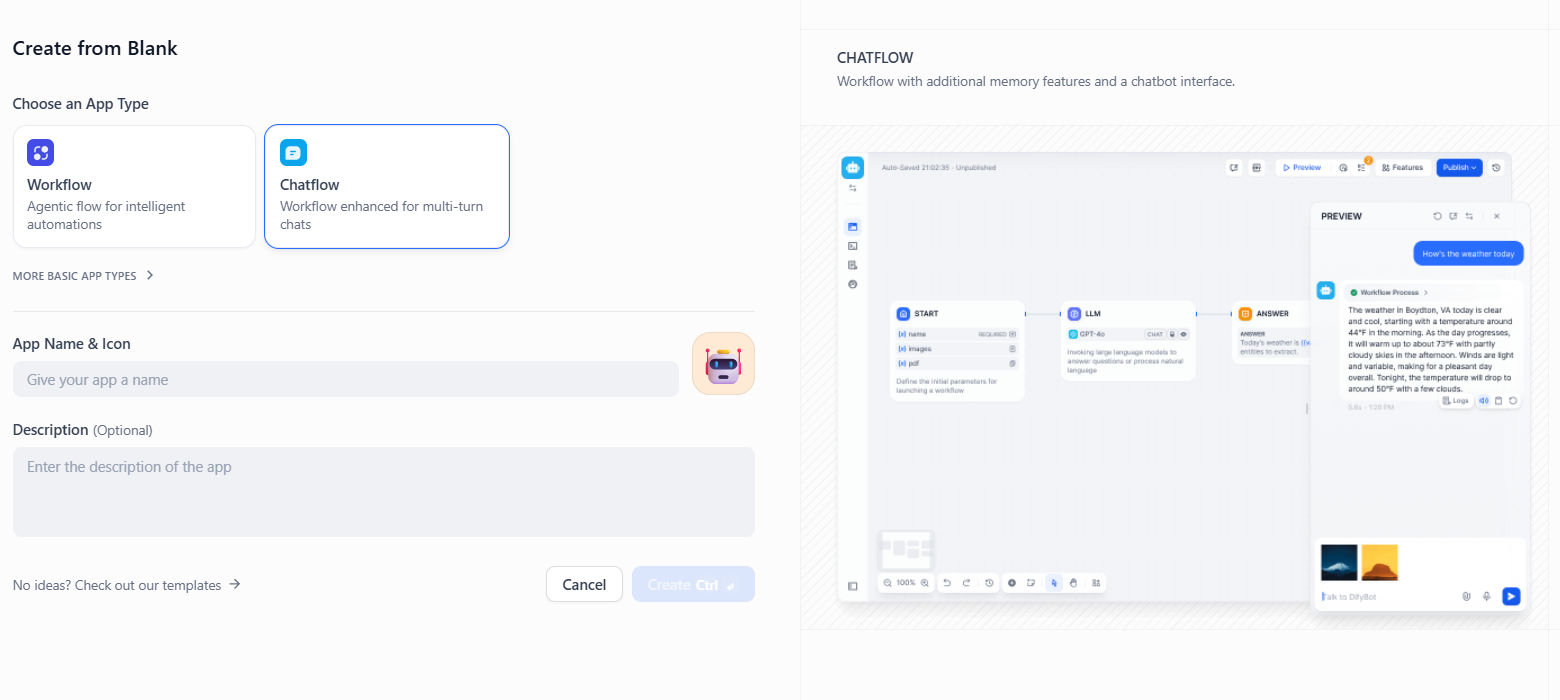
- Choose Chatbot or Text Generator, give it a name, and click Create Ctrl.
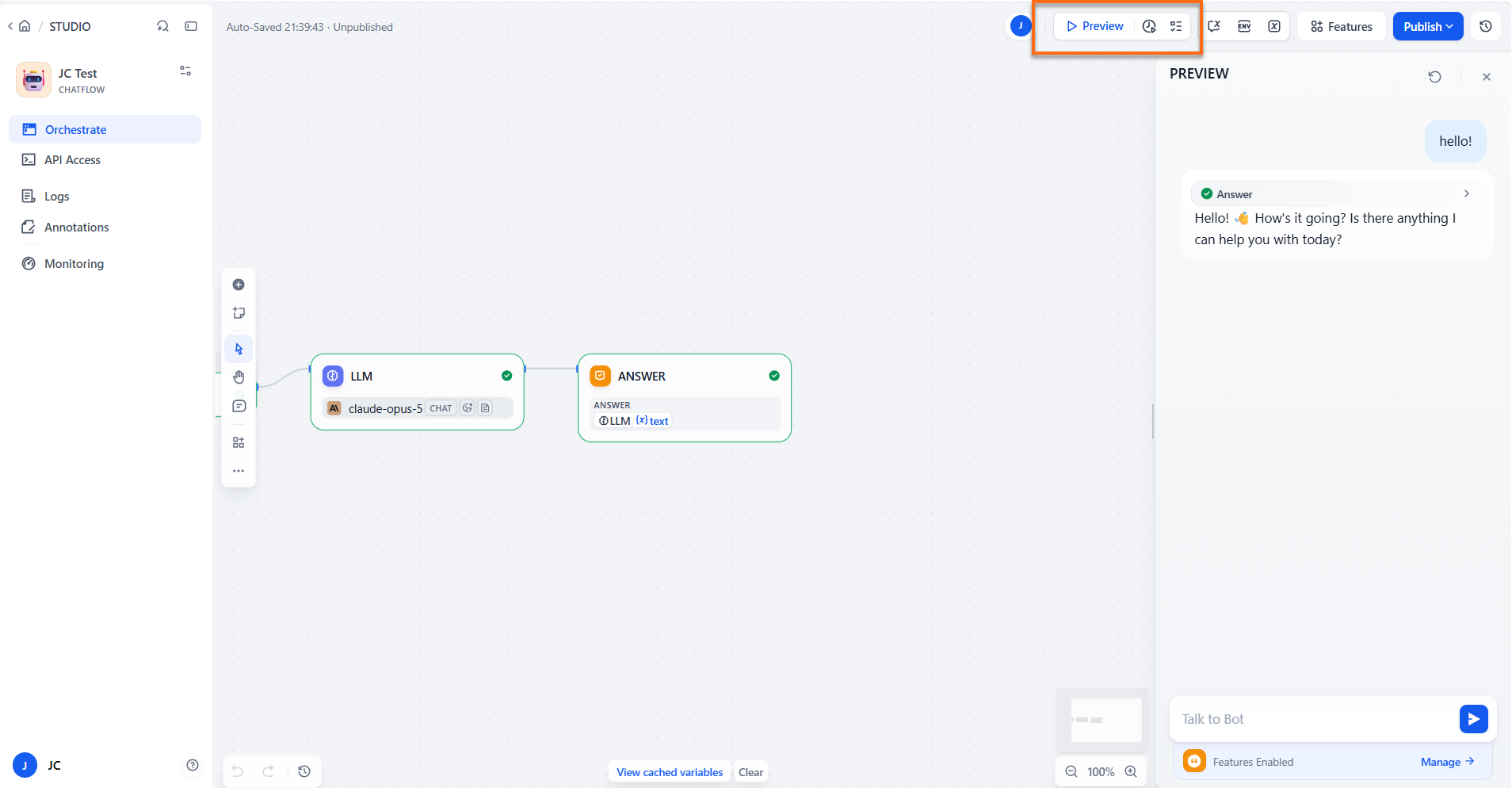
- Type a message or prompt in the Preview / Debug chat panel on the right and click Send to verify the model responses.