How to Use HostGator Basic Weekly Backup Service
HostGator’s Basic Weekly Backup is an automated, cloud‑based backup service that securely stores a complete copy of your website files and databases. This service requires no setup and provides a reliable way to protect your website from unexpected data loss.
With HostGator website backups, you can confidently restore your site to a previous version, recover from errors, or download backup files for offline storage and safekeeping.
Here are the topics we'll discuss in this article.
Understanding HostGator Basic Weekly Backup
- Visibility & Limitations ⤵
- Databases ⤵
- Restore Point Guidelines ⤵
- Download Link Guidelines ⤵
- Status Indicators ⤵
Visibility & Limitations
- Backups are site‑level, meaning they include only the files associated with the selected domain.
- Email data is not included in HostGator Basic Weekly Backups. For email recovery assistance, contact HostGator Support.
Databases
- Your hosting plan’s full list of databases is displayed in the backup interface.
- Non‑WordPress websites do not include automatic database mapping.
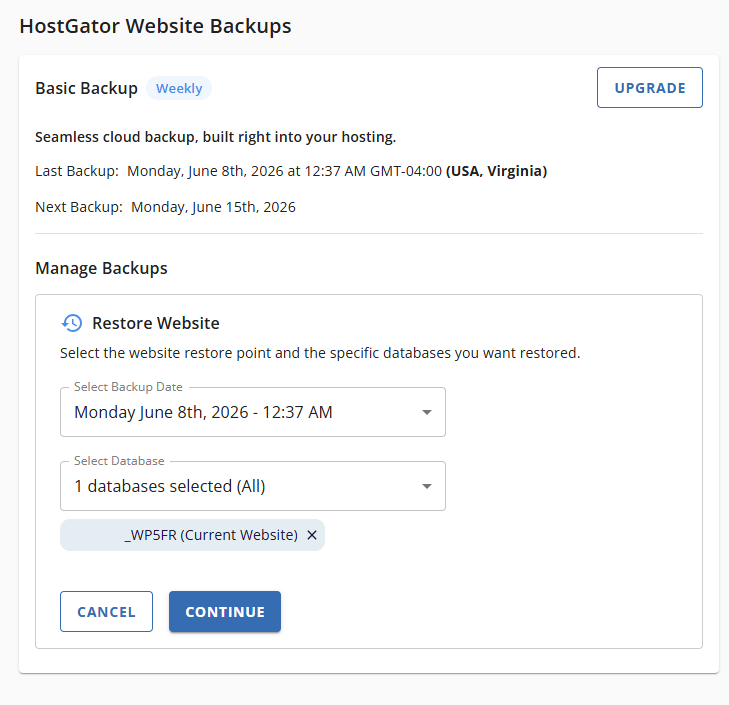
- For WordPress sites, the correct database is labeled “(Current Website)” for easy identification.
Restore Point Guidelines
- Restore points are created automatically and are enabled by default.
- Only one restore point is stored at a time; newly generated backups overwrite previous restore points.
- Restore point downloads must be saved within 72 hours before the links expire or are replaced.
- Best Practice: Download and save HostGator restore files locally as soon as they become available.
Download Link Guidelines
- File and database download links remain active for 24 hours.
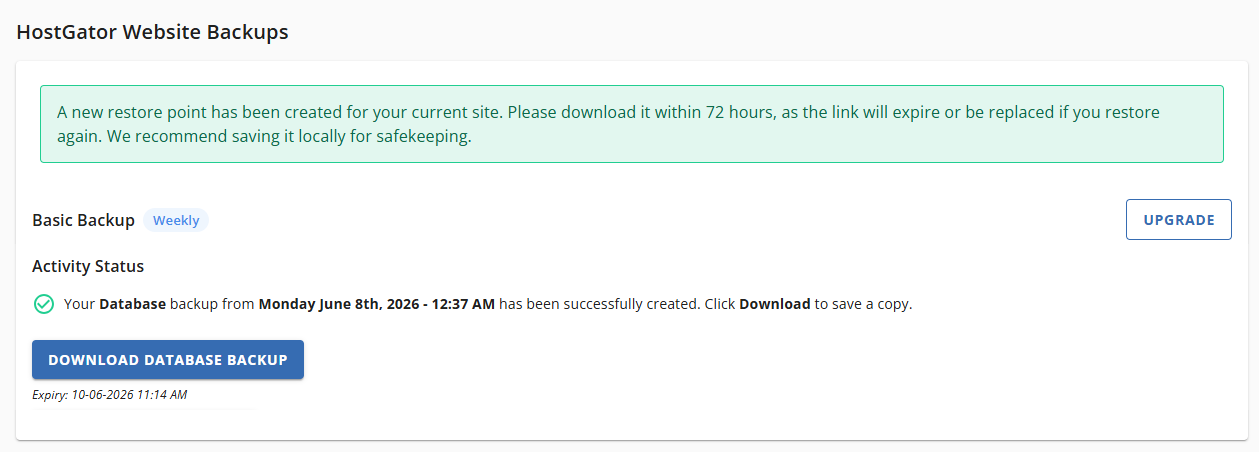
- The download link expiration time is displayed below each generated link.
- Only one file backup link and one database backup link can be active at a time.
- Requesting a new download replaces any existing links.
Status Indicators
- Ongoing – Backup or restore is currently in progress.
- Success – Backup download links or restore confirmations are available.
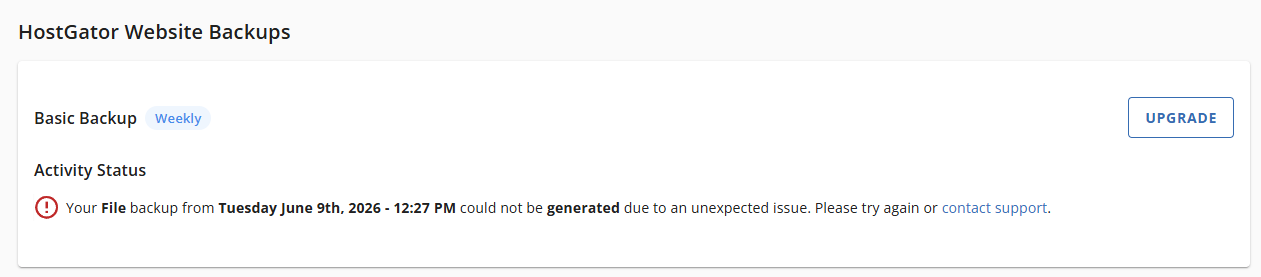
- Failed – An error message appears with additional details.
Navigating HostGator Basic Weekly Backup
- Log in to your Customer Portal.
- Go to Websites from the left navigation menu.
- Click Manage Site next to the website you want to manage.
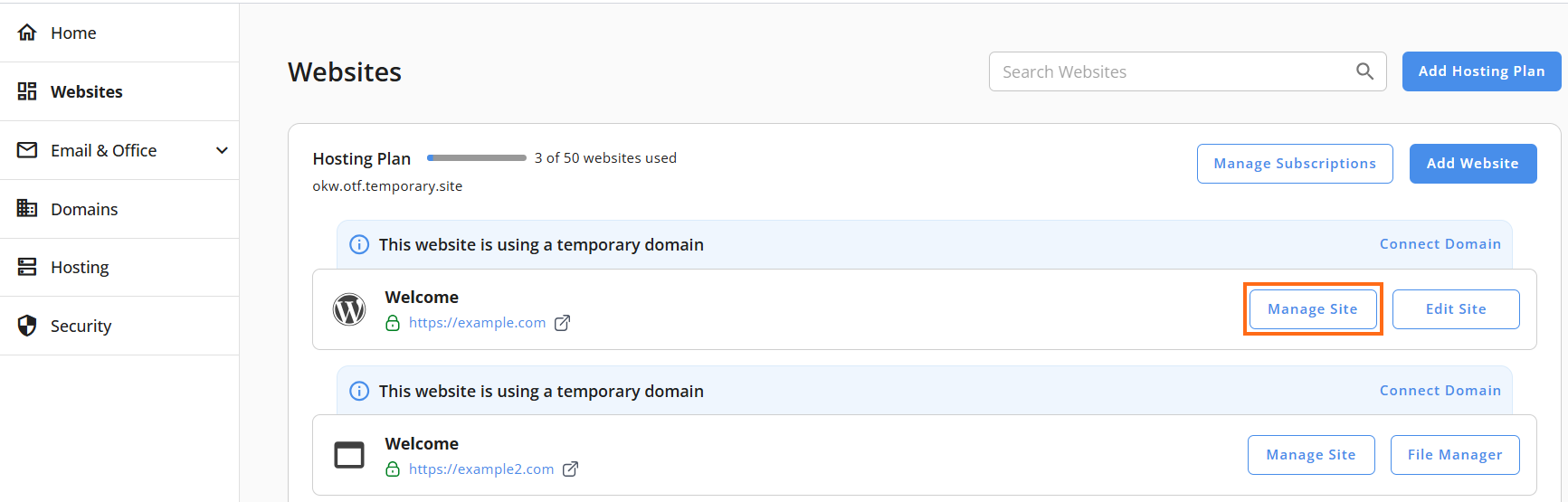
- Click Backups from the top menu.

Managing and Restoring HostGator Backups
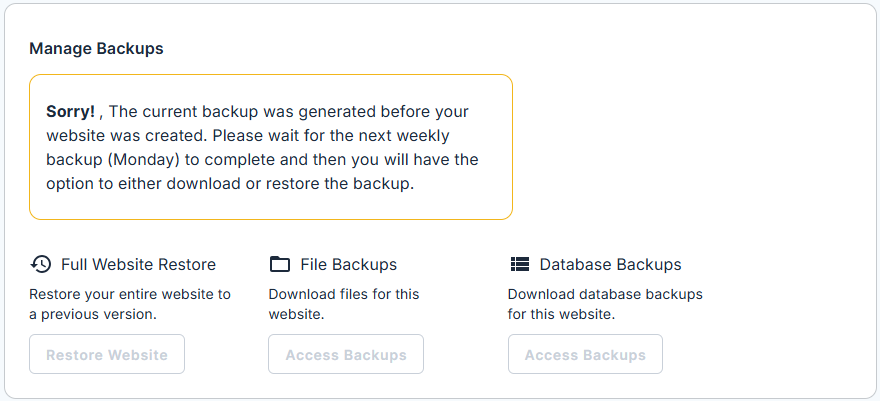
Full Website Restore
Restores your entire website, replacing current files and databases with a selected backup version.
How to Restore a Full Website Backup
- Under Restore Website, click Restore Website.
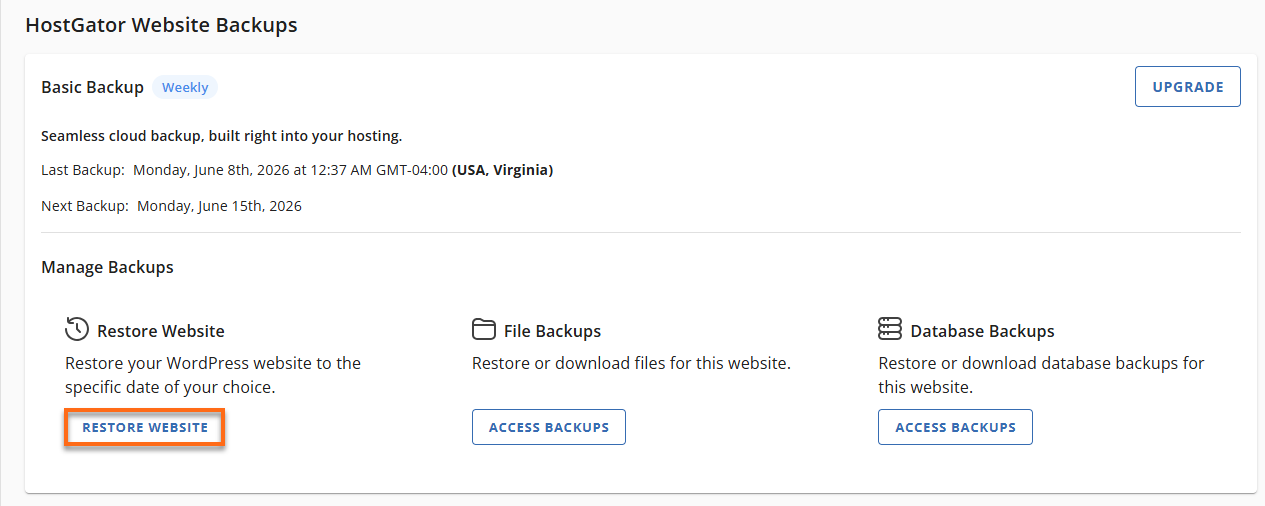
- Select a backup date and the databases you want to restore, then click Continue.
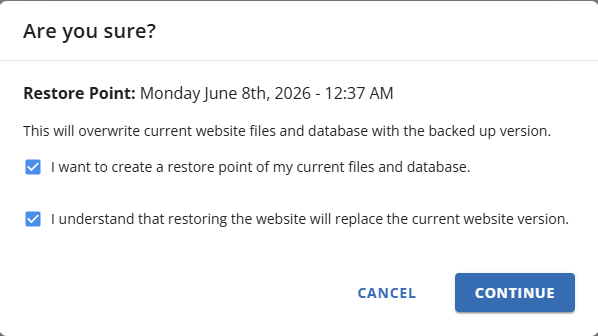
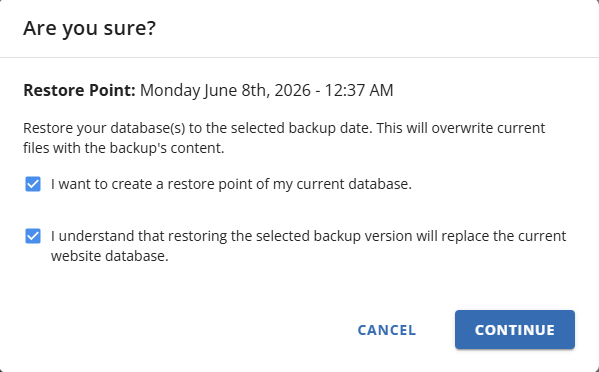
- Review the confirmation message and select both checkboxes.
Restoring your website overwrites your current files and databases. Confirm the restore point carefully before proceeding.
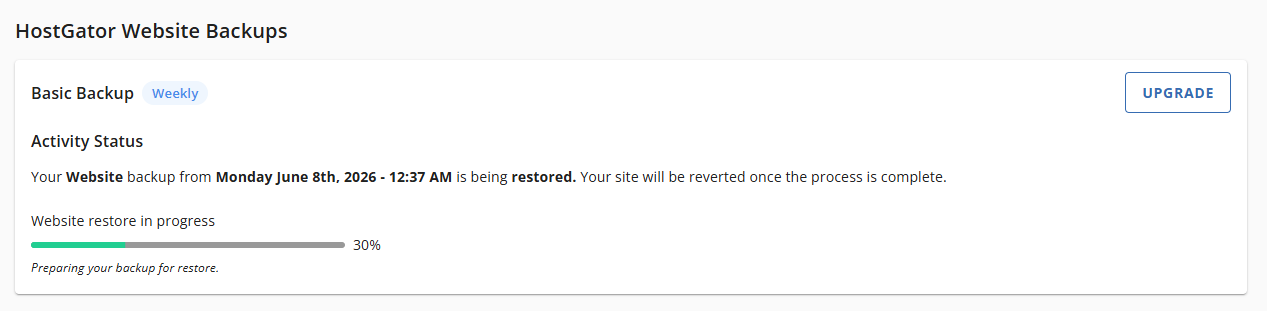
- Wait for the restoration process to complete. Once finished, your website will be reverted to the selected backup version.
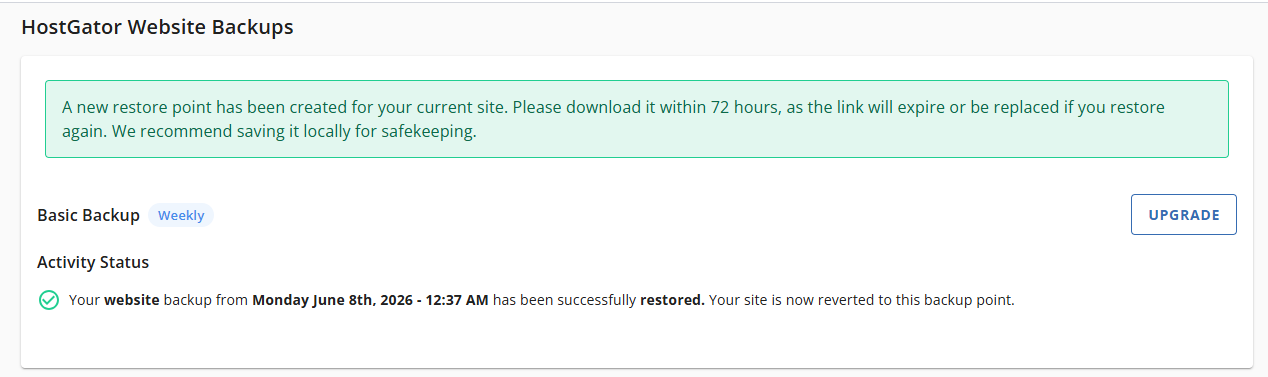
- If the restore completes successfully, the status will change to Completed, and you’ll receive a notification confirming that a new restore point has been created for your current site. Successful restores automatically generate a new restore point.
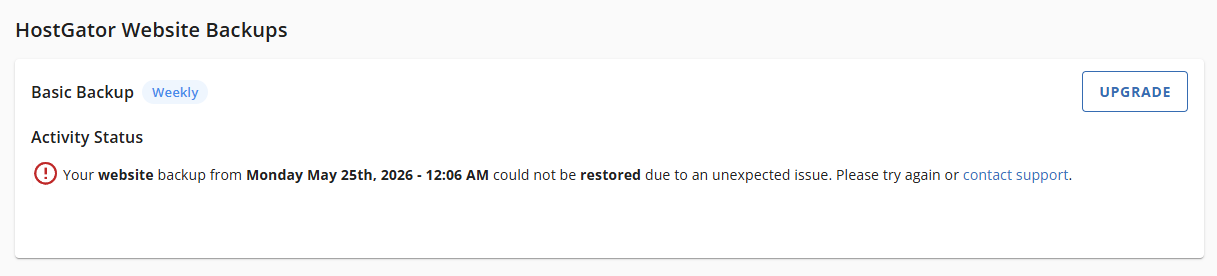
- If the restore fails, an error message will appear in the Manage Backups section with details about the failure.
- If the restore completes successfully, the status will change to Completed, and you’ll receive a notification confirming that a new restore point has been created for your current site. Successful restores automatically generate a new restore point.
File Backups
Use HostGator file backups to restore ⤵ or download ⤵ individual website files without affecting databases.
How to Restore File Backups
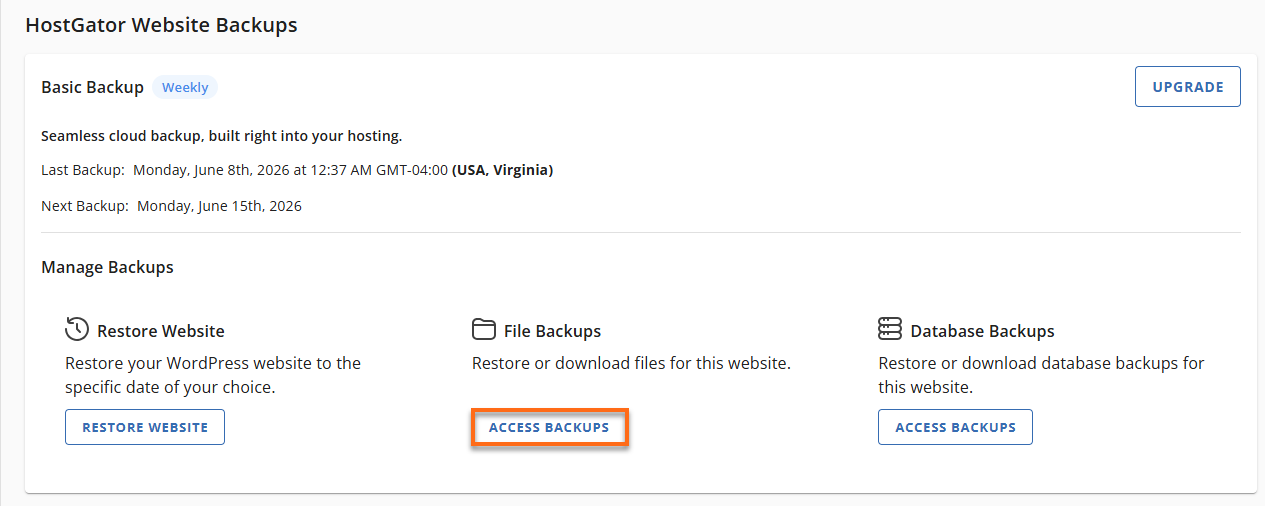
- Click Access Backups under File Backups.
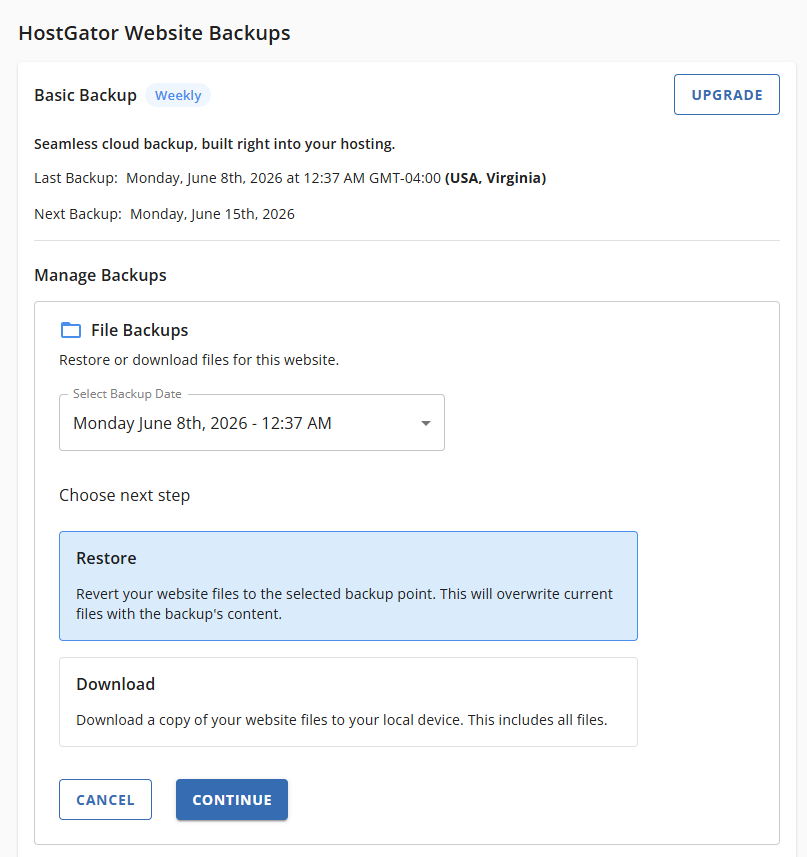
- Select a backup date and click Restore.
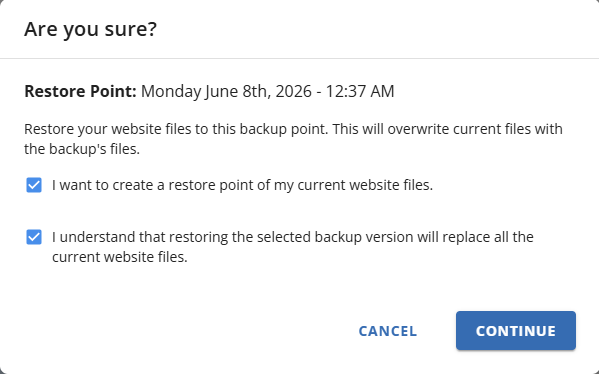
- Confirm the restoration details.
- Wait for the process to complete.
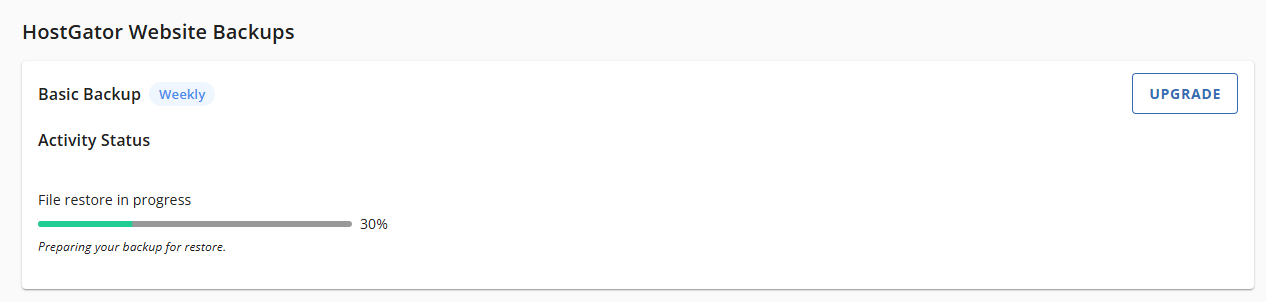
- If the restore completes successfully, the status will update to Completed, and you’ll see a notification confirming that a new restore point has been created for your current site. Successful file restores automatically generate a new restore point.
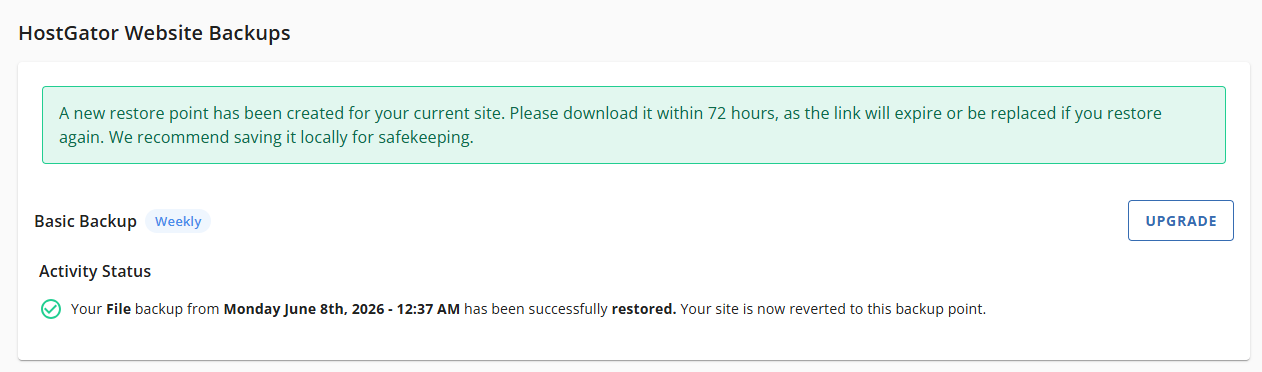
- If the restore fails, an error message will appear in the Manage Backups section with details about the failure.

- If the restore completes successfully, the status will update to Completed, and you’ll see a notification confirming that a new restore point has been created for your current site. Successful file restores automatically generate a new restore point.
How to Download File Backups
- Click Access Backups under File Backups.
- Choose a date and click Download.
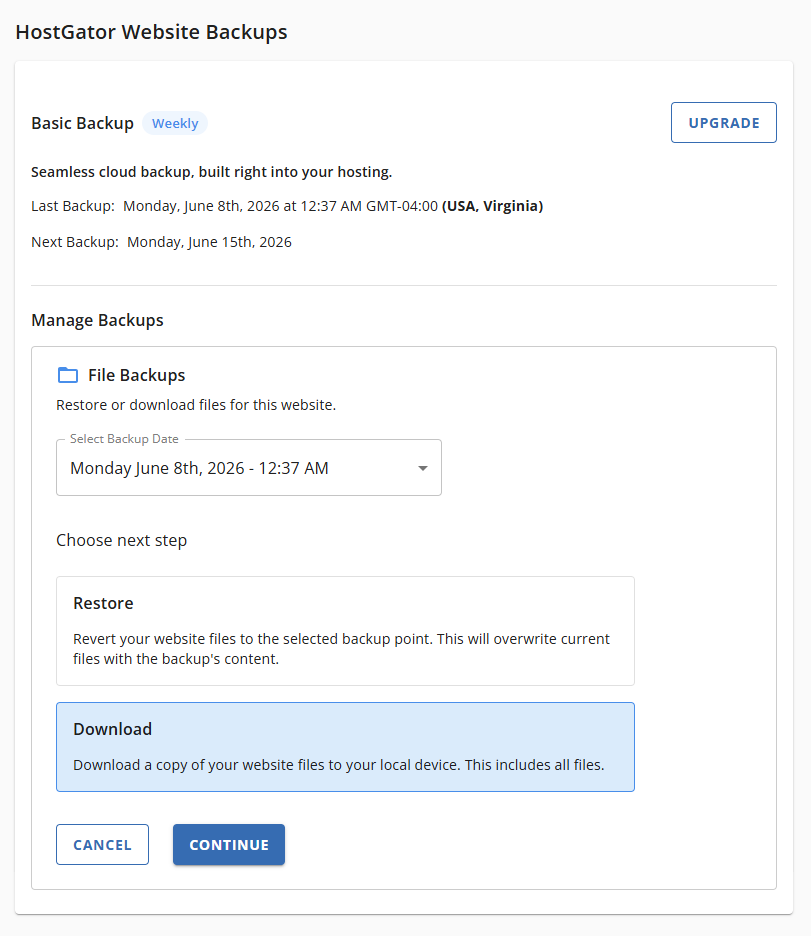
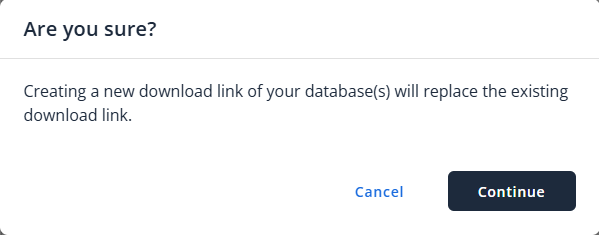
- (Optional) Resolve any overwrite warnings if an existing download link is active. If you attempt to download a file while another download link is already available, a pop‑up will prompt you to confirm whether you want to replace the existing link.
- Wait for the download link to generate, then save the file to your local device.
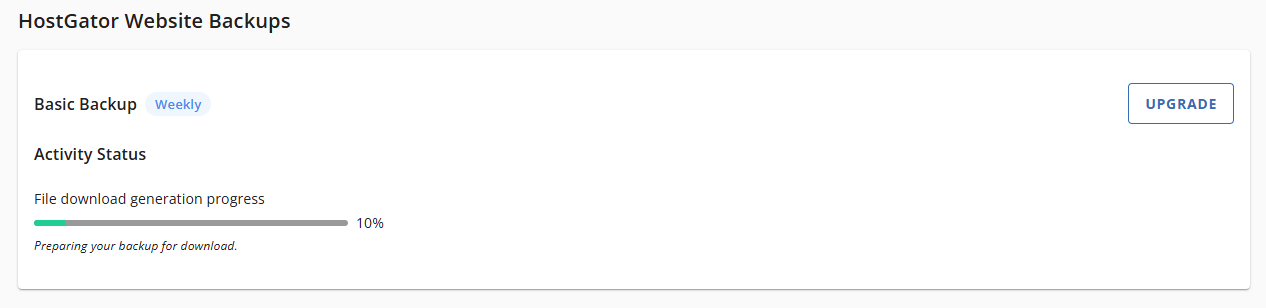
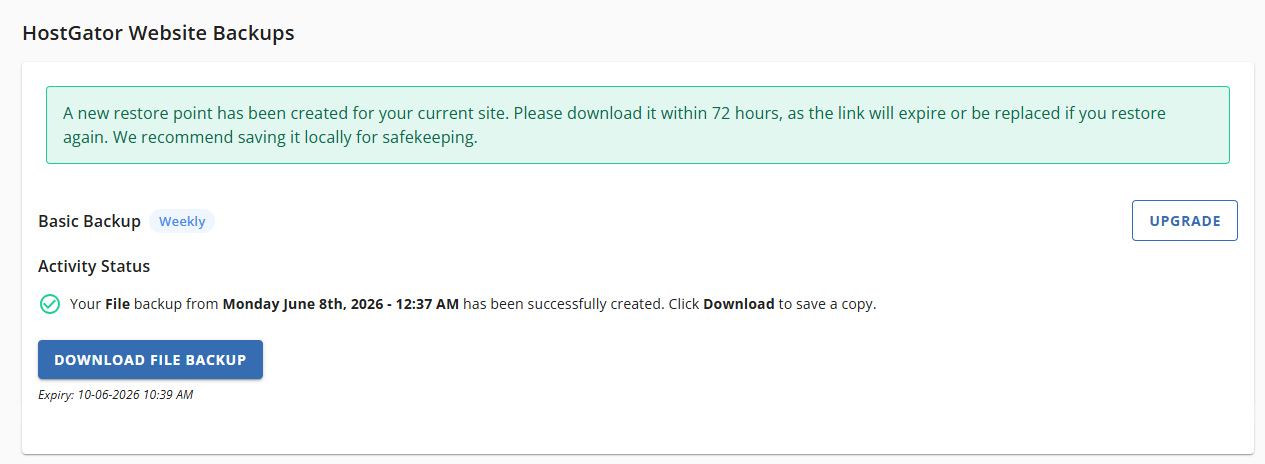
- If the download completes successfully, the status will update to Completed, and a download link will be generated along with its expiration date.
For primary cPanel sites, backups include addon site data. Restore only the relevant files needed for your domain.
- If the download fails, an error message will appear in the Manage Backups section with details about the failure.
- If the download completes successfully, the status will update to Completed, and a download link will be generated along with its expiration date.
Database Backups
HostGator database backups allow you to restore ⤵ or download ⤵ one or more databases without modifying website files.
How to Restore Database Backups
- Click Access Backups under Database Backups.
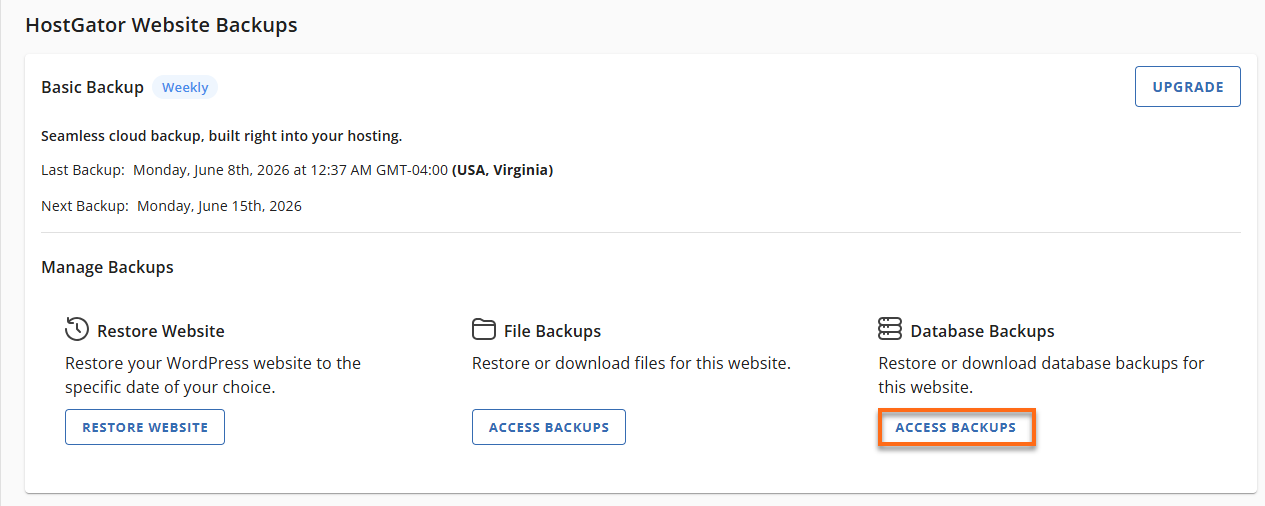
- Select a backup date and choose one or more databases (or Select All).
- Click Restore, then Continue.
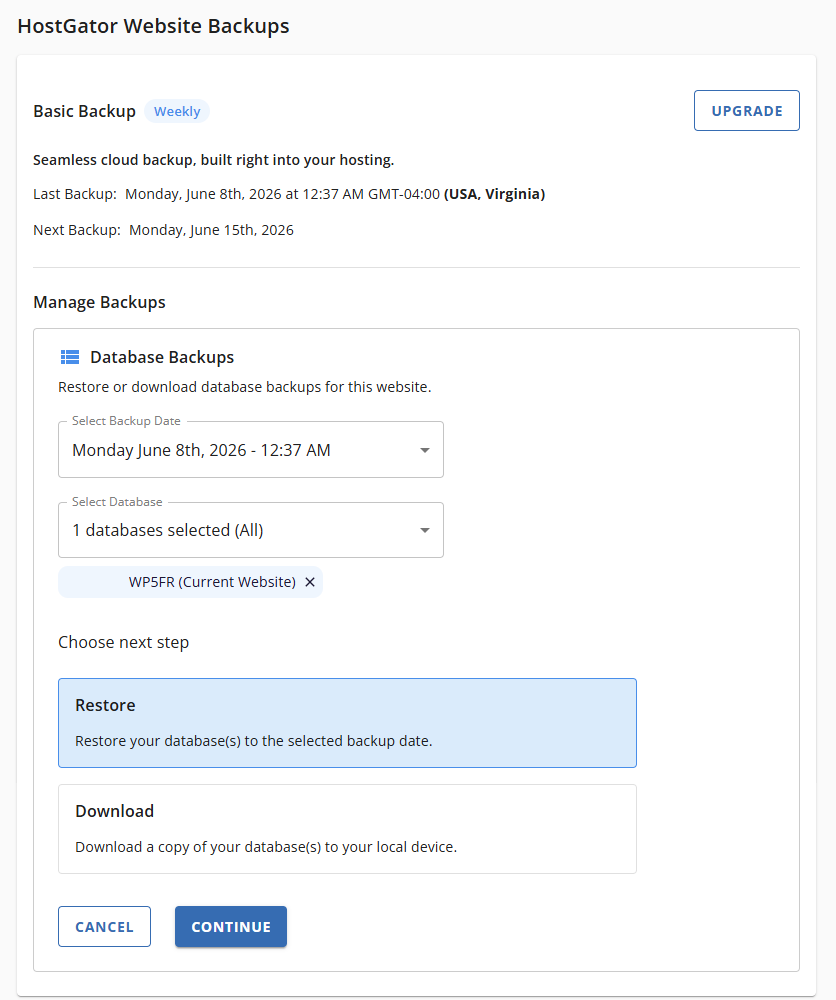
- Confirm the restoration details.
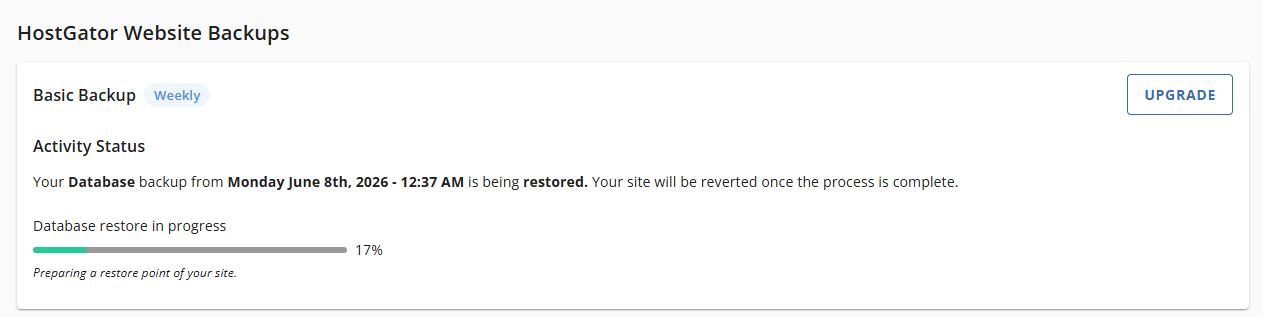
- Wait for the process to finish.
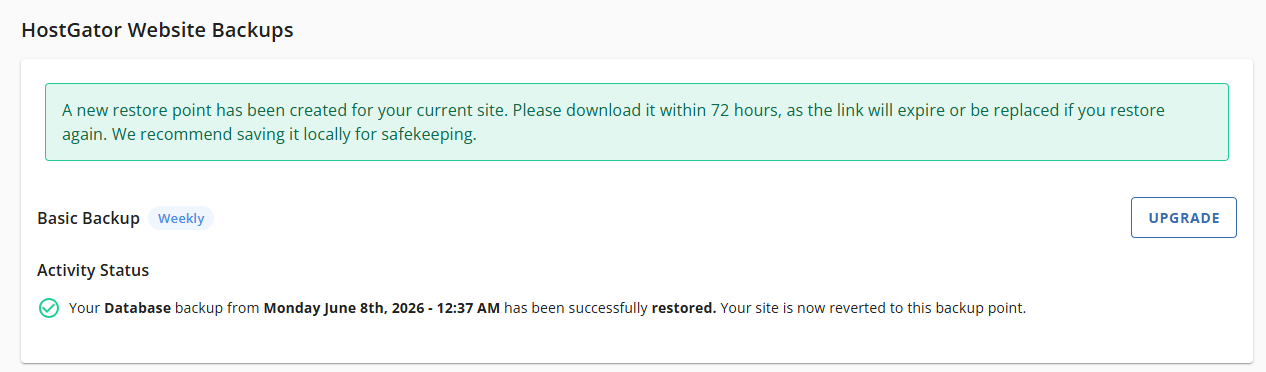
- If the restore completes successfully, the status will update to Completed, and you’ll see a notification confirming that a new restore point has been created for your current site. Successful database restores automatically generate a new restore point.
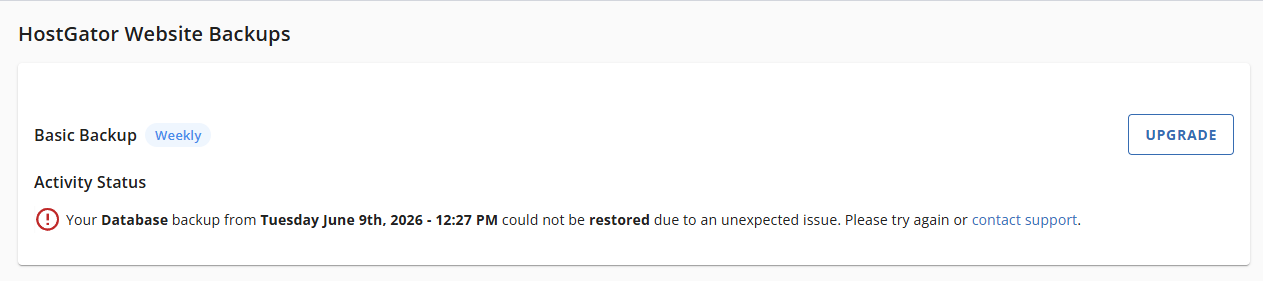
- If the restore fails, an error message will appear in the Manage Backups section with details about the failure.
- If the restore completes successfully, the status will update to Completed, and you’ll see a notification confirming that a new restore point has been created for your current site. Successful database restores automatically generate a new restore point.
How to Download Database Backups
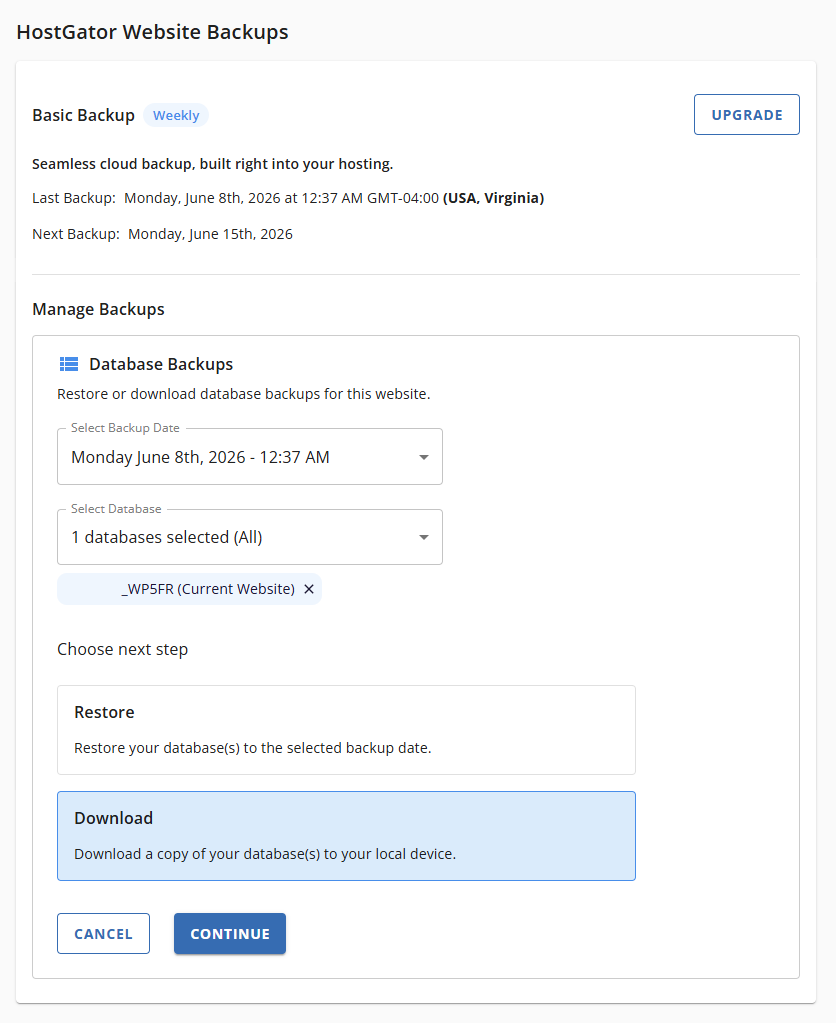
- Click Access Backups under Database Backups.
- Select a date and the databases you want to download.
When downloading multiple databases, HostGator provides a single ZIP file containing all selected databases.
- Click Download, then Continue.
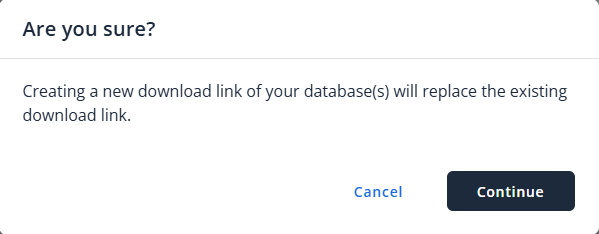
- (Optional) Resolve any overwrite warnings if an existing download link is active. If you attempt to download a database while another download link is already available, a pop‑up will prompt you to confirm whether you want to replace the existing link.
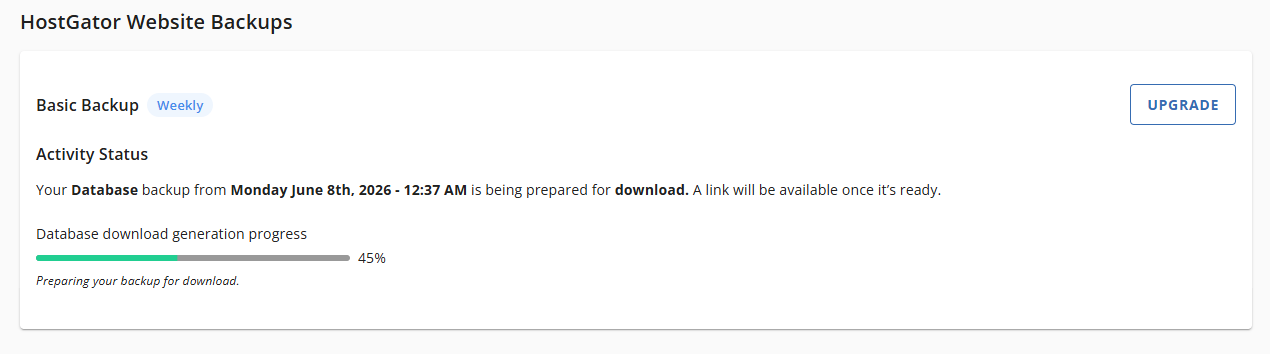
- Wait for the download link to generate, then save the database file to your local device.
- If the download completes successfully, the status will update to Completed, and a download link will be generated along with its expiration date.
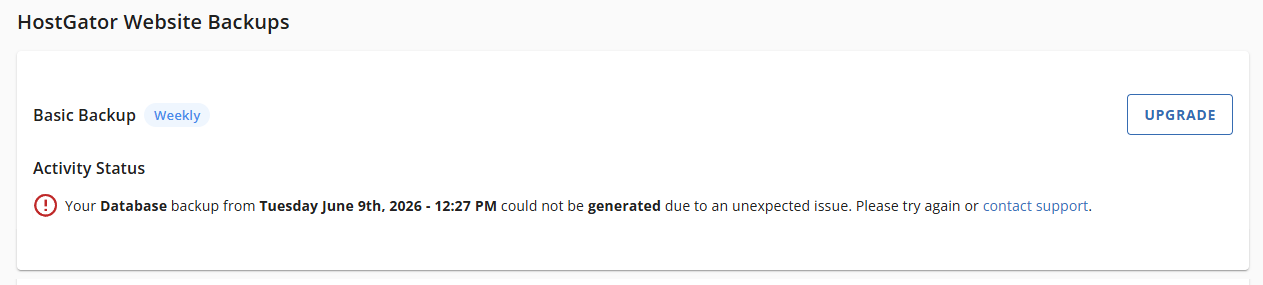
- If the download fails, an error message will appear in the Manage Backups section with details about the failure.
- If the download completes successfully, the status will update to Completed, and a download link will be generated along with its expiration date.