Getting Started with the Customer Portal Dashboard
The Customer Portal Dashboard serves as the central hub for managing your website. Designed with ease of use in mind, it helps keep all your website-related information organized in one place. From viewing key website configuration details to tracking search engine performance and exploring services that can enhance your online presence, the dashboard provides valuable insights at a glance. It is built to simplify website management, making it easier to stay on top of your site's needs. Think of it as having all the essential tools for running your website conveniently available in a single location.
This article will guide you through each feature of the Dashboard and show you how to make the most of its functionality.
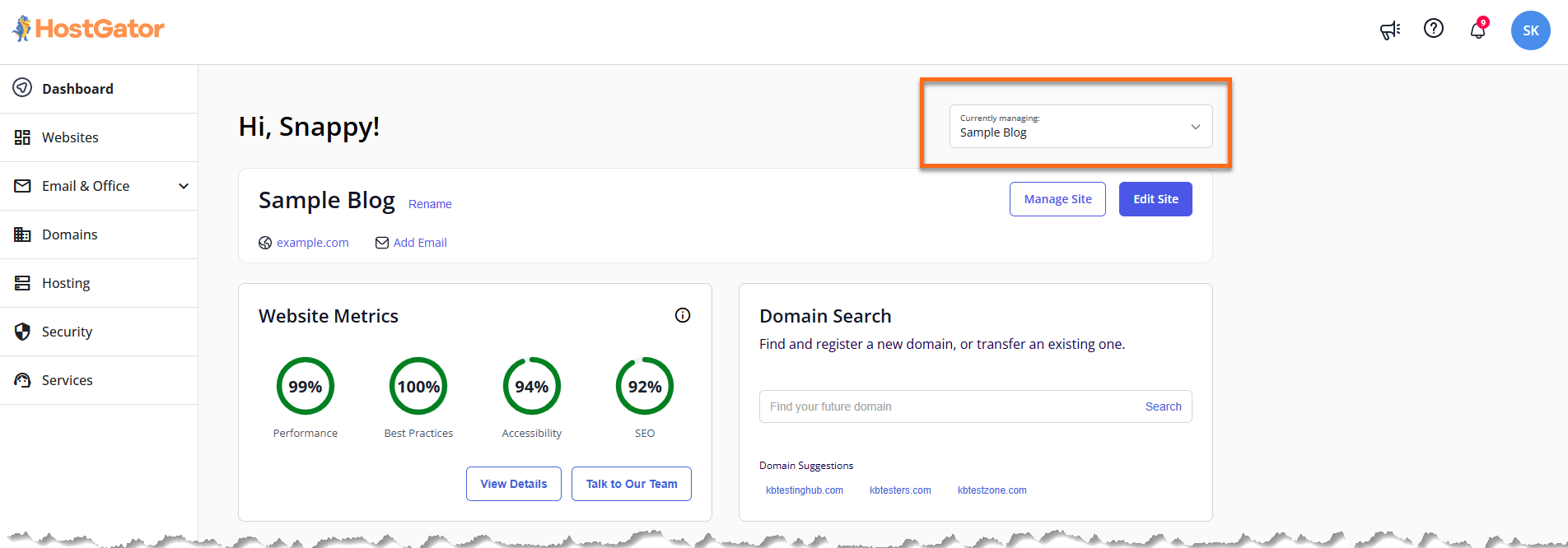
Website Selector
The Website Selector allows you to quickly switch between the websites linked to your account. Once you choose a website, all dashboard sections—including traffic statistics, reports, and setup progress—automatically refresh to display information specific to that site. The selected domain also shows the number of email accounts associated with it, making it easy to monitor email usage at a glance.
This feature helps ensure that you are viewing and managing the correct website. From there, you can click Manage to access the tools needed to maintain and update your website, or select WordPress Admin to open the WordPress dashboard for the selected site with a single click.
Website Metrics
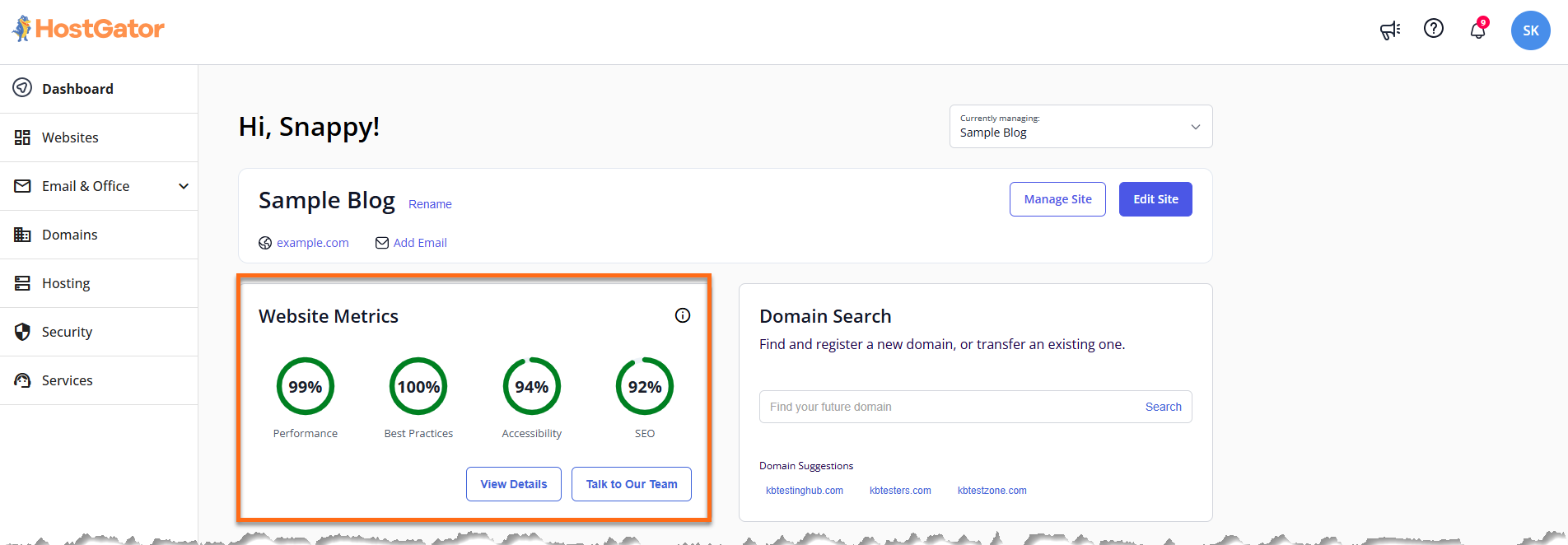
The Website Metrics section measures the technical performance and overall user experience of the selected website using four key indicators:
- Performance: Evaluates the website’s speed, responsiveness, and overall efficiency.
- Best Practices: Checks whether the site follows current web development standards and recommendations.
- Accessibility: Assesses how easily users, including those with disabilities, can access and navigate the website.
- SEO: Rates the website based on search engine optimization best practices to help improve visibility in search results.
Each metric is represented as a percentage, pointing out areas that can be improved to enhance user experience and search rankings.
Click the View Details button to go to the Website Metrics page.
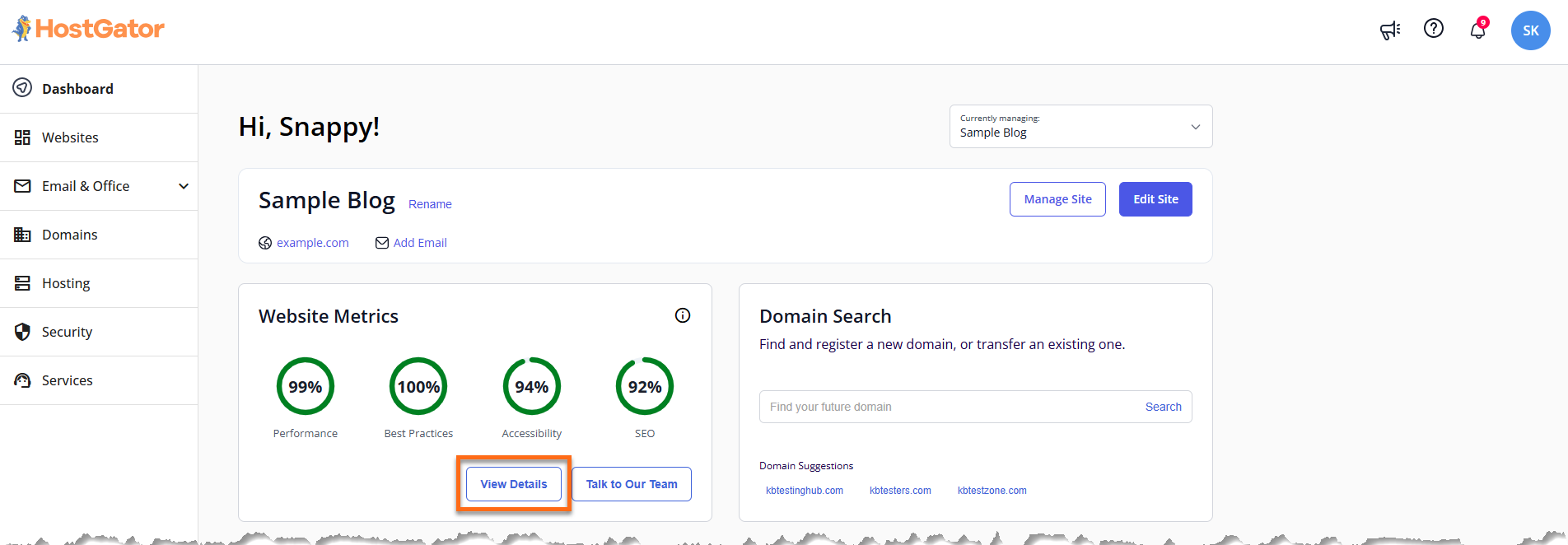
You'll be redirected to the selected website's Insights tab, where detailed breakdowns and deeper analysis of your website's performance are available.
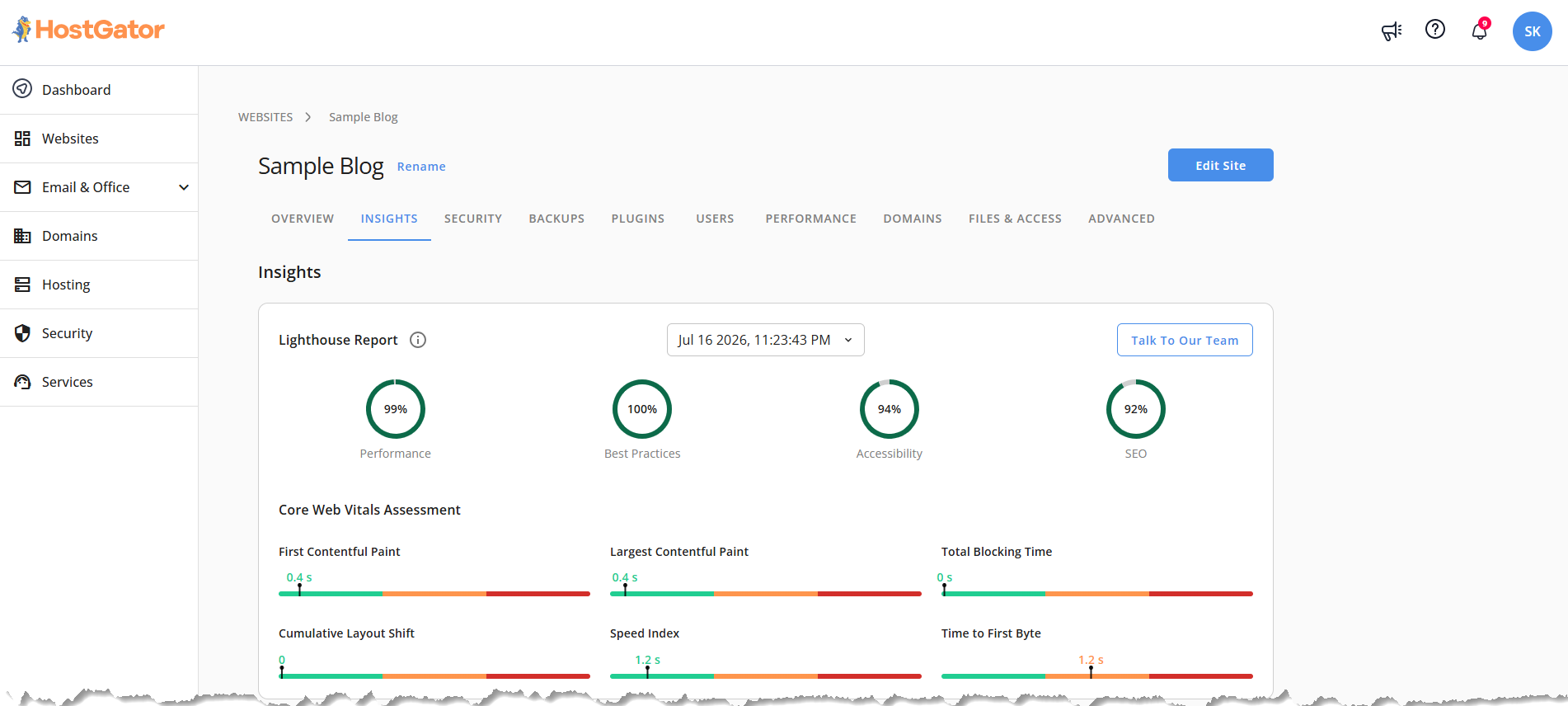
Based on your website's current metrics, additional action buttons may be displayed alongside the View Details button.
- Improve Site Score: This button appears when any metric score is less than 90%, and the website doesn't have Yoast SEO Premium.
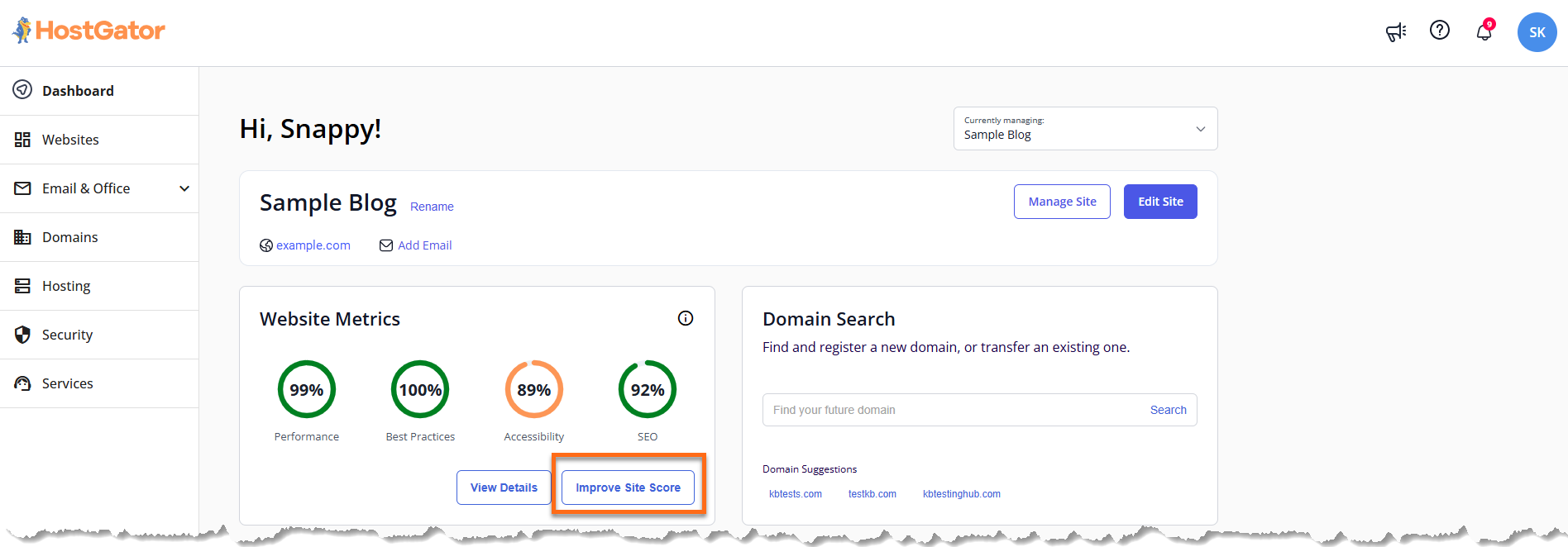
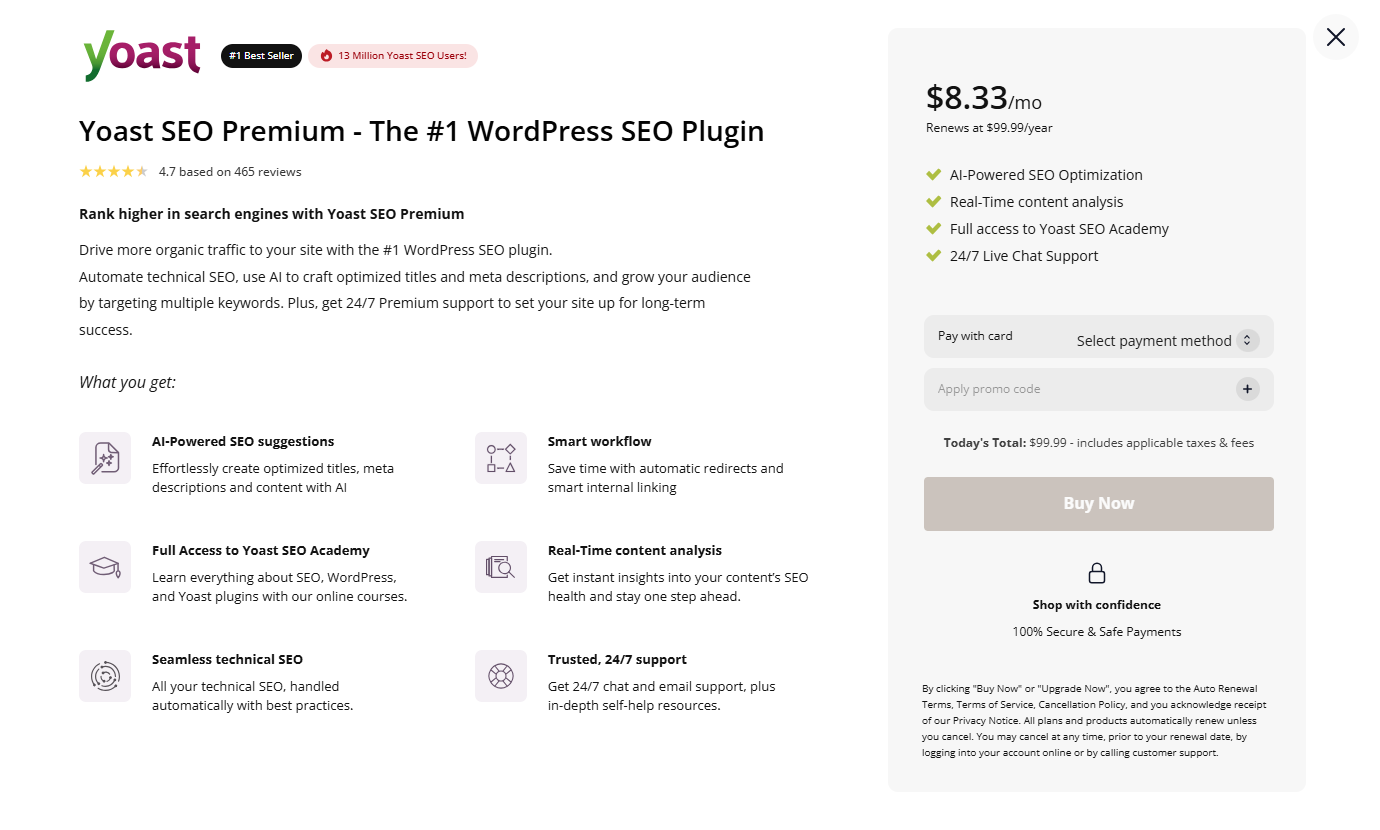
This opens the Yoast SEO Premium pop-up, where you can purchase the service to improve your site's score.
- Talk to Our Team: This button appears when any metric score is less than 90%, and the website already has Yoast SEO Premium.
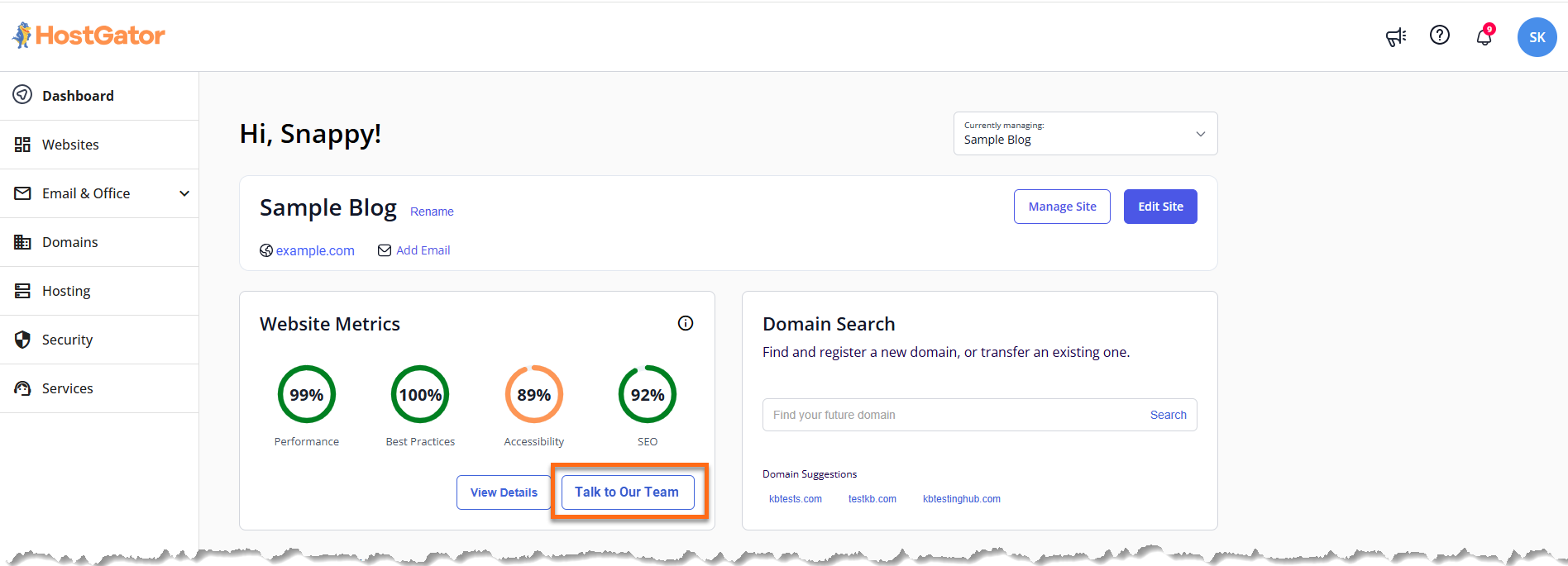
This will open a new tab where you can explore and purchase our Full Service + SEO solution, which provides expert support to help improve your website’s performance, optimization, and overall online visibility.
- Activate Cloudflare: This button appears when Cloudflare is currently inactive for the selected website.
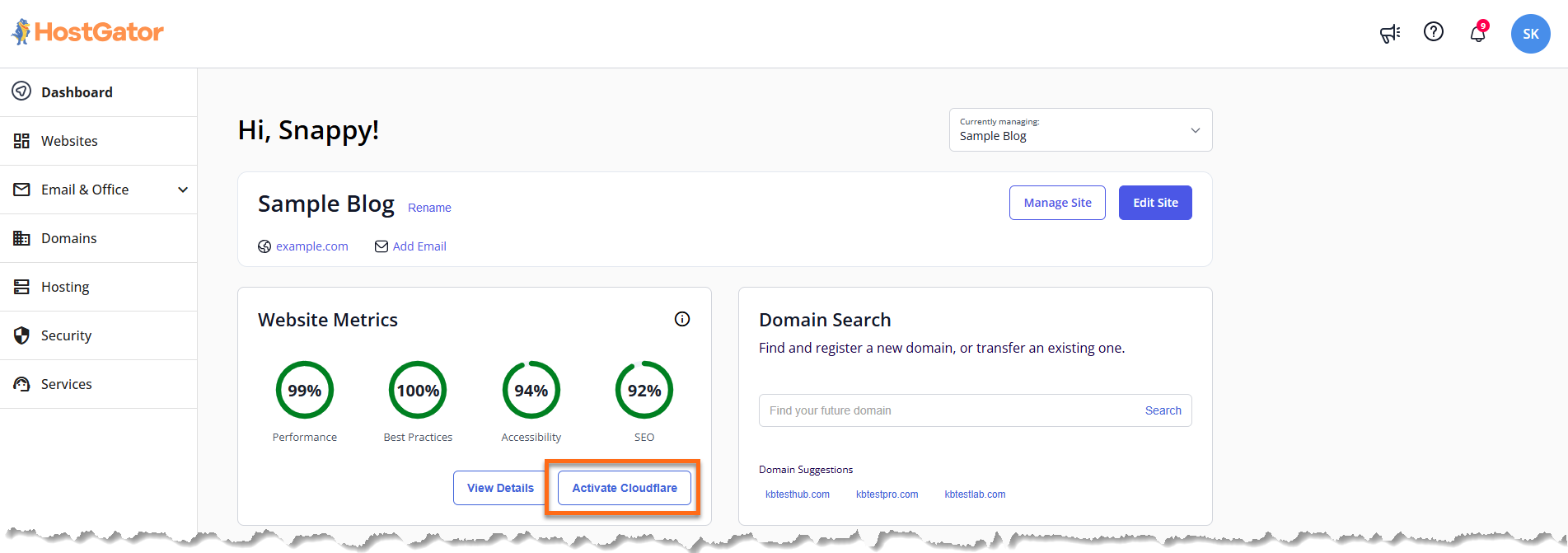
This allows you to activate Cloudflare, which can improve the performance, security, and loading speed of your website.
Domain Search
The Domain Search section makes it easy to find and secure the perfect domain name for your website. With AI-powered domain recommendations available instantly, you can explore and select suggested web addresses with just a click—no typing required.
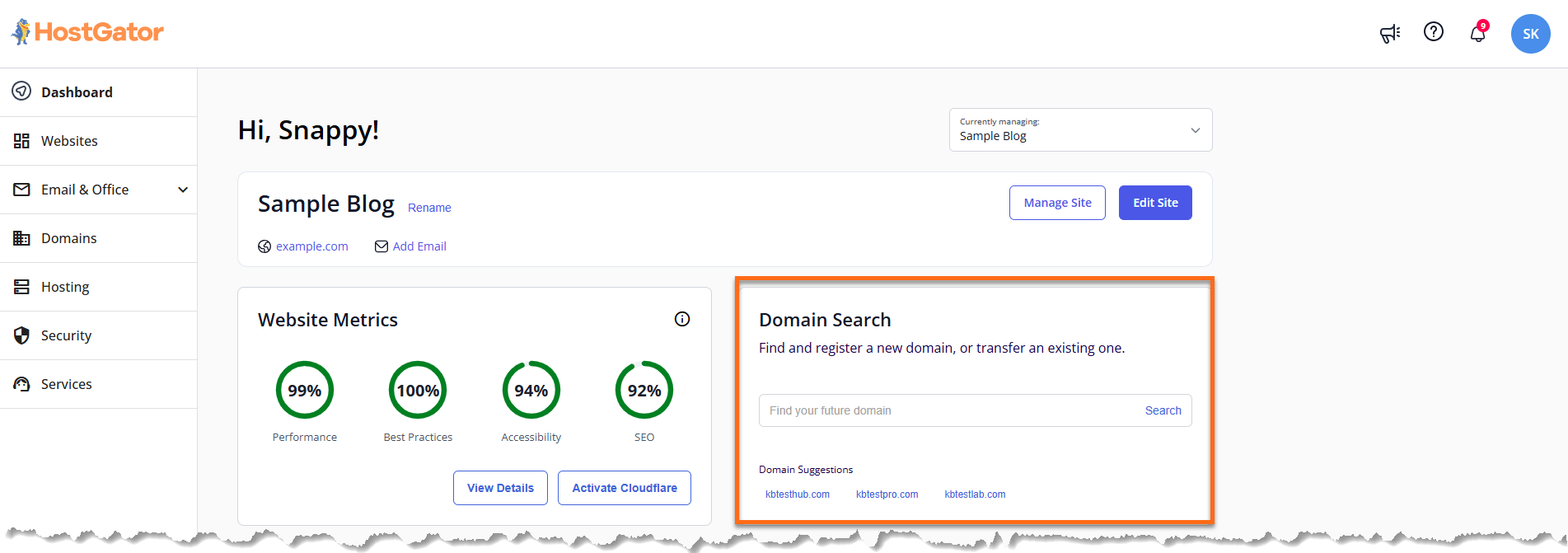
How it works:
- AI-generated domain suggestions are displayed right on the dashboard—no typing needed.
- Click any suggested domain to view its availability and pricing. The Domain Search Results page opens for details and registration.
- If a domain is available, you can secure it instantly for your site.
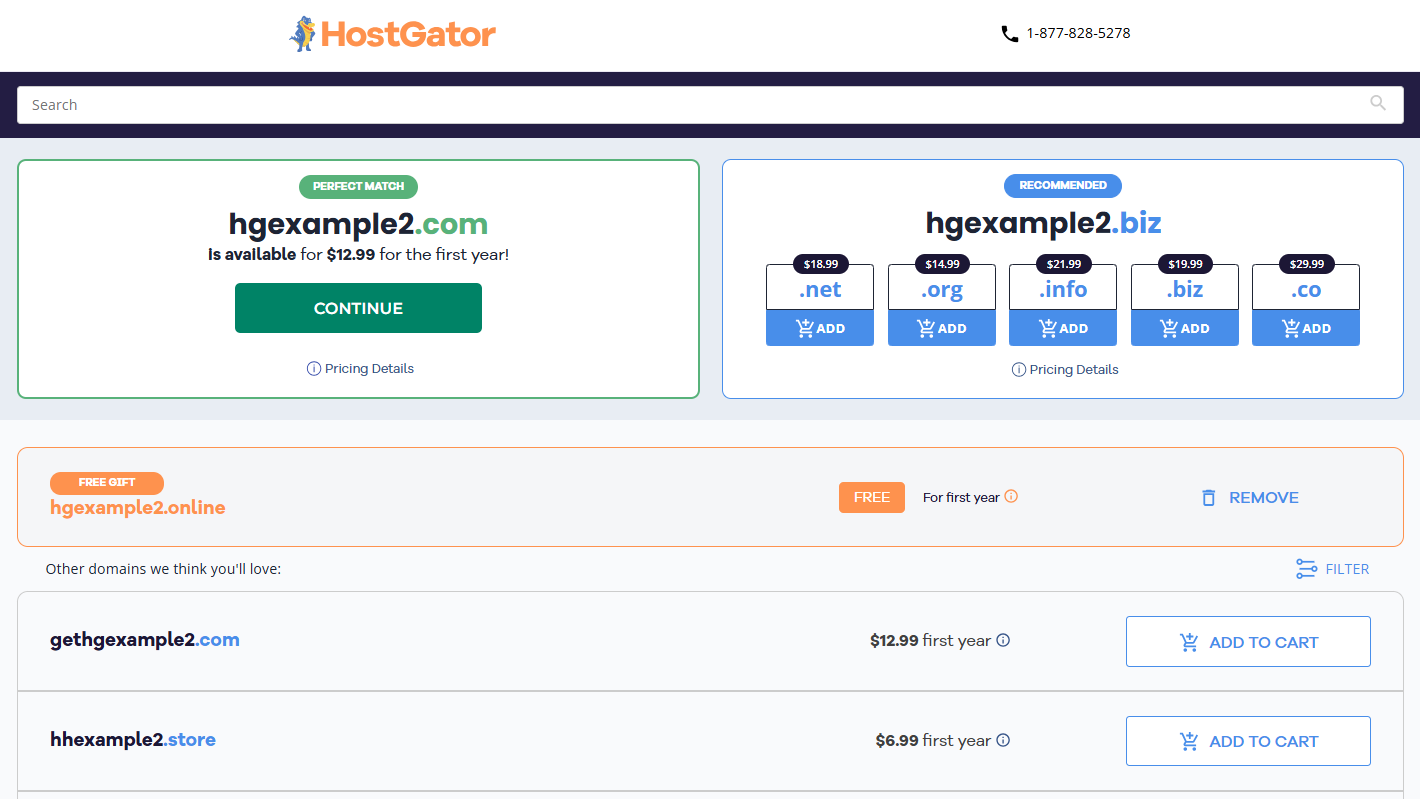
This makes it quick and easy to find and register the right domain for your website, business, or project.
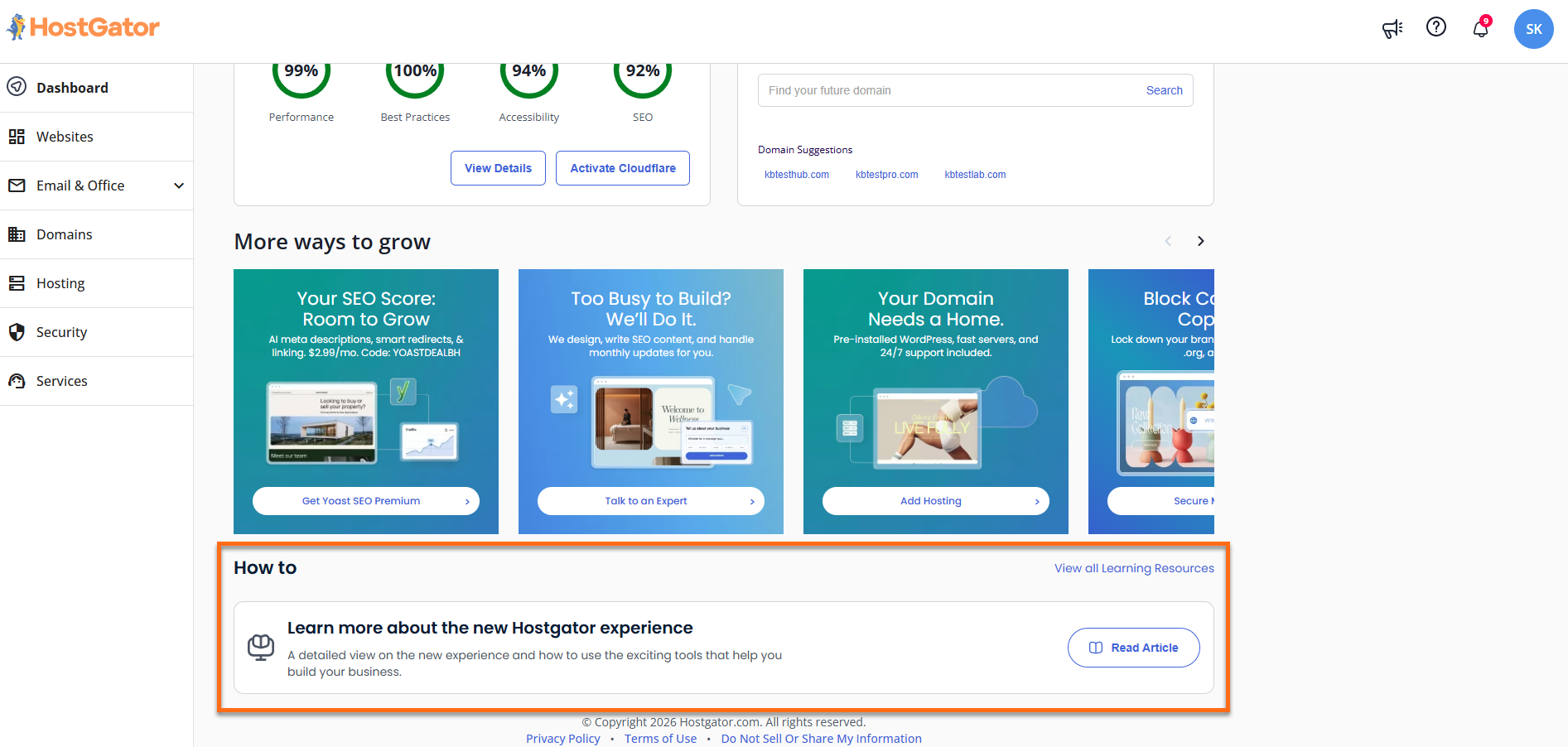
More Ways to Grow
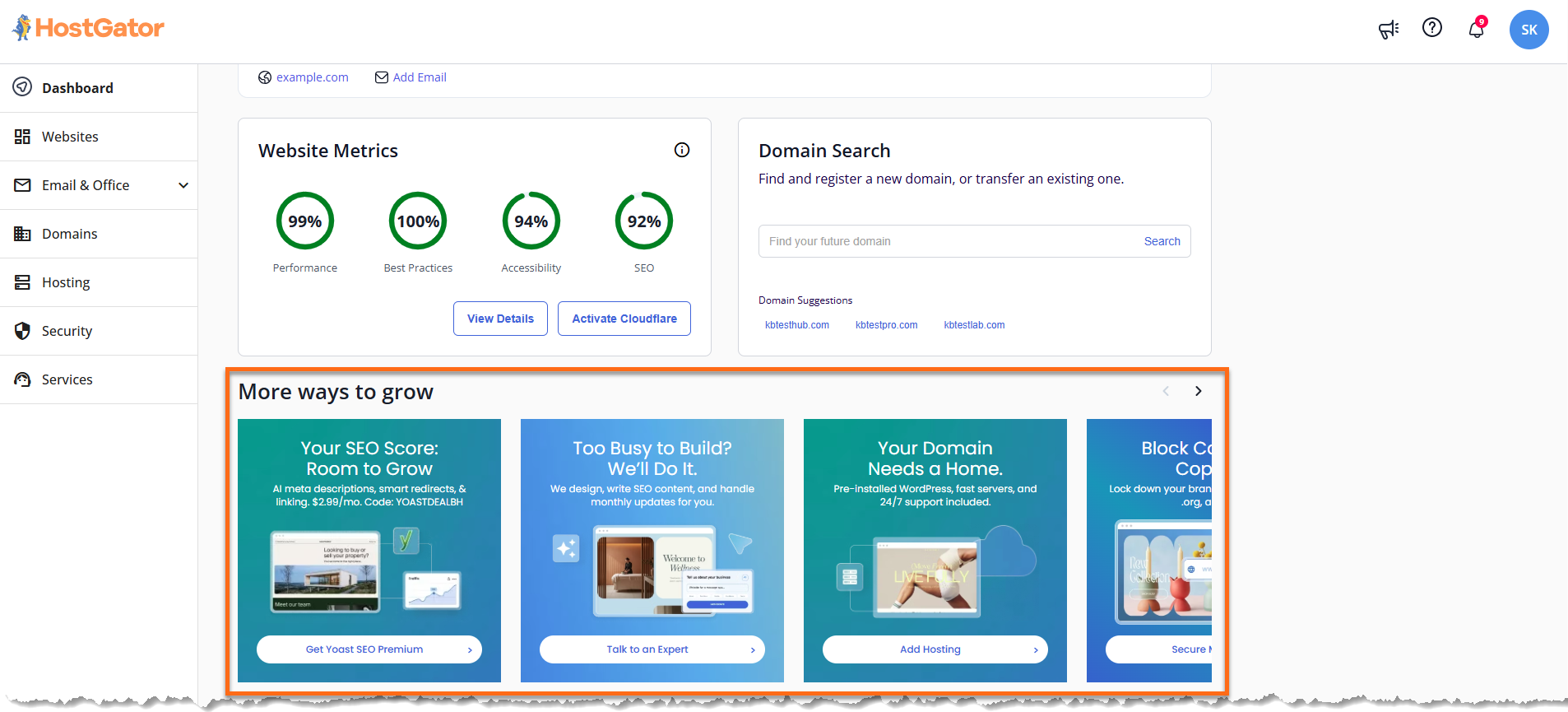
HostGator provides a range of tools and services designed to help expand your online presence.
Each card includes a clear call to action, allowing you to quickly explore and get started with the suggested services.
The "How to" Section
The How to section offers simple, step-by-step resources to help you get started and make the most of your website. It includes helpful videos and articles that cover a variety of topics, such as setup, navigation, and basic site management. Everything is organized in a clear and easy-to-follow format, making it ideal for beginners or anyone looking for a quick refresher. You can explore the resources at your own pace and easily find the information you need.