How to Set Up a Remote MySQL Database
A remote MySQL database enables access and management from external servers or applications, benefiting business owners, developers, and teams that need remote access. This guide provides step-by-step instructions for configuring a remote MySQL database via your Customer Portal, ensuring a quick, secure setup for various use cases.
- How to allow your computer to act as an access host ⤵
- Access Remote MySQL Database ⤵
- Remove or edit a Remote Access Host ⤵
How to allow your computer to act as an access host
All IP addresses are blocked by default and must be added to an approved list before accessing the server. This means that before connecting to MySQL from another computer, you need to authorize that computer as an Access Host. If your Internet Service Provider (ISP) assigns you a dynamic IP address, your IP may change periodically. To maintain access, you will need to update the allowed IP address in the Remote MySQL settings whenever it changes.
Many of our servers block inbound connections on port 3306. If you receive a Connection Refused error while trying to connect, please contact us via phone or chat and request that port 3306 be opened for your IP address to enable remote MySQL access.
Access Remote MySQL Database
You must add the connecting computer as an Access Host to allow a remote MySQL connection. Here are the steps below:
- Log in to your Customer Portal.
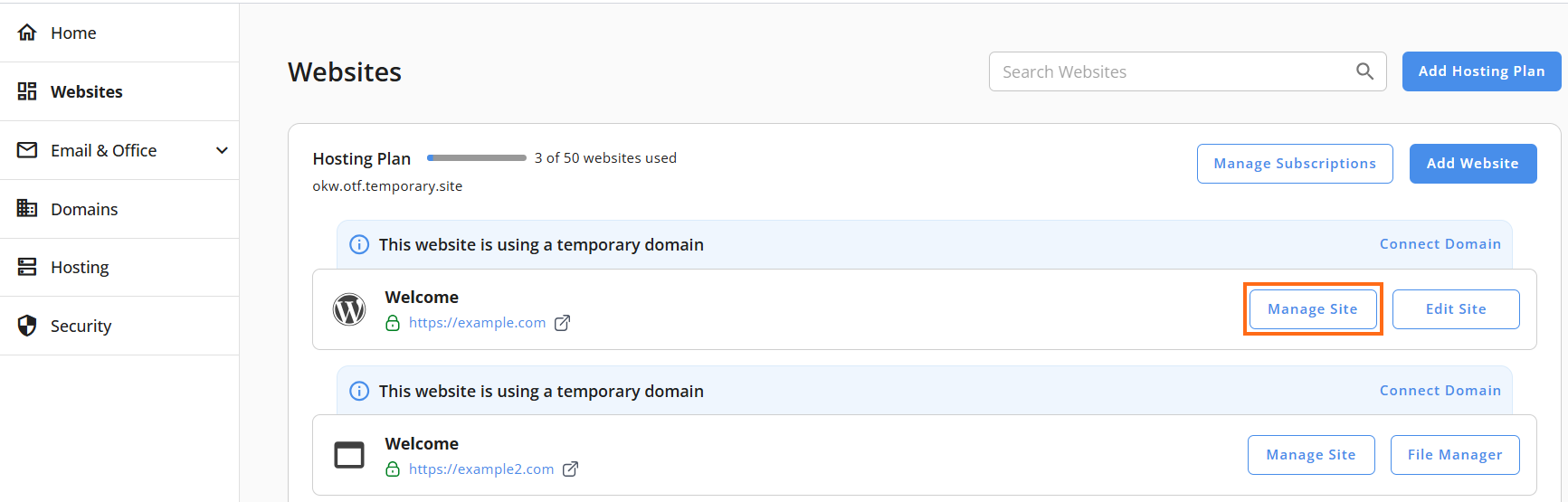
- Go to Websites from the left navigation menu.
- Click Manage Site next to the website you want to manage.
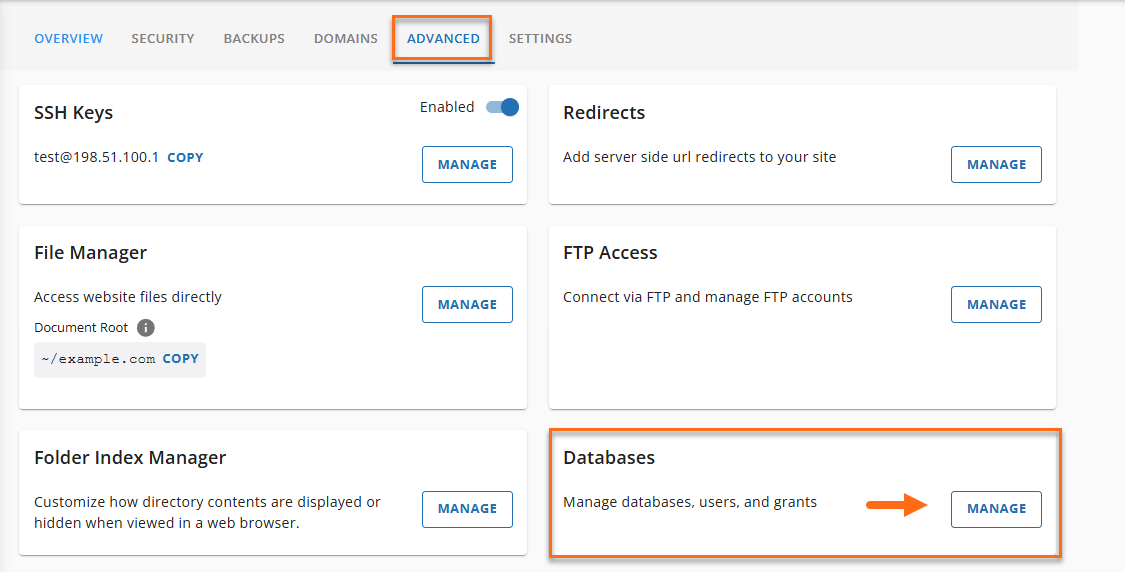
- Click the ADVANCED tab in the top menu, then select MANAGE under the Databases tile.
- In the Database Management page, navigate to the REMOTE tab and click on it.
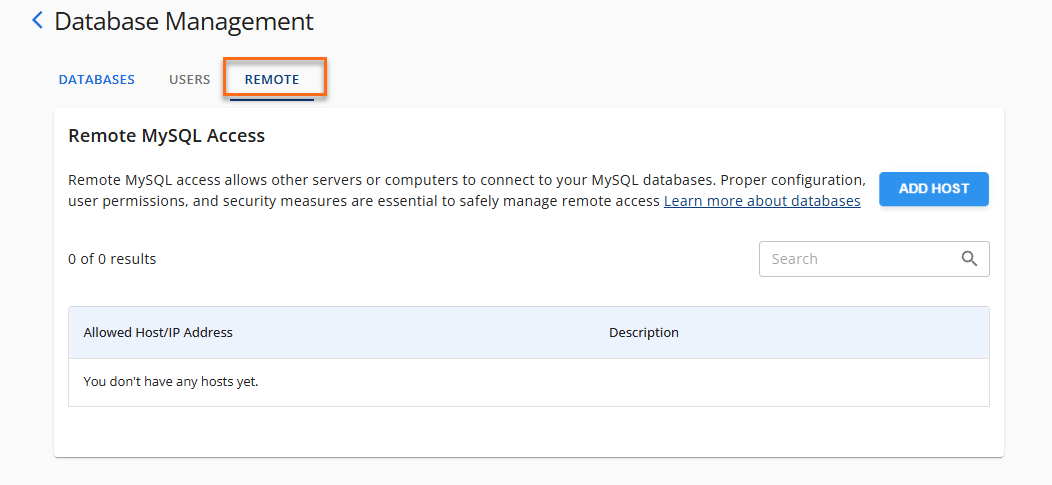
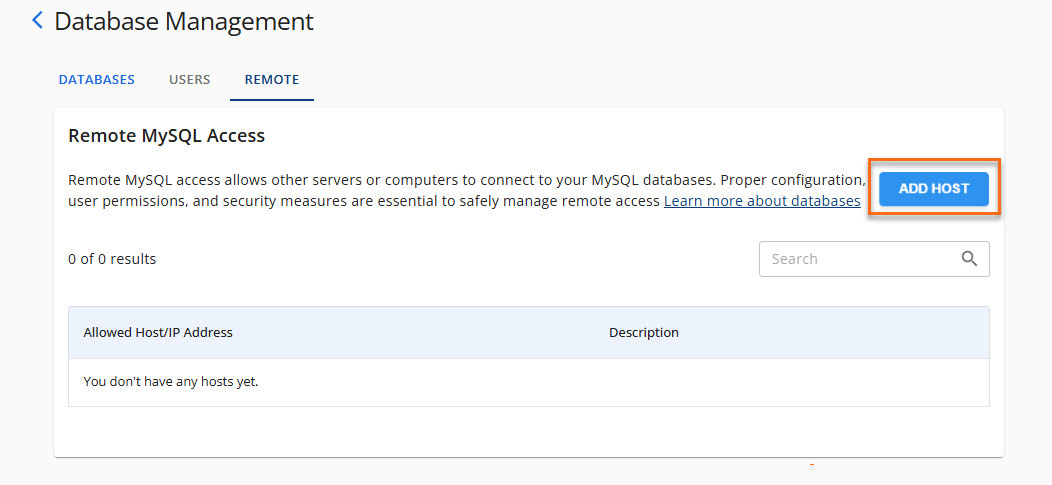
- In the Remote MySQL Access section, select ADD HOST to proceed.
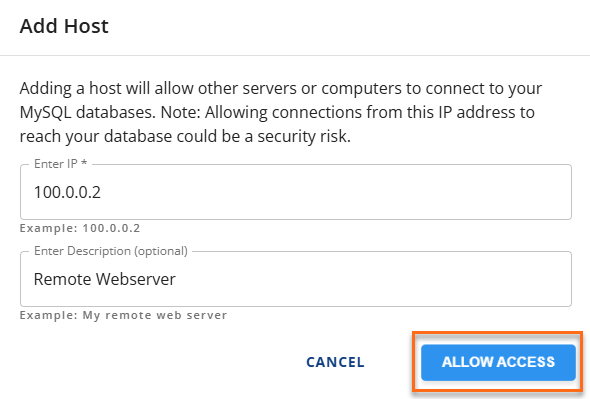
- Enter the connecting IP address in the Enter IP field. You can add an optional description, then click ALLOW ACCESS to grant permission.
 Note: A dynamic IP address means the IP address used to connect may change periodically, depending on your Internet Service Provider (ISP). Be sure to update the connecting IP in Remote MySQL each time it changes.
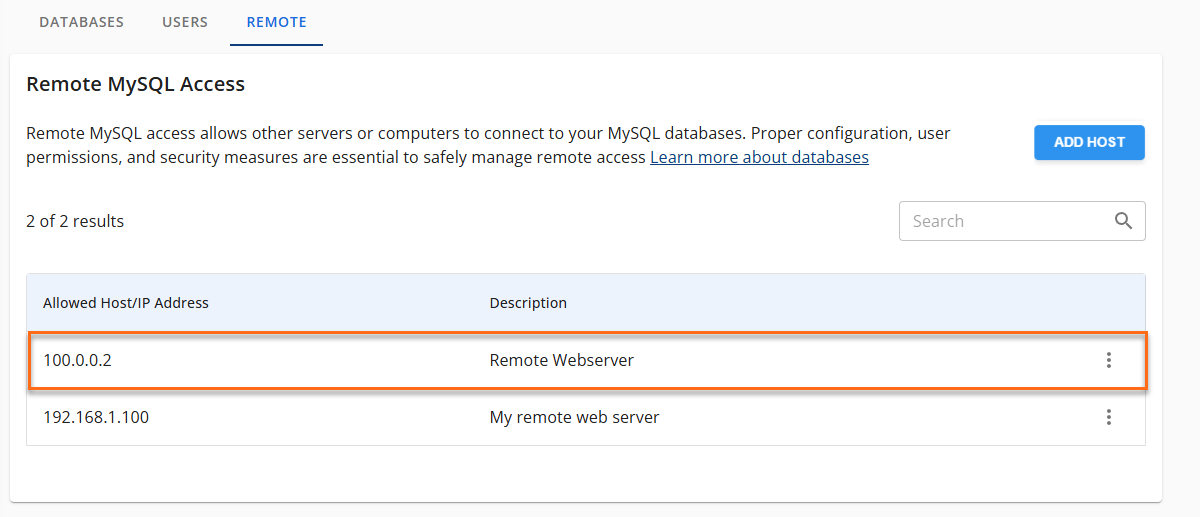
 - You should now be able to connect to your database remotely. Below is an example to guide you:
Remove or edit a Remote Access Host
To remove or edit a host's access to databases on your server in the Customer Portal, follow these steps:
To Edit Allowed Host/IP Address:
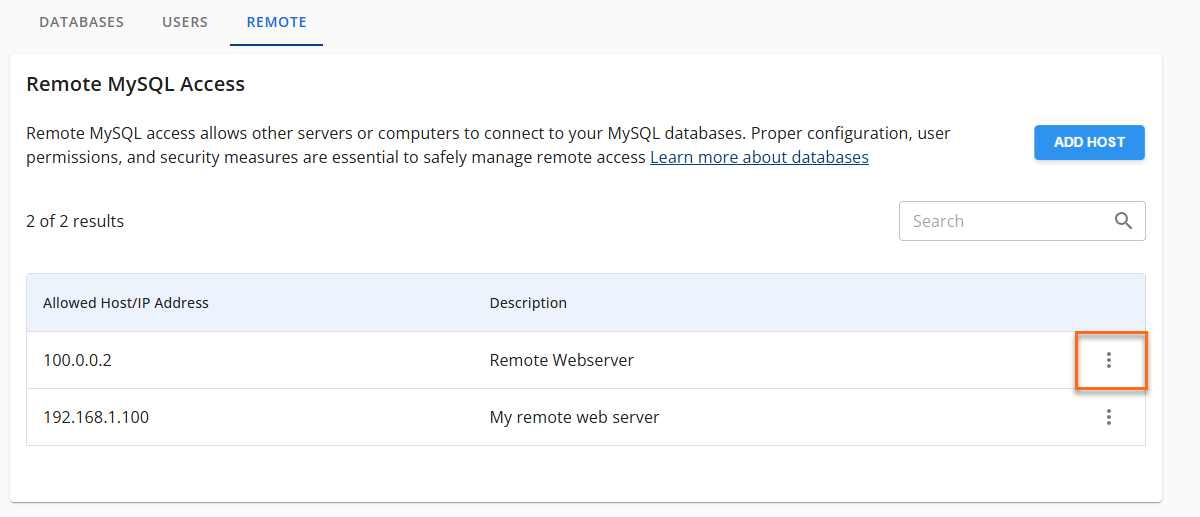
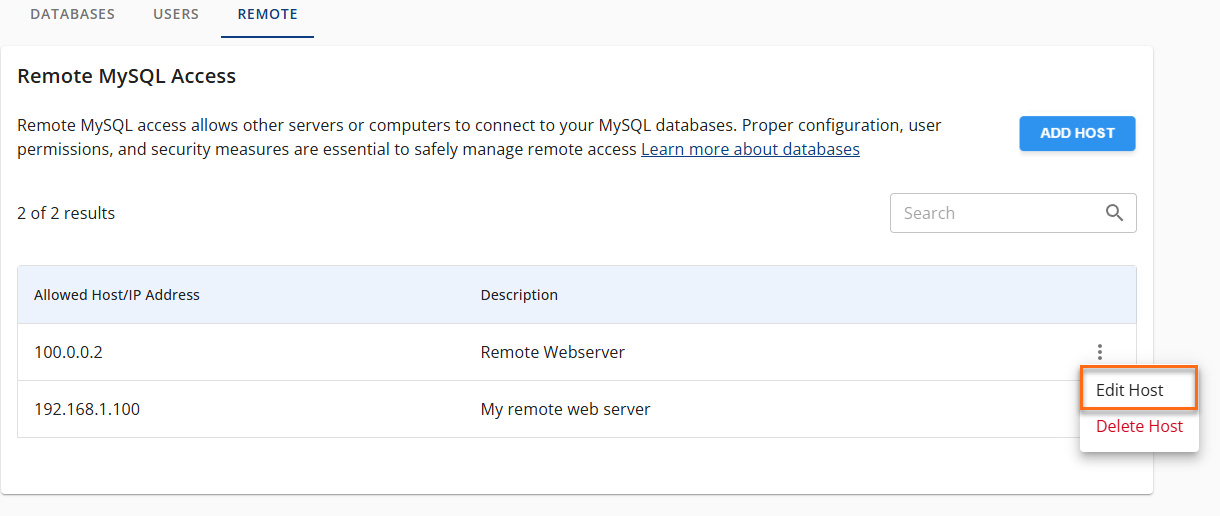
- To make edits, find the Host/IP address you wish to modify and click the ellipsis icon.
- Select Edit Host.
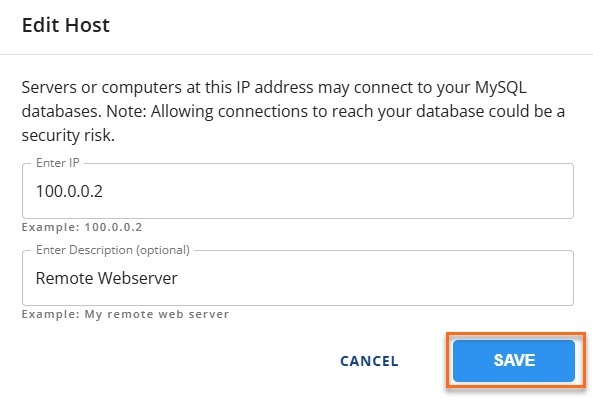
- After making your changes, click SAVE to apply them.
To Remove Allowed Host/IP Address:
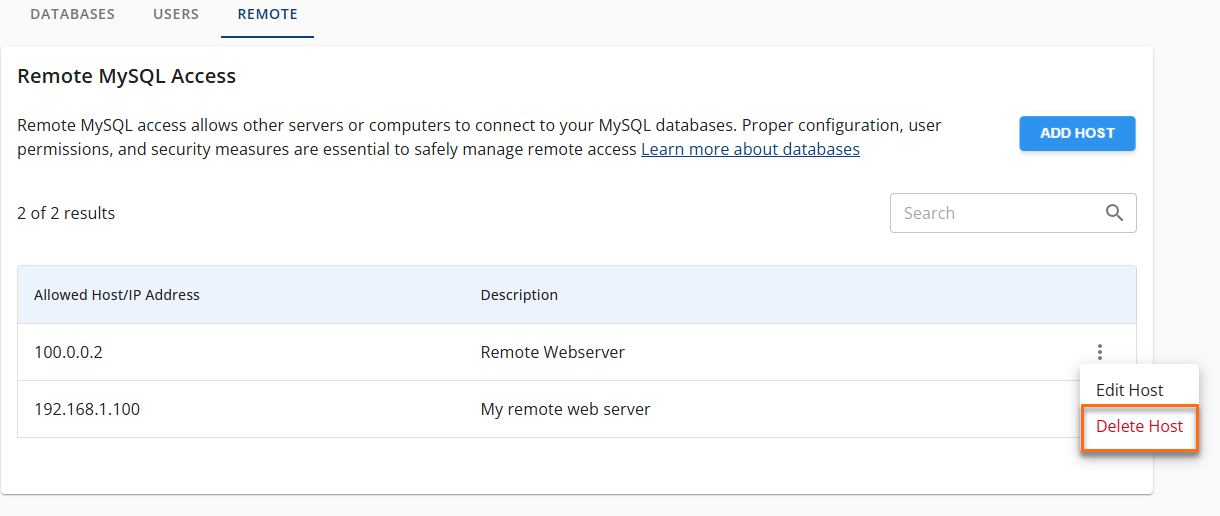
- To remove a host, find the Host/IP address you wish to delete and click the ellipsis icon next to it.
- Select Delete Host.
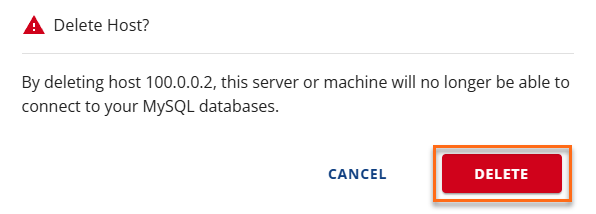
- Click the DELETE button to confirm.